This is the full developer documentation for Unipaas Docs # Overview > Accept online payments on any device, whatever your business model ## With Unipaas Accept Payments you can [Section titled “With Unipaas Accept Payments you can”](#with-unipaas-accept-payments-you-can) * Accept online payments from all over the world. * Choose the preferred payment methods to accept payment in each country. * Store card information for later use. * Accept bank transfers, corporate cards, and recurring payments. * Include an invoice with the generated checkout. * Add a due date and a reminder to your checkout. * Allow buyer to share checkout link with others. * Get fraud protection with every transaction. Note If you send a transaction without any vendor ID - the transaction will be entered to the platform account and will be listed as a platform transaction ## Available Payment Methods [Section titled “Available Payment Methods”](#available-payment-methods) **Credit Cards** We offer support for all major Credit Cards - Visa, Mastercard and AMEX, including strong customer authentication (SCA). **Pay By Bank** As open banking is gaining greater traction in checkouts for both B2B and B2C businesses, we are expanding our offering of checkout options.\ Pay by bank allows buyers to pay directly from their bank accounts, in a quick and easy experience. This payment method is mostly beneficial for businesses, which are looking to eliminate manual work around bank transfers, and transfer funds instantly. **Direct Debit** Direct Debit is a widely-used payment method in the UK that allows authorized vendors to collect funds directly from their customers’ bank accounts. It is commonly used for recurring payments such as bills, subscriptions, memberships, and more. However, it can also be used for one-off or ongoing ad hoc payments. This payment method provides great value in automation, increased control and certainty for vendors when getting paid. **Alternative Payment Methods** We are always adding additional payment methods to our checkout. From Apple Pay, Klarna, and PayPal, to any other local payment method you may need. # Additional webhooks > The following are additional webhooks that will provide notifications around authorizations, The following are additional webhooks that will provide notifications around authorizations, ## authorization/update webhook [Section titled “authorization/update webhook”](#authorizationupdate-webhook) On every new Authorization or Authorization status change, you will receive a webhook notification to your server. The body will include the **AuthorizationResult** object: | Parameter | Always Available | Type | Description | | --------------------- | ---------------- | ------ | --------------------------------------------------------------------------------------------------------------------------------------------------------------------------------------------------------------------------------------------------------------------------------------------------------------------------------------------------------------------------------------- | | `authorizationId` | Yes | String | Unique ID of the Object | | `authorizationStatus` | Yes | Enum | The status of the Authorization. See below detailed information | | `currency` | Yes | String | The Currency of the payment | | `amount` | Yes | Number | The Amount of the payment | | `orderid` | Yes | String | Unique ID from the merchant system | | `items` | Yes | Object | The items of the order per item per vendor | | `transactionId` | Yes | String | The transaction ID of the specific payment operation | | `paymentMethod` | Yes | String | The method of the payment (creditCard, bankTransfer, directDebit, e.t.c) | | `checkoutId` | Yes | String | Unique ID of the checkout that has been paid | | `checkoutStatus` | Yes | String | Current status of the Checkout | | `vendorId` | Yes | String | Unique ID of the vendor | | `paymentOption` | Yes | Object | Payment Option object that could represent card payment:\\```plaintext { cardAccount: { brand: "VISA" bin: "476134" last4Digits: "1390", issuerCountry: "GB" } } ```or bank transfer payment:\\```plaintext { bankAccount: { brand: "Mock Bank" } } ``` | | `planId` | No | String | Unique ID of the recurring payment plan | | `subscriptionId` | No | String | Unique ID of the recurring subscription | | `declinedReason` | No | String | The reason why payment has been declined | | `description` | No | String | Description of payment In most cases value is taken from checkout creation | | `metadata` | No | Object | The custom data that was used during checkout creation (this field can be used to pass some internal data through payment process) | | `consumerEmail` | No | String | The email of buyer that made a payment | | `consumerId` | No | String | Unique ID of the buyer | | `reference` | Yes | String | Unique ID from the merchant system | ## payout/update webhook [Section titled “payout/update webhook”](#payoutupdate-webhook) Payout notifications notify you of every newly created payout and any change in the status of a payout. The webhook notification gets sent to your server. The body will include the **PayoutResult** object: | Parameter | Always Available | Type | Description | | :------------------ | :--------------- | :----- | :---------- | | `payoutId` | yes | string | | | `status` | yes | Enum | | | `amount` | yes | number | | | `currency` | yes | string | | | `createdDate` | yes | date | | | `updatedDate` | yes | date | | | `targetReferenceId` | no | string | | | reconciled | yes | string | | ## ewallet/create webhook [Section titled “ewallet/create webhook”](#ewalletcreate-webhook) Account notifications are created to notify you when your vendor receives money for the first time - creating an automatic account in the accepted currency. Each time an account balance is created or disabled, you’ll get a webhook notification to your server, indicating its current status. The body will include the following object: | Parameter | Always Available | Type | Description | | ------------ | ---------------- | ------ | -------------------------------------------------------------------------------------------------- | | `eWalletId` | yes | string | Account unique identifier | | `vendorId` | no | string | The unique ID of the vendor’s Account. If the Account belongs to the platform, it will return null | | `platformId` | yes | string | Unique ID of the platform | | `currency` | yes | enum | USD, GBP, EUR | | `status` | yes | string | Ewallet Status (“created”) | # Buyer UI: Embedded Chat Assistant # GPayT - Embedded Chat Assistant [Section titled “GPayT - Embedded Chat Assistant”](#gpayt---embedded-chat-assistant) ## Introduction [Section titled “Introduction”](#introduction) The GPT Chat Assistant is a conversational AI widget powered by GPT that you can embed into your platform. It provides users with a friendly chat interface to ask questions, get guided assistance, or even complete actions (like making a booking) through natural language conversation. This assistant helps improve user engagement and streamline complex workflows (such as booking a service) by turning them into an interactive chat experience. Since it’s part of the Unipaas UI components library, it’s easy to integrate and fully white-labeled to match your platform’s look and feel. ## Loading the Chat Assistant [Section titled “Loading the Chat Assistant”](#loading-the-chat-assistant) To get started, ensure you have included the Unipaas components library in your web page. Then you can create the chat assistant component using the components.create() method. For the Chat Assistant, use the component name “chatWidget”: * JavaScript ```javascript // Create a GPT Chat Assistant instance with optional configuration const chatWidget = components.create("chatWidget", {/* config options */}); ``` This creates a chatWidget instance that you can configure and control. You can pass a configuration object (as shown above with {/ *config options*/}) to customize the widget’s content and behavior (see Configuration Options below). If no config is provided, the chat will use default settings (a generic title, no custom logo, etc.). ### Configuration Options [Section titled “Configuration Options”](#configuration-options) When creating the Chat Assistant via components.create(“chatWidget”, config), you can supply a config object to tailor its appearance and behavior. The following options are available: * **title** (string): The title displayed at the top of the chat widget.\ Example: “Help Center Assistant” would show “Help Center Assistant” as the chat header text. If not provided, a default title (e.g. “Chat Assistant”) is used. * **description** (string): A subtitle or greeting displayed below the title.\ Example: “Ask me anything about our services or bookings” can be shown as a brief description or welcome message to guide the user. This field is optional; if not set, no subtitle is shown. * **logoUrl** (string): URL of an image to use as the assistant’s logo or avatar in the chat header.\ Example: “[https://yourcdn.com/img/chat-logo.png”](https://yourcdn.com/img/chat-logo.png%22) can be your company or product logo to brand the chat widget. If not provided, a default icon or no logo will appear. * **theme** (string or object): Customize the chat widget’s theme. This can be a string like “light” or “dark” for preset themes, or an object defining specific style properties (such as colors or fonts) to match your platform’s branding.\ Example: “dark” might enable a dark mode UI for the chat. By default, the assistant uses the Unipaas standard theme if this is not set. * **contextData** (object): An optional data object providing context to the GPT assistant. Use this to pass in any relevant information or initial context the assistant might need every time it starts.\ Example: You might include { name: “Alice”, memberType: “Gold” } so the assistant can personalize responses (e.g., “Hello Alice, how can I assist you today?”). The exact structure can be designed based on what your GPT backend expects for context. * **onMessage** (function): Callback function that triggers whenever a message is sent or received in the chat. This allows your platform to intercept or monitor conversations. The function receives the message object, so you can implement custom logic (such as logging, analytics, or modifying the message). - JavaScript ```javascript onMessage: (message) => { console.log("Chat message event:", message); // You could filter certain queries or trigger other UI actions based on the message content } ``` * **onBookingComplete** (function): Callback function that triggers when the chat assistant completes a booking flow. If your GPT assistant is designed to help users make a booking (for example, reserving a bus seat or scheduling an appointment), this function will be called at the end of that process. The function receives the booking details or confirmation data - JavaScript ```javascript onBookingComplete: (bookingData) => { // bookingData might include an ID or summary of the completed booking console.log("Booking completed!", bookingData); alert("🎉 Your booking is confirmed! Reference: " + bookingData.reference); // You could also redirect the user or update the UI with the booking info here } ``` All configuration options are optional, but using them helps provide a better user experience and tighter integration with your platform. For instance, setting a custom title and logo brands the experience, and using the callbacks lets your application respond to user interactions in the chat. ## Mounting the Chat Assistant [Section titled “Mounting the Chat Assistant”](#mounting-the-chat-assistant) After creating the chatWidget instance, you need to mount it onto a container in your web page so that it becomes visible to users. First, add a container element in your HTML where the chat widget should render. This is typically a `
` that you’ve reserved for the chat, for example in the bottom-right corner of your page or wherever you want the chat icon/panel to appear: * HTML ```html
``` Choose an appropriate ID (here we use “chat-assistant”). Next, call the mount() method on your chatWidget instance, and pass the CSS selector or element reference for the container: * JavaScript ```javascript // Mount the chat widget into the container with ID "chat-assistant" chatWidget.mount("#chat-assistant"); ``` This will inject the Chat Assistant UI into the `
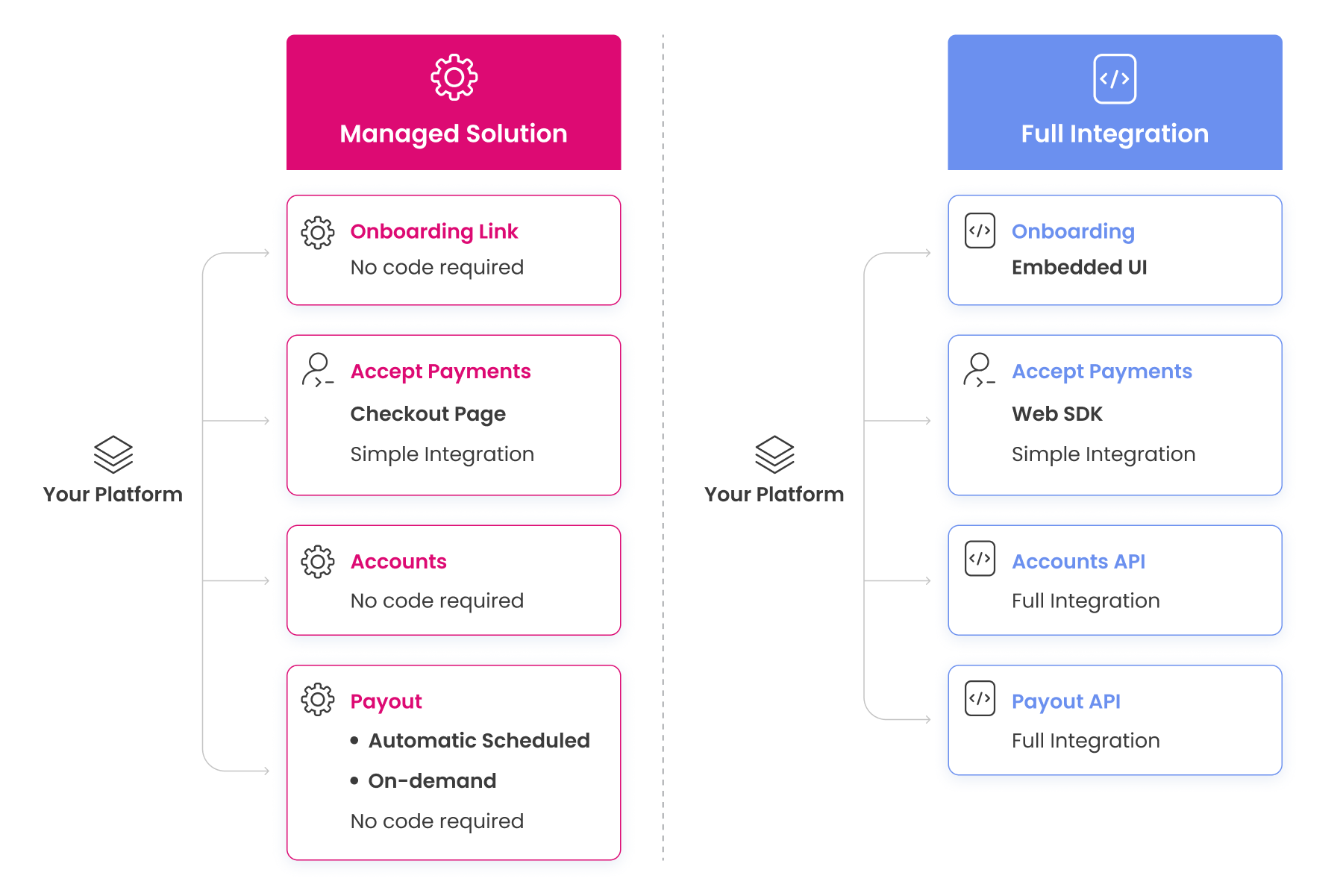
` you created. Typically, the widget may initially display as a small chat bubble or icon. Ensure the container has enough space or positioning (for example, you might set a fixed position and size for the container in your CSS if needed). Once mounted, the chat interface (either an icon or a chat window) is ready for user interaction. ## Opening the Chat Programmatically [Section titled “Opening the Chat Programmatically”](#opening-the-chat-programmatically) By default, the Chat Assistant might appear as a minimized widget (like a chat bubble or button) on your page after mounting. Users can click it to open the full chat window. However, you can also open (or close) the chat programmatically via the widget instance methods:\ • chatWidget.open(): Opens or expands the chat window, as if the user clicked the chat icon. This brings the conversation interface into view.\ • chatWidget.close(): Closes or minimizes the chat window, returning it to the initial icon state. These methods are useful if you want to control the chat flow via code. For example, you might automatically open the chat to greet the user or direct them through a process, or close it at certain times. Example – Opening the chat: * JavaScript ```javascript // After mounting the widget, open the chat interface immediately chatWidget.mount("#chat-assistant"); chatWidget.open(); // programmatically open the chat window ``` In this snippet, the chat widget will appear and then automatically pop open (without the user having to click anything). You could call chatWidget.open() based on specific user actions or page events (like if the user has been idle, or if an error occurs and you want to proactively offer help). Similarly, use chatWidget.close() if you need to hide the chat via script (though users can always close it themselves using the UI’s close button). ## Example Usage Scenarios [Section titled “Example Usage Scenarios”](#example-usage-scenarios) To tie everything together, here are a few common use cases (inspired by a Vectare bus services integration) demonstrating how you might use the GPT Chat Assistant in practice: 1. Open Automatically on Page Load You may want the assistant to greet users as soon as they land on a page (for example, the booking page) to offer help. To do this, create and mount the widget, then call the open() method right away: * JavaScript ```javascript const chatWidget = components.create("chatWidget", { title: "Bus Booking Assistant", description: "Hi! I can help you book your bus tickets.", // ...other config like logoUrl, theme, etc. onBookingComplete: (data) => { console.log("Booking done via chat:", data); alert("Your bus booking is confirmed! 🎉"); } }); chatWidget.mount("#chat-assistant"); chatWidget.open(); // Open chat immediately to greet the user ``` In this example, as soon as the page loads, the chat window pops up with a custom title and greeting. The onBookingComplete callback is set to alert the user when their booking is confirmed (this assumes the AI can guide the booking process and then provide confirmation data to the callback). 2. Open on a Button Click If you prefer to let the user decide when to chat, you can keep the widget minimized and only open it when a specific button or link on your page is clicked. For instance, you might have a “Chat with us” button in your help section: * HTML ```html
``` Attach an event listener to your button that calls chatWidget.open(): * JavaScript ```javascript const chatWidget = components.create("chatWidget", { /* config as needed */ }); chatWidget.mount("#chat-assistant"); document.getElementById("help-btn").addEventListener("click", () => { chatWidget.open(); }); ``` Now, the chat will only expand when the user clicks the Chat with our Assistant button. This gives users the choice to invoke the assistant when they need it. The widget can still display an icon or indicator (from the mount) so users know a chat is available. 3. Handling Booking Completion in Chat One powerful feature of a GPT-powered assistant is guiding users through transactions like bookings. Suppose the assistant helps a user book a service (e.g., reserving a bus seat). You would use the onBookingComplete callback to react to that event in your webpage. We showed an example of setting this callback above; here’s a bit more detail: * JavaScript ```javascript const chatWidget = components.create("chatWidget", { // ... other config (title, description, etc.) onBookingComplete: (bookingInfo) => { // e.g., bookingInfo might contain { reference: "ABC123", details: { ... } } console.log("Chat assistant completed a booking:", bookingInfo); // Update the UI or navigate as needed: // For example, show a confirmation section or redirect to a confirmation page showConfirmationBanner(bookingInfo.reference); } }); chatWidget.mount("#chat-assistant"); ``` In this snippet, whenever the chat assistant finalizes a booking, our callback logs the info and calls a hypothetical showConfirmationBanner function with the booking reference. In a real app, you might use this to display a nice confirmation message on the page or even redirect the user to a dedicated confirmation screen with booking details. The key is that your platform is immediately informed of the booking event and can respond accordingly (e.g., update state, inform other parts of the app, etc.). # All-in-One Flexible Solution > Our flexible solution enables you to choose from multiple integration options for each one of our products. From an out-of-the-box solution on our portal... Our flexible solution enables you to choose from multiple integration options for each one of our products. From an **out-of-the-box** solution on our portal (available to you once you open an account) to a **hosted** or **embedded** solution, all the way to our **API** . All solutions support PSD2 regulations and allow for 3D 1 and 2 transaction protocols. Our non-API solutions are also fully compliant with PCI security requirements. In this guide, you’ll find a collection of our products that fit specific use cases. ![1800](/images/cb98421-Flexible_Solution.png "Flexible Solution.png") ## Managed solution for platforms [Section titled “Managed solution for platforms”](#managed-solution-for-platforms) **Platform managed solution - light-speed integration, minimum ongoing management**.\ Our managed solution is integrated at light-speed and uses out-of-the-box products that provide full functionality and the ability to preserve your brand identity. It’s highly suitable for businesses with limited resources and a busy road map. Some of the products in this suite, like the checkout page, are fully customisable to fit your brand. ## Advanced flexible solution for platforms [Section titled “Advanced flexible solution for platforms”](#advanced-flexible-solution-for-platforms) Our advanced platform solution is fully flexible and customisable. It’s a simple and easy-to-use API that gives you the most flexibility while keeping you protected from a security and compliance point of view. If your business model and strategy require you to have a fully customisable and white-labelled payments experience, this solution is for you.\\ ## Integration effort overview [Section titled “Integration effort overview”](#integration-effort-overview) The following table will help you choose the integration type that suits your business model and development capacity, for each of our products. Please note: Different integration options have different PCI requirements. | Product | No code | Low effort | Mid effort | | ------------------ | ------------------------------------------------------------ | ----------------------------- | -------------- | | Onboarding | Hosted onboarding link | Embedded UI | Onboarding API | | Accept payments | Payment link | Checkout page Web SDK | Payin API | | Account management | Portal view | Account component | Account API | | Payout | Manual payout on demand via portalScheduled Automatic payout | Payout form Account component | Payouts API | ## Vendor Onboarding [Section titled “Vendor Onboarding”](#vendor-onboarding) You can use our onboarding component to onboard vendors and get them to accept payments in just a few minutes.\\\ \ **We provide 3 options for onboarding integration:** Hosted Onboarding Link No code required. [Learn more](/docs/onboarding-link/) Embedded UI Low integration effort required. [Learn more](/docs/onboarding-ui/) Onboarding API Mid integration effort required. [Learn more](/docs/onboarding-api/) ## Accept Payments [Section titled “Accept Payments”](#accept-payments) Unipaas payin API allows you to collect payments using various methods: Credit and debit cards, bank transfers, and a selection of APMs. Credit and debit cards give end-users the option to use personal and corporate credit card brands such as Mastercard, Visa, and Amex. Bank transfers enable both consumers and businesses to pay directly from their bank account by offering a bank transfer option in your checkout. Alternative Payment Methods (APMs) such as Apple Pay, Google Pay, and other local Accounts can be integrated into your checkout to increase conversion rates. **According to your technological capabilities and PCI compliance level, you can integrate with our online payments solution in one of four ways.** Payment Link No code required. [Learn more](/docs/payment-link-1/) Checkout Page Low integration effort required. [Learn more](/docs/checkout-page/) Web SDK Low integration effort required. [Learn more](/docs/web-sdk-old/) PayIn API Mid integration effort required. [Learn more](/docs/api-only-server-to-server/) ## Account management [Section titled “Account management”](#account-management) Managing an account is easy with Unipaas. You can choose an integration that’s right for you, according to your specific needs. If you wish to focus your efforts on payment acceptance capabilities, you can use our portal. If a more comprehensive white labelled solution is necessary, you can use our API and host reports within your current platform or admin panel.\\ Managed No code required. [Learn more](/docs/ewallet-in-unipaas-portal/) Account API Mid integration effort required. [Learn more](/docs/get-merchant-ewallet-1/) ## Pay funds out [Section titled “Pay funds out”](#pay-funds-out) As a modern digital platform, you will need to send payouts to your vendors and suppliers. You can do this once you’ve opened a merchant account in the Unipaas panel. We offer three different solutions for you to choose from:\\ Payout On-demand Via portal. No code required. [Learn more](/docs/payouts-from-unipaas-portal/) Scheduled Payout Automatic via portal. No code required. [Learn more](/docs/payouts-from-unipaas-portal/) Payout API Mid integration effort required. [Learn more](/docs/edit-vendor-payment-option-1/) Go Next[Use Cases](/docs/use-cases/) # API Endpoints > Description: Retrieves the details of a specific mandate for a customer.\ HTTP Method: GET\ Endpoint:... # Get mandate [Section titled “Get mandate”](#get-mandate) **Description**: Retrieves the details of a specific mandate for a customer.\ **HTTP Method**: GET\ **Endpoint**: /platform/vendors/:vendorId/consumers/reference/:consumerReference/mandates\ **Parameters**: * ConsumerReference (required): The Reference of the consumer # Request mandate from customer [Section titled “Request mandate from customer”](#request-mandate-from-customer) **Description**: Initiates the process of requesting a Direct Debit mandate from a customer.\ **HTTP Method**: POST\ **Endpoint**: /platform/vendors/vendorId/mandates\ **Parameters**: * Vendor ID (required): The unique identifier of the vendor * Customer ID (required): The unique identifier of the customer. * Additional parameters for customer information, such as name, email, and address. # Resend mandate request [Section titled “Resend mandate request”](#resend-mandate-request) **Description**: Resends the mandate request to a customer who has not yet responded or approved the mandate.\ **HTTP Method**: POST\ **Endpoint**: /platform/vendors/{{vendor\_id}}/mandates/{{mandate\_id}}/send\ **Parameters**: * Vendor ID (required): The unique identifier of the vendor * Mandate ID (required): The unique identifier of the mandate. # Collect with Direct Debit [Section titled “Collect with Direct Debit”](#collect-with-direct-debit) Note Within the Direct Debit context, “Collect”, “Collection” or “Collecting” refer to a Direct Debit payment (authorization). **Description**: Creates a collection for a Direct Debit payment.\ **HTTP Method**: POST\ **Endpoint**: /pay-ins/checkout\ **Parameters**: * Payment method (required) * Amount (required) * Due date (required) * Reference (required) # Cancel collection [Section titled “Cancel collection”](#cancel-collection) **Description**: Cancels a specific collection made through the Direct Debit service.\ **HTTP Method**: DELETE\ **Endpoint**: platform/pay-ins/:authorizationId/void\ **Parameters**: * Collection ID (required): The unique identifier of the collection. # Get all mandates [Section titled “Get all mandates”](#get-all-mandates) **Description**: Retrieves a list of all mandates associated with the Direct Debit service.\ **HTTP Method**: GET\ **Endpoint**: TBD # Get all collections [Section titled “Get all collections”](#get-all-collections) **Description**: Retrieves a list of all collections made through the Direct Debit service.\ **HTTP Method**: GET\ **Endpoint**: TBD # Get collection [Section titled “Get collection”](#get-collection) **Description**: Retrieves the details of a specific collection.\ **HTTP Method**: GET\ **Endpoint**: TBD\ **Parameters**: * Collection ID (required): The unique identifier of the collection. # Cancel mandate [Section titled “Cancel mandate”](#cancel-mandate) **Description**: Cancels a Direct Debit mandate for a customer.\ **HTTP Method**: DELETE\ **Endpoint**: /platform/vendors/:vendorId/mandates/:mandateId/cancel\ **Parameters**: * Mandate ID (required): The unique identifier of the mandate. *** *ADD PAYLOADS + INPUT + RESPONSE EXAMPLES* # API Only (Server to Server) > With API Only, platforms/merchants can access the Unipaas Pay-in functionalities to enable single payments, create tokens, create 3DS payments, recurring... With API Only, platforms/merchants can access the Unipaas Pay-in functionalities to enable single payments, create tokens, create 3DS payments, recurring payments, and more. All these calls require the caller to have a secret key (Private\_Key). You can find instructions on how to get the private key [here](/docs/getting-started/). Use this API to build your own payment form and have complete control over your checkout page’s look and feel. Caution In the API Only implementation you **collect and pass raw card data**.\ This requires you to assess your PCI compliance according to SAQ D, the most extensive form of self-certification. ## Before you begin [Section titled “Before you begin”](#before-you-begin) Please note: If you send a transaction without any vendor ID - the transaction will be entered to the platform e-wallet and will be listed as a platform transaction ## Create a simple payment [Section titled “Create a simple payment”](#create-a-simple-payment) To create a simple payment you need the card and the shopper’s information (email and country). After the shopper submits their payment details on your checkout page, you need to make a payment request to Unipaas. From your server make an **POST /pay-ins** request specifying: | Parameter name | Required | Description | Type | | ------------------ | -------- | ----------------------------------------------------------------------------------------------------------------------------------------------------------------------------------- | ------ | | `amount` | Yes | The value of the payment | Number | | `currency` | Yes | The currency of the payment | String | | `orderId` | Yes | Your unique reference for this payment | String | | `paymentOption` | Yes | Buyer’s payment option details (Object) | Object | | `consumer.email` | Yes | Buyer’s email address | String | | `consumer.country` | Yes | Buyer’s country code, ISO 2 letters | String | | `transactionType` | No | Values: `Auth` or `Sale`. The default is `Sale`. Use `Auth` in cases where you want to separate between the Authorization step and capture (read more [here](/docs/main-entities/)) | String | * cURL ```curl curl --location --request POST 'https://sandbox.unipaas.com/platform/pay-ins' \ --header 'Content-Type: application/json' \ --header 'Authorization: Bearer --YOUR_PRIVATE_KEY--' \ --data-raw '{ "amount": 50, "currency": "EUR", "platformOrderId": "13323", "paymentOption": { "paymentOptionType": "Card", "cardAccount": { "nameOnCard": "test shopper", "expYear": "23", "expMonth": "10", "number": "4000023104662535", "securityCode": "132", "externalMpi": { "eci": "2", "cavv": "ejJRWG9SWWRpU2I1M21DelozSXU=" } } }, "consumer": { "email": "david@unipaas.com", "country": "GB" }, "metadata": { "CustomerID": "457349" } }' ``` The following example shows the **POST /pay-ins** response: * JSON ```json { "status": "Approved", "authorizationId": "608682347e445aaa7ccd7a61", "authorizationStatus": "Captured", "transactionId": "608682347e445aaa7ccd7a64", "paymentOption": { "paymentOptionId": "608682367e445aaa7ccd7a65", "bin": "400002", "brand": "VISA", "last4digits": "2535", "cardType": "Credit", "expMonth": "10", "expYear": "23" }, "sellerIdentity": "6076ebff0f11f7d98514c4da", "currency": "EUR", "transactionAmount": 50, "declineCode": "0", "threeD": { "result": "", "challengePreferenceReason": "12", "whiteListStatus": "", "threeDreasonId": "", "eci": "2", "xid": "" }, "processor": { "processorAuthCode": "111216", "processorTransactionId": "1110000000013512555", "processorErrorCode": 0 }, "items": [], "orderId": "13323", "metadata": { "CustomerID": "457349" } } ``` | Parameter name | Description | | --------------------- | ----------------------------------------------------------------------------------------------------- | | `authorizationStatus` | The status of the Authorization. [Learn more](/docs/main-entities/) about Authorization Object | | `authorizationId` | The Authorization ID | | `transactionId` | The Transaction ID | | `paymentOption` | Payment option Object (which contain mask card data) | | `sellerIdentity` | The Vendor ID | | `orderId` | Your Reference ID | | `amount` | The amount of the payment | | `currency` | The currency of the payment | | `processor` | The processor Object. This Object contains the information from the acquirer for the specific payment | ## Store credit card details [Section titled “Store credit card details”](#store-credit-card-details) You can use this functionality when you want to store the shopper’s card details for future use or as part of a Recurring Payment flow. Card schemes often insist on sending a zero-authorization transaction (amount=0) before allowing card credentials to be stored for future use. In Europe the card schemes require the completion of Strong Authentication Validation (3D SECURE 2) for each zero-authorization request. As 3D secure flow implementation involves both client, and server side, we thoroughly recommend you to use our Web SDK Store Card flow [Store Card](/docs/store-card-tokenization-_-new/) instead of implementing it on your own. If you still want to use the API Only flow, you should follow the 3D Secure guide with the following changes in the request: | Field | Value | Type | | ----------------- | ----- | ------ | | `amount` | 0 | Number | | `currency` | EUR | String | | `transactionType` | Auth | String | The response includes the **PaymentOptionId** field - this is the token of the card and you should keep it for future use. ## Create a simple payment with token [Section titled “Create a simple payment with token”](#create-a-simple-payment-with-token) As described in the previous section, the `paymentOptionId` is the token of the card. You should send it instead of the paymentOption object. | Parameter name | Required | Description | Type | | ------------------ | -------- | ----------------------------------------------------------------------------------------------------------------------------------------------------------------------------------- | ------ | | `amount` | Yes | The value of the payment | Number | | `currency` | Yes | The currency of the payment | String | | `orderId` | Yes | Your unique reference for this payment | String | | `paymentOptionId` | Yes | The token of the card | String | | `consumer.email` | Yes | The shopper email address | String | | `consumer.country` | Yes | The shopper’s country code. ISO 2 letters | String | | `transactionType` | No | Values: `Auth` or `Sale`. The default is `Sale`. Use `Auth` in cases where you want to separate between the Authorization step and capture (read more [here](/docs/main-entities/)) | String | ## Create card present payment [Section titled “Create card present payment”](#create-card-present-payment) This section explains how to integrate credit card processing with card-present data, and describes the additional parameters you should send and receive from the API. The main object is the ‘pos’ which includes all the relevant data. you should add the pos object to simple payment creation call in order to send card present transaction. ## The POS object description [Section titled “The POS object description”](#the-pos-object-description) | Parameter name | Required | Description | Type | | -------------------- | -------- | ---------------------------------------------------------------------------------------------------------------------------------------------------------------------------------------------------------------------------------------------------------------------------- | ------- | | terminalId | | Identifier for the terminal. minLength: 1 maxLength: 8 | string | | trackData | | Information encoded on the magnetic stripe according to ISO 7813 standards or retrieved from the chip card. | string | | trackType | | Indicates which track was recorded in the transaction. 1 -Track 1 2- Track 2 Mandatory when POSEntryMode = 3 or 5 and tags 56 and 57 are present. | integer | | icc | | The value of this field is the chip data taken directly from an EMV chip in encoded in Base64. | string | | pinData | | The PIN data provided by the cardholder encrypted according to the key received by TMS. | string | | entryMode | | Indicates the point of sale entry mode. 1: Manually entered 2: Magnetic stripe swiped 3: ICC Read (chip) 5: Contactless ICC 6: Contactless magstripe | integer | | terminalCapability | | A bitmap that indicates the supported capabilities of the terminal. | string | | terminalAttendance | | Indicates if the terminal is represented by the merchant. 0: Unattended 1: Attended | integer | | cardSequenceNum | | Number assigned to a specific card to distinguish between multiple cards linked to the same account. | integer | | offlineResCode | | A response code generated by the terminal for offline transactions. | string | | localTime | | The time that the transaction occurred. HHmmss format | string | | localDate | | The date that the transaction occurred. YYMMDD format | string | | cvMethod | | How the customer was authenticated for a card-present transaction. Mandatory when channel=3. The possible values are: 0: Not authenticated 1: PIN 2: Electronic signature 5: Manual signature verification 6: Other verification 9: Unknown S: Other systematic verification | integer | | cvEntity | | The type of authentication entity The possible values are: 0: Not authenticated 1: Offline chip 2: Card acceptance device 3: Authorizing agent Online PIN 4: Merchant/card acceptor—signature 5: Other 9: Unknown | integer | | outputCapability | | How the response of the transaction is to be returned to the customer: 0: Unknown 1: None 2: Printing capability only 3: Display capability 4: Printing and display capability | integer | | suppressAuth | | Determines if the transaction should be authorized or settled. The possible values include: 0: Sent online for an authorization and then settled offline. 1: Settle without authorization. | integer | | terminalCity | | The city where the terminal is located. minLength: 2 maxLength: 13 | string | | terminalAddress | | The address where the terminal is located. minLength: 3 maxLength: 20 | string | | terminalCountry | | The country where the terminal is located.ISO code. minLength: 2 maxLength: 2 | string | | terminalZip | | The Zip code where the terminal is located. minLength: 1 maxLength: 6 | string | | terminalState | | This field must contain a valid U.S. state code. minLength: 3 maxLength: 3 | string | | terminalModel | | The POS terminal model number. | string | | terminalManufacturer | | The name of the POS terminal manufacture. | string | | terminalMacAddress | | The POS terminal MAC address. | string | | terminalKernel | | | string | | terminalImei | | A 15-digit number assigned to a mobile phone during production under international standards. minLength: 15 maxLength: 15 | string | | mobileTerminal | | This parameter shows whether or not the POS is a mobile POS terminal. ‘1’ indicates that it is mobile. In the event that the POS is not mobile, there is no need to send any value. | integer | * JavaScript ```javascript curl --location --request POST 'https://sandbox.unipaas.com/platform/pay-ins' \ --header 'Content-Type: application/json' \ --header 'Authorization: Bearer --YOUR_PRIVATE_KEY--' \ --data-raw '{ "amount": 50, "currency": "EUR", "platformOrderId": "13323", "paymentOption": { "cardAccount": { "nameOnCard": "test shopper", "expYear": "23", "expMonth": "10", "number": "4000023104662535", "securityCode": "132", } }, "consumer": { "email": "testuser@unipaas.com", "country": "GB" }, "pos": { "terminalId": "3", "trackData": "4300040000701248D221210100000887", "entryMode": "2", "trackType" : "2", "terminalCapability": "11111", "terminalAttendance": 1, "suppressAuth": 0, "localTime": "103000", "localDate": "190224", "cvMethod": 5, "cvEntity": 4, "outputCapability": 0, "terminalCity": "New York", "terminalAddress": "100 Main St.", "terminalCountry": "se", "terminalZip": "123", "posCardSequenceNum" : "00", "posTerminalManufacture" : "LVNX LTD", "posTerminalModel" : "VPOS V1.4" } }' ``` # Payment Methods > \\\ CONTENT WAS ADDED TO OVERVIEW \ ****\*\*\***** CONTENT WAS ADDED TO OVERVIEW ********\********* ## Credit Cards [Section titled “Credit Cards”](#credit-cards) We offer support for all major Credit Cards - Visa, Mastercard and AMEX. ## Pay by Bank [Section titled “Pay by Bank”](#pay-by-bank) As open banking is gaining greater traction in checkouts for both B2B and B2C businesses, we are expanding our offering of checkout options.\ Pay by bank allows buyers to pay directly from their bank accounts, in a quick and easy experience. This payment method is mostly beneficial for businesses, which are looking to eliminate manual work around bank transfers, and transfer funds instantly. ## Alternative Payment Methods [Section titled “Alternative Payment Methods”](#alternative-payment-methods) We are adding more and more payment methods to our checkout. From Apple Pay, Klarna, and PayPal, to any other local payment method you may need. # Apple Pay > Add Apple Pay payment method to your checkout page by using the Unipaas Web SDK. Apple Pay payment method consists of a single button component, that... ## Apple Pay [Section titled “Apple Pay”](#apple-pay) Add Apple Pay payment method to your checkout page by using the Unipaas Web SDK. Apple Pay payment method consists of a single button component, that triggers the built-in Apple checkout experience. Apple Pay is available to cardholders exclusively at [supported banks](https://support.apple.com/en-us/HT204916). The Apple Pay button will only be visible to buyers with [supported browser and device combination](https://support.apple.com/en-gb/HT208531) ## Prerequisites [Section titled “Prerequisites”](#prerequisites) 1. Set up the [Unipaas Web SDK](/docs/web-sdk-old/) 2. Make sure you serve your application over HTTPS in all environments 3. Register your domain(s) by sending a request to . 4. Use a [supported browser and device](https://support.apple.com/en-gb/HT208531) combination for testing **Apple Pay and SCA**\ The Payment Services Directive 2 (PSD2) requires Strong Customer Authentication (SCA) for some online purchases in the EU, in order to verify the card holder identity. Buyers that make purchases with Apple Pay are identified with a fingerprint or FaceID and therefore will not require additional identification. **Apple guidelines**\ While our Web SDK provides significant flexibility for checkout page design, there are some UI guidelines that should be followed when implementing Apple Pay. In order to stay compliant with Apple Pay and maximize your checkout page’s conversion rate, you must make sure Apple Pay is the main payment method on your checkout page (e.g. shown first or pre-selected), and that you follow all [Apple human interface guidelines](https://developer.apple.com/design/human-interface-guidelines/apple-pay/overview/introduction/). ## Registering your domain with Unipaas [Section titled “Registering your domain with Unipaas”](#registering-your-domain-with-unipaas) Apple play implementation requires your domain to be registered under the UNPIaaS certificate.\ To register your domain with Unipaas’s certificate, please contact [Unipaas support team](mailto:support@unipaas.com). Make sure you include your domain and all subdomains that are used to host you payment experiences. ## Integration [Section titled “Integration”](#integration) Before you begin the Apple Pay integration, you should implement the Unipaas Web SDK. This includes the following steps: 1. [Create Checkout request and get the Session token](/docs/web-sdk-old/#create-checkout-request-and-get-the-session-token) 2. [Embed the Web SDK script](/docs/web-sdk-old/#embed-the-web-sdk-script) into your web page Once the Unipaas Web SDK is is ready, you can begin integrating Apple Pay. **Embed the Apple Pay button**\ Add an HTML element with a selector of choice,.\ For example `apple-pay` as shown in the example below: * HTML ```html
``` **Initialize the Web SDK** * JavaScript ```javascript ``` **Authorization** Forward the details of the Authorization to your server.\ This step is required to confirm the Authorization status. * JavaScript ```javascript // on form submit unipaas.on("onSubmission", () => { }); // after token succeed unipaas.on("OnTokenSuccess", (token) => { // You can keep the paymentOptionId for later use }); // on any status except to success unipaas.on("onError", (err) => { //Do something if the user cancelled the form }); // the payment was successful unipaas.on("onSuccess", (data) => { // take the data response and forward it to your server for additional checks }); ``` **Verification** Verify the Authorization status from your server side.\ Authorization verification is essential to ensure no manipulation occurred on the client-side.\ Make a [`GET /pay-ins/{authorizationId}`](/reference/) request: * cURL ```curl curl --location --request GET 'https://sandbox.unipaas.com/platform/pay-ins/{authorizationId}' \ --header 'Content-Type: application/json' \ --header 'Authorization: Bearer {{PRIVATE_KEY}}' ``` ## Test your Apple pay integration in sandbox [Section titled “Test your Apple pay integration in sandbox”](#test-your-apple-pay-integration-in-sandbox) Create a Sandbox Tester Account Please make sure you have an Apple Sandbox Tester Account on your iPhone / macOS device before the testing, as described [here](https://developer.apple.com/apple-pay/sandbox-testing/). Please use the following cards to test your Apple Pay Integration on sandbox: Apple Pay I\ \ 4180620070230189\ Name: Any name\ Expiry Date: 11/22\ CVV: 112 Apple Pay II\ \ 4123400073320224\ Name: Any name\ Expiry Date: 11/22\ CVV: 989 # Apple Pay and Google Pay™ Provide your customers with the convenience of using Apple Pay and Google Pay™ as payment methods on your Checkout Page. This allows buyers, who have saved their card information in their Apple or Google digital wallets, to enjoy a smooth and effortless payment process. ![](/images/48cdd98-applepaygooglepay.png) **Benefits** * **Enhanced customer satisfaction:** Offer Google Pay and Apple Pay for a one-click checkout experience, increasing customer satisfaction and loyalty. * **Increased conversion rates:** Simplify the payment process, reducing friction and improving conversion rates. * **Heightened security:** The Payment Services Directive 2 (PSD2) mandates Strong Customer Authentication (SCA) for high-value online purchases within the EU to verify the cardholder’s identity. Buyers using Apple Pay and Google Pay are identified biometrically, eliminating the need for additional identification. * **Reduced chargeback rates:** Apple Pay and Google Pay transactions boast high levels of security, resulting in lower chargeback rates. This reduces the financial risks for merchants, providing added peace of mind when accepting payments. * **Future-proof your platform:** Stay ahead of emerging payment trends and demonstrate your commitment to modern and convenient solutions. # How to accept payments with Apple Pay and Google Pay™ [Section titled “How to accept payments with Apple Pay and Google Pay™”](#how-to-accept-payments-with-apple-pay-and-google-pay) Note **Activate Apple Pay and/or Google Pay** To activate Apple Pay and Google Pay payment options for your platform account — whether you use a [hosted checkout page](/docs/checkout-page/) or [embedded components](/docs/mandate-form-implementation-guide/) — please reach out to us at . Once enabled, Apple Pay and Google Pay will automatically be available for your buyers who use Apple or Google digital wallets. [Learn how to create a checkout](/docs/create-payment/) # Hosted checkout page [Section titled “Hosted checkout page”](#hosted-checkout-page) The Unipaas hosted checkout page automatically presents a digital wallet option based on buyer’s preferences and browser compatibility. If buyers have enabled Apple Pay or Google Pay on their devices, they can effortlessly use these payment methods. > **Google Pay™ policies:** Use of Google Pay™ is subject to the [Google Pay APIs Acceptable Use Policy](https://payments.developers.google.com/terms/aup) and the [Google Pay API Terms of Service](https://payments.developers.google.com/terms/sellertos). By offering Google Pay™ through the Unipaas hosted checkout page, you agree to comply with both. Apple Pay and Google Pay are never displayed together due to OS restrictions. Apple Pay is exclusive to Apple devices with Apple Wallet installed, while Google Pay is available on Android devices and in Chromium-based browsers (such as Chrome) across platforms when a Google Pay wallet is signed in. | Environment and wallet | Button displayed | | :-------------------------------------------------------- | :--------------- | | Safari + Apple Pay enabled | Apple Pay | | Chrome on iOS 16 + Apple Pay enabled | Apple Pay | | iOS app + Apple Pay enabled | Apple Pay | | Chromium-based browser (e.g. Chrome) + Google Pay enabled | Google Pay | | Android app + Google Pay enabled | Google Pay | | No active Apple Pay or Google Pay | No button | ![](/images/b86b799-AP_GP.png) # Embedded Components [Section titled “Embedded Components”](#embedded-components) By integrating Google Pay and Apple Pay into your platform using Unipaas embedded components, you can simplify PCI compliance requirements while retaining full control over your checkout page’s styling. Both Google Pay and Apple Pay provide secure handling of sensitive credit card information, since they fully support Strong Customer Authentication (3DSecure 2) for enhanced security. > **Google Pay™ policies:** Use of Google Pay™ is subject to the [Google Pay APIs Acceptable Use Policy](https://payments.developers.google.com/terms/aup) and the [Google Pay API Terms of Service](https://payments.developers.google.com/terms/sellertos). By offering Google Pay™ through Unipaas embedded components, you agree to comply with both. ## Prerequisites [Section titled “Prerequisites”](#prerequisites) 1. Set up the [Unipaas embedded components](/docs/mandate-form-implementation-guide/) 2. Serve your application securely: ensure HTTPS usage across all environments 3. Contact us at [support@unipaas.com](mailto:Support@unipaas.com) in order to register your domain(s) with Apple Pay and/or Google Pay 4. Use supported browsers and enabled digital wallets for testing *** # Apple Pay [Section titled “Apple Pay”](#apple-pay) Add Apple Pay payment method to your checkout page by using Unipaas embedded components. Apple Pay payment method consists of a single button component, that triggers the built-in Apple checkout experience. Apple Pay is available to cardholders exclusively at [supported banks](https://support.apple.com/en-us/HT204916). The Apple Pay button will only be visible to buyers with [supported browser and device combination](https://support.apple.com/en-gb/HT208531) **Apple Pay and SCA**\ Online payment transactions processed in European Economic Area (EEA) countries must comply with Strong Customer Authentication (SCA) requirements under the second Payment Services Directive (PSD2). Apple Pay utilizes biometric authentication methods such as fingerprint or facial recognition on supported devices. This enables customers to easily authenticate themselves during the payment process, meeting the SCA requirements for multi-factor authentication. **Apple guidelines**\ While our embedded components provide significant flexibility for checkout page design, it’s important to adhere to specific UI guidelines when implementing Apple Pay. To ensure compliance with Apple Pay and maximize your checkout page’s conversion rate, it is crucial to prioritize Apple Pay as the primary payment method. This can be achieved by featuring Apple Pay prominently, such as displaying it first or pre-selecting it. Additionally, it is essential to adhere to all Apple human interface guidelines, which can be found at [Apple human interface guidelines](https://developer.apple.com/design/human-interface-guidelines/apple-pay/overview/introduction/). By following these guidelines, you can create a seamless and user-friendly payment experience for your customers while meeting Apple’s requirements. Note **When using embedded** To process Apple Pay payments, you need to use Unipaas Apple Pay certificate. You will need to host a domain association file when using the embedded checkout. Please provide the domain(s) where you will host the checkout and once we create the files, you can host the domain association file using the exact file name under path: */.well-known/apple-developer-merchantid-domain-association* **The file must:** * Have Content-Type: text/plain in the header. * Be externally accessible. * Not be password protected. * Not be behind a proxy or redirect. e.g. This is an example from our hosted page: **Ensure to include all relevant domains and subdomains used to host your payment experiences.** # Google Pay™ [Section titled “Google Pay™”](#google-pay) Unipaas is a Google Pay supported payment processor. Unipaas processes Google Pay transactions on your behalf — no Google Pay API integration, certification, or Google console setup is required on your side. All wallet configuration, token handling, and processing is managed end to end by Unipaas. **How it works** When a buyer pays with Google Pay, Unipaas receives and processes the encrypted Google Pay payment token on your behalf. All Google Pay configuration is managed by Unipaas — no Google Pay API integration, certification, or console setup is required on your side. **Domain registration** > Google Pay domain registration is handled by Unipaas on your behalf. To register them, send Unipaas the domain(s) for **all environments** of your platform integration (e.g. sandbox and production). On unregistered domains the Google Pay button still renders, but the payment will throw an error. **Using your own Google Pay account** > You only need your own Google Pay account if your platform integrates Google Pay inside a **native app**. If you are not using a native app, do **not** set up your own Google Pay account — Unipaas manages everything for you. > > If you do use a native app: manage your own Google Pay account, select **Gateway** (not direct) when configuring Google Pay — with Unipaas as the gateway — and approve **both the domain and the app** (not the app alone) in your Google Pay account. Notify Unipaas once you have done so for **all of your environments**. **Testing in sandbox** No setup is required to test. The environment is selected automatically based on which Unipaas environment you use: * When you use the Unipaas **sandbox**, Google Pay automatically runs against Google’s **TEST** environment — no real charge is ever made, and the payment sheet displays a “test card” indicator. * When you use Unipaas **production**, Google Pay runs against Google’s **PRODUCTION** environment. **Going live** No code changes are required to go live. When your account is enabled for production, the checkout automatically uses Google Pay’s PRODUCTION environment. Contact Unipaas support to enable Google Pay on your production account. **Branding** The Google Pay™ button rendered by Unipaas follows the official [Google Pay brand guidelines](https://developers.google.com/pay/api/web/guides/brand-guidelines). When referring to Google Pay™ in your own UI, marketing materials, or documentation, always use the full name “Google Pay” as described in the brand guidelines. # Authentication > Regardless of how you choose to implement the Unipaas solution, you will need to perform one server-to-server call to initiate your connection with Unipaas. ## Introduction [Section titled “Introduction”](#introduction) Regardless of how you choose to implement the Unipaas solution, you will need to perform one server-to-server call to initiate your connection with Unipaas. ## Server to server [Section titled “Server to server”](#server-to-server) **When it’s used:** * Hosted onboarding link * Checkout page * Pay-in API * Account API * Payout API A basic authentication is enforced when performing an API request from your server to Unipaas. An authorization bearer header must be sent along with the `private_key,` provided to you in your portal account settings to access restricted API endpoints. **Example of a checkout create API request:** * cURL ```curl curl --location --request POST 'https://sandbox.unipaas.com/platform/pay-ins/checkout' \ --header 'Content-Type: application/json' \ --header 'Authorization: Bearer {{PRIVATE_KEY}}' \ --data-raw '{ "amount": 10, "currency": "GBP", "orderId": "1000456", "description": "Iphone case", "email": "test@test.com", "country": "GB", "items": [ { "itemName": "Iphone case", "itemAmount" : 10, "vendorId" :"5ee8e655a65f08fcd71fe4d9", "platformFee" : "15" } ] }' ``` ## Client to server [Section titled “Client to server”](#client-to-server) **When it’s used:** Onboarding Embedded UI An OAuth 2.0 authorization is enforced when performing an API request from a client application such as a drop-in UI to Unipaas. For a client application to communicate with Unipaas without compromising your `private_key,` an OAuth 2.0 mechanism is used. This means before any API request from a client application; a temporary `accessToken` must be granted using the authorization API endpoint: * cURL ```curl curl --request POST \ --url https://sandbox.unipaas.com/platform/authorize \ --header 'Accept: application/json' \ --header 'Content-Type: application/json' \ --header 'Authorization: Bearer {{private_key}}' \ --data-raw '{ "vendorId": "5140332a9d0ca8037a72c1812", "scopes": ["onboarding_write"] }' ``` Go Next[Platforms Overview](/docs/platform-overview/) # Buyer UI: Embedded Checkout Implementation Guide > Unipaas offers a robust suite of white-labeled Checkout UI Web-Embeds that are ready for immediate integration into your platform. These components are... # Meet the Checkout UI Web-Embeds [Section titled “Meet the Checkout UI Web-Embeds”](#meet-the-checkout-ui-web-embeds) Unipaas offers a robust suite of white-labeled Checkout UI Web-Embeds that are ready for immediate integration into your platform. These components are designed to streamline your development process, accelerate your launch, and enhance your customers’ payment flow. ### Explore our Embedded Checkout Components [Section titled “Explore our Embedded Checkout Components”](#explore-our-embedded-checkout-components) [Embedded example](https://www.figma.com/embed?embed_host=share\&url=https%3A%2F%2Fwww.figma.com%2Fproto%2FEl6YwA7IGoGj4PCpmTy7iI%2FCheckout-Docs%3Fpage-id%3D0%253A1%26node-id%3D544-22407%26viewport%3D840%252C-10546%252C0.34%26t%3DRBgwEnt7EfAMLDOB-1%26scaling%3Dscale-down-width%26content-scaling%3Dfixed%26starting-point-node-id%3D544%253A22407%26hide-ui%3D1) [Open in Figma](https://www.figma.com/embed?embed_host=share\&url=https%3A%2F%2Fwww.figma.com%2Fproto%2FEl6YwA7IGoGj4PCpmTy7iI%2FCheckout-Docs%3Fpage-id%3D0%253A1%26node-id%3D544-22407%26viewport%3D840%252C-10546%252C0.34%26t%3DRBgwEnt7EfAMLDOB-1%26scaling%3Dmin-zoom%26content-scaling%3Dfixed%26starting-point-node-id%3D544%253A22407%26hide-ui%3D1) *** ### Benefits [Section titled “Benefits”](#benefits) Unipaas UI Web-Embeds provide significant advantages for platforms aiming to integrate payment functionalities: * **Simplified development**: With pre-built, white-labeled components, your development team can rapidly deploy a comprehensive payment solution, saving valuable time and resources. * **Streamlined user experience**: Implementing Unipaas Web-Embeds directly into your platform’s UI creates a seamless payment process for users, eliminating the need to navigate away to external payment portals. * **Save Card for Future Payments**: Securely store card details, enabling users to quickly pay in the future without re-entering their information, enhancing convenience and speed. * **White-labeled UI**: The highly customizable nature of these Web-Embeds allows you to tailor their appearance to match your platform’s branding and design, providing a consistent and professional user interface. * **Security and compliance**: Built with security and compliance in mind, these Web-Embeds adhere to industry standards for transaction security and fraud prevention, giving your users peace of mind during payments. *** # Implementation Steps [Section titled “Implementation Steps”](#implementation-steps) 1. [Authorization](/docs/buyer-ui-embedded-checkout-implementation-guide/#1-authorization) 2. [Installation](/docs/buyer-ui-embedded-checkout-implementation-guide/#2-installation) 3. [Implementation](/docs/buyer-ui-embedded-checkout-implementation-guide/#3-implementation-of-the-embedded-checkout) 1. [Checkout Page UI Web-Embed](/docs/buyer-ui-embedded-checkout-implementation-guide/#checkout-page-ui-web-embed) 2. [Digital Wallet (Apple Pay / Google Pay) UI Web-Embed](/docs/buyer-ui-embedded-checkout-implementation-guide/#digital-wallet-apple-pay--google-pay-ui-web-embed) 3. [Card UI Web-Embed](/docs/buyer-ui-embedded-checkout-implementation-guide/#card-ui-web-embed) 4. [Payment Method Selection UI Web-Embed](/docs/buyer-ui-embedded-checkout-implementation-guide/#payment-method-selection-ui-web-embed) 4. [DOM EventListeners](/docs/buyer-ui-embedded-checkout-implementation-guide/) ![](/images/c21160d-scheme_checkout.png) *** # 1. Authorization [Section titled “1. Authorization”](#1-authorization) In order to load the checkout UI Web-Embeds in your platform, an authorized API call is needed in your backend. ## Generate an access token [Section titled “Generate an access token”](#generate-an-access-token) To obtain an access token, you need first create a checkout using [POST/pay-ins/checkout](/reference/#tag/payin/POST/pay-ins/checkout) endpoint. [Learn more about payment creation](/docs/create-payment/) Below is an example of the JSON payload for creating a payment: * JSON ```json { "amount": 100, "currency": "GBP", "country": "GB", "vendorId": "66532df5d55926b2b12a874a", "email": "consumer_name@example.com", "reference": "Payment123", "description": "Payment for service", "consumer": { "name": "consumer.name", "reference": "CON-REF-123" } } ``` In response to this API call, you will receive a session token along with other parameters: * JSON ```json "sessionToken": "eyJhbGciOiJIUzI1NiIsInR5cCI6IkpXVCJ9.eyJtZXJjaGFudElkIjoiNjEwNjZkYjA2MzBmNGUzNTlkYzA4NGU5IiwibWVyY2hhbnROYW1lIjoiQWxpY2UiLCJhbW91bnQiOjEwMCwiY3VycmVuY3kiOiJHQlAiLCJlbWFpbCI6InVzZXJAZXhhbXBsZS5jb20iLCJjb3VudHJ5IjoiR0IiLCJzZWxsZXJJZCI6IjY2NWVkMjEyZmNkZjBjZmVjM2M4N2UwMiIsInZlbmRvcklkIjoiNjY1ZWQyMTJmY2RmMGNmZWMzYzg3ZTAyIiwic2NvcGVzIjpbIndlYnNka19hY2Nlc3MiLCJkaXJlY3RfZGViaXRfcmVhZCJdLCJpc1JlY3VycmluZyI6ZmFsc2UsInBheW1lbnRMaW5rSWQiOiJMa1FUMTJnTC1VIiwiaWF0IjoxNzE4NjA0ODk3LCJleHAiOjE3MTg2MDY2OTd9.tfW5IUKOdes4Lb0g5laFCyFZzySzfwe0gHo6Ohi2pqI" ``` This session token is necessary for loading the Checkout Page UI Web-Embed. # 2. Installation [Section titled “2. Installation”](#2-installation) **Script tag** Start with placing the following script tag element inside of the ``of your HTML page: * HTML ```html ``` This script tag loads the JavaScript code that provides the functionality for implementing Unipaas UI Web-Embeds on a webpage. When the script is loaded and executed, it will create an object in the memory that contains methods for instantiating and interacting with the UI Web-Embeds. **General configuration** Place the following script tag element below the closing `` tag of your HTML page.\ This script is used to initialize and configure Unipaas UI Web-Embeds on a web page. * HTML ```html ``` ### Theme [Section titled “Theme”](#theme) The theme configuration allows you to customize the visual design of Unipaas UI Web-Embeds to match your product’s branding. The theme comes with a set of pre-defined variables that are automatically applied based on the selected theme type, such as “dark” or “default”. However, if you need to modify specific aspects of the theme, you can easily adjust these variables to suit your requirements. The variables can be used to override the aspects of the theme. Below is a table that explains each variable available for customization: | Name | Type | Description | | ------------------------- | ------ | -------------------------------------------------------------------------------------------------------------------- | | `theme.type` | string | Specifies the theme type, such as “light” or “dark”. | | `BackgroundColor` | string | Defines the primary background color for the UI Web-Embeds. | | `primaryTextColor` | string | Determines the color for primary text elements, including the checkout amount, vendor name, and payment method name. | | `secondaryTextColor` | string | Specifies the color for secondary text elements, including the reference number and save card for future payments. | | `primaryColor` | string | Defines the color of the Pay button and other significant elements | | `primaryInputTextColor` | string | Defines the text color of the input values (i.e. card number) | | `digitalWalletButtonMode` | string | Determines the display mode for digital wallet buttons, such as “white” or “black”. | # 3. Implementation of the Embedded Checkout [Section titled “3. Implementation of the Embedded Checkout”](#3-implementation-of-the-embedded-checkout) Note! Please note that when mounting a component using a selector, the component should not be mounted more than once per selector. Mounting a component more than once can lead to unexpected behavior and issues. To avoid this, make sure to check whether the component has already been mounted before calling the mount method. ## Checkout Page UI Web-Embed [Section titled “Checkout Page UI Web-Embed”](#checkout-page-ui-web-embed) The Checkout Page will load with the payment methods configured for your platform and following your checkout creation process. Note Allocate the minimal space for the Checkout Page UI Web Embed as follows:\ Width - 360 pixels **Create a container** Place the following script tag element below the closing `` tag of your HTML page.\ Make sure to assign a unique ID to the container so that it can be easily identified and accessed. * HTML ```html

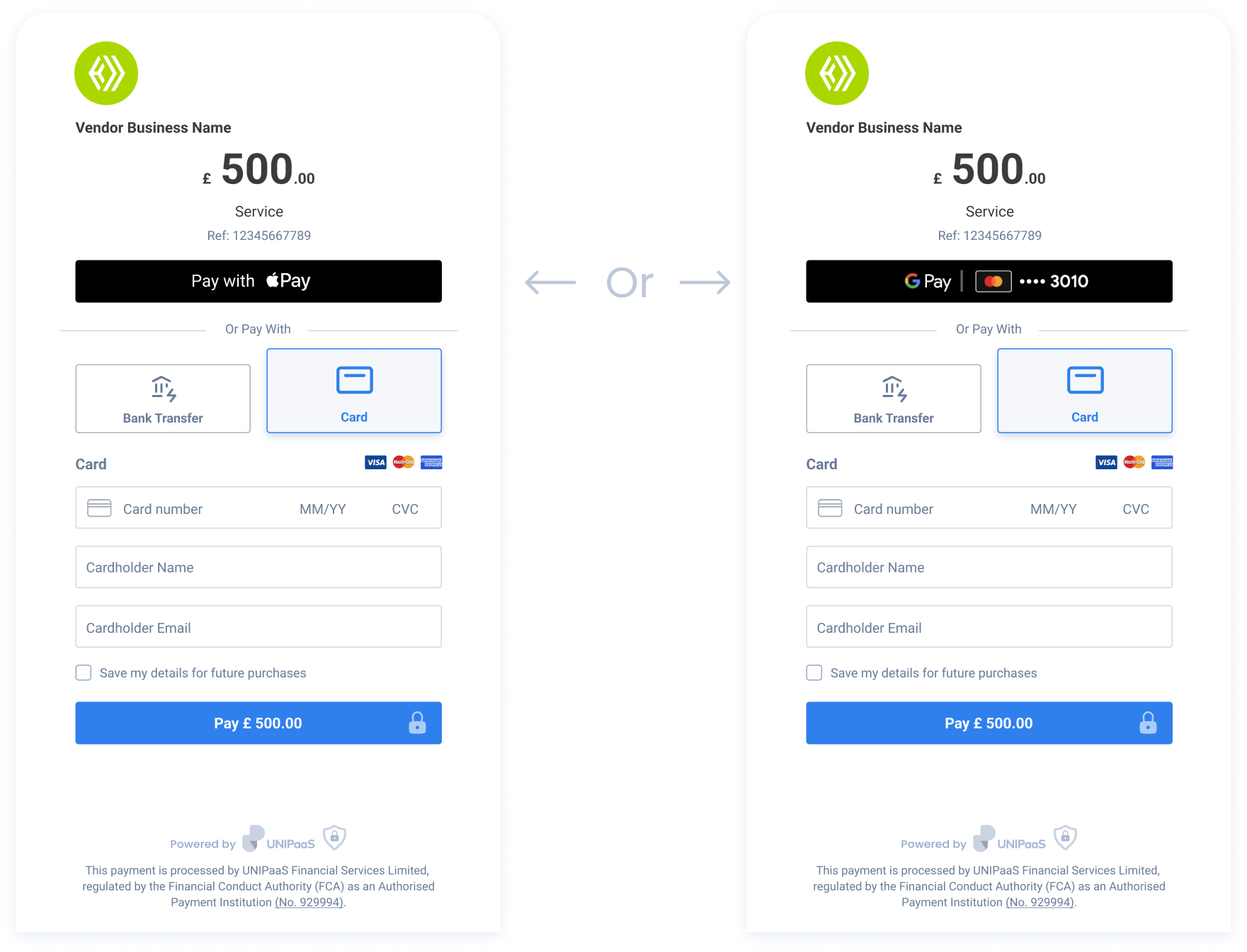
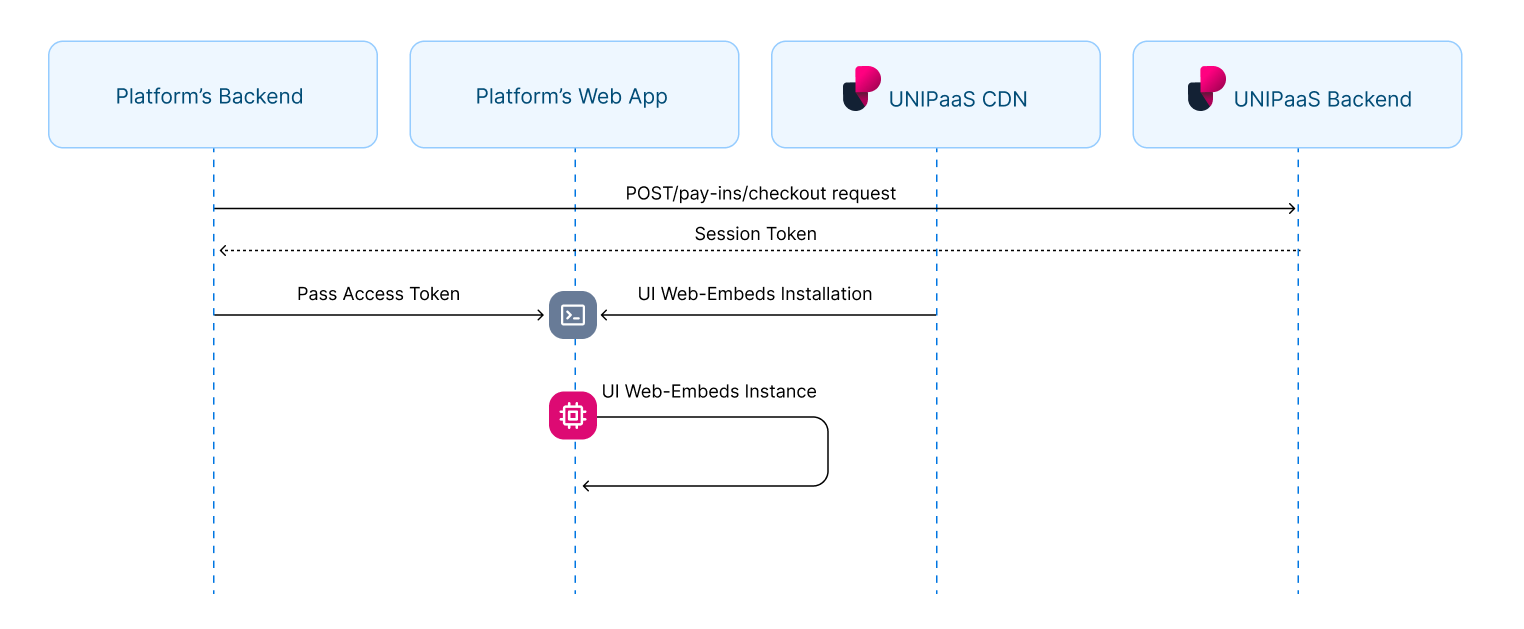
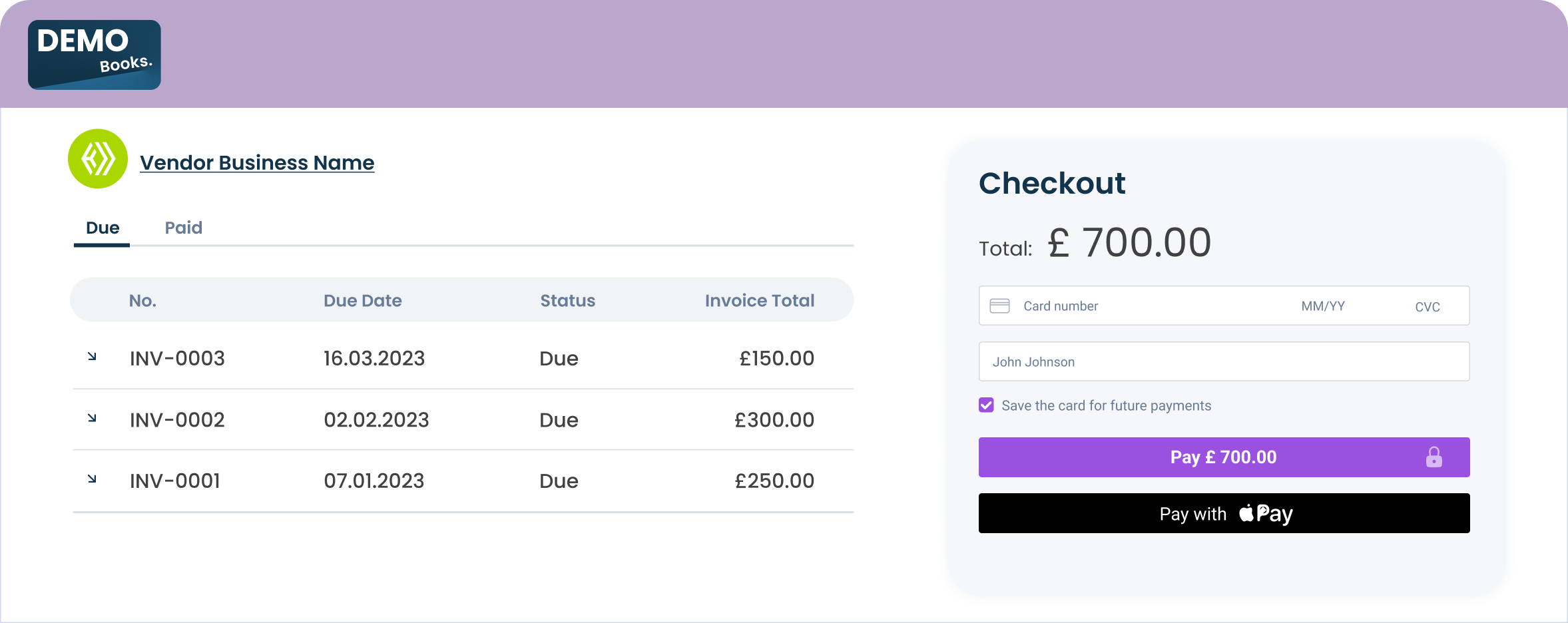
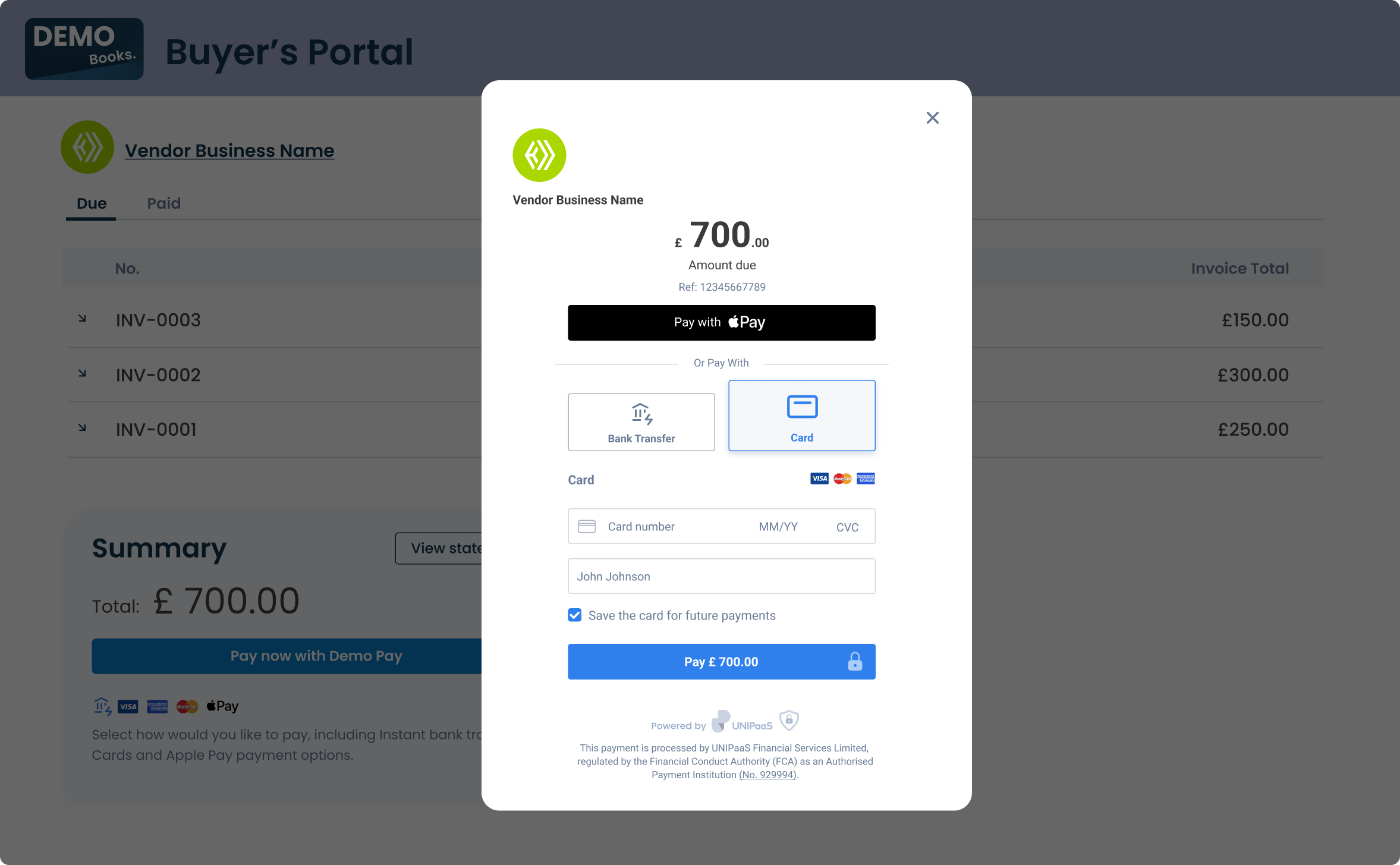
``` **Create and mount an instance below the container** Create an instance of it and mount it to the container DOM node in your page. This should be done after the previous div has finished loading. * JavaScript ```javascript const checkout = components.create("checkout"); checkout.mount("#checkout"); ``` ![Example: The embedded checkout page is displayed in a modal window](/images/4e43d29-Checkout_embedded.png) ***Disable specific payment methods (optional)*** You can optionally disable GooglePay when creating the embedded checkout component. To disable Google Pay: * JavaScript ```javascript const checkout = components.create("checkout", { disableGooglePay: true }); ``` This can be useful if Google Pay is not supported in your use case, market, in-app or desired payment configuration. When disabled, Google Pay will not be displayed to buyers in the checkout UI. Note! **Loading Unipaas Checkout inside an iframe is not recommended** Some checkout flows depend on top-level browser navigation and cannot be completed from within an iframe. *For example, Open Banking redirect flows require top-level navigation to function correctly.* Modern browsers, payment providers, and third-party services enforce these restrictions through security and permissions policies (such as X-Frame-Options, Content-Security-Policy, and Permissions Policy), and they cannot be bypassed. ## Digital Wallet (Apple Pay / Google Pay) UI Web-Embed [Section titled “Digital Wallet (Apple Pay / Google Pay) UI Web-Embed”](#digital-wallet-apple-pay--google-pay-ui-web-embed) The Digital Wallet UI Web Embed will intelligently load the appropriate payment method, either Apple Pay or Google Pay, or none of them. ![](/images/48cdd98-applepaygooglepay.png) Apple Pay and Google Pay are never displayed together due to OS restrictions. Apple Pay is exclusive to Apple devices with Apple Wallet installed, while Google Pay is designed for Android devices and operates through the Google Pay app. | Browser and wallet | Button displayed | | :---------------------------------------------- | :------------------ | | Safari + Apple Pay enabled | Apple Pay | | Chrome on iOS 16 + Apple Pay enabled | Apple Pay | | Any browser on Android + Google Pay enabled | Google Pay | | Any browser + No active Apple Pay or Google Pay | No button displayed | Note Allocate the minimal space for the Digital Wallet UI Web-Embed as follows:\ Width - 150 pixels **Create a container** Place the following script tag element below the closing `` tag of your HTML page.\ Make sure to assign a unique ID to the container so that it can be easily identified and accessed. * HTML ```html

``` **Create and mount an instance below the container** Create an instance of it and mount it to the container DOM node in your page. This should be done after the previous div has finished loading. * JavaScript ```javascript const digitalWallet = components.create("digitalWallet"); digitalWallet.mount("#digital_wallet"); ``` ![](/images/225aaa8-digital_wallets.png) ## Card UI Web-Embed [Section titled “Card UI Web-Embed”](#card-ui-web-embed) The Card UI Web-Embed includes two input fields for entering card details and cardholder name, a checkbox for saving the card (supporting card tokenization for returning customers), and a payment button to complete the transaction. Note Allocate the minimal space for the Card UI Web Embed as follows:\ Width - 340 pixels **Create a container** Place the following script tag element below the closing `` tag of your HTML page.\ Make sure to assign a unique ID to the container so that it can be easily identified and accessed. * HTML ```html
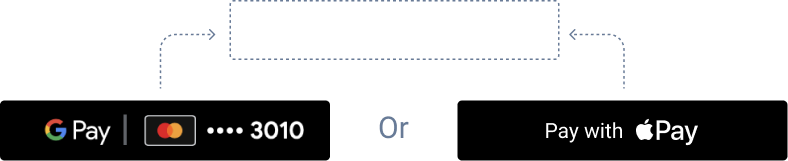
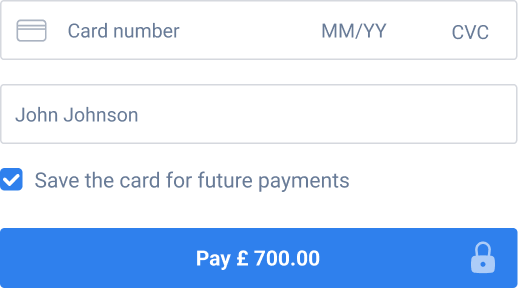
``` **Create and mount an instance below the container** Create an instance of it and mount it to the container DOM node in your page. This should be done after the previous div has finished loading. * JavaScript ```javascript const card = components.create("card"); cards.mount("#card"); ``` ![](/images/a3d2d48-card_component.png) ![Example: Card embed and Digital wallet embed are implemented on the platform's checkout page](/images/89a4f91-total_example.png) *** ## Payment Method Selection UI Web-Embed [Section titled “Payment Method Selection UI Web-Embed”](#payment-method-selection-ui-web-embed) The Payment Method Selection UI Web-Embed will load with the payment methods configured for your platform and according to your checkout creation process, including relevant payment buttons to support various payment flows. However, this embed does not support displaying Apple Pay and Google Pay payment methods. Note Allocate the minimal space for the Payment Method Selection UI Web-Embedas follows:\ Width - 340 pixels **Create a container** Place the following script tag element below the closing `` tag of your HTML page.\ Make sure to assign a unique ID to the container so that it can be easily identified and accessed. * HTML ```html
``` **Create and mount an instance below the container** > ***can derive the payment methods from the checkout or actually write the checkout to it directly*** Create an instance of it and mount it to the container DOM node in your page. This should be done after the previous div has finished loading. * JavaScript ```javascript const paymentMethodsSelection = components.create("paymentMethodsSelection"); paymentMethodsSelection.mount("#payment_methods_selection"); ``` ![Example 4](/images/4e1603d1553ea3b95e249d1d127939fe32d00c6aad4563396c06e5ba73a483d4-89b1bb5-selector.png) *** # 4. DOM Event Listeners and Callbacks [Section titled “4. DOM Event Listeners and Callbacks”](#4-dom-event-listeners-and-callbacks) The UI web-embeds generate DOM events to provide real-time updates on user activity and checkout status. These events can be used to trigger custom actions and ensure a seamless user experience at platform’s end. **Create DOM event listeners** Place the following script tag element at the very bottom, below the closing `` tag of your HTML page. * JavaScript ```javascript components.on("paymentSuccess", (e) => { console.log("paymentSuccess", e.detail); }); components.on("paymentError", (e) => { console.log("paymentError", e.detail); }); components.on("paymentSubmission", (e) => { console.log("paymentSubmission", e.detail); }); components.on("paymentCancel", (e) => { console.log("paymentCancel", e.detail); }); ``` ### Handle DOM events for one-time checkout components [Section titled “Handle DOM events for one-time checkout components”](#handle-dom-events-for-one-time-checkout-components) | Event | Description | Action | | :------------------ | :---------------------------------------------------------------------------------------------------------------------------------------------------------------------------------------- | :------------------------------------------------------------- | | `paymentSuccess` | This event is triggered when a user successfully completes a transaction. It provides real-time information to the platform, indicating that the payment has been successfully processed. | Display the updated post-payment view | | `paymentCancel` | This event is triggered when a user cancels a payment. | A relevant experience tailored to the platform can be created. | | `paymentError` | This event is triggered when an error occurs during the payment. | A relevant experience tailored to the platform can be created. | | `paymentSubmission` | This event is triggered when the user attempts to make a payment by pressing the payment button. | A relevant experience tailored to the platform can be created. | ### Checkout Callbacks [Section titled “Checkout Callbacks”](#checkout-callbacks) In addition to DOM event listeners, the checkout component also supports callbacks. Callbacks are functions passed directly into the component configuration. They allow you to respond to specific events in the checkout lifecycle without needing to register additional event listeners on the DOM. For example * Code ```plaintext const checkout = buyerComponents.create("checkout", { onPaymentSuccess: () => { console.log("Checkout completed"); }, accessToken: buyerToken, }); ``` **Available Callbacks** | Event | Description | Action | | :----------------- | :------------------------------------------------------------------------------------------------------------------------------------- | :------------------------------------------ | | `onPaymentSuccess` | Triggered when the checkout flow completes successfully. You can use this to update your UI, send analytics, or trigger backend logic. | Run custom logic after a successful payment | # Buyer UI: Subscription Checkout Component > The Subscription Checkout Component will manage the UI logic, including displaying available payment methods, handling plan details, and determining the... The Subscription Checkout Component will manage the UI logic, including displaying available payment methods, handling plan details, and determining the flow based on whether the user is new or returning. # Implementation Steps [Section titled “Implementation Steps”](#implementation-steps) 1. [Authorization](/docs/buyer-ui-embedded-checkout-implementation-guide/#1-authorization) 2. [Installation](/docs/buyer-ui-embedded-checkout-implementation-guide/#2-installation) 3. [Implement Subscription Checkout Component](/docs/buyer-ui-embedded-checkout-implementation-guide/) 4. [DOM EventListeners](/docs/buyer-ui-embedded-checkout-implementation-guide/) ![](/images/c21160d-scheme_checkout.png) Note **Create a Plan** The subscription checkout requires a planId to be passed in the request. Learn how to create the plan here: \[/docs/create-plans-and-subscriptions/) # 1. Authorization [Section titled “1. Authorization”](#1-authorization) In order to load the Subscription Checkout Component in your platform, an authorized API call is needed in your backend. ## Generate an session token [Section titled “Generate an session token”](#generate-an-session-token) To obtain an session token, you need first create a checkout using [POST/pay-ins/checkout](/reference/#tag/payin/POST/pay-ins/checkout) endpoint. [Learn more about payment creation](/docs/create-payment/) Below is an example of the JSON payload for creating a checkout: * JSON ```json { "country": "GB", "email": "consumer_name@example.com", "paymentMethods": ["creditCard"], "reference": "Payment123", "description": "Payment for service", "consumer": { "name": "consumer.name", "reference": "CON-REF-123" }, "plans": [ "673e057913866a9ece78c2b1" ] } ``` In response to this API call, you will receive a session token along with other parameters: * JSON ```json "sessionToken": "eyJhbGciOiJIUzI1NiIsInR5cCI6IkpXVCJ9.eyJtZXJjaGFudElkIjoiNjEwNjZkYjA2MzBmNGUzNTlkYzA4NGU5IiwibWVyY2hhbnROYW1lIjoiQWxpY2UiLCJhbW91bnQiOjEwMCwiY3VycmVuY3kiOiJHQlAiLCJlbWFpbCI6InVzZXJAZXhhbXBsZS5jb20iLCJjb3VudHJ5IjoiR0IiLCJzZWxsZXJJZCI6IjY2NWVkMjEyZmNkZjBjZmVjM2M4N2UwMiIsInZlbmRvcklkIjoiNjY1ZWQyMTJmY2RmMGNmZWMzYzg3ZTAyIiwic2NvcGVzIjpbIndlYnNka19hY2Nlc3MiLCJkaXJlY3RfZGViaXRfcmVhZCJdLCJpc1JlY3VycmluZyI6ZmFsc2UsInBheW1lbnRMaW5rSWQiOiJMa1FUMTJnTC1VIiwiaWF0IjoxNzE4NjA0ODk3LCJleHAiOjE3MTg2MDY2OTd9.tfW5IUKOdes4Lb0g5laFCyFZzySzfwe0gHo6Ohi2pqI" ``` This session token is necessary for loading the Subscription Checkout Component. # 2. Installation [Section titled “2. Installation”](#2-installation) **Script tag** Start with placing the following script tag element inside of the ``of your HTML page: * HTML ```html ``` This script tag loads the JavaScript code that provides the functionality for implementing Unipaas UI Web-Embeds on a webpage. When the script is loaded and executed, it will create an object in the memory that contains methods for instantiating and interacting with the UI Web-Embeds. **General configuration** Place the following script tag element below the closing `` tag of your HTML page.\ This script is used to initialise and configure Unipaas UI Web-Embeds on a web page. * HTML ```html ``` ### Theme [Section titled “Theme”](#theme) The theme configuration allows you to customise the visual design of Unipaas UI Web-Embeds to match your product’s branding. The theme comes with a set of pre-defined variables that are automatically applied based on the selected theme type, such as “dark” or “default”. However, if you need to modify specific aspects of the theme, you can easily adjust these variables to suit your requirements. The variables can be used to override the aspects of the theme. Below is a table that explains each variable available for customization: | Name | Type | Description | | ----------------------------- | ------ | -------------------------------------------------------------------------------------------------------------------- | | `theme.type` | string | Specifies the theme type, such as “dark” or “default”. | | `primaryBackgroundColor` | string | Defines the primary background color for the UI Web-Embeds. | | `secondaryBackgroundColor` | string | Sets the secondary background color for the UI Web-Embeds. | | `primaryTextColor` | string | Determines the color for primary text elements, including the checkout amount, vendor name, and payment method name. | | `secondaryTextColor` | string | Specifies the color for secondary text elements, including the reference number and save card for future payments. | | `primaryButtonColor` | string | Defines the color of the Pay button. | | `primaryButtonLabelColor` | string | Sets the label color on the Pay button. | | `secondaryButtonColor` | string | Determines the color of the Chevron for selecting the checkout language. | | `buttonBorderRadius` | string | Specifies the border radius of the payment button, influencing its roundness. | | `primaryInputBackgroundColor` | string | Defines the background color for input fields. | | `primaryInputBorderColor` | string | Specifies the border color for input fields. | | `primaryInputLabelColor` | string | Sets the label color for input fields. | | `inputBorderRadius` | string | Specifies the border radius for input fields, affecting their roundness. | | `digitalWalletButtonMode` | string | Determines the display mode for digital wallet buttons, such as “white” or “black”. | # 3. Implement Subscription Checkout Component on your webpage [Section titled “3. Implement Subscription Checkout Component on your webpage”](#3-implement-subscription-checkout-component-on-your-webpage) The Embedded Subscription Checkout UI Web-Embed enables platforms to seamlessly integrate a subscription checkout flow directly into their website. This white-labeled component is fully customisable, allowing you to offer subscription plans with personalised details and descriptions, all within your platform’s branding.\ By embedding this component, you can enhance user experience streamline the subscription process, and accelerate your platform’s recurring revenue offerings. Note Allocate the minimal space for the Subscription Checkout Page Component as follows:\ Width - 360 pixels **Create a container** Place the following `
` element in the desired location of your HTML page where you want the subscription checkout to appear. Ensure that you assign a unique ID to the container for identification. * HTML ```html
``` **Create and mount an instance below the container** Create an instance of it and mount it to the container DOM node in your page. This should be done after the previous div has finished loading. * JavaScript ```javascript const recurring= components.create("recurring"); recurring.mount("#recurring"); ``` **Example checkout** The subscription checkout component is embedded in the website’s checkout plan ![Example: The subscription checkout component is embedded in the website's checkout plan](/images/5e211991e31a5ca9fdbe0b363c066442059c3b9049c5f75aea2e27b7a4c55497-Screenshot_2024-11-28_at_1.13.54.png) **Hosted Checkout** You can also outsource the page to Unipaas hosted checkout by using the “shortLink” URL provided in the response from `/pay-ins/checkout` request *** ### Direct Debit [Section titled “Direct Debit”](#direct-debit) ![Example: The subscription checkout component is embedded in the website's checkout plan](/images/a624bb5461ac4ee78eceebcfe3ca7d6605d2ebf5fef4cbd378ce93fb1d75ae1b-Screenshot_2025-11-14_at_10.38.54.png) Unipaas Direct Debit solution allows you to request a mandate and present the collection details within the same checkout flow. When the payment method is enabled within your account the paymentMethod object from the /pay-ins/checkout response will contain the allowed payment methods for the subscription checkout “paymentMethods”: \[ “directDebit”, “creditCard” ], The customer can complete the details in the form to sign the mandate and agree to the Direct Debit collection. Unipaas will then initiate the collection as per the plan that is setup. For example, the set amount of £99 each month for 12 months. See our documentation on Direct Debits to learn more: \[/docs/direct-debit/) ![Example: The subscription checkout component is embedded in the website's checkout plan](/images/5e1a3919ac848db59978c7c72c4531cd0ef0abcc96b5dde083904b39172ff5a7-Screenshot_2025-11-17_at_14.51.20.png) **Using an existing mandate** You can also use an existing mandate if setup before the checkout. See our mandate guide to create a mandate outside of the subscription flow \[/docs/mandate-form-implementation-guide/) Once you have a mandate setup, use the corresponding consumer reference or consumerId passed into the checkout, to show the details that will be used to complete the Direct Debit. *** # 4. DOM Event Listeners [Section titled “4. DOM Event Listeners”](#4-dom-event-listeners) The UI web-embeds generate DOM events to provide real-time updates on user activity and checkout status. These events can be used to trigger custom actions and ensure a seamless user experience at platform’s end. * JavaScript ```javascript components.on("paymentSuccess", (e) => { console.log("paymentSuccess", e.detail); }); components.on("paymentError", (e) => { console.log("paymentError", e.detail); }); components.on("paymentSubmission", (e) => { console.log("paymentSubmission", e.detail); }); components.on("paymentCancel", (e) => { console.log("paymentCancel", e.detail); }); ``` *** ### Handle DOM events for Subscription Checkout Component [Section titled “Handle DOM events for Subscription Checkout Component”](#handle-dom-events-for-subscription-checkout-component) The Subscription Checkout Widget emits specific DOM events to provide real-time updates on the subscription process. **Create DOM event listeners** Place the following script tag element at the very bottom, below the closing `` tag of your HTML page. * JavaScript ```javascript components.on("subscriptionCreated", (e) => { console.log("subscriptionCreated", e.detail); // Handle successful subscription creation // e.detail contains subscription details }); components.on("subscriptionError", (e) => { console.log("subscriptionError", e.detail); // Handle subscription error // e.detail contains error information }); ``` **Handle DOM events** | Event | Description | Action | | :-------------------- | :------------------------------------------------------------------------------------------------------------------- | :------------------------------------------------------------ | | `subscriptionCreated` | This event is triggered when a subscription has been created, and the first payment has been processed successfully. | Display a confirmation message or redirect to a welcome page. | | `subscriptionError` | This event is triggered when a subscription attempt encounters an error. | Handle errors appropriately and inform the user. | # Checkout Page > Unipaas checkout page allows merchants to accept digital payments on any device or channel. Unipaas checkout page allows merchants to accept digital payments on any device or channel. By using the checkout page you reduce the effort involved in PCI compliance, which is required from merchants handling sensitive credit card information. The checkout page fully supports Strong Customer Authentication (3DSecure 2). Please follow this step-by-step guide for quick integration. ## Checkout object properties [Section titled “Checkout object properties”](#checkout-object-properties) | Parameter | Type | Description | Required | | --------------------------- | ---------------- | ------------------------------------------------------------------------------------------------- | -------- | | `amount` | Number | The Amount of the payment | Yes | | `currency` | String | The Currency of the payment | Yes | | `orderId` | String | Unique ID from the merchant system | Yes | | `email` | String | The buyer’s email address | Yes | | `country` | String | The buyer’s country code. ISO 2 letters | Yes | | `item` | Array of Objects | Used to split payments between multiple vendors or a vendor and the platform. | Yes | | `successfulPaymentRedirect` | String | A url to redirect the user after a successful checkout. Example : `https://mywebsite.com/success` | No | **The`item` object (for splitting payments)** The items Object is part of the Checkout Object and describes the order item details per vendor. In this Object you can set the platform fee per vendor. | Field | Description | | ------------- | ---------------------------------------------------------------------------------------------------------------------------------------------------------------------------------------------------------------------------------------------------------------------------------------------------------------------------------------------------------------------------------------------------------------------------------------------------------------------------------------------------------------------------------------------------------------------------------------------------------------------------------------- | | `name` | A description of the item | | `amount` | The amount of the specific item.- Please note that the `itemAmount` field you are asked to send to Unipaas via this API call needs to be the final item’s amount - taking in consideration both line and subtotal discounts.For example: if a buyer uses a coupon and receives a 20GBP discount - we will ask you to send us a new post-discount amount for each item.**Numeric example:** Item 1 - 100  item 2 - 100  Subtotal - 200Discount - 20 Total - 180 **You need to send:** For item 1 - 90 For item 2 - 90\_The `itemAmount` total value must be equal to the Amount value (the total amount) sent in the Authorization Object | | `vendorId` | The unique Id of the vendor provided by Unipaas during vendor Onboarding | | `platformFee` | The fee percentage for a specific item | ## Open the link from your website [Section titled “Open the link from your website”](#open-the-link-from-your-website) Redirect your buyers to the hosted checkout page ![](/images/a0df5c8-Checkout-methods.png) ## Verify the Authorization status from your server side [Section titled “Verify the Authorization status from your server side”](#verify-the-authorization-status-from-your-server-side) When checkout is done and user is redirected to the `successfulPaymentRedirect` URL, the following parameters will appearAs a parameter in the URL and should be used for verification: * Authorization ID * Order ID * Reference ID Authorization verification is essential to ensure no manipulation occurred on the client-side.\ Make a [`GET /pay-ins/{authorizationId}`](/reference/) request: * cURL ```curl curl --location --request GET 'https://sandbox.unipaas.com/platform/pay-ins/{authorizationId}' \ --header 'Content-Type: application/json' \ --header 'Authorization: Bearer --PRIVATE_KEY--' ``` Authorization status must be `CAPTURED` for a successful Authorization.\ Check the [Authorization statuses](/docs/main-entities/#authorization-properties) options for more information. Note Please note: If you send a transaction without any vendor ID - the transaction will be entered to the platform’s account and will be listed as a platform transaction. ## Deactivate checkout page [Section titled “Deactivate checkout page”](#deactivate-checkout-page) You can deactivate the checkout page that is set for online payment methods such as cards, instant bank transfers, or alternative payment methods (APMs). The deactivation feature is unavailable for checkouts set to offline payment methods like Direct Debit. Note Please note: This action is irreversible, and once checkout page is deactivated, it will not be possible to reactivate it again. To deactivate your checkout page and make it unavailable, use the following endpoint: `POST /pay-ins/checkout/{signedLinkId}/expire` The request should not include a body. **Possible response:** | Status Code | Description | Response | | ----------- | -------------- | --------------------------------------------------------------------------------------------------------------------------------------------------------------------------------------------------------------------------------------------------------------------------------------- | | 201 | OK | The checkout object | | 401 | Not Authorized | | | 404 | Not Found | “Checkout does not exist” | | 405 | Not Allowed | “Checkout expired and can not be edited” - in case you are trying to deactivate an expired checkout.Or“This checkout is for offline payment method. Can not be expired” - in case you’re trying to deactivate a checkout that is set to Direct Debit (which is offline payment method). | ## Test your integration [Section titled “Test your integration”](#test-your-integration) Use our [test scenarios](/docs/test-cards/) test your integration # Commit or Cancel Payout Requesting a payout consists of 2 steps 1. Create 2. **Commit / Cancel** <--- in this page After payout creation, you need to either commit or cancel the payout. ## Commit Payout [Section titled “Commit Payout”](#commit-payout) Make a [`POST /payouts/{payoutId}/commit`](/reference/#tag/payout/POST/payouts/%7BpayoutId%7D/commit)\ request: * cURL ```curl curl --request POST \ --url 'https://sandbox.unipaas.com/platform/payouts/{payoutId}/commit' \ --header 'Accept: application/json' \ --header 'Content-Type: application/json' \ --header 'Authorization: Bearer ' ``` in the response, you’ll get the commited [`Payout object`](/docs/pay-out-funds-overview/#the-payout-object). ## Commit Vendor Payout [Section titled “Commit Vendor Payout”](#commit-vendor-payout) Make a [`POST /vendors/{vendorId}/payouts/{payoutId}/commit`](/reference/#tag/payout/POST/payouts/%7BpayoutId%7D/commit) request: * cURL ```curl curl --request POST \ --url 'https://sandbox.unipaas.com/platform/vendors/{vendorId}/payouts/{payoutId}/commit' \ --header 'Accept: application/json' \ --header 'Content-Type: application/json' \ --header 'Authorization: Bearer ' ``` in the response, you’ll get the commited [`Payout object`](/docs/pay-out-funds-overview/#the-payout-object). ## Cancel Payout [Section titled “Cancel Payout”](#cancel-payout) Make a [`POST /payouts/{payoutId}/cancel`](/reference/#tag/payout/POST/payouts/%7BpayoutId%7D/cancel) request: * cURL ```curl curl --request POST \ --url 'https://sandbox.unipaas.com/platform/payouts/{payoutId}/cancel' \ --header 'Accept: application/json' \ --header 'Content-Type: application/json' \ --header 'Authorization: Bearer ' ``` in the response, you’ll get the cancelled [`Payout object`](/docs/pay-out-funds-overview/#the-payout-object). ## Cancel Vendor Payout [Section titled “Cancel Vendor Payout”](#cancel-vendor-payout) Make a [`POST /vendors/{vendorId}/payouts/{payoutId}/cancel`](/reference/#tag/payout/POST/payouts/%7BpayoutId%7D/cancel) request: * cURL ```curl curl --request POST \ --url 'https://sandbox.unipaas.com/platform/vendors/{vendorId}/payouts/{payoutId}/cancel' \ --header 'Accept: application/json' \ --header 'Content-Type: application/json' \ --header 'Authorization: Bearer ' ``` in the response, you’ll get the cancelled [`Payout object`](/docs/pay-out-funds-overview/#the-payout-object). # Create Payment ## Create Payment (Checkout) [Section titled “Create Payment (Checkout)”](#create-payment-checkout) Note This call must be performed from your backend server!\ The Create-checkout-link call requires your **private\_key** (your secret password) which should not be exposed on the client-side. Learn how to make a [Payment request](/reference/#tag/payin/POST/pay-ins/checkout). ## Example of a Request Payload for a SaaS Platform: [Section titled “Example of a Request Payload for a SaaS Platform:”](#example-of-a-request-payload-for-a-saas-platform) Note For a SaaS platform, the payload should not include an items array, and the vendor ID must be sent directly as a separate parameter. * JSON ```json { "amount": 100, "currency": "GBP", "vendorId": "66532df5d55926b2b12a874a", "reference": "1000456", "description": "Service June", "email": "test@test.com", //consumer email "country": "GB", "invoiceUrl": "http://yourcompany.com/invoice.pdf", "dueDate": "2020-12-13", //OPTIONAL "vatAmount": 19, //OPTIONAL "successfulPaymentRedirect": "http://yourcompany.com/redirect", //OPTIONAL "paymentMethods": ["bankTransfer"], // creditCard, bankTransfer, directDebit, apm "consumer": { "name": "Raul Runte", "reference": "CON-REF-123", } } ``` ## Example of a Request Payload for a Marketplace Platform: [Section titled “Example of a Request Payload for a Marketplace Platform:”](#example-of-a-request-payload-for-a-marketplace-platform) Note For a Marketplace Platform, the vendor ID is included within the items array, allowing for multiple items and vendors, with the payment being split accordingly. * JSON ```json { "amount": 100, "currency": "GBP", "orderId": "1000456", "description": "Iphone case", "email": "test@test.com", "phone": "+447911123456", "country": "GB", "reference": "100456", "invoiceUrl": "http://yourcompany.com/invoice.pdf", "dueDate": "2020-12-13", //OPTIONAL "vatAmount": 19, //OPTIONAL "successfulPaymentRedirect": "http://yourcompany.com/redirect", //OPTIONAL "items": [ { "name": "Iphone case", "amount": 100, "vendorId": "5ee8e655a65f08fcd71fe4d9", "platformFee": 0, "quantity": 1 } ], "consumer": { "name": "Raul Runte", "reference": "CON-REF-123", }, "billingAddress": { "firstName": "string", "lastName": "string", "city": "London", "country": "GB", "line1": "64 New Cavendish Street", "line2": "", "postalCode": "W1G 8TB", "state": "" }, "shippingSameAsBilling": true, "shippingAddress": { "firstName": "string", "lastName": "string", "city": "London", "country": "GB", "line1": "64 New Cavendish Street", "line2": "", "postalCode": "W1G 8TB", "state": "" }, "metadata": { "CustomerID": "457349" } } ``` In the response you will find the **shortLink** field, which contains the URL of the checkout page. ## Optional address fields [Section titled “Optional address fields”](#optional-address-fields) We highly recommend you pass information about the consumer’s address when creating a checkout. Passing the billing and shipping (for physical goods) addresses will increase the success rate of the transaction. In case shipping address is not applicable (for non-physical goods), set the `shippingSameAsBilling` flag to `true`. **Note:** Add a 2-letter ISO `state` code (for customers based in the US, Canada, and India only). # Create Plans and Subscriptions # Implementation [Section titled “Implementation”](#implementation) ## Step 1: Create a plan: [Section titled “Step 1: Create a plan:”](#step-1-create-a-plan) During plan creation, determine who the plan owner will be. Use cases: * Create a plan for your platform e.g. to collect subscription fees from your users. * Create a plan on behalf of your users e.g. where the user/vendor collects payments/subscription fees from the end customer/buyer. Make a [POST/pay-ins/plans](/reference/#tag/recurring/POST/pay-ins/plans) request to create a new plan and establish pricing, billing cycles, and other details by passing in the following in the payload: `name`: Name of the subscription plan.\ `periodUOM`and`period`: Define the billing frequency.\ `autoRenewal`: Whether the subscription renews automatically.\ `pricingModel`: Set as `fixed`for subscriptions which do not change over time or set as`ramp` for subscriptions which change after certain no. of cycles. **Main plan fields:** | Name | Type | Description | | ------------------------- | ----------- | -------------------------------------------------------- | | `name` | String | Plan name | | `description` | String | Plan description | | `price` | Decimal | Plan price amount | | `currency` | String | Currency standard ISO 4217 | | `periodUOM` | Enum string | Defines the billing cycle type (day, week, month, year) | | `period` | Integer | The length of the plan in ‘PeriodUOM’ units | | `trialUOM` (Optional) | Enum string | Defines trial period cycle type (day, week, month, year) | | `trial Period` (Optional) | Integer | The length of the trial period in ‘PeriodUOM’ units | | `status` | Enum string | Defines the status of the plan | | `autoRenewal` | Boolean | Defines auto-renewal | | `vendorId` | String | vendor ID of the user OR platform ID of the platform | | `pricingModel` | String | Defines the model (ramp or fixed) | *Key Parameters:* * vendorId - Use `vendorId` of your user (from /vendor API) when creating a plan on behalf of your user\ OR `Platform ID` (Found in User profile > “Account Details” in the top right corner of the Portal) **Example of a request payload** * JSON ```json { "name": "Premium Plan for all", "description": "Access to all premium features", "group": "Group Name", "country": "GB", "currency": "GBP", "period": 12, "periodUOM": "month", "autoRenewal": false, "vendorId": "66d8869bdd0d32ab4e43c4ec",// This is the Platform ID or vendorId "pricingModel": "ramp", "rampIntervals": [ { "unitAmount": 10, "cycles": 3 }, { "unitAmount": 20, "cycles": 3 }, { "unitAmount": 30, "cycles": 6 } ], "setupFee": 40 } ``` **Response** * JSON ```json { "consent": "By subscribing, you authorize PlatformName to charge your selected payment method as outlined in their terms and conditions. You can cancel your subscription at any time.", "setupFee": 40, "rampIntervals": [ { "unitAmount": 10, "cycles": 3 }, { "unitAmount": 20, "cycles": 3 }, { "unitAmount": 30, "cycles": 6 } ], "pricingModel": "ramp", "autoRenewal": false, "trialPeriod": 0, "periodUom": "month", "period": 12, "currency": "GBP", "group": "Group Name", "description": "Access to all premium features", "name": "Premium Plan for all", "status": "active", "vendorId": "66d8869bdd0d32ab4e43c4ec",// This is the Platform ID or vendorId "merchantName": "PlatformName", "merchantId": "PlatformId", "id": "67891400cb2350877f51ca15", "createdAt": "2025-01-16T14:13:20.311Z", "updatedAt": "2025-01-16T14:13:20.311Z" } ``` *Note:* Once the plan is created, the subsequent steps remain the same for both scenarios. ## Step 2: Create a Checkout for the Subscription [Section titled “Step 2: Create a Checkout for the Subscription”](#step-2-create-a-checkout-for-the-subscription) Once a plan is created, subscriptions can be attached to it. To proceed, initiate a Checkout Create request. This request generates a checkout UI (hosted or embedded), enabling the payer to either create a new payment method or select an existing one while providing their consent for the subscription. This ensures the subscription is successfully linked to the payer with an active payment method. Make a [POST/pay-ins/checkout](/reference/#tag/payin/POST/pay-ins/checkout) request to create a checkout for the subscription. *Key Parameters:* | Name | Type | Required | Description | | :-------------------------- | :----- | :------- | :------------------- | | `plans` | Array | Yes | | | `paymentMethods` | Array | No | | | `consumer.reference` | String | Yes | | | `consumer.name` | String | No | | | `consumer.email` | String | No | | | `successfulPaymentRedirect` | String | No | | | `country` | String | Yes | ISO31661 Alpha2 code | **Example of a request payload** * JSON ```json { "country": "GB", "email": "user@example.com", "paymentMethods": ["card"], "shippingSameAsBilling": true, "reference": "1000456", // Platform order ID OR platform payment ID "consumer": { "reference": "45684r3453456513543546546", // Unique ID of the buyer on your system "name": "John Doe", "email": "email@email.com" }, "plans": [ "6751e3c1f7180997ad5c0f9c" // This is the planId from Step 1 ], "successfulPaymentRedirect": "https://platform.com/redirect" } ``` **Response** * JSON ```json { "vendor": { "name": "John Doe", "email": "john.doe@example.com", "country": "GB" }, "status": "open", "mode": "online", "plans": [ { "id": "6752d6ecf7180997ad5c107d" } ], "isMoto": false, "id": "6752d71bca2ec7447f9c6d85", "country": "GB", "paymentMethods": [ "card" ], "reference": "1000456", "amount": 41, "currency": "GBP", "totalAmount": 90, "totalPaid": 0, "expiresAt": "2025-06-04T10:51:07.000Z", "shortLink": "https://sandbox-checkout.unipaas.com/DRe0gsR9A-/", "merchantId": "66d58bd06098898a5de10bdc", "signedLinkId": "DRe0gsR9A-", "items": [], "createdAt": "2024-12-06T10:51:07.974Z", "updatedAt": "2025-01-16T14:55:24.889Z", "successfulPaymentRedirect": "https://platform.com/redirect", "sessionToken": "eyJhbGciOiJIUzI1NiIsInR5cCI6IkpXVCJ9.eyJtZXJjaGFudElkIjoiNjZkNThiZDA2MDk4ODk4YTVkZTEwYmRjIiwibWVyY2hhbnROYW1lIjoiTmlja3kgRGhhbGl3YWwiLCJhbW91bnQiOjQxLCJjdXJyZW5jeSI6IkdCUCIsImVtYWlsIjoidXNlckBleGFtcGxlLmNvbSIsImNvdW50cnkiOiJHQiIsInNlbGxlcklkIjoiNjZkODg2OWJkZDBkMzJhYjRlNDNjNGVjIiwidmVuZG9ySWQiOiI2NmQ4ODY5YmRkMGQzMmFiNGU0M2M0ZWMiLCJ0b2tlbk9ubHkiOnRydWUsInNjb3BlcyI6WyJ3ZWJzZGtfYWNjZXNzIiwiZGlyZWN0X2RlYml0X3JlYWQiLCJkaXJlY3RfZGViaXRfd3JpdGUiXSwicGF5bWVudE1ldGhvZHMiOlsiY3JlZGl0Q2FyZCJdLCJpc1JlY3VycmluZyI6dHJ1ZSwicGxhbnMiOlsiNjc1MWUzYzFmNzE4MDk5N2FkNWMwZjljIl0sImNvbnN1bWVyIjp7InJlZmVyZW5jZSI6IjQ1Njg0cjM0NTM0NTY1MTM1NDM1NDY1NDYifSwiZW52Ijoic2FuZGJveCIsInBheW1lbnRMaW5rSWQiOiJEUmUwZ3NSOUEtIiwiaWF0IjoxNzM3MDM5MzI0LCJleHAiOjE3MzcxMjU3MjR9.Lx9x4zEETZ9ABq7-AimSnE6SBTVUKkodJ5EvKKKIC2M", "qrPaymentLink": "https://sandbox.unipaas.com/platform/qr-code/generate?url=https://sandbox-checkout.unipaas.com/DRe0gsR9A-/", "vendorId": "66d8869bdd0d32ab4e43c4ec", "consumer": { "email": "user@example.com", "firstName": "", "lastName": "", "name": "", "billingAddress": { "country": "GB" }, "shippingSameAsBilling": true, "reference": "45684r3453456513543546546" } } ``` Store the following from the response: * `shortLink` - This URL should be used if you want to using the Unipaas redirect the customer to the Hosted Checkout page. * `sessionToken` - This session token should be used for authorization if you are implementing our Subscription Checkout UI web embeds. ## Step 3: Display the Checkout to the Customer [Section titled “Step 3: Display the Checkout to the Customer”](#step-3-display-the-checkout-to-the-customer) Unipaas offers 2 options to show the checkout to the customer: ### Hosted checkout page [Section titled “Hosted checkout page”](#hosted-checkout-page) To use our hosted checkout, save the`shortLink` from Step 2 and share it directly with payers. The hosted checkout will handle the UI logic, including displaying available payment methods, plan details, trial period and determining the flow based on whether the user is new or returning.\ For more information: [Checkout Page](/docs/checkout-page/) ### Subscription Checkout UI Web Embed [Section titled “Subscription Checkout UI Web Embed”](#subscription-checkout-ui-web-embed) To use our checkout UI web embed, refer to the [following documentation](/docs/buyer-ui-subscription-checkout-ui-web-embed/). The checkout UI web embed will manage the UI logic, including displaying available payment methods, handling plan details, and determining the flow based on whether the user is new or returning. ## Step 4: Handle the Authorization/Update Webhook [Section titled “Step 4: Handle the Authorization/Update Webhook”](#step-4-handle-the-authorizationupdate-webhook) After successful checkout completion, Unipaas sends an `authorization/update` webhook to your server with crucial payment authorization details. To ensure your platform reflects the updated status of the transaction: 1. *Verify Capture status:* Check if`authorizationStatus: "Captured"` then mark the payment as successful in your database . This status confirms the payment has been successfully captured. 2. *Save Subscription ID:* Save `subscriptionId` field from the initial transaction. Use this to track subsequent transactions on your system and to update/cancel the subscription for the end customer. 3. *Extract and use`orderid`* to associate the the checkout with the Unique order ID / payment ID on your system. Webhook Example Payload: * JSON ```json { "authorizationId": "6752d768383576f170cb898f", "transactionId": "6752d768383576f170cb89a4", "vendorId": "66d8869bdd0d32ab4e43c4ec", "authorizationStatus": "Captured", "paymentOption": { "cardAccount": { "brand": "VISA", "bin": "400002", "last4Digits": "5032", "issuerCountry": "GB" }, "id": "6752d762c31925ed37c11738" // This is the token of the saved card }, "currency": "GBP", "amount": 50, "orderid":"1000456", // This is the Platform order ID OR platform payment ID(reference) in Step 2 "checkoutId": "DRe0gsR9A-", "items": [], "planId": "6752d6ecf7180997ad5c107d", "subscriptionId": "6752d768f7180997ad5c108c", "metadata": {}, "paymentMethod": "creditCard", "consumerId": "6752d761145ad6c0f8f5a317", "consumerEmail": "user@example.com" } ``` Refer to the Additional Webhooks Documentation for more information **Next steps:** [Update Plan](/docs/update-plan/) [Update Subscription](/docs/update-subscription/) **See also:** [To use Tokens from Subscription for Unscheduled MITs](/docs/use-tokens-from-subscription-for-unscheduled-mits/) # Create Vendor > The first thing you should do when integration the vendor onboarding process is implement the Create vendor call below. Vendors can be created with or... The first thing you should do when integration the vendor onboarding process is implement the Create vendor call below. Vendors can be created with or without pre-populating additional onboarding fields. Pre populating onboarding fields makes the onboarding process easier for your vendors. Send some of the onboarding fields while creating the vendor (using same API call).\ In most cases, some of the information we require for the vendor onboarding is already collected by your platform. ## Create vendor without pre-populating any onboarding fields [Section titled “Create vendor without pre-populating any onboarding fields”](#create-vendor-without-pre-populating-any-onboarding-fields) Make a [`POST /vendors`](/reference/#tag/vendor/POST/vendors) request to create a new vendor, provide the information you have and the rest will be collected later on in the onboarding process: * cURL ```curl curl --location --request POST 'https://sandbox.unipaas.com/platform/vendors' \ --header 'accept: application/json' \ --header 'Authorization: Bearer ' \ --header 'Content-Type: application/json' \ --data-raw '{ "businessName": "Better Delivery", "type": "company", "firstName": "John", "lastName": "Doe", "email": "john.doe@example.com", "country": "GB", "reference" : "Qiuysdxv5shs", // The unique user id on your system "createOnboardingLink": true }' ``` In the response, you’ll get the created vendor object, as shown in the example below * JSON ```json { "id": "61829cf9db1fb65b94f1acf8", "businessName": "Better Delivery", "email": "john.doe@example.com", "createdAt": "2021-11-03T14:30:17.120Z", "updatedAt": "2021-11-03T14:30:17.120Z", "merchantId": "616d3e7faba71b9e13a2f7b7", "acceptPayments": false, "receivePayouts": false, "onboardingLink": "https://sandbox-hosted.unipaas.com/vendors/6162aff7d7eb80d6982c18bf/I45f0ooz7CkuOsPJ7s4v" } ``` ## Create vendor and pre-populate onboarding fields [Section titled “Create vendor and pre-populate onboarding fields”](#create-vendor-and-pre-populate-onboarding-fields) Make a [`POST /vendors`](/reference/#tag/vendor/POST/vendors) request to create a new vendor, provide the information you have, and the rest will be collected later on in the onboarding process: * cURL ```curl curl --location --request POST 'https://sandbox.unipaas.com/platform/vendors' \ --header 'Accept: application/json' \ --header 'Content-Type: application/json' \ --header 'Authorization: Bearer ' \ --data-raw '{ "businessName": "Better Delivery", "type": "company", "firstName": "John", "lastName": "Doe", "email": "john.doe@example.com", "country": "GB", "url": "http://example.com", "serviceDescription": "service description", "birthDate": "1980-01-01", "phone": "+447911123456", "category": "CHILD_CARE_SERVICES", "createOnboardingLink": true }' ``` Onboarding type The onboarding type defines if your vendor is an individual / sole trader (`individual`) or a registered company (`company`) or an association (`non-profit`) . In the response, you’ll get the created vendor object. * JSON ```json { "id": "61829cf9db1fb65b94f1acf8", "businessName": "Better Delivery", "email": "john.doe@example.com", "createdAt": "2021-11-03T14:30:17.120Z", "updatedAt": "2021-11-03T14:30:17.120Z", "merchantId": "616d3e7faba71b9e13a2f7b7", "acceptPayments": false, "receivePayouts": false, "onboardingLink": "https://sandbox-hosted.unipaas.com/vendors/6162aff7d7eb80d6982c18bf/I45f0ooz7CkuOsPJ7s4v" } ``` Note that the create vendor response includes an onboarding link that you can send your vendor. This will allow your vendor to complete all remaining onboarding fields in a Unipaas hosted UI. ## Pre populated onboarding fields [Section titled “Pre populated onboarding fields”](#pre-populated-onboarding-fields) The following fields describe the onboarding data that can be, and should to be, pre filled upon vendor creation using a [POST /vendors/{vendorId}/onboarding](/reference/#tag/onboarding/POST/vendors/%7BvendorId%7D/onboarding) API call after a vendor has been created.\ Please mind that we strongly recommend you provide as much data as possible. It will save your vendor time and effort, and will increase conversion rates for the payment onboarding process. Read Only fields Some fields are ‘read only’: the vendor won’t be able to see/edit them. ## Onboarding fields [Section titled “Onboarding fields”](#onboarding-fields) | Field Name | Is Required | Type | Description | Read Only | | ---------------------- | -------------------------------------- | ------------------------------ | --------------------------------------------------------------------------------------------------------------------------------------------------------------------------------------------- | --------- | | `businessName` | Optional | String | Represents the name of the business (if applicable) for both individuals and companies.This field will also define how your business is identified in your customer’s credit card statements. | Yes | | `firstName` | Required | String | For **Individual onboarding** this field represents the individual’s first name.For **Company onboarding** This field represents the company representative first name | No | | `lastName` | Required | String | For **Individual onboarding** this field represents the individual’s last name.For **Company onboarding** This field represents the company representative last name | No | | `birthDate` | Recommended | String | For **Individual onboarding** this field represents the individual’s date of birth.For **Company onboarding** This field represents the company representative date of birth | Yes | | `phone` | Recommended | String | For **Individual onboarding** this field represents the individual’s phone numberFor **Company onboarding** This field represents the company representative phone number | Yes | | `email` | Required | String | For **Individual onboarding** this field represents the individual’s email addressFor **Company onboarding** This field represents the company email address | Yes | | `country` | Required | String ISO 3166-1 alpha-2 code | For **Individual onboarding** this field represents the individual’s countryFor **Company onboarding** This field represents the company corporate country | Yes | | `type` | Recommended (for UI)Required (for API) | Enum | The three available types are: Company Individual Non-profit Each will present a different onboarding flow to your vendors | Yes | | `subType` | Required (for type non-profit) | Enum | The three available types are: Associations Schools Charities | Yes | | `url` | Recommended | String | **Individual onboarding** Profile URL (website, blog, social network profile)**Company onboarding** Official Website URL | No | | `serviceDescription` | Recommended | String | **Individual onboarding** Description of the provided service | Yes | | `category` | Recommended | Enum | **Individual and Company onboarding****MCC Enum**List of all [MCC codes](/docs/mcc-codes/) | Yes | | `createOnboardingLink` | Recommended | boolean | **Individual and Company onboarding**True - you will receive an onboarding link in the API responseFalse - you will NOT receive an onboarding link in the API response | Yes | Vendor invitation flows In case your vendor creation flows include an invitation flow (e.g an vendor is being invited by an accountant) you should implement **[the referer flow](/docs/creating-vendors-by-referral/)** before moving forward to the next step. Go Next[Launch Onboarding UI](/docs/onboarding-ui/)[Onboarding API](/docs/onboarding-api/) # Creating vendors by referral > In case your platform uses a referral flow to invite vendors to your payments product (for example: an accountant inviting their customers to accept... In case your platform uses a referral flow to invite vendors to your payments product (for example: an accountant inviting their customers to accept payments via your platform), you should pass information about both the referrer and the referred parties to Unipaas upon creation. ## General referral flow [Section titled “General referral flow”](#general-referral-flow) The following describes a typical referral flow, with actions that must be taken on each step: | User flow | Technical steps | | ----------------------------------------------------------------------- | ---------------------------------------------------------------------------------------------------------------------------------------------------------------------------------------------------------------------------------------------------------------------------------------------------------------------------------------------------- | | A **new** referrer invites a vendor to join your payments product | 1. Create a vendor for the referrer using a regular [`create vendor`](/reference/#tag/vendor/POST/vendors)’ API call. 2. Save the referrer’s `vendorid` for later 3. Create the vendor using a [`create vendor`](/reference/#tag/vendor/POST/vendors) API call, add the referrer’s `vendorid` to the `referrerVendorId` field. (see example below) | | An **existing** referrer invites a vendor to join your payments product | 1) Create the vendor using a [`create vendor`](/reference/#tag/vendor/POST/vendors) API call, add the relevant referrer’s `vendorid` to the `referrerVendorId` field. (see example below) | ## Integration example [Section titled “Integration example”](#integration-example) The following example uses the [`create vendor`](/reference/#tag/vendor/POST/vendors) API call that is used to create all vendors in Unipaas. **1. Creating a referrer**\ Creating a referrer (accountant) profile is exactly same as creating any other vendor: * JSON ```json { "firstName": "John", "lastName": "Doe", "email": "john.doe@example.com", "country": "GB", "type": "individual" } ``` The response will include the referrer’s `vendorid`, which will be used to link the vendors they invited: * JSON ```json { "id": "63ea04cf6d3161e1ba997d52", // Used to connect to invited vendors "name": "John Doe", "email": "john.doe@example.com", "createdAt": "2029-02-13T09:37:19.286Z", "updatedAt": "2029-02-13T09:37:19.286Z", "merchantId": "62c3ee08f396b3c46e240044" } ``` **2. Linking an invited vendor to their referrer** When creating a vendor that was referred by a referrer, use the `referrerVendorId` field to link the vendor with their referrer. * JSON ```json { "businessName": "New Vendor", "firstName": "John", "lastName": "Doe2", "email": "john.doe@example.com", "country": "GB", "phone": "+447911123456", "birthDate": "1980-01-01", "serviceDescription": "Fast delivery", "url": "https://google.com", "category": "FOOD_DELIVERY", "type": "individual", "referrerVendorId":"63ea04cf6d3161e1ba997d52", // Referrer's vendor id "createOnboardingLink": true } ``` # Balance Component > Overview ## What is the Balance component? [Section titled “What is the Balance component?”](#what-is-the-balance-component) **Overview** The Balance component offers users a clear and simple overview of their payment information within your platform. It is best placed in a prominent location such as the dashboard, where customers can get an overview into their payment-related status and adjust their payout settings.\ The Balance component serves as a summary of the user’s payment activity and offers a link to a more detailed view - [Pay Portal Component](/docs/pay-portal-component/). **Why you should implement this component** 1. The Balance component provides a considerable value to your customers with minimal implementation effort, as it gives them a comprehensive view of their financial status on your platform. 2. Implementing the Balance component also saves your team a lot of integration effort, making it a valuable addition. ![3508](/images/52afa3b-Balance.png "Balance.png") ![722](/images/6a4f6db-Balance_general.png "Balance general.png") ## What does the Balance component include? [Section titled “What does the Balance component include?”](#what-does-the-balance-component-include) **Balance** The Balance shows your customer what funds they have in their account, as well as the status of these funds (payable/pending). **Onboarding status** This section shows your users what their onboarding status is. When relevant, it can redirect to the onboarding flow in order to complete it and add required documents, if these are necessary. **Payout** The Payout section shows your customer when their next payout is scheduled, as well as lets them configure payout scheduling. ## Component zero state [Section titled “Component zero state”](#component-zero-state) For platform users who have yet to sign up to your payments solution, the Balance component will show in a “zero state” view. This view’s goal is to emphasize your payment solution’s value and showcase its core features to potential users. The “zero state” includes a prominent CTA and messages, incentivising your users to sign up to your payments solution. Additionally, it allows users learn more about it. **Triggering the “zero state” view**\ The “zero state” will automatically trigger once an [access token](/docs/unipaas-components/#generate-the-unipaas-components-access-token-from-your-backend) is created without a vendor ID, meaning the user is not registered with Unipaas. ![](/images/d33de98-Balance_zero_state.png) ## Where should I implement this component in my product? [Section titled “Where should I implement this component in my product?”](#where-should-i-implement-this-component-in-my-product) The Balance component should be implemented as part of your platform’s dashboard/overview (if one exists). This is normally the high-level page where the user sees a preview of their status within your platform, and through which they can decide to dive into further details. ## Before you begin implementation [Section titled “Before you begin implementation”](#before-you-begin-implementation) 1. If you have not set up Unipaas Components, please go to [the Unipaas Components page](/docs/unipaas-components/) before moving forward. 2. Required scopes for the access token: * `ewallet_read` * `payout_write` 3. Allocate the following minimal space for this component: * Width - 490 pixels (minimum). * Height - 420 pixels (minimum). ## How to implement this component? [Section titled “How to implement this component?”](#how-to-implement-this-component) To use the Balance component, you will need to create an empty DOM node (also known as a container) in your page and give it a unique ID. This will be the place where the Balance component will be mounted. Make sure to assign a unique ID to the container so that it can be easily identified and accessed. * HTML ```html
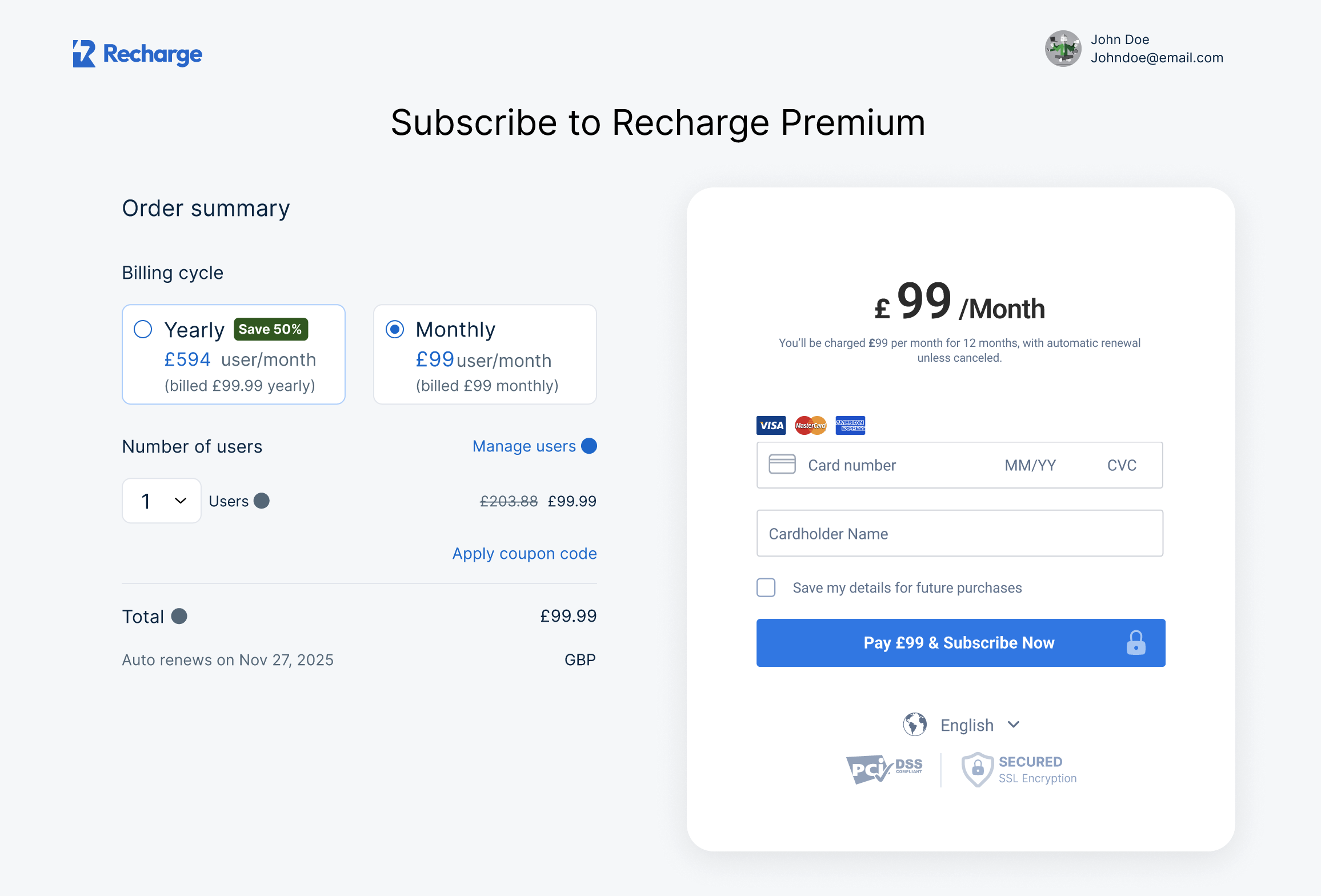
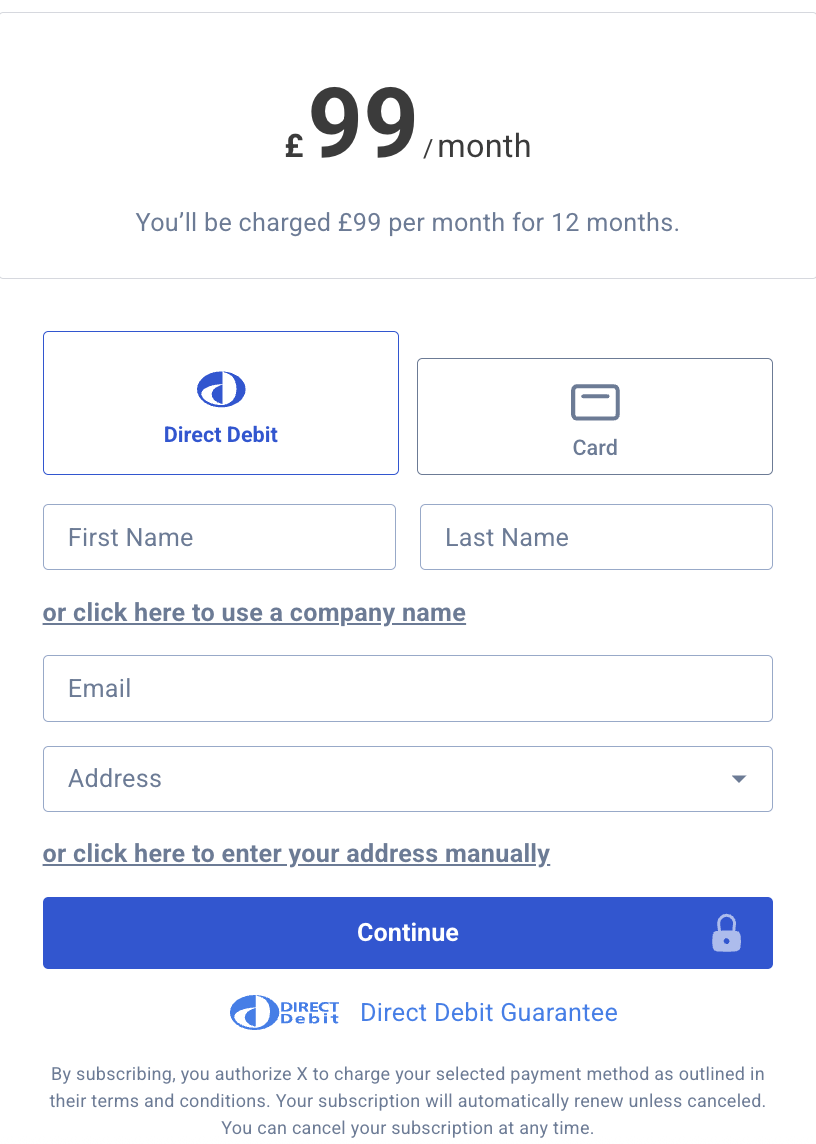
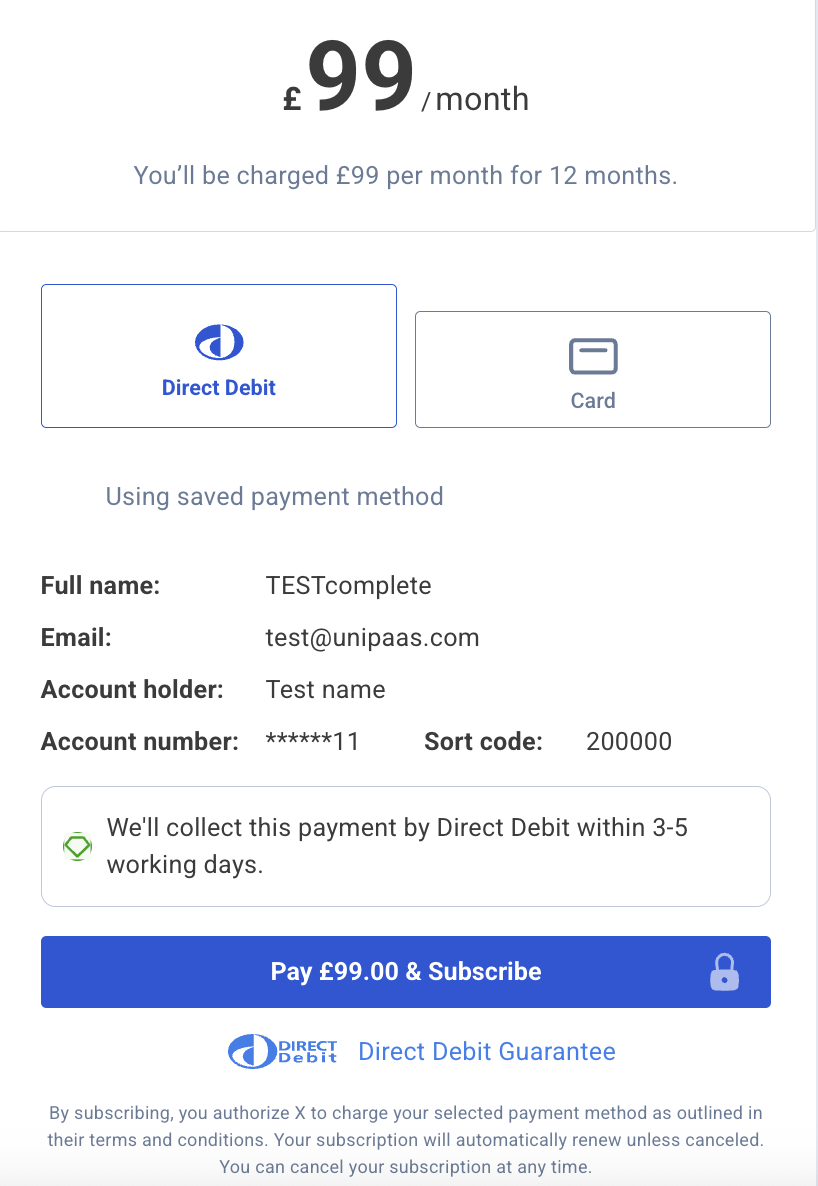
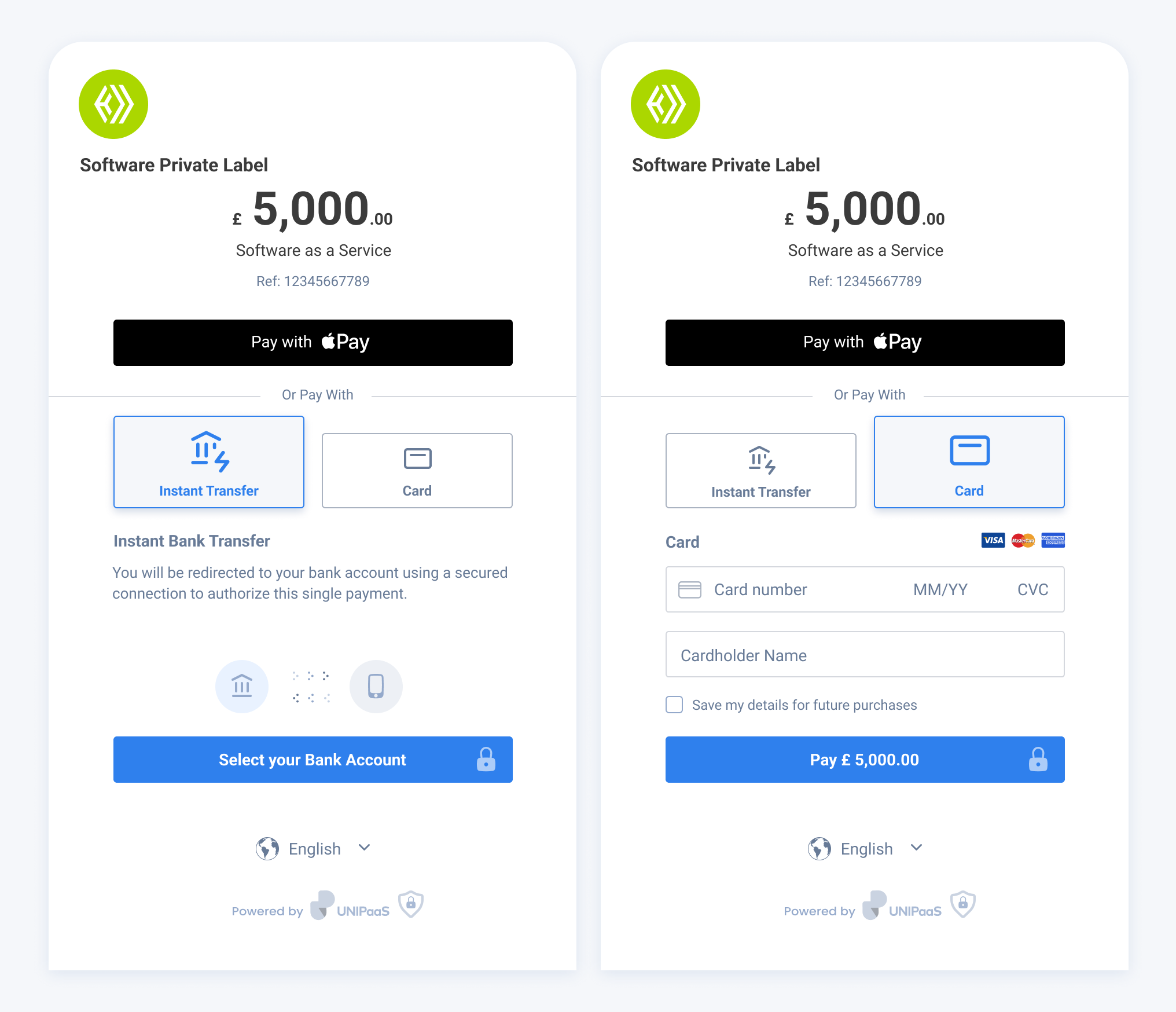
``` To use the Balance component, you will need to create an instance of it and mount it to the container DOM node in your page. This should be done after the previous div has finished loading. To create an instance of the Balance and mount it to the container DOM node, you can use the following code: * HTML ```html ``` The Balance component will dynamically render itself into the empty DOM element that you have provided. As the customer goes through the onboarding process, the Balance will retrieve the necessary data and update the relevant child components accordingly. **Balance component events**:\ The Balance component should interact with events that are on the platform side. In order to make the Balance fully functional, please implement the following component events. * `startOnboarding` - mandatory * `completeOnboarding` - mandatory * `sessionExpired` - optional * `generalError` - optional Use the following Javascript example snippet to listen and take appropriate action upon these events: * JavaScript ```javascript components.on("startOnboarding", (e) => { console.log("startOnboarding event", e.detail); }); ``` [See the full list of events, which cover all Unipaas embedded components](/docs/unipaas-components/#unipaas-components-dom-events) Go Next[Unipaas Components](/docs/unipaas-components/) # Direct Debit > This page is designed to provide a high-level understanding of what Direct Debit is and what it looks like when implemented with Unipaas. To go directly to... # General [Section titled “General”](#general) This page is designed to provide a high-level understanding of what Direct Debit is and what it looks like when implemented with Unipaas. To go directly to implementation options, click [here](/docs/direct-debit/#implementation-options). # What is Direct Debit? [Section titled “What is Direct Debit?”](#what-is-direct-debit) Direct Debit is a widely-used payment method in the UK that allows authorized vendors to collect funds directly from their customers’ bank accounts. It is commonly used for recurring payments such as bills, subscriptions, memberships, and more. However, it can also be used for one-off or ongoing ad hoc payments. # Benefits of implementing Direct Debit [Section titled “Benefits of implementing Direct Debit”](#benefits-of-implementing-direct-debit) By incorporating Unipaas Direct Debit offering into your platform, you can unlock new opportunities with your vendors who may currently rely on third-party solutions for Direct Debit payments. Enabling Direct Debit within your payment solution brings significant benefits for both your platform and your users. ## Benefits for your platform: [Section titled “Benefits for your platform:”](#benefits-for-your-platform) * **New revenue stream**: Access transactions previously unavailable to your payment solution, with higher profit margins compared to other payment methods. * **Minimal integration effort**: Implementing Direct Debit is straightforward and requires minimal development effort. * **Enhanced payment experience**: Provide your users with a comprehensive payment experience within your platform, fostering loyalty and retention. ## Benefits for your vendors: [Section titled “Benefits for your vendors:”](#benefits-for-your-vendors) * **One-stop shop**: Enable your vendors to use Direct Debit within your platform without additional sign-ups or logins to third-party services. * **Streamlined payments**: Automate payment collections, eliminating manual processes and reducing the risk of missed due dates. * **Competitive transaction fees**: Offer your vendors highly competitive transaction fees for Direct Debit payments. # How does Unipaas Direct Debit work? [Section titled “How does Unipaas Direct Debit work?”](#how-does-unipaas-direct-debit-work) * **Onboarding completion**: Direct Debit is only available to vendors who have completed their onboarding process. Until then, vendors can see the Direct Debit option but cannot utilize it. Once onboarding is complete, Direct Debit becomes accessible. * **Requesting Direct Debit mandates**: Vendors must request Direct Debit mandates from their customers. This triggers an email containing instructions for the customer to provide the mandate. * **Mandate flow**: Customers are directed to a mandate flow where they provide the required details and submit them for approval. ![](/images/34f8572-Demo_Mandate_Welcome.png) * **Collecting payments**: Once the mandate is set up, vendors can start collecting payments via Direct Debit. Important A payment can be made either by Direct Debit OR by other payment methods. While it is possible to switch between these options, simultaneous use is not possible. * **Monitoring Direct Debit mandates**: Vendors can monitor and manage their Direct Debit mandates through the Pay Portal UI Web-Embed, specifically under the Direct Debit tab. ![](/images/7d4de3c-Demo_Pay_Portal_Mandates_Tab.png) * **Monitoring Direct Debit collections**: Vendors can monitor and manage their Direct Debit collections through the Pay Portal UI Web-Embed, accessible under the Direct Debit tab. ![](/images/f316c26-Demo_Pay_Portal_Collections_Tab.png) # Implementation options [Section titled “Implementation options”](#implementation-options) There are two primary methods to implement Direct Debit within your embedded payment solution: * [Use the Unipaas UI Web-Embeds](/docs/implement-direct-debit-with-ui-web-embeds/): This method is **recommended** and provides an easy and seamless integration experience. * [Create your own Direct Debit flows with our API](/docs/implement-direct-debit-via-api/): For more advanced use cases or custom requirements, you can build your own Direct Debit flows using our API. # Testing your Direct Debit implementation [Section titled “Testing your Direct Debit implementation”](#testing-your-direct-debit-implementation) See [Direct Debit Test Scenarios](/docs/direct-debit-test-scenarios/) # Direct Debit Status > Mandate Status **Mandate Status** | Platform Portal | Vendor Pay Portal | Webhook/API | Description | | :--------------- | :---------------- | :---------------- | :-------------------------------------------------------------------------------------------------------------------------------------------------------------------------------------------------------------------------------------------- | | Sent | Sent | sent | A vendor has sent a mandate request to their customer | | Declined | Error | | An unexpected error has occurred. In this case it is recommended to resend a mandate | | Pending Approval | Pending approval | pending\_approval | The mandate has been submitted to the customer’s bank (via BACS) | | Active | Active | active | The mandate has been successfully set up by the customer’s bank | | Cancelled | Cancelled | cancelled | The mandate has been cancelled by either the customer or the vendor. In this case mandate request can be resent and mandate will be set up again | | Rejected | Rejected | rejected | The mandate could not be created (BACS response). The most common case to get this status - is due to typo or incorrect details submitted. It is recommended to communicate this to a payer, resend a mandate request and try to set up again | **Authorization (Collection) Status** | Platform Portal | Vendor Pay Portal | Webhook/API | Description | | :-------------- | :---------------- | :---------- | :------------------------------------------------------------------------------------------------------------------------------------- | | Pending | Pending Mandate | | Pending customer’s mandate being submitted and activated | | Scheduled | Created | Scheduled | The payment has been created, but not yet submitted to the banks | | Submitted | In progress | Submitted | The payment has been submitted to the banks | | Confirmed | In progress | | The payment has been confirmed as collected | | Charged | Charged | Captured | The payment has been included in a payout | | Declined | Declined | Declined | The payment failed to be processed. Note that payments can fail after being confirmed if the failure message is sent late by the banks | | Cancelled | Cancelled | Voided | The payment has been cancelled | # Direct Debit Test Scenarios > To test your Direct Debit (DD) payment method within your embedded payments solution, you may use the following scenarios. Note that you must make sure that... To test your Direct Debit (DD) payment method within your embedded payments solution, you may use the following scenarios. Note that you must make sure that the customer’s (payer) first name is as mentioned in the left column. | Customer First Name | Description | What happens on mandate creation | What happens on Direct Debit collection creation | | :------------------ | :----------------------------------------------------------------------------------------------------------------------- | :------------------------------- | :----------------------------------------------------------------------------- | | Successful | The customer’s payment is collected successfully and paid out to you. | The mandate is **active**. | The payment will be **paid out**. | | Penniless | The customer’s payment can’t be collected, for example, because they don’t have enough money in their account. | The mandate is **active**. | The payment will **fail**. | | Fickle | The customer’s payment is collected successfully, but is then charged back by the customer disputing it with their bank. | The mandate is **active**. | The payment will be **paid out**, and will then be marked as **charged back**. | | Invalid | The customer’s mandate can’t be set up because their bank details are rejected by the banks as invalid. | The mandate is **rejected**. | N/A | To test your Mandate set up flow via UI, you can use the following details: | Fields | Values | Result | | ---------------- | ------------------------------------------ | ------------------------ | | **Bank details** | Account number: 55779911 Sort code: 200000 | Will **pass** validation | | | Account number: 12000000 Sort code: 000001 | Will **fail** | | **Address** | 15 George Eliot, London WC2N 5DU, UK | Will **pass** validation | | | Any address combination + NG11 6J90 | Will **fail** | # Payout Options > A payout option is a method of receiving funds from a vendor's account. We offer three options to receive funds: Card, Alternative, and Bank Account. A payout option is a method of receiving funds from a vendor’s account. We offer three options to receive funds: Card, Alternative, and Bank Account. Unipaas allows you to have more than one payout option in a single account. You can also have more than one bank account to receive funds, and open a bank account for each currency in which you plan to receive payments. The bank account details you entered during the onboarding process is your default bank account. ## Get Platform Payout Options [Section titled “Get Platform Payout Options”](#get-platform-payout-options) Make a [`GET /payout-options`](/reference/#tag/payout-option/GET/payout-options) request: * cURL ```curl curl --request GET \ --url 'https://sandbox.unipaas.com/platform/payout-options' \ --header 'Accept: application/json' \ --header 'Content-Type: application/json' \ --header 'Authorization: Bearer ' \ ``` In the response, you’ll get requested array of [`Payout option object`](/docs/pay-out-funds-overview/#the-payout-object). ## Get Vendor Payout Options [Section titled “Get Vendor Payout Options”](#get-vendor-payout-options) Make a [`GET vendors/{vendorId}/payout-options`](/reference/#tag/vendor/GET/vendors/%7BvendorId%7D/payout-options) request: * cURL ```curl curl --request GET \ --url 'https://sandbox.unipaas.com/platform/vendors/{vendorId}/payout-options' \ --header 'Accept: application/json' \ --header 'Content-Type: application/json' \ --header 'Authorization: Bearer ' ``` In the response, you’ll get the requested array of [`Payout option object`](/docs/pay-out-funds-overview/#the-payout-object). Go Next[Webhook Notifications](/docs/webhook-notifications-1/) # Embedded Acquisition > In-app acquisition stands as an effective approach for acquiring users within your primary platform and seamlessly converting them into active vendors... In-app acquisition stands as an effective approach for acquiring users within your primary platform and seamlessly converting them into active vendors within your embedded payments ecosystem, thereby significantly boosting the adoption of your white-label payment solution. At Unipaas, we recognize the transformative power of this strategy and have developed a sophisticated smart infrastructure - Embedded Acquisition - to facilitate this process. Our aim is to empower businesses to easily acquire users and employ innovative marketing strategies to ensure user adoption, enhance the value proposition of the platform, cultivate user loyalty and stickiness, and unlock the revenue potential inherent in users’ transactional activities. # Benefits [Section titled “Benefits”](#benefits) Unipaas Embedded Acquisition provides a range of benefits for platforms looking to employ the innovative marketing strategies, based on ML, segmentation and personalization. These benefits include: **Enhanced user acquisition:** Streamlined processes and targeted strategies result in more efficient acquisition of users, expanding the payment solution’s user base. Leveraging personalized experiences, tailored marketing messages, and strategic segmentation enables platforms to unlock new revenue streams, maximize the value of each user, foster deeper connections with the platform, and drive business growth through higher conversion rates. **Data-driven Insights:** Advanced analytics provide valuable insights into user behavior and preferences, enabling data-driven decision-making and continuous optimization of marketing strategies. **Competitive advantage:** By implementing cutting-edge marketing technologies and strategies, platforms gain a competitive edge in the market, positioning themselves as leaders in user acquisition and engagement for embedded payment solution. These benefits collectively contribute to the overall success and growth of platforms leveraging Unipaas Embedded Acquisition. # Implementation [Section titled “Implementation”](#implementation) The primary interface for user engagement and marketing is Unipaas UI Web-Embeds. Prior to a vendor registering with your platform’s payment solution, they encounter the “Zero state” of the UI Web-Embeds, presenting personalized messages and highlighting the specific benefits for their business, tailored to their industry, payment history, monthly turnover, and other pertinent parameters. Unipaas collaborates closely with your team, aligning UI design, language style, and marketing strategies with your platform’s vision and preferences. What distinguishes the Embedded Acquisition tool is its infrastructure, which gathers and analyzes user data, establishes segmentation and personalization, and facilitates simple integration with your platform, exponentially boosting adoption rates for payment products. To implement the Embedded Acquisition tool, three main steps are involved: **UI Web-Embeds implementation:**This step entails integrating Unipaas UI web embeds into your platform. These embeds serve as the primary interface for user engagement and marketing. To create a personalized experience for non-registered users who don’t have a vendor ID yet, Unipaas requires a user (vendor) reference on your platform to be passed, along with basic user data, each time embeds are loaded. **Invoice data sharing and updating for non-registered users:**\ Dedicated endpoints are established to facilitate the sharing of invoice data with non-registered users who have not yet been assigned a vendor ID. The shared data serves as the foundation for crafting personalized messages tailored to each user’s preferences and potential benefits with your payment solution. **New registered vendor creation with vendor reference:**\ Upon completion of the registration process, new vendors are created within the platform’s ecosystem. It is crucial to include a vendor reference during this step to establish a direct connection between pre-registration data sharing and post-registration integration. This ensures seamless continuity and enables businesses to leverage insights gathered during the pre-registration phase to enhance the vendor’s experience and drive adoption of the payment solution. # UI Web-Embeds [Section titled “UI Web-Embeds”](#ui-web-embeds) ## Authorization [Section titled “Authorization”](#authorization) To implement UI Web-Embeds, including Embedded Acquisition, into your platform, an authorized API call is required in your backend. This call should include a non registered vendor object, with a reference and user data, instead of vendor ID, to generate the Unipaas access token. ### Generate UI components access token [Section titled “Generate UI components access token”](#generate-ui-components-access-token) * cURL ```curl curl -X POST "https://sandbox.unipaas.com/platform/authorize" \ -H "accept: application/json" \ -H "Authorization: Bearer " \ -H "Content-Type: application/json" \ --data-raw '{ "scopes": ["portal_read","portal_write","onboarding_write","invoice_read","invoice_write"], "vendor": { "reference": "uniq-id-1", "email": "john.doe@example.com", "name": "John Doe", "type": "individual", "category": "MISC_AND_RETAIL_STORES", "categoryDescription": "Miscellaneous and Specialty Retail Stores" } }' ``` **Vendor’s object for non-registered users** | Name | Type | Required | Description | | --------------------- | ------ | -------- | --------------------------------------------------------------------------------------- | | `reference` | String | YES | A unique user reference on your platform | | `email` | String | NO | User’s email | | `name` | String | YES | User’s contact name | | `type` | Enum | YES | User’s business type: `company` `individual` | | `category` | Enum | YES | User business’ industry (Please use this mapping: [/docs/mcc-codes/](/docs/mcc-codes/)) | | `categoryDescription` | String | NO | Detailed user business’ industry description | [Learn more about UI Web-Embeds implementation](/docs/ui-web-embeds-integration-guide/) # Invoice data [Section titled “Invoice data”](#invoice-data) Dedicated endpoints have been specifically designed to facilitate the sharing of invoice data for non-registered users who have not yet been assigned a vendor ID. ## Post invoice [Section titled “Post invoice”](#post-invoice) POST/platform/vendors/reference​/{vendorReference}​/invoices **The invoice object example** * JSON ```json { "reference": "INV-1234", "currency": "GBP", "totalAmount": 81, "vatAmount": 9.9, "dueDate": "2022-12-12T08:42:52.933Z", "paymentStatus": "unpaid", "totalPaid": 0, "vendor": { "reference": "uniq-id-1", "email": "john.doe@example.com", "name": "John Doe", "type": "individual", "category": "MISC_AND_RETAIL_STORES", "categoryDescription": "Miscellaneous and Specialty Retail Stores" }, "customer": { "reference": "customer-uniq-id-1" }, "lineItems": [ { "description": "line 1", "unitPrice": 10.6, "quantity": 4 }, { "description": "line 2", "unitPrice": 19.3, "quantity": 2 } ], "isRecurring": true, "external":true, "publicUrl": "http://yourcompany.com/invoice.pdf", "invoiceObject": {} } ``` [Learn more about invoice creation](/docs/invoices/#post-invoice) ## Update invoice [Section titled “Update invoice”](#update-invoice) PATCH/vendors/reference​/{vendorReference}​/invoices​/{invoicesId} **The invoice object example** You may only update the values that have been changed. In this example, the invoice was subject to a partial payment of 60 GBP, leading to a change in the payment status. * JSON ```json { "id": "6391fd42a38e34b15b118d9b", "totalPaid": 60.0, "paymentStatus": "partially_paid" } ``` [Learn more about invoice updates](/docs/invoices/#update-invoice) # Newly registered vendors [Section titled “Newly registered vendors”](#newly-registered-vendors) To ensure seamless integration and continuity of data shared before and after a vendor’s registration with your payment solution, it is imperative to include a vendor reference in the initial POST/vendors call. This step serves to close the loop and establish a direct connection between the pre-registration data sharing process and the subsequent registration and integration phases. **Including vendor reference** POST/vendors * cURL ```curl curl --location --request POST 'https://sandbox.unipaas.com/platform/vendors' \ --header 'accept: application/json' \ --header 'Authorization: Bearer ' \ --header 'Content-Type: application/json' \ --data-raw '{ "businessName": "Better Delivery", "type": "company", "firstName": "John", "lastName": "Doe", "email": "john.doe@example.com", "country": "GB", "reference" : "uniq-id-1", "createOnboardingLink": true }' ``` [Learn more about vendor creation](/docs/create-vendor/) # Embedded Account UI > Embedded account component is the fastest and easiest way to show vendor's account in a UI. Embedded account component is the fastest and easiest way to show vendor’s account in a UI. Using a single script, you can show the vendor’s account embedded within your platform, while Unipaas handle all of the account’s financial states with respect to the vendor’s balance and onboarding status. The embedded account component will: * Show the vendor’s balances * Ask for verification documents and information when needed * Communicate with the [onboarding UI component](/docs/onboarding-ui/) * Handle payouts to the vendor’s bank account. Embedding this component will save you the work of integrating both account and payout APIs! while giving you the flexibility to customize the design to fit your platform’s look & feel. ![431](/images/968a314-Ewallet_-_Complete_3.svg "Ewallet - Complete (3).svg") ## Generate Vendor Access Token [Section titled “Generate Vendor Access Token”](#generate-vendor-access-token) Make a [`POST /platform/authorize`](/reference/#tag/authentication/POST/authorize) request using `vendorId`. Get a temporary vendor access token, allowing the account UI to communicate with our servers in the context of that specific vendor: * cURL ```curl curl --location --request POST 'https://sandbox.unipaas.com/platform/authorize' \ --header 'Accept: application/json' \ --header 'Content-Type: application/json' \ --header 'Authorization: Bearer ' \ --data-raw '{ "scopes": ["ewallet_read", "payout_write"], "vendorId": "{vendorId}" }' ``` You should receive a response containing the access token, similar to the following: * JSON ```json { "accessToken": "{{VENDOR_ACCESS_TOKEN}}", "expiresIn": "3600", "scopes": [ "ewallet_read" ], "vendorId": "60c9a73bf51a8b4bd2034c13", "merchantId": "60c9a73bce55c1202708e4cc" } ``` ## Embedding the account UI [Section titled “Embedding the account UI”](#embedding-the-account-ui) **Embed the Script & launch the account UI**\ To embed the drop-in UI, insert a script before `` as shown in the example below: * HTML ```html ``` Add the following HTML element to your page. The UI will be injected into this element: * HTML ```html
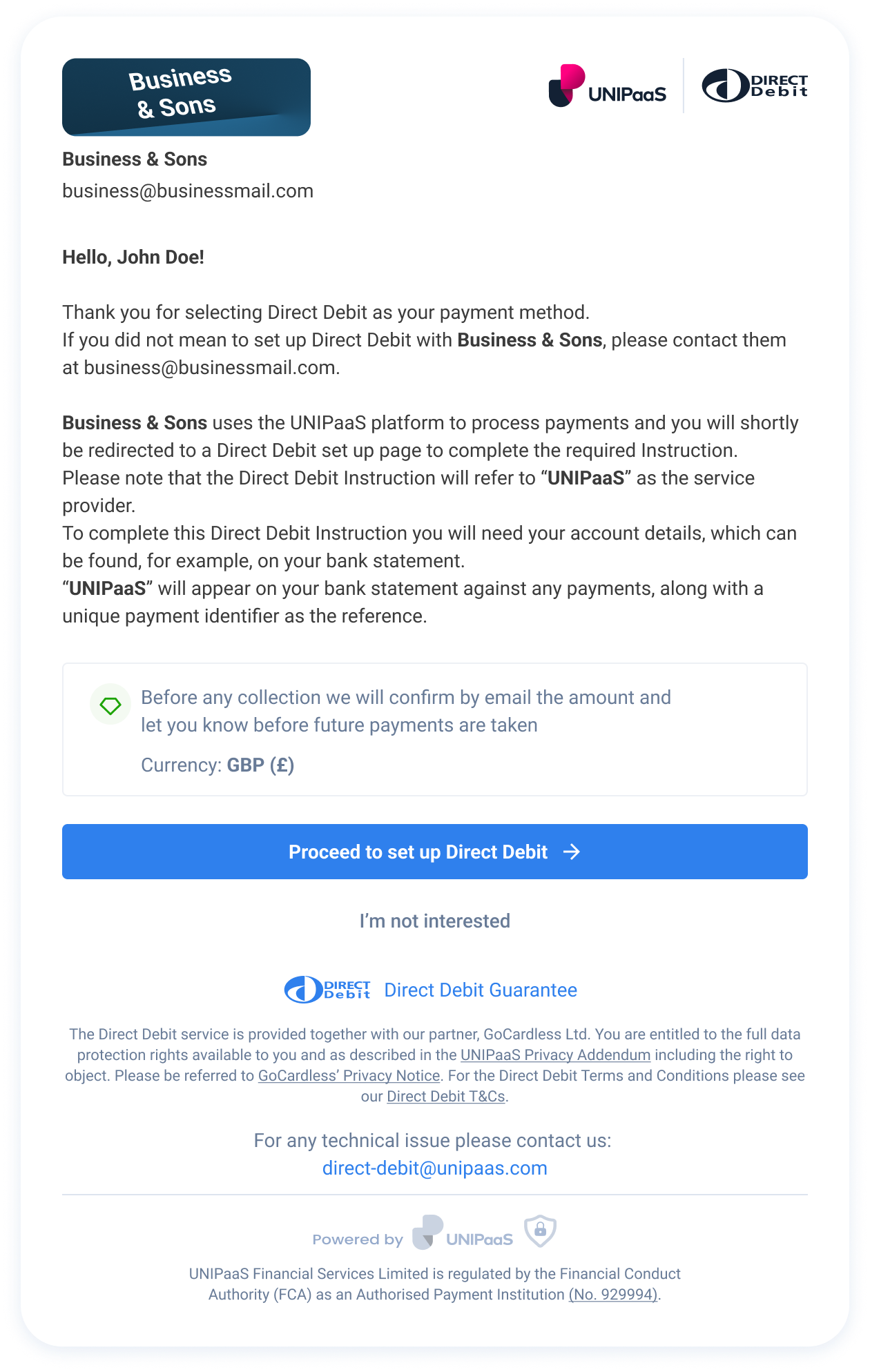
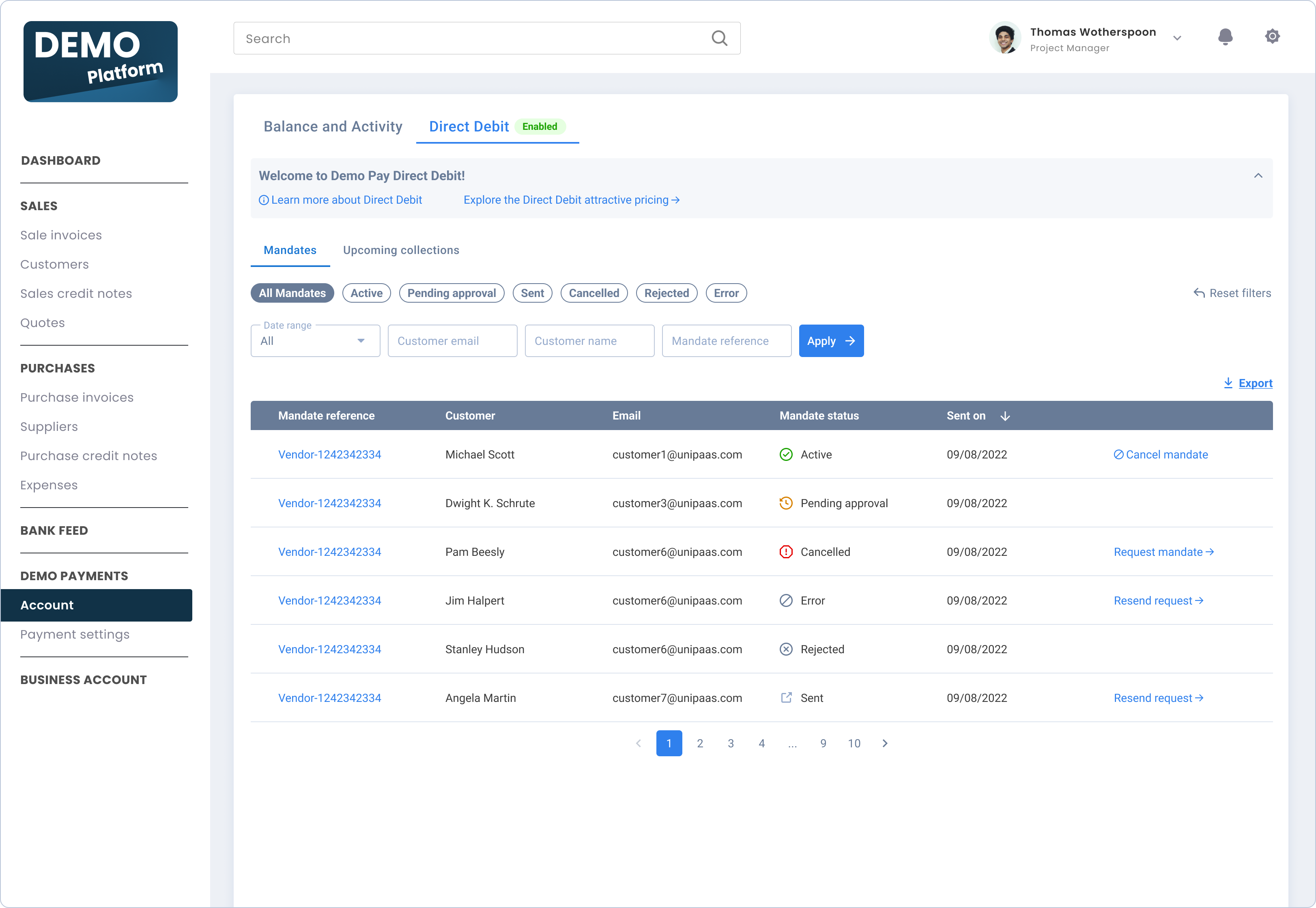
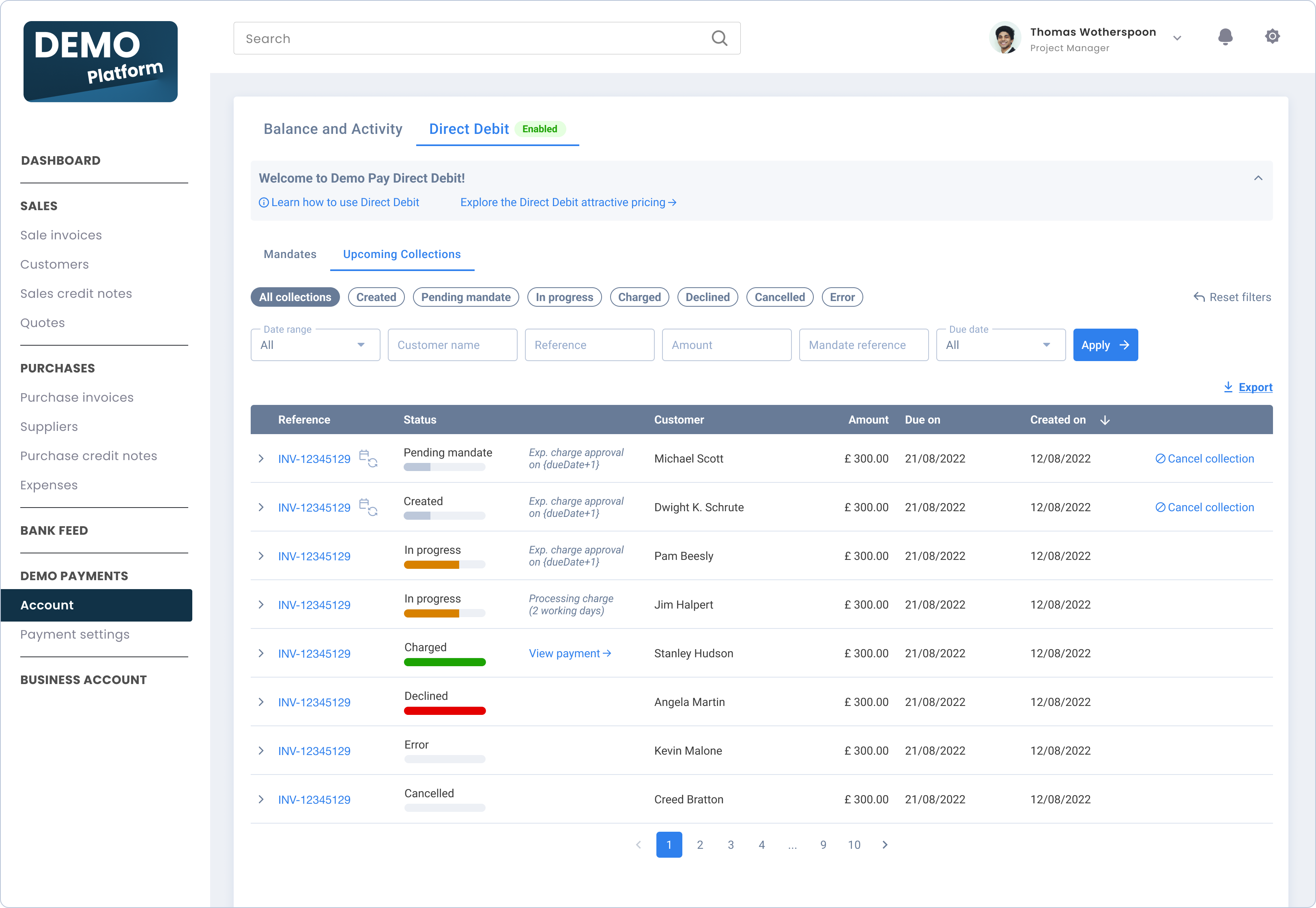
``` ## Parameters object [Section titled “Parameters object”](#parameters-object) This script will load our account SDK and launch the account UI with the following parameters: | Settings | Is Required | Type | Description | | ------------- | ----------- | ---------------------------------------- | ---------------------------------------------------------------------------------------------------------------------------------------------------------------------------------------------------------------------------------------------- | | `accessToken` | Yes | String | Temporary user access token allowing the interaction between the Onboarding UI and the Onboarding API in the context of a specific vendor. | | `selector` | Yes | String | CSS selector where the Onboarding UI will be located. It’s recommended to use main application div. | | `theme` | No | [Learn more](/docs/embedded-ewallet-ui/) | Use specific CSS style or override with your own, existing style. | | callback | Yes | JS function | The callback function will run each time the component holds a request for the user to be routed to another page in the web app. The component will send a callback with the matching action payload. [Learn more](/docs/embedded-ewallet-ui/) | ## Changing account component style [Section titled “Changing account component style”](#changing-account-component-style) You can change the following css styles within the component script: * JSON ```json { "theme":{ "fontFamily":"roboto", "colors":{ "primary":"#888E99", "secondary":"#F5F7FA", "subHeader":"#687B97", "disabled":"#AAB3C1", "primaryTextColor":"#3B3B3B", "secondaryTextColor":"#687B97", "buttonColor":"#2F80ED", "borderColor":"#BDC8DA", "errorColor":"#E50000", "success":"#F4FAF2", "successTextColor":"#687B97", "alert":"#FFFBED", "alertTextColor":"#D88100" }, "header":{ "fontSize":"14px" }, "fontFamily":"inherit", "boxShadow":"none" } } ``` - You can use your own css stylesheet to override the default style settings. ## Connecting account component with onboarding component [Section titled “Connecting account component with onboarding component”](#connecting-account-component-with-onboarding-component) When needed, the component will request to redirect vendors to another page in your web app,\ that holds the embedded onboarding UI, to complete verification process for the vendor. The image below presents this state, clicking on the “Complete Details” button should move the vendor to the embedded onboarding UI.\ The account component will send a callback with the matching action payload: { “action” : “onboarding” } so you know where to redirect the vendor. ![431](/images/41f3328-Ewallet_-_AccPmnt2_1.svg "Ewallet - AccPmnt2 (1).svg") ## Extra account component configurations [Section titled “Extra account component configurations”](#extra-account-component-configurations) **Handling vendor’s payout from account component**\ Showing the payout CTA’s is the default option for the component.\ You should use this option if you want your vendor to be able to: * Configure their own payouts schedule - daily, weekly or monthly. Available funds will be moved to the vendor’s bank account. * Withdraw all available funds on demand. This action will be enabled only if the account has available funds to withdraw. If you wish to remove this line - send the [initial authorization scope](/docs/embedded-ewallet-ui/#generate-vendor-access-token) without “payout\_write”.\ You should set this option if you wish to control your vendor’s payouts for them.\ In this case, you will need to configure the payout scheduling for all vendors or for a single vendor. This option is available for you to configure inside the Unipaas portal. ![507](/images/df0249a-Frame_1_1.svg "Frame 1 (1).svg") **Show pending and reserved balances**\ The account component will automatically show the reserved and pending balances, in the case reserved amount apply for your vendors.\ Note - reserved amount are configured based on the platform’s risk profile and platform business model type. ![490](/images/ce6ea7b-Frame_2_1.svg "Frame 2 (1).svg") # Embedded UI Server to Server Authentication > Embedded UI components are the fastest and easiest way to integrate to Unipaas. Embedded UI components are the fastest and easiest way to integrate to Unipaas. Using a single script, you can show the vendor’s account / Onboarding flows and Payment actions embedded within your platform, while Unipaas handle all of the account’s financial states with respect to the vendor’s balance and onboarding status. For a client application to communicate with Unipaas without compromising your private\_key, an OAuth 2.0 mechanism is used. This means before any API request from a client application; a temporary accessToken must be granted using the authorization API endpoint: To summarize the Authentication is done with 2 steps :\ Step 1 : Server to Server ( Using your private key) - You will receive an Access token in the response\ Step 2 : Client Side - use the Access token to run the JavaScript code. Example:**Vendor’s account component**\ Embedding this component will save you the work of integrating both account and payout APIs! while giving you the flexibility to customize the design to fit your platform’s look & feel. ![431](/images/968a314-Ewallet_-_Complete_3.svg "Ewallet - Complete (3).svg") ## Generate Vendor Access Token [Section titled “Generate Vendor Access Token”](#generate-vendor-access-token) Make a [`POST /platform/authorize`](/reference/#tag/authentication/POST/authorize) request using `vendorId`. Get a temporary vendor access token, allowing the account UI to communicate with our servers in the context of that specific vendor: * cURL ```curl curl --location --request POST 'https://sandbox.unipaas.com/platform/authorize' \ --header 'Accept: application/json' \ --header 'Content-Type: application/json' \ --header 'Authorization: Bearer ' \ --data-raw '{ "scopes": ["ewallet_read", "payout_write"], "vendorId": "{vendorId}" }' ``` You should receive a response containing the access token, similar to the following: * JSON ```json { "accessToken": "{{VENDOR_ACCESS_TOKEN}}", "expiresIn": "3600", "scopes": [ "ewallet_read" ], "vendorId": "60c9a73bf51a8b4bd2034c13", "merchantId": "60c9a73bce55c1202708e4cc" } ``` # Accounts in Unipaas Portal > An account will be automatically created for each vendor, in each currency the vendor accepts payment in.\ An account is automatically created once a... ## Unipaas will manage accounts for you and your vendors [Section titled “Unipaas will manage accounts for you and your vendors”](#unipaas-will-manage-accounts-for-you-and-your-vendors) An account will be automatically created for each vendor, in each currency the vendor accepts payment in.\ An account is automatically created once a transaction is made. You can view your own account and your vendors’ accounts on the Unipaas portal.\ As a platform, you can monitor the account activity (view your vendors’ transactions and troubleshoot issues) and completely control the money flows. Later on, when you choose to, you can payout (or schedule payouts) to the vendor accounts. # Overview > An account is a virtual location where funds are collected and stored. Accepted payments go into an account. You can withdraw or transfer funds from one account balance to another. ## What you can do with an account [Section titled “What you can do with an account”](#what-you-can-do-with-an-account) * **Split payment** - Divide and send funds from your account to your vendors’ accounts. * **Real-time Balance** - See in real-time the amount of funds you and your vendors have. * **Bank transfers** - Send money to bank accounts (Using [Payout](/docs/pay-out-funds-overview/) Object). ![3256](/images/871a8f7-Account_Fees.png "Account Fees.png") ## Before You Begin [Section titled “Before You Begin”](#before-you-begin) * The account Object collects and stores money from shoppers’ PayIn. Please make sure that you have already completed the [Payin](http://google.com) integration. * Please make sure you have the identity of the entity you want to attach to the account. * Make sure to implement account webhooks so you will get notified about your vendors activity Note Account balances (both platform’s and platform vendors) are unique per vendor, per currency.\ For example: Only one USD account balance can be created for a platform. Multiple USD account balances can be created for platform’s vendors. As a platform, you can create a USD account balance for each vendor (but you can’t created 2 USD account balances for a specific vendor). ## The Account Object [Section titled “The Account Object”](#the-account-object) ### Account Owner [Section titled “Account Owner”](#account-owner) An account is always linked to an account owner: a platform or a platform’s vendor.\ In the account object, vendorId will be defined when you’re dealing with your vendor’s accounts. Otherwise (when vendorId doesn’t exist), it’s your (platform) account. ### Account Currency [Section titled “Account Currency”](#account-currency) Account currency is one of the following: GBP, USD, EUR. ### Account Balances [Section titled “Account Balances”](#account-balances) In order to provide visibility into all of your (and your vendors) funds in real time, the account contains multiple balance types: pending, payable, and reserve. ### Account properties [Section titled “Account properties”](#account-properties) | Parameter | Type | Description | | ----------------- | ------ | -------------------------------------------------------------- | | `vendor_id` | String | Defined only for vendor’s accounts | | `ewallet_id` | String | Unique id of an account | | `currency` | Enum | Account currency: USD, EUR, GBP | | `pending_balance` | Number | Funds that have been collected but have not yet been settled | | `payable_balance` | Number | Available funds for immediate use | | `reserve_balance` | Number | Required balance to cover chargebacks, returns, and other fees | ## The Account Transaction Object [Section titled “The Account Transaction Object”](#the-account-transaction-object) | | | | | ------------------------ | ------ | -------------------------------------------------------------- | | `ewallet_transaction_id` | String | Unique id of an account transaction | | `ewallet_id` | String | Unique id of an account | | `pending_amount` | Number | Funds that have been collected but have not yet been settled | | `payable_amount` | Number | Available funds for immediate use | | `reserve_amount` | Number | Required balance to cover chargebacks, returns, and other fees | # ewalletTransaction/create webhook notification > The Unipaas system will update your platform of each transaction via the ewalletTransaction/create webhook. Including incoming and outgoing transactions. In... The Unipaas system will update your platform of each transaction via the `ewalletTransaction/create` webhook. Including incoming and outgoing transactions. In most cases, you will receive more than one webhook notification for each transaction, as separate notifications will be fired for fees and splitted payments. ## ewalletTransaction/create webhook [Section titled “ewalletTransaction/create webhook”](#ewallettransactioncreate-webhook) Use the `ewalletTransaction/create` webhook to keep your platform updated about every transaction that goes into or out of your vendor’s eWallets, including fees and statuses. **Webhook fields and examples** The following is an example for the `EwalletTransaction/create`, for an incoming transaction (a vendor on your platform has received a payment) * JSON ```json { "merchantId": "634801efbf65c800ef3e66df", "vendorId": "634803b8e81da8def11e4329", "id": "152309", "amount": 10, "currency": "GBP", "reference": "INV-0063", "fees": 0, "type": "Charge", "transactionId": "639ed03d1258510111196a9e", "authorizationId": "639ed03d1258517389196a98", "transactionType": "Sale", "transactionResult": "Approved", "paymentMethod": "card", "payoutId": null, "brand": "visa", "issuerCountry": "GB", "reconciled": "false", "eWalletId": "105228", "netAmount": 10, "pendingAmount": 10, "payableAmount": 0, "reservedAmount": 0, "payableBalance": 49.95, "reservedBalance": 0, "identificationReference": "2535", "feeDesription": null, "hint": "", "metadata": { "accountCode": "090", "clientId": "18F8E1942DD04BB3B5E5A9551AB161C1", "clientSecret": "NL6CtohuGBtbW5jS55UrnDqO5GwS2sANcLLddUE-eFHzL9Qz" }, "createdAt": "2022-12-18T08:33:04.763Z" } ``` Multiple webhook notifications for each transaction You will receive multiple `ewalletTransaction/create` webhook notifications for most transactions. Each webhook notifications will represent a different aspect of a transaction, such as fees, authorization, etc. ## Filtering out notifications [Section titled “Filtering out notifications”](#filtering-out-notifications) Some webhook notifications should be used by your platform to update the invoice status and account ledger. The following table will help you listen only to the relevant notifications. We recommend you filter out all `ewalletTransaction/create` webhook notifications, except the following: | Description | `transactionType`value | `transactionResult`value | `reconciled`value | Action | | | -------------------------------------------- | ---------------------- | ------------------------ | ----------------- | ------------------------------------------------------------------------- | -------- | | A payment was received | Sale | Approved | false | Update the invoice with PAID statusUpdate the account ledger | Required | | A payment was refunded | Refund | Approved | false | Update the invoice with REFUNDED statusUpdate the account ledger | Required | | A payout was made to a vendor’s bank account | Payout | Approved | irrelevant | Update the invoice PAID INTO BANK ACCOUNT statusUpdate the account ledger | Required | | A payment was settled (funds are available) | Sale | Approved | true | | Optional | Payment attribution Every webhook notification will contain a `vendorId` field which is used to attribute a transaction to a specific user on your platform. Some transactions are attributed to your platform, these transactions will have the same ID in both `vendorId` and ‘merchantId\` fields ## Object fields [Section titled “Object fields”](#object-fields) The following table describes the most important `ewalletTransaction/create` object fields: | Field | Description | | ------------------------- | -------------------------------------------------------------------------------------------------------------------------------------------------------------------------------------------------------------------------------------------------------------------------------------------------------------------------------------------------------------------------------------------------------------------------------------------------------------------------- | | `vendorId` | The unique id of the vendor this transaction is relevant for | | `merchantId` | The unique id of the merchant this transaction is relevant for | | `id` | The unique id of the record | | `amount` | Transaction amount | | `currency` | Transaction currency | | `reference` | * Invoice number or reference number for incoming payments * `null` for outgoing payments | | `fees` | - The sum amount of fees deducted for this transaction | | `type` | * Transaction type (it’s better to use transactionType field) | | `transactionId` | - Identifier of this specific transaction | | `authorizationId` | * identifier of the authorization (refunds and chargebacks will have the same `authorizationId` as the original transaction) | | `transactionType` | - Represents the type of the transaction (Use this field to filter notifications) | | `transactionResult` | `Approved` - Incoming transaction was successfully executed `Declined` - An incoming transaction attempt was declined `Pending` - An incoming transaction is still processing `Error` - There was an error with the transaction `Created` - An outgoing transaction was successfully executed. `Cancelled` - An outgoing transaction was cancelled- Some `transactionResult` values are relevant to specific `transactionType` values. These are shown in the table below. | | `paymentMethod` | Indicates the payment method that was used to take the payment. | | `payoutId` | A unique ID of an outgoing payment transaction. | | `brand` | The card/bank brand that was used to take the payment. | | `issuerCountry` | Issuer country of the credit card that used during the payment | | `reconciled` | * Indicates if an incoming transaction was reconciled * Not relevant for outgoing transactions | | `eWalletId` | - The ID of the eWallet that the transaction webhook is relevant for | | `netAmount` | * The transaction amount after deductions | | `pendingAmount` | - The transaction amount that is still not reconciled | | `payableAmount` | * The transaction amount that is available for payout after reconciliation | | `reservedAmount` | - The transaction amount that is reserved for risk purposes | | `payableBalance` | * The ewallet balance that is available for payout | | `reservedBalance` | - The ewallet balance that is reserved for risk purposes | | `consumerEmail` | * Email of the consumer that made the payment | | `consumerName` | - Name of the consumer that made the payment | | `consumerReference` | * Reference of the consumer that made the payment | | `identificationReference` | - Identification reference for payment method that has been used for the payment | | `feeDesription` | * Explanation about fees that has been charged for the payment | | `hint` | - Some hint related to fees | | `metadata` | * Field for custom data that has been used during checkout creation (useful for passing some internal properties) | | `checkoutId` | - A unique ID of the checkout used for this payment | | `createdAt` | * Timestamp for ewallet transaction entity | # Create Account > As a platform, you can create an account for yourself or your platform's vendors. As a platform, you can create an account for yourself or your platform’s vendors. ### A vendor account can be created in 3 different ways [Section titled “A vendor account can be created in 3 different ways”](#a-vendor-account-can-be-created-in-3-different-ways) * Automatically, by accepting a payment via the Platform Portal. * Via API (Server-to-Server call). * Automatically in the first Payin of a new currency. An account Object will be created automatically for your vendors by Unipaas in the first Payin transaction (per vendor per currency) to keep your integration simple. We recommend you let Unipaas manage the account creation automatically, but if you want to bring more control and flexibility into your system, you can use the below methods. ## Create a Platform Account [Section titled “Create a Platform Account”](#create-a-platform-account) As a platform, you can create an account balance for yourself. Make a [`POST /ewallets`](/reference/) request to create a new account balance: * cURL ```curl curl --request POST \ --url 'https://sandbox.unipaas.com/platform/ewallets' \ --header 'Accept: application/json' \ --header 'Content-Type: application/json' \ --header 'Authorization: Bearer ' \ --data-raw '{ "currency": "USD", "name": "my usd eWallet" }' ``` In the response, you’ll get the created [`eWallet object`](/docs/ewallets-overview/). eWallet.vendorId won’t be defined, as this method creates a platform account. ## Create Platform’s Vendor account [Section titled “Create Platform’s Vendor account”](#create-platforms-vendor-account) As a platform, you can create an account for your vendor. Make a [`POST /vendors/{vendorId}/ewallets`](/reference/#tag/vendor/POST/vendors/%7BvendorId%7D/ewallets) request to create a new eWallet: * cURL ```curl curl --request POST \ --url 'https://sandbox.unipaas.com/platform/vendors/{vendorId}/ewallets' \ --header 'Accept: application/json' \ --header 'Content-Type: application/json' \ --header 'Authorization: Bearer ' \ --data-raw '{ "currency": "USD", "name": "my vendor\'s usd eWallet" }' ``` In the response you’ll get the created vendor [`eWallet object`](/docs/ewallets-overview/). eWallet.vendorId will be defined, as this method creates a platform’s vendor account. # Get Account Transactions > Make a GET /ewallets/{eWalletId}/transactions request: ## Get Platform Account Transactions [Section titled “Get Platform Account Transactions”](#get-platform-account-transactions) Make a [`GET /ewallets/{eWalletId}/transactions`](/reference/#tag/ewallet/GET/ewallets/%7BewalletId%7D/transactions) request: * cURL ```curl curl --request GET \ --url 'https://sandbox.unipaas.com/platform/ewallets/{eWalletId}/transactions' \ --header 'Accept: application/json' \ --header 'Content-Type: application/json' \ --header 'Authorization: Bearer ' ``` The response will be an array of [`eWallet transactions object`](/docs/ewallets-overview/). ## Get Vendor Account Transactions [Section titled “Get Vendor Account Transactions”](#get-vendor-account-transactions) Make a [`GET /vendors/{vendorId}/ewallets/{eWalletId}/transactions`](/reference/#tag/vendor/GET/vendors/%7BvendorId%7D/ewallets/%7BewalletId%7D/transactions) request: * cURL ```curl curl --request GET \ --url 'https://sandbox.unipaas.com/platform/vendors/{vendorId}/ewallets/{eWalletId}/transactions' \ --header 'Accept: application/json' \ --header 'Content-Type: application/json' \ --header 'Authorization: Bearer ' ``` The response will be an array of [`eWallet transactions object`](/docs/ewallets-overview/). # Get Payouts > Make a GET /payouts request: ## Get Platform Payouts [Section titled “Get Platform Payouts”](#get-platform-payouts) Make a [`GET /payouts`](/reference/#tag/payout/GET/payouts) request: * cURL ```curl curl --request GET \ --url 'https://sandbox.unipaas.com/platform/payouts' \ --header 'Accept: application/json' \ --header 'Content-Type: application/json' \ --header 'Authorization: Bearer ' \ ``` In the response, you’ll get requested array of [`Payout object`](/docs/pay-out-funds-overview/#the-payout-object). ## Get Vendor Payouts [Section titled “Get Vendor Payouts”](#get-vendor-payouts) Make a [`GET /vendors/{vendorId}/payouts`](/reference/#tag/vendor/GET/vendors/%7BvendorId%7D/payouts) request: * cURL ```curl curl --request GET \ --url 'https://sandbox.unipaas.com/platform/vendors/{vendorId}/payouts' \ --header 'Accept: application/json' \ --header 'Content-Type: application/json' \ --header 'Authorization: Bearer ' \ ``` In the response, you’ll get the requested array of [`Payout object`](/docs/pay-out-funds-overview/#the-payout-object). # Get Accounts > Make a GET /ewallets request: ## Get Platform Accounts [Section titled “Get Platform Accounts”](#get-platform-accounts) Make a [`GET /ewallets`](/reference/#tag/ewallet/GET/ewallets) request: * cURL ```curl curl --request GET \ --url 'https://sandbox.unipaas.com/platform/ewallets' \ --header 'Accept: application/json' \ --header 'Content-Type: application/json' \ --header 'Authorization: Bearer ' ``` The response will be an array of [`eWallet object`](/docs/ewallets-overview/). ## Get Vendor Accounts [Section titled “Get Vendor Accounts”](#get-vendor-accounts) Make a [`GET /vendors/{vendorId}/ewallets`](/reference/#tag/vendor/GET/vendors/%7BvendorId%7D/ewallets) request request: * cURL ```curl curl --request GET \ --url 'https://sandbox.unipaas.com/platform/vendors/{vendorId}/ewallets' \ --header 'Accept: application/json' \ --header 'Content-Type: application/json' \ --header 'Authorization: Bearer ' ``` The response will be an array of [`eWallet object`](/docs/ewallets-overview/). Go Next[Get eWallet Transaction](/docs/get-merchant-ewallet-transaction-1/) # Webhook Notifications > Subscribe to the eWallet/create webhook to get notifications when an account was created or disabled for one of your vendors. An account will be created via... ## Account notifications [Section titled “Account notifications”](#account-notifications) Subscribe to the `eWallet/create` webhook to get notifications when an account was created or disabled for one of your vendors. An account will be created via an API call, or automatically, when your vendor receives a payment for the first time. **The body will include the following object:** | Parameter | Always Available | Type | Description | | ------------ | ---------------- | ------ | ------------------- | | `id` | Yes | String | Your account ID | | `merchantId` | Yes | String | Your Merchant ID | | `vendorId` | No | String | Your Vendor ID | | `currency` | Yes | Enum | ‘GBP’, ‘USD’, ‘EUR’ | | `status` | Yes | Enum | ‘created’ | ## Account transactions notifications [Section titled “Account transactions notifications”](#account-transactions-notifications) Subscribe to the `eWalletTransaction/create` webhook to get notifications when an account transaction associated with one of your vendors is created. **The body will include the following object:** | Paramater | Always Available | Type | Description | | ---------------- | ---------------- | ------ | ---------------------------------------------------------------------- | | `id` | Yes | String | Your account transaction ID | | `merchantId` | Yes | String | Your Merchant ID | | `vendorId` | Yes | String | Your Vendor ID | | `fees` | Yes | Number | The fees taken in this transaction | | `amount` | Yes | Number | The transaction’s total amount | | `netAmount` | Yes | Number | The transaction’s net amount | | `pendingAmount` | Yes | Number | The amount that was not yet reconciled | | `payableAmount` | Yes | Number | The amount that is ready to be paid out | | `reservedAmount` | Yes | Number | The amount that was reserved by Unipaas | | `payableBalance` | Yes | Number | The payable balance at the time of the transaction | | `brand` | No | String | Name of bank, APM or credit card company. | | `currency` | Yes | Enum | ‘GBP’, ‘USD’, ‘EUR’ | | `reference` | Yes | String | The transaction’s reference number. This can be used to store order ID | | `paymentMethod` | Yes | Enum | ‘bankTransfer’, ‘card’, ‘alternative’ | | `payoutId` | No | String | If the transaction is a payout, it’s ID will be here | | `ewalletId` | Yes | String | The transaction’s account ID | | `createdAt` | Yes | Date | When the transaction occured | ## Account transactions - indicate paid out transactions [Section titled “Account transactions - indicate paid out transactions”](#account-transactions---indicate-paid-out-transactions) Use [Payout Drill Through](/docs/payout-drill-through/#vendor-payout-drill-through) to indicate if a specific transaction was paid out to the vendor’s bank account. # Getting Started With Our API Open a sandbox test account with Unipaas You can create a test account in 1 min! [Create your account](https://portal.unipaas.com/signup) The test account gives you a free unlimited account with all features and capabilities - including payouts, vendor account management, and a fully functional portal you can use to train your team. The test account will always be available, even after opening your live account. You can switch back to test mode using this toggle. ![1021](/images/42082a4-Toggle4.gif "Toggle4.gif") ## Endpoints [Section titled “Endpoints”](#endpoints) We provide two different URLs for making API calls: Test **Sandbox** or **Live** environments. These two environments are separate and share no information. The API credentials are completely different between environments.\ For testing, please use the Sandbox URL. When you’re ready to process live transactions, use the Live URL. Sandbox URL: \ Live URL: ## API Idempotency [Section titled “API Idempotency”](#api-idempotency) To make sure an API request is not executed multiple times due to internal or any other error, our API supports idempotent requests. This means that the same request can be applied multiple times without changing the result beyond the initial request.\ For example: Sending the same transaction request multiple times will create a single transaction, and will not result in multiple transactions. To be able to use the idempotency mechanism, add **requestId**: <*id*> to POST request header.\ All request ids will be valid during 24 hours. ## Find API keys in the Portal [Section titled “Find API keys in the Portal”](#find-api-keys-in-the-portal) Once you have opened a Sandbox account you can find your keys here:\ Note that you currently need to use the Private Key only. ![1501](/images/2808dcb-APIkeys.png "APIkeys.png") Now that you’re all set and have a sandbox account. you can choose your preferred way to integrate with Unipaas. We invite you to review our [All in one flexible solution](/docs/all-in-one-flexible-solution/)\ If you are not sure which way to go, you can always contact our support team at: Go Next[All in one flexible solution](/docs/all-in-one-flexible-solution/) # Glossary > \authorization - an aggregation of multiple transactions for a single order. ## List of related terms [Section titled “List of related terms”](#list-of-related-terms) \**authorization* - an aggregation of multiple transactions for a single order. **APMs** - Alternative Payment Methods such as Apple Pay, Google Pay, and other local accounts can be integrated into your checkout to increase conversion rates. **Buyer** - A buyer is a party on the platform that acquires products or services from the vendor. Buyers can be businesses or consumers. **Embedded** - A type of integration in which a Unipaas product or feature is integrated into your admin and systems. **Account** - An account is a virtual location where funds are collected and stored. You can pay into an account, withdraw funds from it, or transfer funds from one account to another. **Hosted Solution** - A solution managed by Unipaas inside a dedicated portal interface. **Managed Solution** - A product suite equipped with all features that Unipaas manages. Little to no integration efforts are required from the merchant side. **Payable Balance** - This is the amount a vendor or a platform can withdraw from their account. **Payment Processing Fee** - A fee collected by Unipaas for each transaction to cover fees along the money flow process. **Pay by Bank**- A payment method in which a buyer can pay directly from their bank account, with an easy to use flow and low costs. This method is part of the open banking network. **Pay-in** - Payment acceptance, insert money to an account. **Payouts** - Settle, take money out of the account. **Platform/Digital Platform** - An online platform on which businesses or individuals sell products or services to third parties. **Platform Fee** - A fee is a designated amount of money determined by the platform collected from vendors. This fee can be configured per vendor and taken at checkout - from Pay-in flow, Payout flow, or both. **Recurring** - A transaction made as part of a sequence, a subscription. **Reserved Balance** - A small percentage of your account balance set aside to cover potential disputes **Unipaas Portal** - A descriptive name for the Unipaas admin panel on which you can manage your marketplace and vendors, view reports, account, and perform payouts. **Vendor** - A vendor is a seller on a platform that sells products or services. Vendors are also commonly referred to as sub-merchants. # Handling DOM Events > Handling Continuity via DOM Events **Handling Continuity via DOM Events** When a user interacts with the embedded components specific DOM events are dispatched to notify your platform that the user needs to perform an action. These can be found [here](/docs/ui-web-embeds-integration-guide/#handle-dom-events) ***Example*** For onboarding, the completeOnboarding event indicates that a vendor has an incomplete application. Below are two technical approaches to handling this event. 1. Hosted Redirect Use this method if you want to redirect the user to a standalone, Unipaas-hosted onboarding page. When the event is triggered, call the Unipaas API from your backend to generate a secure link. ***Technical Steps:*** Listen for the completeOnboarding event on the component’s parent container. Trigger a request to your backend to call the POST `/platform/vendors/{"vendor Id"}/links` endpoint. [Docs](https://sandbox.unipaas.com/platform/docs/#/Vendor/VendorLinkController_createLink) Open the resulting URL in a new tab or redirect the current window. * JavaScript ```javascript // 1. Initialize the Pay Portal const payPortal = components.create("payPortal"); const container = document.getElementById("pay-portal-container"); payPortal.mount("#pay-portal-container"); // 2. Listen for the completion event container.addEventListener("completeOnboarding", async (e) => { // Call your backend to generate the link const response = await fetch(`/api/generate-onboarding-link?vendorId=${vendorId}`, { method: 'POST' }); const { url } = await response.json(); // Redirect the user window.open(url, '_blank'); }); ``` 2. Embedded Flow Use this method to load the onboarding UI directly into a designated area of your application without leaving the page. This provides the most seamless user experience. ***Technical Steps:*** Ensure your container (e.g., `
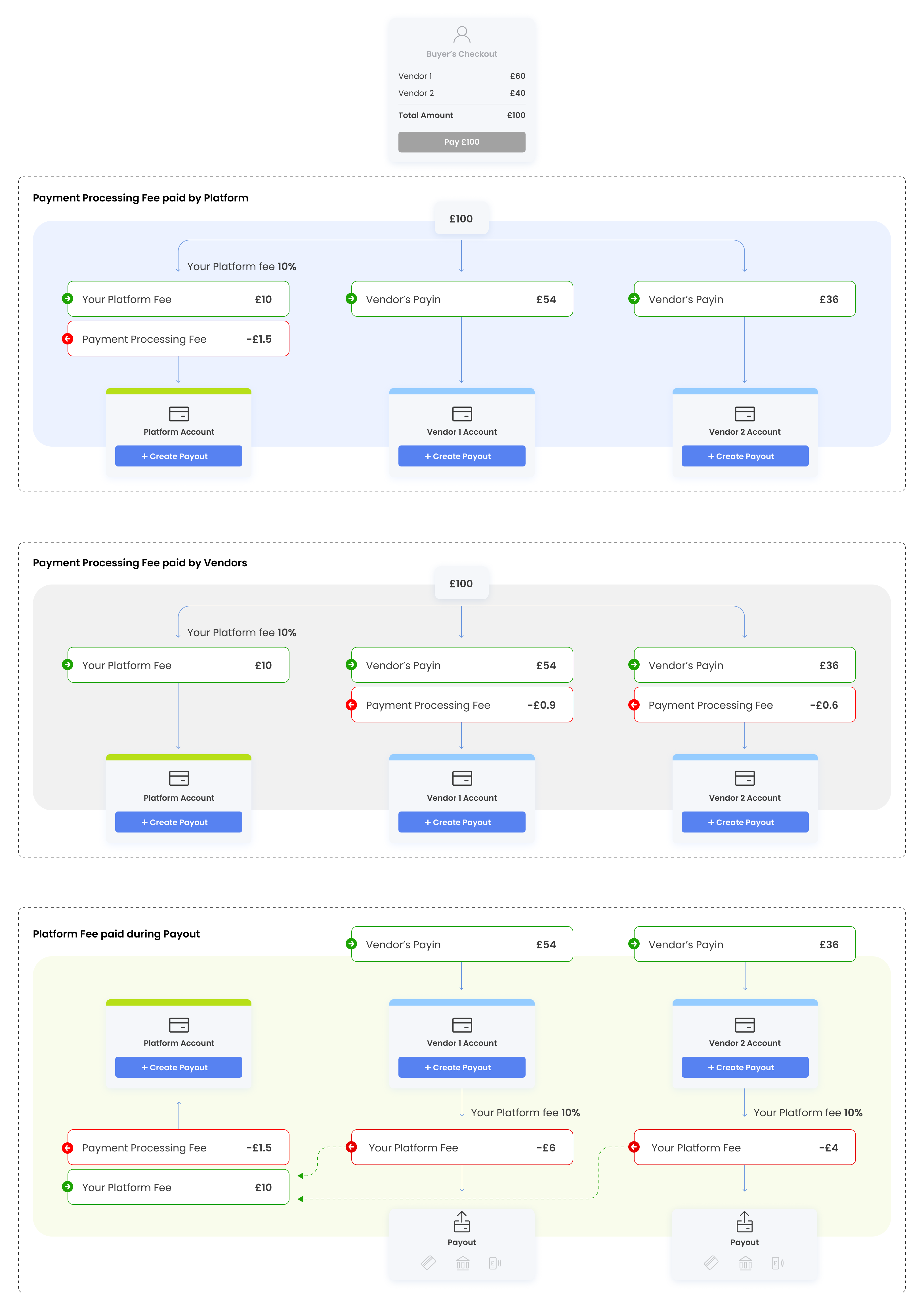

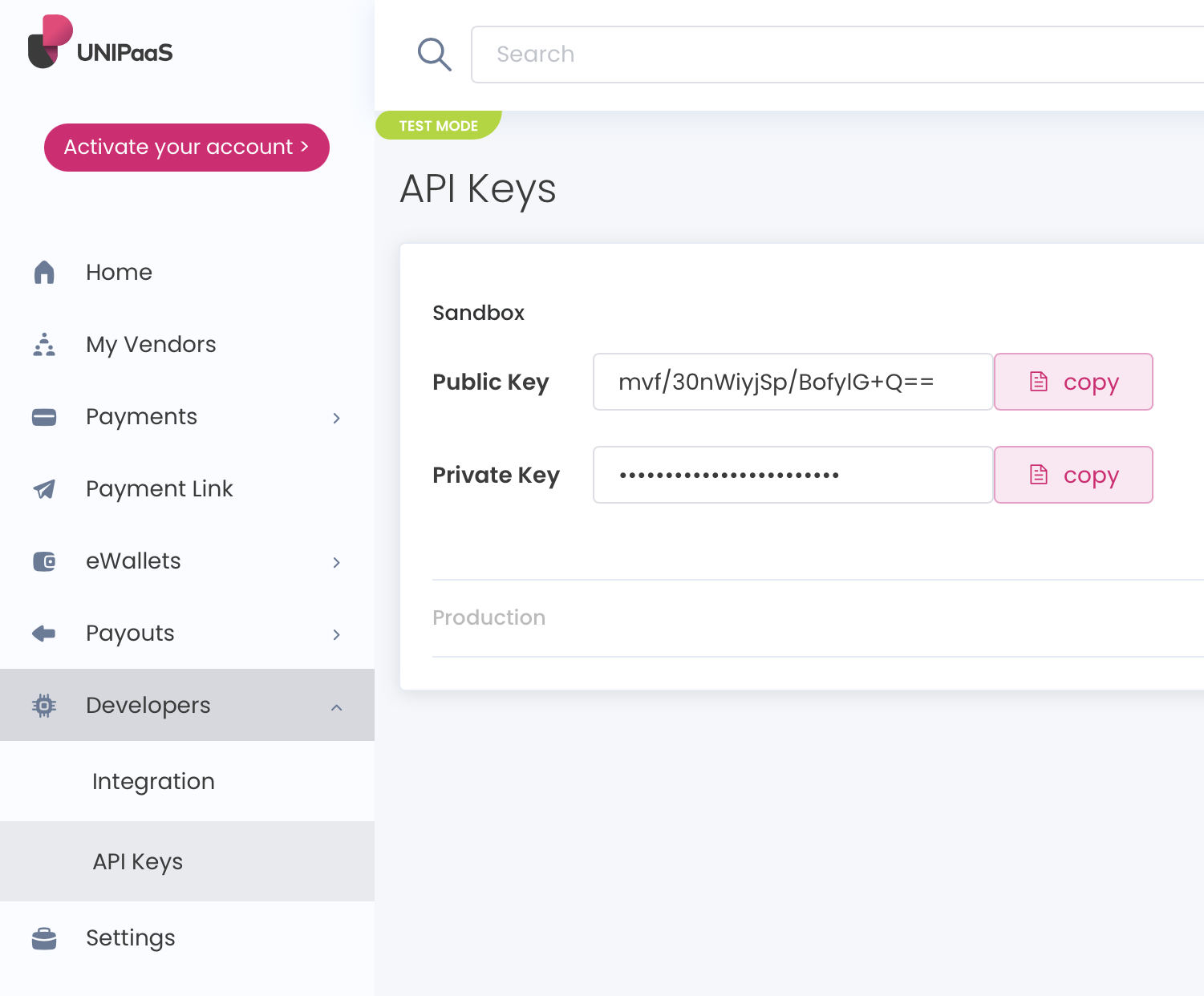
`) is present in the DOM. On the completeOnboarding event, initialize the onboarding component. Mount the component to your specific container. * JavaScript ```javascript const portalDiv = document.getElementById("payportal"); portalDiv.addEventListener("completeOnboarding", () => { // 1. Initialize the onboarding component // Note: Ensure your initial Access Token includes the 'onboarding_write' scope const onboarding = components.create("onboarding"); // 2. Mount to the dedicated container onboarding.mount("#onboarding"); // Optional: Scroll the user to the onboarding section document.getElementById("onboarding").scrollIntoView({ behavior: 'smooth' }); }); ``` **Comparison** | Feature | Hosted | Embedded | | ---------------- | -------------------------------------------- | ---------------------------------------------- | | User Experience | Simpler to implement | Seamless transition within your own UI | | API Requirements | Requires call to /platform/vendors/ id/links | Requires onboarding\_write scope in Auth token | | UI | Browser handles window management | Requires container with min-width of 450px | # Implement Direct Debit Via API > If you are unfamiliar with Direct Debit and how it works in Unipaas, please refer to this article first. # Introduction [Section titled “Introduction”](#introduction) If you are unfamiliar with Direct Debit and how it works in Unipaas, please refer to [this article](/docs/direct-debit/) first. If you are planning to or have implemented the Unipaas UI Web-Embeds, please refer to [this article](/docs/implement-direct-debit-with-ui-web-embeds/), which addresses implementing Direct Debit with UI Web-Embeds (**highly recommended**). In this section, you will be guided through the steps necessary to create a custom Direct Debit flow within your platform’s embedded payment solution. In addition, please refer to the [Direct Debit webhooks](/docs/webhooks-and-notifications/) you should subscribe to in order to make the most of the offering to vendors. Finally, once you’ve completed your integration, you can test it using the [Direct Debit test scenarios](/docs/direct-debit-test-scenarios/). # Direct Debit Flows [Section titled “Direct Debit Flows”](#direct-debit-flows) In order to use Direct Debit and implement its flows, there are several [API endpoints](/docs/implement-direct-debit-via-api/#get-a-customers-mandate) you should use along the way. We will describe these flows as well as which API endpoints you should use in each step. ## Set up a Direct Debit mandate [Section titled “Set up a Direct Debit mandate”](#set-up-a-direct-debit-mandate) **Description**: A vendor wishes to set up a Direct Debit mandate with their customer to start collecting payments from them with Direct Debit. Note Within the Direct Debit context, “Collect”, “Collection” or “Collecting” refer to a Direct Debit payment (authorization). **Steps**: 1. Once a customer is selected, use the “[Get mandate](/docs/implement-direct-debit-via-api/#get-a-customers-mandate)” endpoint to check if this customer has a mandate set up or not. These are the possible statuses for mandates: * `sent` - A vendor has sent a mandate request to their customer. * `pending_approval` - The mandate has not yet been submitted to the customer’s bank OR the mandate has been submitted to the customer’s bank but has not been processed yet. * `active` - The mandate has been successfully set up by the customer’s bank. * `declined` - A technical error has occurred when trying to submit the mandate. * `rejected` - The mandate could not be created (rejected by Bacs). * `cancelled` - The mandate has been cancelled. 2. If there is no mandate at all for this customer, you will need to create a flow that lets your vendor request a mandate from their customer. Use our [Mandate Request UI Web-Embed](/docs/ui-web-embeds-integration-guide/#mandate-request) (**recommended**) or the “[Request mandate from customer](/docs/implement-direct-debit-via-api/#create-a-mandate-and-send-it-to-the-customer)” endpoint to trigger a request to this customer. This will send an email with a link to the mandate flow for the customer to complete. 3. In case a significant time has passed and the customer has not submitted their mandate, you can create a “resend” flow to let the vendor send an additional reminder to their customer to complete their mandate.\ To do this, use the “[Resend mandate request](/docs/implement-direct-debit-via-api/#resend-a-mandate-to-the-customer)” endpoint to trigger a resend to this customer. This will send an email with the same original link to the mandate flow for the customer to complete. Important Direct Debit collections can only be made if there is a mandate in place and it is in one of the following statuses: `sent`, `pending_approval` or `active`. For `sent` and `pending_approval`, the collection will be pending until the mandate has been activated (`active` status). For `active`, the collection will be made. Tip We strongly recommend implementing a mandate set up flow from your vendors’ customer list. ## Collect payments with Direct Debit [Section titled “Collect payments with Direct Debit”](#collect-payments-with-direct-debit) **Description**: A vendor wishes to collect payments (either one-offs or recurring) from their customer by Direct Debit. **Steps**: 1. If the selected customer does not have a mandate set up yet, [first set one up](/docs/implement-direct-debit-via-api/#set-up-a-direct-debit-mandate). 2. Once the mandate has been set up, you have the following options to collect a payment with Direct Debit: * For an invoice in your system, use the “[Invoice Endpoint](/docs/invoices/#invoice-endpoint)” to trigger a Direct Debit collection (payment). Note This should be triggered when the invoice is saved. * For a payment that is does not have an invoice associated with it, you can collect the payment using the /pay-ins /checkout endpoint to trigger a Direct Debit collection (payment), following your own billing/recurring logic. ‘POST’ ‘’ Request example: * JSON ```json { "country": "GB", "amount": 21, "currency": "GBP", "email": "email@email.com", "vendorId": "680b81e88f595625dc584e6d", "consumerReference": "test001", "shippingSameAsBilling": true, "items": [], "dueDate": "2025-10-10", "offlinePayment": true, "paymentMethods": ["directDebit"] } ``` Response example * JSON ```json { "status": "open", "mode": "offline", "plans": [], "isMoto": false, "id": "69aebfc03b64c429eaf72fc9", "country": "GB", "amount": 21, "currency": "GBP", "reference": "test001", "items": [], "dueDate": "2025-11-05T00:00:00.000Z", "paymentMethods": [ "directDebit" ], "vendor": { "name": "Unipaas", "email": "test.test@example.com", "country": "GB" }, "totalAmount": 21, "totalPaid": 0, "expiresAt": "2025-11-05T00:00:00.000Z", "shortLink": "https://sandbox-checkout.unipaas.com/CUb45tcmWX/", "merchantId": "6808db2fd8d8f56be334bd4a", "signedLinkId": "CUb45tcmWX", "consumerId": "69a5725633870dc148b98c8f", "createdAt": "2025-10-09T12:40:32.314Z", "updatedAt": "2025-10-09T12:40:32.314Z", "sessionToken": "eyJhbGciOiJIUzI1NiIsInR5cCI6IkpXVCJ9.eyJtZXJjaGFudElkIjoiNjgwOGRiMmZkOGQ4ZjU2YmUzMzRiZDRhIiwibWVyY2hhbnROYW1lIjoiU3RydWR3aWNrTHRkIiwiYW1vdW50IjoyMSwib3JpZ2luYWxBbW91bnQiOjIxLCJjdXJyZW5jeSI6IkdCUCIsImVtYWlsIjoiYW1pdC5tZWxpY2hlc0B1bmlwYWFzLmNvbSIsImNvdW50cnkiOiJHQiIsInNlbGxlcklkIjoiNjgwYjgxZTg4ZjU5NTYyNWRjNTg0ZTZkIiwidmVuZG9ySWQiOiI2ODBiODFlODhmNTk1NjI1ZGM1ODRlNmQiLCJzY29wZXMiOlsid2Vic2RrX2FjY2VzcyIsImRpcmVjdF9kZWJpdF9yZWFkIiwiZGlyZWN0X2RlYml0X3dyaXRlIl0sInBheW1lbnRNZXRob2RzIjpbImRpcmVjdERlYml0Il0sImlzUmVjdXJyaW5nIjpmYWxzZSwiY29uc3VtZXJJZCI6IjY5YTU3MjU2MzM4NzBkYzE0OGI5OGM4ZiIsImNvbnN1bWVyIjp7InJlZmVyZW5jZSI6IlBlbm5pbGVzc190ZXN0MDAxIn0sImVudiI6InNhbmRib3giLCJwYXltZW50TGlua0lkIjoiQ1ViNDV0Y21XTyIsImR1ZURhdGUiOiIyMDI2LTAzLTA5IiwiaWF0IjoxNzczMDYwMDMzLCJleHAiOjE3NzMxNDY0MzN9.zGJjW_MTXCVmtK9TD4YrdHOtTeLPy87sqgMH7vXVqIo", "authorizationId": "69aebfc03b64c43f2cf72fcb", "paymentOptions": [], "qrPaymentLink": "https://sandbox.unipaas.com/platform/qr-code/generate?url=https://sandbox-checkout.unipaas.com/CUb45tcmWO/", "vendorId": "680b81e88f595625dc584e6d", "consumer": { "reference": "test001", "billingAddress": { "line1": "41 Chalton Street, London NW1 1JD", "city": "London", "state": "England", "postalCode": "NW1 1JD", "country": "GB" }, "email": "email@email.com", "name": "Test", "phone": "+44 07920 000000", "shippingAddress": { "line1": "41 Chalton Street, London NW1 1JD", "city": "London", "state": "England", "postalCode": "NW1 1JD", "country": "GB" }, "shippingSameAsBilling": true } } ``` Note Leverage the Mandate and Direct Debit statuses delivered via webhooks to keep track of the lifecycle of the mandate and direct debit flow. Statuses: \[/docs/direct-debit-status/) Webhooks: \[/docs/webhooks-and-notifications/) ## Cancel a collection [Section titled “Cancel a collection”](#cancel-a-collection) **Description**: A vendor wishes to cancel a Direct Debit collection. Important Direct Debit collections can only be cancelled until they are submitted to Bacs. In Unipaas, this is as long as they haven’t reached `Submitted` status. Once submitted, collections cannot be cancelled. **Steps**: 1. Use the “[Cancel collection](/docs/implement-direct-debit-via-api/#cancel-a-direct-debit-collection)” endpoint to cancel the collection. ## Update a collection [Section titled “Update a collection”](#update-a-collection) **Description**: A vendor wishes to change a Direct Debit collection amount or due date. Note Currently, only payment amount or due date changes are supported. Important Direct Debit collections can only be updated until they are submitted to Bacs. In Unipaas, this is as long as they haven’t reached `Submitted` status. Once submitted, collections cannot be updated. **Steps**: * For a Direct Debit collection that was created with the “[Invoice Endpoint](/docs/invoices/#update-invoice)”, update with “[PATCH Invoice Endpoint](/reference/#tag/vendor/PATCH/vendors/%7BvendorId%7D/invoices/%7BinvoicesId%7D)” to trigger a Direct Debit collection (payment). * For a payment that was created with the “[Create Checkout](/docs/create-payment/)” endpoint, update with “PATCH Checkout” (**TBD**) endpoint. Note When a change is made to a Direct Debit payment, Unipaas will cancel the original collection, and immediately create a new one instead. ## Update a payment method [Section titled “Update a payment method”](#update-a-payment-method) **Description**: A vendor wishes to change a Direct Debit collection to a different payment method (e.g., card or Open Banking) or vise versa. Important The Direct Debit payment method can only be changed until the collections are submitted to Bacs. In Unipaas, this is as long as they haven’t reached `Submitted` status. Once submitted, the payment method cannot be changed. **Steps**: * For a Direct Debit collection that was created with the “[Invoice Endpoint](/docs/invoices/#update-invoice)”, update with “[PATCH Invoice Endpoint](/reference/#tag/vendor/PATCH/vendors/%7BvendorId%7D/invoices/%7BinvoicesId%7D)” to trigger a Direct Debit collection (payment). * For a payment that was created with the “[Create Checkout](/docs/create-payment/)” endpoint, update with “PATCH Checkout” (**TBD**) endpoint. Note When a payment is changed from the Direct Debit payment method, Unipaas will cancel the Direct Debit collection. ## Cancel a mandate [Section titled “Cancel a mandate”](#cancel-a-mandate) **Description**: A vendor wishes to cancel a Direct Debit mandate for their customer. **Steps**: 1. Use the “[Cancel mandate](/docs/implement-direct-debit-via-api/#cancel-a-direct-debit-mandate)” endpoint to cancel that specific mandate. ️ Warning When a mandate is cancelled, **ALL** outstanding Direct Debit collections that can be cancelled will be cancelled. In addition, new collections will not be possible after a mandate is cancelled. ## Aggregate mandates and collections [Section titled “Aggregate mandates and collections”](#aggregate-mandates-and-collections) **Description**: Allow your vendors to see all their Direct Debit mandates and collections in one place in your platform (e.g., on the customer list). **Steps**: 1. To get all the Direct Debit mandates for a vendor, use the “[Get all mandates](/docs/implement-direct-debit-via-api/#get-all-mandates-for-a-vendor)” endpoint. 2. To get all the Direct Debit collections for a vendor, use the “Get all collections” (**TBD**) endpoint. ## Drill through a mandate or collection [Section titled “Drill through a mandate or collection”](#drill-through-a-mandate-or-collection) **Description**: Get additional information about a specific Direct Debit mandate or collection. **Steps**: 1. To get the details of a Direct Debit mandate, use the “[Get mandate](/docs/implement-direct-debit-via-api/#get-a-customers-mandate)” endpoint. 2. To get the details of a Direct Debit collection, use the “Get collection” (**TBD**) endpoint. If you have any questions or require further assistance during the implementation process, please don’t hesitate to contact our team. # Test your Direct Debit integration [Section titled “Test your Direct Debit integration”](#test-your-direct-debit-integration) See [Direct Debit Test Scenarios](/docs/direct-debit-test-scenarios/). # Direct Debit API Endpoints [Section titled “Direct Debit API Endpoints”](#direct-debit-api-endpoints) ### Get a customer’s mandate [Section titled “Get a customer’s mandate”](#get-a-customers-mandate) Use the following GET request: [{unipaas\_host}}/platform/vendors/{{vendor\_id}}/consumers/reference/{{consumer\_reference}}/mandates](/reference/#tag/vendor/GET/vendors/%7BvendorId%7D/consumers/%7BconsumerId%7D/mandates) Response example: * JSON ```json { "id": "64c74e2eb7d492861897cb41", "vendor": { "id": "64b6a89e5dcbc5de96ff8ebc", "name": "Dunder Mifflin", "email": "jan.levinson.gould@dundermifflin.com" }, "merchant": { "id": "633a93e2599b587a1781d41e", "name": "UNIPAAS FINANCIAL SERVICES LIMITED" }, "status": "active", "consumer": { "id": "64c257d27f58cc0138ef06e7", "name": "Pam Beesly", "reference": "pam-1", "email": "pam.beesly@dundermifflin.com", "firstName": "Pam", "lastName": "Beesly" }, "mandateCreationFormLink": "1BTE1FHTgDJQCCxu14F5S", "createdAt": "2023-07-27T11:41:06.721Z", "updatedAt": "2023-07-27T11:42:22.988Z", "v": 0, "bankAccount": { "iban": "GB46BUKB20041538290008", "name": "BARCLAYS BANK UK PLC", "bankCode": "200415", "holderName": "Pam Beesly", "accountNumber": "38290008", "country": "GB" }, "processorReferenceId": "MD000V8YR5AQM5", "reference": "59NKT5Q-dunder-mif", "paymentOptionId": "64c2581e19c84a151aaaf87c" } ``` ### Create a mandate and send it to the customer [Section titled “Create a mandate and send it to the customer”](#create-a-mandate-and-send-it-to-the-customer) Use the following POST request: [{{unipaas\_host}}/platform/vendors/{{vendor\_id}}/mandates](/reference/#tag/vendor/POST/vendors/%7BvendorId%7D/mandates) Request example: * JSON ```json { "consumer": { "name": "Michael Scott", "email": "michael.scott@dundermifflin.com", "reference": "michael-1" }, "createMandateLink": true, "sendEmail": true, "requestMandateEmailObject": { "subject": "Mandate email subject", "body": "Mandate email body" } } ``` | Name | Type | Required | Description | | ----------------------------------- | ------ | -------- | -------------------------------------------------------------------------------------------------------------------------------------------------------------------------------------------------------------------------------------------------------------------------------------------------------------------------------------------------------------------------------------------------- | | `consumer.name` | string | YES | The name of the customer who will receive the mandate request. | | `consumer.email` | string | YES | The email to which the mandate request will be sent. | | `consumer.reference` | string | YES | The consumer reference as was sent to Unipaas. | | `createMandateLink` | string | YES | Must be set to `true`. | | `sendEmail` | string | NO | true or false. Dictates if an email is sent to the consumer.email | | `requestMandateEmailObject.subject` | string | NO | The subject that will appear in the email received by the customer. E.g.: “{{consumerName}}, Please Set Up A Direct Debit Mandate”. Required if sendEmail = true | | `requestMandateEmailObject.body` | string | NO | The body that will appear in the email received by the customer. E.g.: “Hi {{consumerName}}, {{vendorName}} would like to set up a Direct Debit mandate with you in order to automatically collect payments for future invoices. Once this is set up, you won’t need to manually pay each invoice - {{vendorName}} can automatically collect from your bank account.” Required if sendEmail = true | Response example: * JSON ```json { "mandate": { "id": "64c74e2eb7d492861897cb41", "vendor": { "id": "64b6a89e5dcbc5de96ff8ebc", "name": "Dunder Mifflin", "email": "jan.levinson.gould@dundermifflin.com" }, "merchant": { "id": "633a93e2599b587a1781d41e", "name": "UNIPAAS FINANCIAL SERVICES LIMITED" }, "status": "sent", "consumer": { "id": "64c74e2e7f58cc0138697910", "name": "Michael Scott", "reference": "michael-1", "email": "michael.scott@dundermifflin.com" }, "mandateCreationFormLink": "AQZ1kWYt58wSsEjF5qz7d", "createdAt": "2023-07-31T06:01:18.732Z", "updatedAt": "2023-07-31T06:01:18.732Z", "v": 0 }, "link": { "refreshToken": [], "views": [ "direct_debit" ], "vendorId": "64b6a89e5dcbc5de96ff8ebc", "merchantId": "633a93e2599b587a1781d41e", "consumerId": "64c74e2e7f58cc0138697910", "email": "michael.scott@dundermifflin.com", "id": "64c74e2e5dcbc574b4ff8f46", "uniqueId": "AQZ1kWYt58wSsEjF5qz7d", "expiresAt": "2023-08-14T06:01:18.711Z", "status": "sent", "supportEmail": null, "createdAt": "2023-07-31T06:01:18.714Z", "updatedAt": "2023-07-31T06:01:18.714Z", "v": 0, "url": "https://sandbox-hosted.unipaas.com/consumers/64c74e2e7f58cc0138697910/AQZ1kWYt58wSsEjF5qz7d/mandate" } } ``` ### Resend a mandate to the customer [Section titled “Resend a mandate to the customer”](#resend-a-mandate-to-the-customer) Use the following POST request: [{{unipaas\_host}}/platform/vendors/{{vendor\_id}}/mandates/{{mandate\_id}}/send](/reference/#tag/vendor/POST/vendors/%7BvendorId%7D/mandates/%7BmandateId%7D/send) Request example: * JSON ```json { "subject": "{{consumer_name}}, Please Set Up A Direct Debit Mandate", "body": "Hi {{consumer_name}},
John Doe would like to set up a Direct Debit mandate with you in order to automatically collect payments for future invoices.
Once this is set up, you won’t need to manually pay each invoice - John Doe can automatically collect from your bank account." } ``` ### Cancel a Direct Debit collection [Section titled “Cancel a Direct Debit collection”](#cancel-a-direct-debit-collection) Use the following POST request: [{{unipaas\_host}}/platform/pay-ins/{{authorization\_id}}/void](/reference/#tag/payin/POST/pay-ins/%7BauthorizationId%7D/void) ### Cancel a Direct Debit mandate [Section titled “Cancel a Direct Debit mandate”](#cancel-a-direct-debit-mandate) Use the following POST request: [{{unipaas\_host}}/platform/vendors/{{vendor\_id}}/mandates/{{mandate\_id}}/cancel](/reference/#tag/vendor/POST/vendors/%7BvendorId%7D/mandates/%7BmandateId%7D/cancel) ### Get all mandates for a vendor [Section titled “Get all mandates for a vendor”](#get-all-mandates-for-a-vendor) Use the following GET request: [{{unipaas\_host}}/platform/vendors/{{vendor\_id}}/mandates](/reference/#tag/vendor/GET/vendors/%7BvendorId%7D/mandates) Response example: * JSON ```json { "items": [ { "id": "64c207e7b7d4928c1a971d24", "vendor": { "id": "64b6a89e5dcbc5de96ff8ebc", "name": "Dunder Mifflin", "email": "jan.levinson.gould@dundermifflin.com" }, "merchant": { "id": "633a93e2599b587a1781d41e", "name": "UNIPAAS FINANCIAL SERVICES LIMITED" }, "status": "pending_approval", "consumer": { "id": "64c207e77f58cc0138e60251", "name": "Michael Scott", "reference": "michael-1", "email": "michael.scott@dundermifflin.com", "firstName": "Michael", "lastName": "Scott" }, "mandateCreationFormLink": "AQZ1kWYt58wSsEjF5qz7d", "createdAt": "2023-07-27T06:00:07.859Z", "updatedAt": "2023-07-27T08:59:21.611Z", "v": 0, "bankAccount": { "id": "64c231e619c84a2312aaf808", "iban": "GB46BUKB20041538290008", "name": "BARCLAYS BANK UK PLC", "bankCode": "200415", "holderName": "Michael Scott", "accountNumber": "38290008", "country": "GB" }, "processorReferenceId": "MD000V8W3HCR30", "reference": "YVM9JP6-dunder-mif" }, { "id": "64c257d2b7d4927b4e9727a6", "vendor": { "id": "64b6a89e5dcbc5de96ff8ebc", "name": "Dunder Mifflin", "email": "jan.levinson.gould@dundermifflin.com" }, "merchant": { "id": "633a93e2599b587a1781d41e", "name": "UNIPAAS FINANCIAL SERVICES LIMITED" }, "status": "active", "consumer": { "id": "64c257d27f58cc0138ef06e7", "name": "Pam Beesly", "reference": "pam-1", "email": "pam.beesly@dundermifflin.com", "firstName": "Pam", "lastName": "Beesly" }, "mandateCreationFormLink": "1BTE1FHTgDJQCCxu14F5S", "createdAt": "2023-07-27T11:41:06.721Z", "updatedAt": "2023-07-27T11:42:22.988Z", "v": 0, "bankAccount": { "id": "64c2580919c84a207eaaf874", "iban": "GB46BUKB20041538290008", "name": "BARCLAYS BANK UK PLC", "bankCode": "200415", "holderName": "Pam Beesly", "accountNumber": "38290008", "country": "GB" }, "processorReferenceId": "MD000V8YR5AQM5", "reference": "59NKT5Q-dunder-mif", "paymentOptionId": "64c2581e19c84a151aaaf87c" }, { "id": "64c2c37db7d492bd609735bf", "vendor": { "id": "64b6a89e5dcbc5de96ff8ebc", "name": "Dunder Mifflin", "email": "jan.levinson.gould@dundermifflin.com" }, "merchant": { "id": "633a93e2599b587a1781d41e", "name": "UNIPAAS FINANCIAL SERVICES LIMITED" }, "status": "rejected", "consumer": { "id": "64c2c37d7f58cc0138f98c33", "name": "Dwight Schrute", "reference": "dwight-1", "email": "dwight.k.schrute@dundermifflin.com", "firstName": "Dwight", "lastName": "Schrute" }, "mandateCreationFormLink": "qRO6T5M2CoHgvk-w-se88", "createdAt": "2023-07-27T19:20:29.048Z", "updatedAt": "2023-07-27T19:22:39.535Z", "v": 0, "bankAccount": { "id": "64c2c3f019c84a9872aaf968", "iban": "GB46BUKB20041538290008", "name": "BARCLAYS BANK UK PLC", "bankCode": "200415", "holderName": "Dwight Schrute", "accountNumber": "38290008", "country": "GB" }, "processorReferenceId": "MD000V97QD8HND", "reference": "8MKZR36-dunder-mif", "processorErrorReason": "invalid_bank_details" }, ], "totals": [ { "count": 3 } ] } ``` # Implement Direct Debit With UI Web-Embeds > If you are unfamiliar with Direct Debit and how it works in Unipaas, please refer to this article first. # General overview [Section titled “General overview”](#general-overview) If you are unfamiliar with Direct Debit and how it works in Unipaas, please refer to [this article](/docs/direct-debit/) first. In this section, you will be guided through the steps necessary to implement the Direct Debit payment method within your embedded payments solution, by leveraging the Unipaas UI Web-Embeds. Applying these will significantly reduce the integration effort required by your team to add Direct Debit to your offering. ## The following UI Web-Embeds/services are required for Direct Debit to work: [Section titled “The following UI Web-Embeds/services are required for Direct Debit to work:”](#the-following-ui-web-embedsservices-are-required-for-direct-debit-to-work) * [Invoice end point](/docs/implement-direct-debit-with-ui-web-embeds/) * [Invoice UI Web-Embed](/docs/implement-direct-debit-with-ui-web-embeds/#invoice) * [Pay Portal UI Web-Embed](/docs/implement-direct-debit-with-ui-web-embeds/#pay-portal) * [Notification UI Web-Embed **OR** notification/create webhooks](/docs/implement-direct-debit-with-ui-web-embeds/#notification) * [Mandate Request UI Web-Embed](/docs/implement-direct-debit-with-ui-web-embeds/#mandate-request)(only for a mandate request flow outside of the Invoice UI Web-Embed) ## Sequence diagram for a Direct Debit collection flow: [Section titled “Sequence diagram for a Direct Debit collection flow:”](#sequence-diagram-for-a-direct-debit-collection-flow) ![](/images/e96d2fe-Screen_Shot_2023-07-06_at_11.54.38.png) # How to implement [Section titled “How to implement”](#how-to-implement) ## Invoice endpoint [Section titled “Invoice endpoint”](#invoice-endpoint) * In order to trigger Direct Debit collections (both one-off and recurring), it is required to use the invoice endpoint. This provides us with the relevant information for a Direct Debit collection. * Learn about this service and how to implement it [here](/docs/invoices/). * Handling recurring invoices - see [here](/docs/invoices-endpoint/#handling-recurring-repeat-invoices). * Unipaas will support changes made to invoices that are due to be collected via Direct Debit. We currently support changes in invoice amount or due date. You will need to inform us of these changes via the [update invoice](/docs/invoices/#update-invoice) method. * Invoice endpoint attributes: | Name | Is Required | Type | Description | | ---------------- | ----------- | ----------- | ----------------------------------------------------------------------------------------------------------------------------------------------------------------------------------------------------------------------------------------------------------------------------------------------------------------------------------------------------------------------------------------------------------------------------------------------------------------------------------------------------------------------------------------------------------------------- | | `currency` | Yes | ISO 4217 | The currency of the invoice | | `totalAmount` | Yes | Number | The total invoice amount | | `totalPaid` | No | Number | The total amount paid so far on this invoice. If not provided, will be set to 0 by default. | | `reference` | Yes | String | The invoice number on your system. | | `batchId` | No | String | The ID of the batch that this invoice was included in. | | `vatAmount` | No | Number | The total VAT amount for the invoice (can be 0). If not provided, will be set to 0 by default. | | `publicUrl` | No | String | A public URL to the invoice PDF version. | | `dueDate` | Yes | Date | The invoice due date. | | `lineItems` | Yes | Array | Line item object - see table below. | | `Customer` | Yes | Object | Customer object - see table below. | | `paymentStatus` | Yes | Enum | Current invoice payment status: Unpaid = `unpaid` Paid = `paid` Partially Paid = `partially_paid` Refunded = `refunded` PartiallyRefunded = `partially_refunded` | | `paymentMethods` | No | Array, Enum | States which payment methods will be available for this specific invoice.* \*Note:\*\* If Direct Debit is selected, the invoice cannot be paid with Unipaas in any other method.Available Payment Methods: `creaditCard` `bankTransfer` `directDebit` `offlineBankTransfer` `paypal`Important - when the Invoice UI Web-Embed **is not implemented** (e.g., in the recurring payment flow), it is critical to send this parameter with `directDebit` for every recurring payment if Direct Debit is to be used to collect the payment.* Based on platform configuration | | `invoiceObject` | No | Object | The invoice object in its original form as created on your platform. | | `isRecurring` | Yes | Boolean | Indicates if this invoice is a recurring one. | | `subscriptionId` | No | String | The recurring invoice subscription identifier. | `lineItem` **attributes:** | Name | Is Required | Type | Description | | :------------ | :---------- | :----- | :---------------------------------------------- | | `description` | Yes | String | A description for a specific line item | | `amount` | Yes | Number | A price of a unit for a specific line item | | `quantity` | Yes | Number | The quantity of a unit for a specific line item | `customer` **attributes:** | Name | Is Required | Type | Description | | :---------- | :---------- | :----- | :---------------------------- | | `reference` | Yes | String | Platform customer identifier. | | `name` | Yes | String | The customer full name. | | `id` | No | String | Unipaas customer identifier. | | `email` | No | String | The customer’s email address. | ## Invoice [Section titled “Invoice”](#invoice) * Learn about this UI Web-Embed [here](/docs/ui-web-embeds/#invoice) and learn how to [install](/docs/ui-web-embeds-integration-guide/#2-installation) and implement it [here](/docs/ui-web-embeds-integration-guide/#invoice). * Add invoice mode (`create` / `edit` / `view`), as described in the [implementation guide](/docs/ui-web-embeds-integration-guide/#invoice). Mandatory. * Add invoice reference in all invoice modes that exist in your platform (`create`, `edit`, `view`). Mandatory. * Add customer reference. This lets Unipaas know if the customer has a Direct Debit mandate set up with the vendor. Mandatory. ## Pay Portal [Section titled “Pay Portal”](#pay-portal) * Learn about this UI Web-Embed [here](/docs/ui-web-embeds/#pay-portal) and learn how to [install](/docs/ui-web-embeds-integration-guide/#2-installation) and implement it [here](/docs/ui-web-embeds-integration-guide/#pay-portal). * There are no Direct Debit considerations for this implementation. ## Mandate Request [Section titled “Mandate Request”](#mandate-request) * Learn about this UI Web-Embed [here](/docs/ui-web-embeds/#mandate-request) and learn how to [install](/docs/ui-web-embeds-integration-guide/#2-installation) and implement it [here](/docs/ui-web-embeds-integration-guide/#mandate-request). * Ensuring that Direct Debit is enabled for the vendor is highly important before presenting them with the Mandate Request UI Web-Embed. This verification can be achieved through the [GET/vendors/{vendorId}/payment-options/available](/reference/#tag/vendor/GET/vendors/%7BvendorId%7D/payment-options/available) endpoint. ## Notification [Section titled “Notification”](#notification) * Learn about this UI Web-Embed [here](/docs/ui-web-embeds/#notifications) and learn how to [install](/docs/ui-web-embeds-integration-guide/#2-installation) and implement it [here](/docs/ui-web-embeds-integration-guide/#notification). * There are no Direct Debit considerations for this implementation. Note If you don’t implement the Notification UI Web-Embed, you will need to implement the notification/create webhook and implement it in the flow of your choice. See more on the notification/create service [here](/docs/vendor-notifications-webhook/). Tip We strongly recommend implementing a mandate set up flow from your vendors’ customer list. See [API implementation guide](/docs/implement-direct-debit-via-api/) for more details. # Example of UI Web-Embeds implementation: [Section titled “Example of UI Web-Embeds implementation:”](#example-of-ui-web-embeds-implementation) * HTML ```html Direct Debit
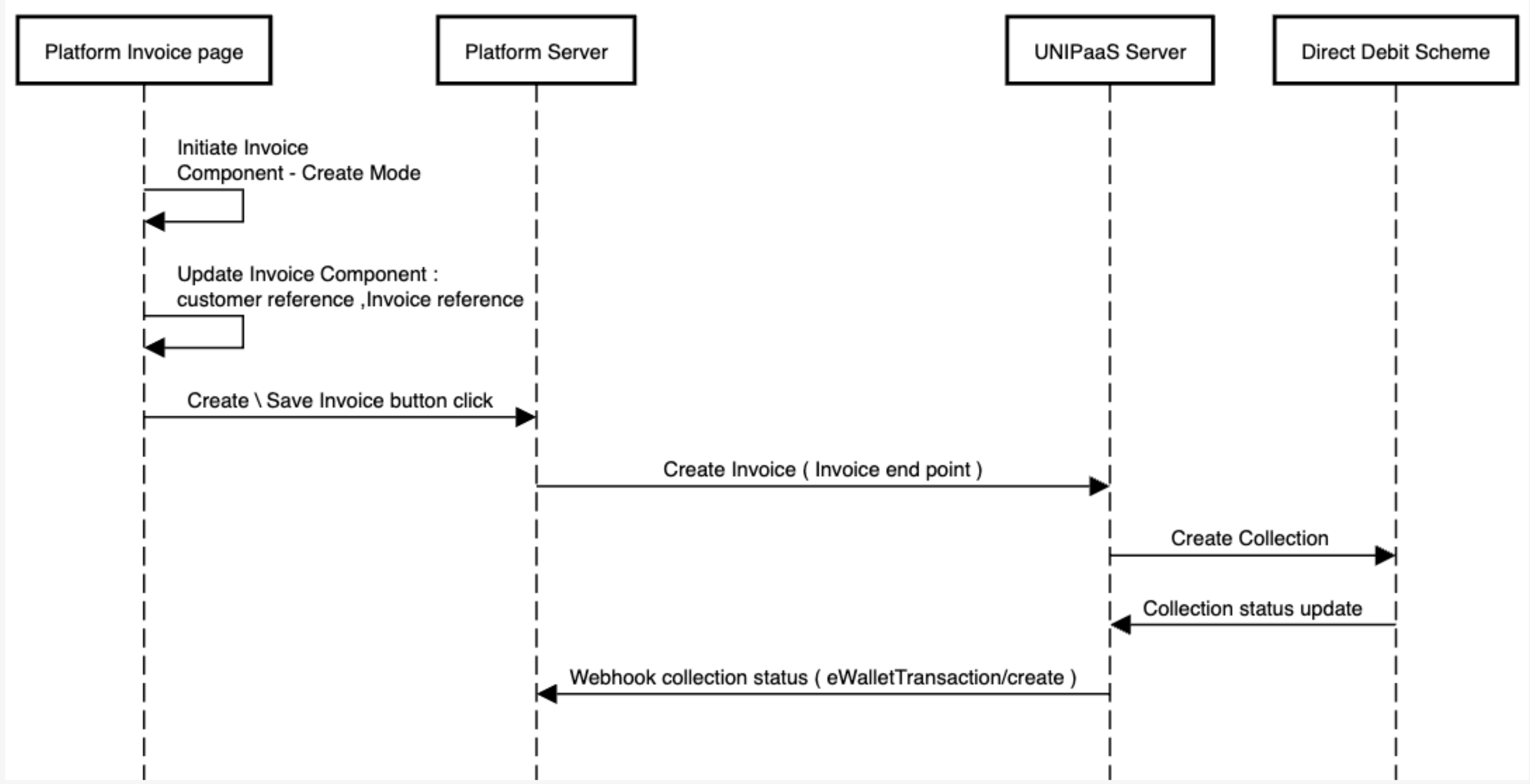
Invoice:

Request Mandate:

Pay Portal:

Notification:

``` # Import payment data from another payment provider > Migrate your existing payments data to Unipaas Unipaas allows you to retain all your existing payments data when you migrate to Unipaas. We work with your current payment provider to securely migrate the payments data. **Requirements** Migrating the payments data requires you to: 1. Adjust your technical process so that tokenisation and recurring charge processes can be performed by your current provider and Unipaas simultaneously. * New tokenisations/sign-ups should be using Unipaas * Recurring charges to be continued to be done with your current payment provider. 2. Contact your current payment provider and request the payments data (most processors require the account holder to request the data transfer). You will need to provide the following: * Link to Unipaas PGP key: [/docs/protect-sensitive-data-with-pgp-key/](/docs/protect-sensitive-data-with-pgp-key/) * Support email: 3. Send the data to and request the data to be imported. 4. Update your integration to map the current payment providers ID’s with the Unipaas’ paymentOptionId using the export file or Unipaas webhooks. 5. Switch all charge processes for old customers to Unipaas. **Update your integration** After completing the import, Unipaas sends you webhooks with updates. * Handle `paymentOption/update` webhook\ After successful import of each payment method, Unipaas sends an `paymentOption/update` webhook to your server with mapped relationship between your current processor’s ID and the paymentOptionId in the metadata. This data should be used to update your database so that all future payments are done using Unipaas. 1. *Extract and store the`paymentOption.id`* against the customer reference in your system.This ID is token of the payment method and used for initiating future MITs (Merchant Initiated Transactions). 2. *Switch over and use`paymentOption.id`* for future MITs. Webhook Payload Example: * JSON ```json { "id": "67e10684a1666bdf37c5380b", "paymentOptionId": "67e10684a1666bdf37c5380b", "paymentOptionType": "card", "identity": "67e10684a1666bdf37c53809", "consumerId": "67e10684a1666bdf37c53809", "identityType": "consumer", "cardAccount": { "holderName": "Test Holder Name", "expiryYear": "30", "expiryMonth": "12", "number": "5032", "issuerCountry": "GB", "lastFourDigits": "5032", "bin": "400002", "brand": "VISA", "type": "Credit", "program": "Visa Traditional" }, "merchantId": "605c8a4b8b37a82b60f0752d", "metadata": { "stripeRegisteredEmail": "consumer@mail.com", "stripeId": "123123", "stripeCardId": "123123", "customerReference": "" } } ``` # Instant bank transfer API > Open banking provides regulated entities with highly secure and authorized access to users' bank accounts. # What is open banking and instant bank transfer? [Section titled “What is open banking and instant bank transfer?”](#what-is-open-banking-and-instant-bank-transfer) Open banking provides regulated entities with highly secure and authorized access to users’ bank accounts. Instant bank transfer, built upon open banking protocols, empowers your customers to seamlessly receive payments or initiate transactions across a diverse array of banks in the UK, leveraging their APIs. With open banking via Unipaas’ API, you can seamlessly integrate fully white-labeled open banking functionalities into your platform, enabling smooth pay-in processes with your platform’s UI, tailored for both web and native applications. This documentation delineates the steps involved in accessing available banks, initiating pay-ins with chosen institutions, and efficiently managing authorization procedures. # Implementation [Section titled “Implementation”](#implementation) ## Retrieve available banks [Section titled “Retrieve available banks”](#retrieve-available-banks) **Request:** * HTTP ```http GET /platform/pay-ins/banks ``` **Response:** * JSON ```json { "status": 200, "data": { "result": [ { "id": "", //string "logo_url": "", //string "name": "", //string "labels": [ //array "" ], "country": "GB" } ] } } ``` Note: In sandbox only the mockup banks is returned. In production, the full list of available banks will be provided. ## Initiate a payment with selected bank [Section titled “Initiate a payment with selected bank”](#initiate-a-payment-with-selected-bank) **Request:** * HTTP ```http POST /platform/pay-ins ``` - JSON ```json { "amount": 1.7, //num "currency": "GBP", "paymentOption": { "type": "bankAccount", //enum "provider": { "bankName": "", //string "bankId": "", //string "bankType": "" //array } }, "vendorId": "", "orderId": "", "reference": "", "description": "", "redirectUrl": "", "consumer": { "name": "", "email": "", "country": "GB" } } ``` **Response** * JSON ```json { "status": "Pending", "transactionType": "Sale", "transactionStatus": "Pending", "authorizationId": "", "authorizationStatus": "Pending", "transactionId": "", "consumerId": "", "paymentOption": { "type": "bankAccount", "paymentOptionId": "", "provider": { "bankName": "", "bankId": "", "bankType": "" } }, "sellerIdentity": "", "currency": "GBP", "transactionAmount": 1.7, "processor": { "processorTransactionId": "", "processorErrorCode": "", "processorErrorReason": "" }, "items": [], "nextAction": { "redirectBankUrl": "" } } ``` After receiving the response, the user should be redirected to the nextAction.redirectBankUrl to begin the authorization process in the bank application. Upon completion of the bank authorization process, the user will be redirected to the URL provided in the create pay-in request. ## Payment status update [Section titled “Payment status update”](#payment-status-update) The client should wait for the authorization status to change. This can be achieved through two methods: **1. Request authorization status**\ Make multiple calls to get authorization until the status changes from Pending to Approved or Declined. * HTTP ```http GET /platform/pay-ins/ ``` **2. Webhook notifications** Register for webhook notifications to receive updates on authorization status changes. Refer to the guide on subscribing to webhooks for detailed instructions. For more information, refer to the Webhook Notifications Guide. [/docs/additional-webhooks/#authorizationupdate-webhook](/docs/additional-webhooks/#authorizationupdate-webhook) **Authorization statuses** | | | | ----------------- | ------------------------------------------------------------------------------------------------------------------------------------------------------------------------------------------------------------------------------------------- | | Pending | The payment resource has been created, but the user has not yet completed authorizing the payment. | | Approved/Captured | Successfully submitted the payment to the bank and the bank has confirmed it as accepted. | | Declined | A failed payment - it was authorized successfully, but funds did not move. May occur when: -The user has cancelled the payment through their bank portal. -The payment session was expired. -The payment was declined/rejected by the bank. | | Error | A failed payment - by unexpected error | # Integration Methods > To start accepting payments with Unipaas you must select the integration method that best fits your business model and development capacity. Unipaas offers... To start accepting payments with Unipaas you must select the integration method that best fits your business model and development capacity. Unipaas offers several possible methods for this integration, ranging from a fully hosted checkout page to a server to server integration for PCI compliant platforms. Note Before moving forward with any integration method, make sure you have completed the [Create payment](/docs/create-payment/) steps, these are required for all integration types. ## Select the best integration type for your business [Section titled “Select the best integration type for your business”](#select-the-best-integration-type-for-your-business) | Integration type | Development effort | Customization effort | Who is this for | | --------------------------------------------------------------- | -------------------------------------------------------------------------------------------------------------- | --------------------------------------------------------------- | ------------------------------------------------------------------------------------------- | | [Payment Link](/docs/payment-link-1/) | No code required! - Payment links are created from our web based portal | Page is hosted by Unipaas. Logo and colors are customizable | Small platforms which are not completely automated yet.Platforms that perform large top-ups | | [Checkout Page](/docs/checkout-page/) | Low effort integration - automatically create payment links and redirect your buyers to a hosted checkout page | Page is hosted by Unipaas. Logo and colors are customizable | Small platforms with a limited development capacity | | [API Only (Server to Server)](/docs/api-only-server-to-server/) | Medium effort - Develop your own checkout experience and pass the information to Unipaas API | Fully customizable, you control every aspect of the experience. | This method is **not** available for non PCI certified platforms. | Go Next[Webhooks guide](/docs/webhook-guide/) # Integration Methods > There are multiple methods you can use to integrate the vendor onboarding flow, choosing the most suitable integration method for your business model and... There are multiple methods you can use to integrate the vendor onboarding flow, choosing the most suitable integration method for your business model and development capacity is crucial for a successful integration. Note Before moving forward with any integration method, make sure you have completed the [Create Vendor](/docs/create-vendor/) steps, these are required for all integration types. ## Select the integration method that fits you [Section titled “Select the integration method that fits you”](#select-the-integration-method-that-fits-you) The following integration methods are sorted by the development effort each of them requires. You can mix and match integration methods.\ For example: You can provide some onboarding information via API and have your vendor complete the missing information via an embedded UI. | Integration type | Development effort | Customization level | Who is this for | | ---------------------------------------------- | -------------------------------------------------------------------------------------- | -------------------------------------------------------------------------- | ---------------------------------------------------------------------------------------------------------------------------------------------------- | | [Onboarding Link](/docs/onboarding-link/) | No Code needed - links are created from our web based portal | Onboarding flow is hosted by Unipaas. Logo and colors can be customized. | Small platforms, with limited development capacity. | | [Embedded Onboarding UI](/docs/onboarding-ui/) | Low effort - Embed a ready UI component into your web page. | Onboarding flow is hosted by you, most of the page can be customized. | Established platforms that want to have great level of control over their experiences | | [Onboarding API](/docs/onboarding-api/) | Medium effort - Collect vendor onboarding information and submit it via API to Unipaas | You have full and complete control over all vendor onboarding experiences. | Established platforms that want to fully customize every aspect of their vendor onboarding flow and Platforms that are based on native applications. | # Invoice Component > Overview ## What is the Invoice component? [Section titled “What is the Invoice component?”](#what-is-the-invoice-component) **Overview** The Invoice component is an important addition to your customer’s sales invoice journey. When implemented, it’s embedded in your invoice page throughout its lifecycle, from being created to being sent. It will provide actionable insights which are highly valuable when addressing invoices.\ This is where your customers will be able to see if their invoices have the option to be paid online, available payment methods, limitations (if they exist) and even select a specific payment method for specific invoice. **Why you should implement this component** 1. With a minimal implementation effort, the Invoice component provides your customers with a great deal of value. Customers will quickly understand if an online payment is available for every invoice, remove limitations (in case their onboarding is incomplete) and select specific payment methods for that invoice. 2. Implementing this component saves your team a significant amount of integration time. ![3508](/images/04de75c-Invoice_comp.png "Invoice comp.png") The Invoice component adapts its messaging based on the user’s onboarding status, available payment methods, and whether Unipaas-powered payments are currently enabled. ![958](/images/ca20874-Inv_statuses.png "Inv_statuses.png") ## What does the Invoice component include? [Section titled “What does the Invoice component include?”](#what-does-the-invoice-component-include) **Invoice component enabled/disabled indication** This indication is important for your customers - it lets them know whether or not this invoice can be paid online using your embedded payment solution. If an action is required to enable the payment solution, this section will prompt your customers to take it. **Payment methods** The Payment methods section states which payment methods are available for this invoice. These include Instant bank transfers (via Open Banking), credit cards and APMs. **Onboarding status** A dynamic section that appears only if the vendor registration process has not been completed yet. It notifies your customers about any limitations that might apply to payment collection, and prompts customers to lift these limitations by completing the registration. ## Component zero state [Section titled “Component zero state”](#component-zero-state) For platform users who have yet to sign up to your payments solution, the Invoice embedded component will show in a “zero state” view. This view’s goal is to emphasize your payment solution’s value and showcase its core features to potential users. The “zero state” includes a prominent CTA and messages, incentivising your users to sign up to your payments solution. Additionally, it allows users learn more about it. **Triggering the “zero state” view**\ The “zero state” will automatically trigger once an [access token](/docs/unipaas-components/#generate-the-unipaas-components-access-token-from-your-backend) is created without a vendor ID, meaning the user is not registered with Unipaas. ![3508](/images/d457513-zero.png "zero.png") ## Where should I implement this component in my product? [Section titled “Where should I implement this component in my product?”](#where-should-i-implement-this-component-in-my-product) The Invoice component should be implemented throughout the invoice journey, i.e. the component should appear on the invoice creation screen, on the invoice viewing screen (after saving), on the invoice editing screen, and on the invoice sending screen (if applicable).\ The component will have slightly different functionalities, based on where it located throughout the invoice journey. Unipaas will handle these functionalities in the various states, based on parameters you provide us. ## Before you begin implementation [Section titled “Before you begin implementation”](#before-you-begin-implementation) 1. If you have not set up Unipaas components, please complete all the steps in [the Unipaas Components guide](/docs/unipaas-components/) before moving forward. 2. Allocate the following space for this component: * Width - 475 pixels (minimum). * Height - 250 pixels.\ For mobile: * Width - min 300 px * Height - 250 px 3. Required scopes: | Scope name | Description | | --------------- | ------------------------------------------- | | `invoice_read` | Embedded Invoice GET permissions | | `invoice_write` | Embedded Invoice component POST permissions | ## How to implement this component? [Section titled “How to implement this component?”](#how-to-implement-this-component) To use the Invoice component, create an empty DOM node (also known as a container) in your page and give it a unique ID. This will be the place where the Invoice component will be mounted. Make sure to assign a unique ID to the container so that it can be easily identified and accessed. * HTML ```html
``` First create the container DOM node in your page, and then create **below** the instance and mount it to the container DOM node. **New sales invoice**\ To create the instance of the invoice component, and mount it to the container DOM node for new invoices (`mode:` ‘create’), use the following code.\ If there is a generated invoice ID for a new sales invoice, it is highly recommended to include it as part of the `config` at this stage: * HTML ```html ``` In order to dynamically update the invoice component in a real-time with all the required parameters, and ensure its proper functionality, please use the update method. It should be used while users are filling out the mandatory invoice fields using your platform’s UI, **before** they save a new invoice. Please call the update method with the additional data (you can call this method multiple times with customer object or with invoice object separately): * JavaScript ```javascript //Use the variable from the previous step invoice.update({ customer: { id: '1234567', //mandatory name: 'John Doe', //mandatory email: 'john@email.com', }, invoice: { id: 'INV-123', //not mandatory, however, highly recommended if available dueDate: '2023-10-13', //mandatory amount: '20', //mandatory } }) ``` **Existing sales invoice**\ For existing invoices that are already created on your platform (`mode:` ‘view’ or ‘edit’), use the following code and provide the required parameters: * HTML ```html ``` Important In order to ensure the proper functionality of the component, the following parameters must be provided. | Field name | Is Required | Type | Description | | ---------- | ----------- | ---------------------------------------------------- | --------------------------------------------------------------------------------------------------------------------------------------------------------------------------------------------------------------------------------------------------------------------------------------------------------------------------------------------------------------------------------------------------------------------------------------------------------------------------------------------------- | | `mode` | Yes | ENUM - “create”, “edit”, “view” | Create / Edit / View.- Create mode - all modes before a sales invoice is saved (once it is saved, it will be reported to Unipaas via the \[Invoice Endpoint] ([/docs/invoices-endpoint/](/docs/invoices-endpoint/))). This mode can apply when a user creates an invoice, views it as a draft, or edits a draft. * Edit mode - after the user saves the sales invoice and opens it again to edit details. * View mode - after the user saves the sales invoice and opens it again for viewing. | | `invoice` | No | Object { id: string amount: number dueDate: string } | The unique identifier for the specific invoice. For View and Edit modes it’s mandatory. For Create mode - it’s recommended to use `update method` to provide these parameters once available. | | `customer` | No | Object { id: string name: string email: string } | For Edit and View modes it’s mandatory. For Create mode - each time a customer is selected / changed on the invoice in a real-time. | **Invoice events**:\ The Invoice component should interact with events that are on the platform side. In order to make the Invoice component fully functional, please implement the following component events. * `startOnboarding` - mandatory * `completeOnboarding` - mandatory * `enablePayments` - mandatory * `sessionExpired` - optional * `generalError` - optional Use the following Javascript example snippet to listen and take appropriate action upon these events: * JavaScript ```javascript components.on("enablePayments", (e) => { console.log("enablePayments event", e.detail); }); ``` [See the full list of events, which cover all Unipaas embedded components](/docs/unipaas-components/#unipaas-components-dom-events) Go Next[Notification Component](/docs/notifications-component/) # Invoices > Invoices serve as records of the outstanding balances owed by customers and can be generated either on a one-time basis or periodically for... Invoices serve as records of the outstanding balances owed by customers and can be generated either on a one-time basis or periodically for subscription-based services. Platforms typically have the capability to autonomously generate invoices for their businesses, or to integrate with accounting software platforms to retrieve invoices from there. Continuous updates on every invoice created by vendors using the payment solution powered by Unipaas are essential. These updates allow us to establish a seamless connection between invoices and transactions on our end, ensuring compliance with regulatory requirements and improved user experience. ## **Benefits of matching invoices to transactions** [Section titled “Benefits of matching invoices to transactions”](#benefits-of-matching-invoices-to-transactions) **Regulatory compliance assurance:** Unipaas uses invoice information to stay compliant with relevant financial regulations and industry standards, ensuring a secure and trustworthy payment environment for both your platform and your customers. **Seamless payment collection with Direct Debit:** Unipaas leverages invoice data to enable smooth and hassle-free payment collection through Direct Debit, streamlining the payment process for users. **Enhanced user experience:** Unipaas aims to clearly display the correlation between payments and corresponding invoices, providing users with enhanced transparency, improved reconciliation and better understanding of their financial activity. **Accurate invoice references at checkout:** Unipaas ensures that checkout pages present the correct and up-to-date invoice references, reducing errors and offering a more reliable payment experience to buyers. **Tailored payment options:** Leveraging the insights from invoice data, Unipaas is able to offer relevant and appropriate payment methods, differentiating between recurring and one-time invoices to meet diverse user needs effectively. # **Invoice endpoint** [Section titled “Invoice endpoint”](#invoice-endpoint) It is highly recommended to set up automatic forwarding for every invoice to Unipaas whenever it is created or modified on your platform. [Post invoice (one-time or recurring)](/docs/invoices/#post-invoice) [Update invoice](/docs/invoices/#update-invoice) *** # **Post invoice** [Section titled “Post invoice”](#post-invoice) ## When to use [Section titled “When to use”](#when-to-use) Every time a new invoice is created on your platform. ## How to use [Section titled “How to use”](#how-to-use) [POST/platform/vendors/{vendorId}/invoices](/reference/#tag/vendor/POST/vendors/%7BvendorId%7D/invoices) ### The invoice object [Section titled “The invoice object”](#the-invoice-object) * JSON ```json { "reference": "INV-1234", "currency": "GBP", "totalAmount": 99.5, "vatAmount": 19.9, "dueDate": "2022-12-12T08:42:52.933Z", "paymentMethods":["directDebit"], "paymentStatus": "unpaid", "totalPaid": 0, "customer": { "reference": "1234", "email": "test@gmail.com", "name": "Kevin Malone" }, "lineItems": [ { "description": "line 1", "unitPrice": 10.6, "quantity": 3 }, { "description": "line 2", "unitPrice": 19.3, "quantity": 1 } ], "isRecurring": true, "subscriptionId": "sub-123", "external":false, "batchId": "batch-777", "publicUrl": "http://yourcompany.com/invoice.pdf", "invoiceObject": {} } ``` **Attributes** | Name | Is Required | Type | Description | | ---------------- | ----------- | ----------- | ----------------------------------------------------------------------------------------------------------------------------------------------------------------------------------------------------------------------------------------------------------------------------------------------------------------------------------------------------------------------------------------------------------------------------------------------------------------------------------------------------------------------------------------------------------------------- | | `reference` | Yes | String | The invoice number on your system. | | `currency` | Yes | ISO 4217 | The currency of the invoice | | `totalAmount` | Yes | Number | The total invoice amount | | `vatAmount` | No | Number | The total VAT amount for the invoice (can be 0). If not provided, will be set to 0 by default. | | `dueDate` | Yes | Date | The invoice due date. | | `totalPaid` | No | Number | The total amount paid so far on this invoice. If not provided, will be set to 0 by default. | | `batchId` | No | String | The ID of the batch that this invoice was included in. | | `publicUrl` | No | String | A public URL to the invoice PDF version. | | `lineItems` | Yes | Array | Line item object - see table below. | | `customer` | Yes | Object | Customer object - see table below. | | `paymentStatus` | Yes | Enum | Current invoice payment status: Unpaid = `unpaid` Paid = `paid` Partially Paid = `partially_paid` Refunded = `refunded` PartiallyRefunded = `partially_refunded` | | `paymentMethods` | No | Array, Enum | States which payment methods will be available for this specific invoice.- \*Note:\*\* If Direct Debit is selected, the invoice cannot be paid with Unipaas in any other method.Available Payment Methods: `creaditCard` `bankTransfer` `directDebit` `offlineBankTransfer` `paypal`Important - when the Invoice UI Web-Embed **is not implemented** (e.g., in the recurring payment flow), it is critical to send this parameter with `directDebit` for every recurring payment if Direct Debit is to be used to collect the payment.- Based on platform configuration | | `invoiceObject` | No | Object | The invoice object in its original form as created on your platform. | | `isRecurring` | Yes | Boolean | Indicates if this invoice is a recurring one. | | `external` | No | Boolean | Indicates if this invoice was paid using external (non Unipaas). payment method. If value is set to ‘false’ it is an indication that an invoice paid with Unipaas. Default value is set to ‘false’. | | `subscriptionId` | No | String | The recurring invoice subscription identifier. | `lineItem` **attributes:** | Name | Is Required | Type | Description | | :------------ | :---------- | :----- | :---------------------------------------------- | | `description` | Yes | String | A description for a specific line item | | `amount` | Yes | Number | A price of a unit for a specific line item | | `quantity` | Yes | Number | The quantity of a unit for a specific line item | `customer` **attributes:** | Name | Is Required | Type | Description | | :---------- | :---------- | :----- | :---------------------------- | | `reference` | Yes | String | Platform customer identifier. | | `name` | Yes | String | The customer full name. | | `id` | No | String | Unipaas customer identifier. | | `email` | No | String | The customer email address. | ### Response example [Section titled “Response example”](#response-example) * JSON ```json { "id": "6539271a23ebdaa55bae0e4f", "merchantId": "6440ca5ec6f5484043645595", "vendorId": "64b2acf5e59cc36181291f8d", "currency": "GBP", "totalAmount": 99.5, "totalPaid": 0, "vatAmount": 19.9, "reference": "INV-1234", "publicUrl": "http://yourcompany.com/invoice.pdf", "invoiceObject": {}, "subscriptionId": "sub-123", "isRecurring": true, "batchId": "batch-777", "customer": { "reference": "1234567", "email": "test@gmail.com", "name": "orel reast" }, "lineItems": [ { "description": "line 1", "unitPrice": 10.6, "quantity": 3 }, { "description": "line 2", "unitPrice": 19.3, "quantity": 1 } ], "paymentStatus": "unpaid", "dueDate": "2022-12-12T08:42:52.933Z", "paymentMethods": [ "directDebit" ], "external": false, "authorizationId": "65392719bd672b26f20d53ca", "signedLinkId": "RGJ4_2wLWr", "checkoutLink": "https://dev-checkout.unipaas.com/RGJ4_2wLWr/", "sessionToken": "eyJhbGciOiJIUzI1NiIsInR5cCI6IkpXVCJ9.eyJtZXJjaGFudElkIjoiNjJmYzk5YjI0YzcyOGIzZjAyZmM2MzRmIiwibWVyY2hhbnROYW1lIjoiTmV3IFBsYXRmb3JtIiwiYW1vdW50IjoxMCwiY3VycmVuY3kiOiJHQlAiLCJlbWFpbCI6InVzZXJAdGVzdC5jb20iLCJjb3VudHJ5IjoiR0IiLCJzZWxsZXJJZCI6IjY1MWU2ODRhZDAwNjg5MWIzNWJkZGQ2OCIsInZlbmRvcklkIjoiNjUxZTY4NGFkMDA2ODkxYjM1YmRkZDY4IiwicGhvbmUiOiIrNDQxNjE0OTYwMjU1Iiwic2NvcGVzIjpbIndlYnNka19hY2Nlc3MiLCJkaXJlY3RfZGViaXRfcmVhZCJdLCJpc1JlY3VycmluZyI6ZmFsc2UsImVudiI6ImxvY2FsIiwicGF5bWVudExpbmtJZCI6Ik0zc09laFU1ZEMiLCJpYXQiOjE3MjcwOTc5NTMsImV4cCI6MTcyNzEwMTU1M30.mR_rA3cF5UTANKHcgPVyyfidXg8JieBg_otX6Iz_5V8", "createdAt": "2023-10-25T14:32:58.566Z", "updatedAt": "2023-10-25T14:32:58.566Z" } ``` | Name | Type | Description | | :------------- | :----- | :------------------------------------------------------------------------------------------------- | | `id` | String | The value you obtained in the response to POST request, serves to identify this invoice in Unipaas | | `checkoutLink` | String | The checkout link for the invoice, which includes the available payment methods for buyer. | ### Recurring invoices [Section titled “Recurring invoices”](#recurring-invoices) To enable Unipaas handling recurring invoices effectively, please ensure the following: * Automatically report each invoice created in the recurring mechanism to the invoice endpoint, following the instructions provided above. * Set the `paymentMethods` parameter to the desired values. For example, if Direct Debit is the preferred payment method, assign `directDebit` to each invoice. * Set `isRecurring` parameter to `true`. It is important to implement these steps; otherwise, Unipaas will not be able to identify the created invoices as recurring, resulting in a lack of clarity regarding the appropriate payment method to be used. *** # Update invoice [Section titled “Update invoice”](#update-invoice) ## When to use [Section titled “When to use”](#when-to-use-1) 1. When an existing invoice has been edited, e.g. changes to the total amount or due date. 2. When an existing invoice has been fully or partially paid. Flexible checkout modifications require the mandatory use of the PATCH request If not implemented, vendors won’t be able to make adjustments to the amount, due date, or invoice payment method The following invoice parameters might affect the payment: * `totalAmount` * `totalPaid` * `paymentMethods` * `paymentStatus` * `dueDate` ## How to use [Section titled “How to use”](#how-to-use-1) [PATCH/vendors/{vendorId}/invoices/{invoiceId}](/reference/#tag/vendor/PATCH/vendors/%7BvendorId%7D/invoices/%7BinvoicesId%7D) ### The updated invoice object example [Section titled “The updated invoice object example”](#the-updated-invoice-object-example) You may only update the values that have been changed. In this example, the invoice was subject to a partial payment of 60 GBP, leading to a change in the payment status, and the payment method was switched by user to Direct Debit. * JSON ```json { "id": "6391fd42a38e34b15b118d9b", "totalPaid": 60.0, "paymentStatus": "partially_paid", "paymentMethods":["directDebit"], } ``` **Attributes** | Name | Is Required | Type | Description | | ---------------- | ----------- | ----------- | ----------------------------------------------------------------------------------------------------------------------------------------------------------------------------- | | `id` | Yes | String | The value you obtained in the response to POST request, serves to identify this invoice in Unipaas | | `totalPaid` | | Number | The total amount paid so far on this invoice | | `paymentStatus` | | Enum | Current invoice payment status | | `paymentMethods` | | Array, Enum | States which payment methods will be available for this specific invoice.Available Payment Methods: `creaditCard` `bankTransfer` `directDebit` `offlineBankTransfer` `paypal` | Note **The response for a PATCH request will be the same as that for a POST request** # Invoice endpoint with vendor Reference > The invoices endpoint allows platforms to update Unipaas about every invoice that is created or updated by users on the platform. Updating Unipaas about... ## What is the goal of invoice endpoint? [Section titled “What is the goal of invoice endpoint?”](#what-is-the-goal-of-invoice-endpoint) The invoices endpoint allows platforms to update Unipaas about every invoice that is created or updated by users on the platform. Updating Unipaas about every invoice created on your platform is critical for Unipaas to connect between invoices and transactions. **Unipaas will use invoice information for the following:** 1. Collect payments with Direct Debit 2. Show the users on your platform which payment corresponds to which invoice 3. Present the correct invoice references on checkout pages 4. Enable relevant payment methods for recurring vs. single invoices ## When should you use the invoice endpoint? [Section titled “When should you use the invoice endpoint?”](#when-should-you-use-the-invoice-endpoint) We strongly suggest posting every invoice created on your platform to Unipaas automatically, at the moment it is created or uploaded by your user. This integration will ensure Unipaas is able to connect between payments and invoices, and provide your user with valuable information for their reconciliation. ## The invoice object [Section titled “The invoice object”](#the-invoice-object) The following table includes the invoice object fields: | Field name | Is Required | Type | Description | | ----------------- | ----------- | ---------------------- | --------------------------------------------------------------------------------------------------------------------------------------------------------------------------------------------------------------------------------------------------------------------------------------------------------------------------------------------------------------------------------------------------------------------------------------------------------------------------------------------------------------------------------------- | | `vendorReference` | Yes | String | The unique user id on your system | | `currency` | Yes | ISO 4217 | The currency of the invoice | | `totalAmount` | Yes | Number | The total invoice amount | | `totalPaid` | No | Number | The total amount paid so far on this invoice | | `reference` | Yes | String | The invoice number on your system. | | `batchId` | No | String | The id of the batch that this invoice was included in | | `vatAmount` | No | Number | The total VAT amount for the invoice (can be 0). If not provided, will be considered to be 0. | | `publicUrl` | No | String | A public URL to the invoice PDF version | | `dueDate` | No | Date | The invoice due date | | `lineItems` | Yes | Array`` | Line item object - see table below | | `Customer` | Yes | Object | Contains the following fields `id`, `email`, `phone` | | `paymentStatus` | Yes | String | Current invoice payment status (Paid, partially paid, etc…) | | `paymentMethods` | No | Array`` | States which payment methods will be available for this specific invoice. Note - If Direct Debit is selected, the invoice cannot be paid with Unipaas in any other method.Available Payment Methods: directDebit, creditCard, bankTransfer, noOptionImportant - when the Invoice UI Web-Embed **is not implemented** (e.g., in the recurring payment flow), it is critical to send this parameter with `directDebit` for every recurring payment if Direct Debit is to be used to collect the payment.- Based on platform configuration | | `invoiceObject` | Yes | Object | Your invoice object | | `isRecurring` | Yes | Boolean | Indicates if this invoice is a recurring invoice | The following table includes `lineItem` object array: | Field name | Is Required | Type | Description | | :------------ | :---------- | :----- | :---------------------------------------------- | | `description` | Yes | String | A description for a specific line item | | `amount` | Yes | Number | A price of a unit for a specific line item | | `quantity` | Yes | Number | The quantity of a unit for a specific line item | ## Using the invoice endpoint [Section titled “Using the invoice endpoint”](#using-the-invoice-endpoint) For every invoices created by a user on your platform, use the following endpoint to POST the invoice to Unipaas. [POST/platform/vendors/invoices](/reference/#tag/vendor/POST/vendors/%7BvendorId%7D/invoices) * JSON ```json { "currency": "GBP", "totalAmount": 99.5, "totalPaid": 40.5, "reference": "INV-1234", "vendorReference": "134234", "vatAmount": 19.9, "batchId": "bt4874583", "publicUrl": "http://yourcompany.com/invoice.pdf", "dueDate": "2022-12-12T08:42:52.933Z", "paymentStatus": "unpaid", "lineItems": [ { "description": "line 1", "unitPrice": 10.6, "quantity": 3 }, { "description": "line 2", "unitPrice": 19.3, "quantity": 1 } ], "invoiceObject": {}, "isRecurring": false, "paymentMethods":["cardNumber"],//optional "customer": { "reference": "1234", "email": "test@gmail.com", "phone": "+447975777666" } } ``` Response example: * JSON ```json { "id": "6391fd42a38e34b15b118d9b", //Used to identify this invoice in UNIPaaS "vendorId": "6384b75fc661567cd8b337b5", "merchantId": "6384b75fc66156798567898a", "currency": "GBP", "totalAmount": 99.5, "totalPaid": 40.5, "vatAmount": 19.9, "reference": "INV-1234", "publicUrl": "http://yourcompany.com/invoice.pdf", "lineItems": [ { "description": "line 1", "unitPrice": 10.6, "quantity": 3 }, { "description": "line 2", "unitPrice": 19.3, "quantity": 1 } ], "invoiceObject": {}, "isRecurring": false, "paymentMethods":["bankAndCard"], "customer": { "reference": "1234", "email": "test@gmail.com", "phone": "+447975777666" }, "paymentStatus": "unpaid", "dueDate": "2022-12-12T08:42:52.954Z", "createdAt": "2022-12-12T08:42:52.954Z", "updatedAt": "2022-12-12T08:42:52.954Z" } ``` ## Handling recurring (repeat) invoices [Section titled “Handling recurring (repeat) invoices”](#handling-recurring-repeat-invoices) * Make sure that each invoice created in the recurring mechanism is reported to the invoice endpoint as instructed above. * `paymentMethods` parameter should be set to the desired values. E.g., if Direct Debit is desired as a payment method, set each invoice to `directDebit`. * `isRecurring` parameter should be set to `true`. Without the above, Unipaas will not identify the created invoices as recurring ones and will not know which payment method should be used for them. ## Update invoice [Section titled “Update invoice”](#update-invoice) When a change is made to an existing invoice (e.g., invoice amount or due date), it is important to update the invoice with the [PATCH](/reference/#tag/vendor/PATCH/vendors/%7BvendorId%7D/invoices/%7BinvoicesId%7D) function. The following parameters will potentially affect the payment: * totalAmount - changing this will update the checkout and Direct Debit collection amount (if Direct Debit was used). * totalPaid - changing this will update the checkout and Direct Debit collection amount (if Direct Debit was used). * paymentMethods - changing this will update the checkout and the required payment method for the invoice.. * paymentStatus * dueDate Using the PATCH function is mandatory for enabling Direct Debit Without implementing, the vendor will not be able to make changes to the amount, due date or payment method of the payment. Request example: * JSON ```json { "id": "6391fd42a38e34b15b118d9b", //Used to identify this invoice in UNIPaaS "currency": "GBP", "totalAmount": 99.5, "totalPaid": 60, "reference": "INV-1234", "vendorReference": "134234", "vatAmount": 19.9, "batchId": "bt4874583", "publicUrl": "http://yourcompany.com/invoice.pdf", "dueDate": "2022-12-12T08:42:52.933Z", "paymentStatus": "unpaid", "lineItems": [ { "description": "line 1", "unitPrice": 10.6, "quantity": 3 }, { "description": "line 2", "unitPrice": 19.3, "quantity": 1 } ], "invoiceObject": {}, "isRecurring": false, "paymentMethods":["bankTransfer"],//optional "customer": { "reference": "1234", "email": "test@gmail.com", "phone": "+447975777666" } } ``` # Main Entities > Authorization is the main object to create a payment. The authorization object contains all the relevant transactions of a specific payment and the updated... ## Authorization [Section titled “Authorization”](#authorization) Authorization is the main object to create a payment. The authorization object contains all the relevant transactions of a specific payment and the updated status of the payment. :::note\[Authorizations are created automatically during the payment flow (with checkout page or web SDK).] You will create Authorization by yourself **only** if you use our [API only](/docs/api-only-server-to-server/) integration (server-to-server). ::: ## Authorization properties [Section titled “Authorization properties”](#authorization-properties) | Parameter | Type | Description | | --------------------- | ---------------- | ---------------------------------------------------------------------------------------------------------------------------- | | `authorizationId` | String | Unique ID of the Object | | `authorizationStatus` | Enum | The status of the Authorization, see [below](/docs/main-entities/#the-statuses-of-authorization-object) detailed information | | `paymentOption` | Object | The payment Option details | | `currency` | String | The Currency of the payment | | `amount` | Number | The Amount of the payment | | `orderId` | String | Unique ID from the merchant system | | `processor` | Object | Additional data from the acquirer | | `items` | Array of Objects | The items of the order, per item per vendor | | `transactionId` | String | The transaction ID of the specific payment operation | #### The statuses of Authorization object: [Section titled “The statuses of Authorization object:”](#the-statuses-of-authorization-object) | Status | Meaning | | -------------------- | --------------------------------------------------------------------------------------------------------------------------------- | | `INITIALIZED` | payment was created on Unipaas system, but yet sent to the acquirer. | | `AUTHORIZED` | The payment details of the shopper are verified, and the funds are reserved | | `CAPTURED` | The reserved funds are transferred from the shopper to your account | | `VOIDED` | The payment was cancelled. The funds are transferred from your account to the shopper | | `REFUNDED` | The payment was refunded. The funds are transferred from your account to the shopper | | `PARTIALLY_REFUNDED` | The payment was partially refunded | | `PARTIALLY_CAPTURED` | The payment was partially captured | | `PARTIALLY_VOIDED` | The payment was partially cancelled | | `DECLINED` | The payment was declined | | `PENDING` | The payment response was not received yet (usually happens with alternative payment methods) | | `PENDING_3D` | True only for transaction type card where 3DS is enabled and the 3D authentication requested from the user is yet to be completed | | `CANCELLED` | The payment was cancelled by the shopper. No funds were transferred | | `ERROR` | There was an error during the payment flow | ## The items Object [Section titled “The items Object”](#the-items-object) The items Object is part of the Authorization Object and describes the order item details per vendor. In this Object you can set the platform fee per item per vendor. | Field | Description | | ------------- | ---------------------------------------------------------------------------------------------------------------------------------------------------------------------------------------------------------------------------------------------------------------------------------------------------------------------------------------------------------------------------------------------------------------------------------------------------------------------------------------------------------------------------------------------------------------------------------------------------------------------------------------- | | `name` | A description of the item | | `amount` | The amount of the specific item.- Please note that the `itemAmount` field you are asked to send to Unipaas via this API call needs to be the final item’s amount - taking in consideration both line and subtotal discounts.For example: if a buyer uses a coupon and receives a 20GBP discount - we will ask you to send us a new post-discount amount for each item.**Numeric example:** Item 1 - 100  item 2 - 100  Subtotal - 200Discount - 20 Total - 180 **You need to send:** For item 1 - 90 For item 2 - 90\_The `itemAmount` total value must be equal to the Amount value (the total amount) sent in the Authorization Object | | `vendorId` | The unique Id of the vendor provided by Unipaas during vendor Onboarding | | `platformFee` | The fee percentage for a specific item | ## Payment Option [Section titled “Payment Option”](#payment-option) A Payment Option resource represents either a Credit Card, bank account, or Alternative Payment Method. A Payment Option may be tokenized multiple times, and each tokenization produces a unique ID called **paymentOptionId**. Note Each paymentOptionId may only be associated one time and to only one Identity (Consumer/Vendor/Platform). ## Payment Option properties [Section titled “Payment Option properties”](#payment-option-properties) | Parameter | Type | Description | | ------------------- | ------ | -------------------------------------------------------------------------------------------------------- | | `paymentOptionId` | String | The unique ID of the Object | | `PaymentOptionType` | Enum | * CARD\_ - Credit or Debit Card * BANK\_ - Bank Account * APM\_ - Alternative Payment Method | | `cardAccount` | Object | The card details block | | `bankAccount` | Object | The bank details block | | `IdentityType` | Enum | - CONSUMER\_ - End User/Buyer - PLATFORM\_ - Digital Platform/ Merchant - VENDOR\_ - Vendor/Sub-merchant | Go Next[Integration Type](/docs/integration-type-1/) # Buyer UI: Embedded Mandate Form Implementation Guide > The Mandate Form Component is a user interface feature that enables buyers to select Direct Debit as a payment method and complete the mandate form without... The Mandate Form Component is a user interface feature that enables buyers to select Direct Debit as a payment method and complete the mandate form without navigating away from the current page. This seamless integration enhances the user experience and simplifies the payment process. This document provides a step-by-step guide to implementing and customizing the Mandate Form Component in your platform. # Steps [Section titled “Steps”](#steps) 1. [Authorization](/docs/mandate-form-implementation-guide/#1-authorization) 2. [Implementation Details](/docs/mandate-form-implementation-guide/#2implementation-details) 3. [Customer Experience](/docs/mandate-form-implementation-guide/#3customer-experience) 4. [Installation](/docs/mandate-form-implementation-guide/#4installation) 5. [DOM EventListeners](/docs/mandate-form-implementation-guide/#5-dom-event-listeners) # 1. Authorization [Section titled “1. Authorization”](#1-authorization) In order to load the Mandate Form UI Web-Embeds in your platform, an authorized API call is needed in your backend. ## Generate UI components access token [Section titled “Generate UI components access token”](#generate-ui-components-access-token) * cURL ```curl `curl -X POST "https://sandbox.unipaas.com/platform/authorize" 2 -H "accept: application/json" 3 -H "Authorization: Bearer " 4 -H "Content-Type: application/json" 5 --data-raw '{ 6 "scopes": ["direct_debit_read","direct_debit_write"], 7 "vendorId": "{vendorId}" 8 }'` ``` * JavaScript ```javascript const request = require("request"); const url = "https://sandbox.unipaas.com/platform/authorize"; const secretKey = ""; const vendorId = ""; const scopes = ["consumer_public_access"] const options = { url, method: "POST", headers: { "Accept": "application/json", "Authorization": `Bearer ${secretKey}`, "Content-Type": "application/json" }, body: JSON.stringify({ scopes, vendorId }) }; request(options, function (error, response) { if (error) throw new Error(error); console.log(response.body); }); ``` | | | | :---------- | :----------------------------------------------- | | Verb | `POST` | | Environment | `sandbox` | | URL | `https://sandbox.unipaas.com/platform/authorize` | | Name | Type | Required | Description | | ---------- | ------ | -------- | ----------------------------------------------------------------------------------------------------------------------------------------------------------------------------------------------------------------------------------------------------------------------------------------------------- | | `scopes` | string | YES | The scopes`direct_debit_read` and `direct_debit_write` included in this API request example, determine the level of access required to perform specific actions, similar to `GET` and `POST` methods | | `vendorId` | string | YES | A vendor ID is a unique identifier for the vendor requesting API access. You can obtain a vendor ID when [you create a vendor on your platform](/docs/create-vendor/)Note! If you don’t have a vendor ID, do not include the parameter in your API request, then a public access token will be issued | ### Response example [Section titled “Response example”](#response-example) * JSON ```json {   "accessToken": "eyJhbGciOiJIUzI1NiIsInR5cCI6IkpXVCJ9.eyJzY29wZXMiOlsib25ib2FyZGluZ193cml0ZSIsInBheW91dF93cml0ZSIsImxpbmtfd3JpdGUiLCJvbmJvYXJkaW5nX3dyaXRlIiwibm90aWZpY2F0aW9uX3dyaXRlIiwiY29uZmlnX3JlYWQiLCJkaXJlY3RfZGViaXRfd3JpdGUiLCJld2FsbGV0X3JlYWQiLCJwdWJsaWNfY29uZmlnX3JlYWQiLCJsaW5rX3JlYWQiLCJvbmJvYXJkaW5nX3JlYWQiLCJub3RpZmljYXRpb25fcmVhZCIsImNvbmZpZ19yZWFkIl0sInZlbmRvcklkIjoiNjNkN2E2Njk4NGFkZDc5YWU2YmFmZDg3IiwibWVyY2hhbnRJZCI6IjYxZTZlOTdmZjEyNDJiODIwYzlkNWM4MSIsImVudiI6ImRldiIsImlhdCI6MTY4MTg1MTQ5MCwiZXhwIjoxNjgxODUzMjkwfQ.q5dCR3zfuEWCTG8HdvfEtlY7BmHxvJL0PFinlJSe8uQ",   "expiresIn": 86400,   "scopes": [     "direct_debit_read","direct_debit_write"   ],   "vendorId": "63d7a66984add79ae6bafd87",   "merchantId": "61e6e97ff1242b820c9d5c81",   "env": "sandbox" } ``` | Name | Type | Description | | :------------ | :----- | :------------------------------------------------------------ | | `accessToken` | string | Access token for the UI Web-Embeds | | `expiresIn` | string | Time until the access token expires (in seconds) | | `scopes` | string | List of permissions granted for the access token | | `vendorId` | string | Unique identifier for the vendor requesting access | | `merchantId` | string | Unique identifier for the platform associated with the vendor | | `env` | string | The environment in which the access token was issued | Note This access token is valid for one hour, and it will be automatically refreshed whenever a UI Web-Embed communicates with the Unipaas servers. **Scopes** | Name | Description | | :------------------- | :------------------------------------------------------------------------------- | | `direct_debit_read` | Grants all `GET` permissions required for the Mandate Form Embedded UI requests | | direct\_debit\_write | Grants all `POST` permissions required for the Mandate Form Embedded UI requests | *** # 2.Implementation Details [Section titled “2.Implementation Details”](#2implementation-details) The Mandate Form Component UI Web-Embed should be implemented as part of the buyer’s portal. This is typically the page where users can choose to add a payment method and are expected to see the “Set up Direct Debit” call-to-action button. When a buyer selects Direct Debit, they can complete the mandate form directly within the same interface without requiring any additional action from the platform. This allows users to quickly and easily set up their Direct Debit. After successfully setting up the mandate, the form will provide a confirmation within the same page. **Step 1:** Create and send a Mandate Request: Initiate a direct debit mandate request [`POST /vendors/{vendorId}/mandates`](/reference/#tag/vendor/POST/vendors/%7BvendorId%7D/mandates) with the key parameter: `consumer.reference`: This is a unique reference of the customer on your system. Payload Example: * JSON ```json { "consumer": { "name": "Raymond Watsica", "email": "unipaas@mailinator.com", "reference": "9ee3-b20bec4985f3", //unique reference of the customer on your system }, "createMandateLink": true, "requestMandateEmailObject": { "subject": "Please Set Up A Direct Debit Mandate", "body": "Hi Consumer,\nVendor would like to set up a Direct Debit mandate with you in order to automatically collect payments for future invoices. \nOnce this is set up, you won’t need to manually pay each invoice - Vendor can automatically collect from your bank account." } } ``` A successful response will return: `url`: This is a hosted link for the mandate request flow. This URL is intended for the payer to authorise the direct debit mandate. `consumerId`: the unique ID on our system for your customer. Use this ID when you create and mount the instance in the Installation section below. `consumer.reference`: Unique reference of the customer on your system (sent in the initial mandate request) * JSON ```json { "mandate": { "id": "67b761d80aefb5bcb11ae03c", "paymentOptionId": "67b761d8b7ce48e53a6e88e4", "vendor": { "id": "66d87dccdd0d3236ae43c4dd", "name": "Lovely Jane", "email": "lovely.jane@example.com" }, "merchant": { "id": "66d58bd06098898a5de10bdc", "name": "Platform Name" }, "status": "sent", "consumer": { "id": "67b761d88e4f731d680c9839", "name": "Raymond Watsica", "reference": "9ee3-b20bec4985f3", //unique ID of customer on your system "email": "unipaas@mailinator.com" }, "mandateCreationFormLink": "28JIvD19y4BqDf-Xe1I6v", "createdAt": "2025-02-20T17:09:44.144Z", "updatedAt": "2025-02-20T17:09:44.144Z", "v": 0 }, "link": { "refreshToken": [], "views": [ "direct_debit" ], "vendorId": "66d87dccdd0d3236ae43c4dd", "merchantId": "66d58bd06098898a5de10bdc", "consumerId": "67b761d88e4f731d680c9839", //store and use "email": "unipaas@mailinator.com", "id": "67b761d88d319d9df60217c6", "uniqueId": "28JIvD19y4BqDf-Xe1I6v", "expiresAt": "2026-02-20T17:09:44.095Z", "status": "created", "supportEmail": null, "createdAt": "2025-02-20T17:09:44.096Z", "updatedAt": "2025-02-20T17:09:44.096Z", "v": 0, "url": "https://sandbox-hosted.unipaas.com/consumers/67b761d88e4f731d680c9839/28JIvD19y4BqDf-Xe1I6v/mandate" } } ``` # 3.Customer Experience [Section titled “3.Customer Experience”](#3customer-experience) Provide users with a seamless transition from the area hosted by your platform to the mandate setup process within the same page. Customisable themes ensure that the UI Web-Embeds align with your platform’s branding, delivering a consistent and smooth user experience. # 4.Installation [Section titled “4.Installation”](#4installation) **Scopes** Start with placing the following script tag element inside of the `` of your HTML page: * HTML ```html ``` This script tag loads the JavaScript code that provides the functionality for implementing Unipaas UI Web-Embeds on a webpage. When the script is loaded and executed, it will create an object in the memory that contains methods for instantiating and interacting with the UI Web-Embeds. **General configuration** Place the following script tag element below the closing `` tag of your HTML page.\ This script is used to initialize and configure Unipaas UI Web-Embeds on a web page. * HTML ```html ``` | Name | Type | Required | Description | | ----------------- | ------- | -------- | ------------------------------------------------------------------------------------------------------------------------------------------------------------------------------------------------------------------------------------------------------------------------------------------------------------------------------------------------------------------- | | `paymentsEnabled` | boolean | YES | Indicates whether the Unipaas-powered embedded payments are enabled as the default payment provider for the vendor associated with the API requestIf set to `true`, it means that the Unipaas-powered embedded payments are available for useIf set to `false`, it means that the vendor has chosen another payment provider/no online payments as a default option | ### Theme [Section titled “Theme”](#theme) Theme customisation allows to match the visual design of the components with your product. | Name | Type | Description | | --------------------------- | ------ | -------------------------------------------------------------------------------------------------------------------------------- | | `colors.primaryColor` | string | Represents the primary color used for UI Web-Embeds | | `colors.secondaryColor` | string | Represents the secondary color used for UI Web-Embeds | | `colors.accentTextColor` | string | Represents the font color used for headers of UI Web-Embeds | | `colors.primaryButtonColor` | string | Represents the font color used for primary buttons of UI Web-Embeds | | `fontFamily` | string | Represents the font family used for UI Web-Embeds Please use `inherit` to align the font family to the one used in your platform | | `boxShadow` | string | Represents the box shadow applied to UI Web-Embeds, used to create a shadow effect | **Create a container** Place the following script tag element below the closing `` tag of your HTML page.\ Make sure to assign a unique ID to the container so that it can be easily identified and accessed. * HTML ```html
``` **Create and mount an instance below the container** Create an instance of the mandate form component and mount it to the container DOM node in your page. This should be done after the previous div has finished loading.. * HTML ```javascript ``` ![](/images/d154dee-image.png) *Example: The embedded mandate form appears in a modal window* ### Theme [Section titled “Theme”](#theme-1) To match the visual design of the UI Web-Embeds with your platform branding, you can customize the primary color. | Name | Type | Description | | :-------------------- | :----- | :-------------------------------------------------- | | `colors.primaryColor` | string | Represents the primary color used for UI Web-Embeds | # 5. DOM Event Listeners [Section titled “5. DOM Event Listeners”](#5-dom-event-listeners) The UI web-embeds generate DOM events to provide real-time updates on user activity and checkout status. These events can be used to trigger custom actions and ensure a seamless user experience on the platform’s end. **Create DOM event listeners** Place the following script tag element at the very bottom, below the closing `` tag of your HTML page. * JavaScript ```javascript components.on("mandateSubmit", (e) => { console.log("mandateSubmit", e.detail); }); components.on("mandateSuccess", (e) => { console.log("mandateSuccess", e.detail); }); components.on("mandateError", (e) => { console.log("mandateError", e.detail); }); ``` ### Handle DOM events [Section titled “Handle DOM events”](#handle-dom-events) | Event | Description | Action | | :--------------- | :------------------------------------------------------------------------------------------------------------------------------------------------------------------ | :----------------------- | | `mandateSubmit` | Triggered when the user attempts to make a mandate submission by pressing the “Set up Direct Debit” button. | Custom action on submit | | `mandateSuccess` | Triggered when a user successfully submits the mandate. Provides real-time information to the platform indicating that the mandate has been successfully processed. | Custom action on success | | `mandateError` | Triggered when an error occurs during the mandate submission. | Custom action on error | # MCC codes > The following is a list pf all the Merchant Category Codes (MCC) that are used by Unipaas to classify a business or a sole trader by the types of goods or... The following is a list pf all the Merchant Category Codes (MCC) that are used by Unipaas to classify a business or a sole trader by the types of goods or services it provides. Please make sure you pass an accurate MCC upon creating each vendor or during the vendor onboarding process. | Category | MCC | | ------------------------------------------------------------------- | ------------------------------------- | | Agricultural Co-operatives | AGRICULTURAL\_CO\_OP | | Artist’s Supply and Craft Shops | ARTIST\_SUPPLY | | Membership Clubs (Sports, Recreation, Athletic) | MEMBERSHIP\_CLUB | | Caterers | CATERERS | | Construction Materials | CONSTRUCTION\_MATERIALS | | Engineering, and Surveying Services | ENGINEERING\_AND\_SURVEYING\_SERVICES | | Medical Services and Health Practitioners | HEALTH\_AND\_MEDICAL\_SERVICES | | Telecommunication Services | TELECOMMUNICATION\_SERVICES | | Industrial Supplies | INDUSTRIAL\_SUPPLIES | | Media and Advertising Services | MEDIA\_ADVERTISING\_SERVICES | | Utilities | UTILITIES | | Furniture, Home Furnishings and Equipment Stores, Except Appliances | FURNITURE\_AND\_HOME\_FURNISHINGS | | Professional Services | PROFESSIONAL\_SERVICES | | Miscellaneous and Specialty Retail Stores | MISC\_AND\_RETAIL\_STORES | | Miscellaneous Personal Services | PERSONAL\_SERVICES | | Wholesale Clubs | WHOLESALE\_CLUBS | | Management | MANAGEMENT | | Architectural services | ARCHITECTURAL\_SERVICES | | General Contractors | GENERAL\_CONTRACTORS | | Online Services | ONLINE\_SERVICES | | Digital Goods | DIGITAL\_GOODS | | Online retail (Tangible Goods) | ONLINE\_RETAIL | | Food delivery | FOOD\_DELIVERY | | Groceries stores and supermarkets | GROCERIES\_AND\_SUPERMARKETS | | Transport | TRANSPORTATION | # Migrating existing vendors to Unipaas > Learn how to migrate your sub-merchants/users. If you have previously used a different platform, you may want to import your existing users/sub-merchants(vendors) to Unipaas to allow a smooth onboarding. # Data import [Section titled “Data import”](#data-import) To migrate the users to the Unipaas platform, you need to provide us with a CSV file containing the user data. We will then import this file and provide an output file containing the migration results. ### Input file format [Section titled “Input file format”](#input-file-format) 1. Create a file in CSV (Comma Separated Values) format including the following fields: | alias | Onboarding type | Is Required | Data type | Description | | ------------------------------------------------ | -------------------- | ----------- | ------------------------- | -------------------------------------------------------------------------------------------------------------------------------------------------------------------------------------------- | | `representative.firstName``individual.firstName` | CompanyIndividual | Yes | String | Company representative’s personal or Individual’s first name. | | `representative.lastName``individual.lastName` | CompanyIndividual | Yes | String | Company representative’s personal or Individual’s last name. | | `company.email``individual.email` | CompanyIndividual | Yes | String | Company representative’s or Individual’s business email address. | | `representative.birthDate``individual.birthDate` | CompanyIndividual | Yes | String Format: YYYY-MM-DD | Company representative’s personal or Individual’s birth date. | | `company.name` | Company | Yes | String | Legal company name | | `company.phone``individual.phone` | CompanyIndividual | Yes | String | Company representative’s or Individual’s phone number. | | `company.address``individual.address` | CompanyIndividual | Yes | Address | Company corporate or Individual’s address`country`: string, ISO 3166-1 alpha-2 code `city`: string `street`: string `houseNumber`: string `flatNumber`: string (optional) `postCode`: string | | `company.operationalAddress` | Company | Yes | Address | | | `business.url` | Company / Individual | Yes | String | For companies - Business Website URLFor individuals - Profile URL (website, blog, social network profile) | | `business.serviceDescription` | individual | Yes | String | A description of the services provided by the individual. | | `business.category` | Company / Individual | Yes | String | [MCC codes](/docs/mcc-codes/) for the offered goods/services | | `business.bankAccount` | Company / Individual | Yes | String | Number of the business bank account | | `business.sortCode` | Company / Individual | Yes | String | Sort code of the business bank account | | `business.agreement` | Company / Individual | Yes | Agreement | Digital signature on the MSA`accepted`: Boolean, `ipAddress`: ip | | `vendorReference` | Company / Individual | Yes | String | Unique user identifier in your system | 2. Save the file in UTF-8 format. 3. Send the file to Unipaas. The following is an example of an input file: * Code ```plaintext representative.firstName,individual.firstName,representative.lastName,individual.lastName,company.email,individual.email,representative.birthDate,individual.birthDate,company.name,company.phone,individual.phone,company.address.country,company.address.city,company.address.street,company.address.houseNumber,company.address.postCode,individual.address.country,individual.address.city,individual.address.street,individual.address.houseNumber,individual.address.postCode,company.operationalAddress,business.url,business.serviceDescription,business.category,business.bankAccount,business.sortCode,business.agreement,vendorReference William,,Smith,,william.smith@company.com,,1980-10-21,,Design Company,442098098923,,GB,London,Moorfields,21,EC2Y 9DB,,,,,,,https://www.designcompany.com,,,30947509,300300,,M002 ,Jane,,Doe,,jane.doe@janecrafts.com,,1976-11-28,,,447698092361,,,,,,GB,London,Buckingham Palace Road,123,SW1W 9SR,,https://www.janecrafts.com,Craft Shop,ARTIST_SUPPLY,34790876,40040,,J137 ``` ### Output file [Section titled “Output file”](#output-file) When we have imported your CSV file, we will send you an output file with the migration results. The output file has the following fields: | alias | Data Type | Description | | :-------------- | :-------- | :---------------------------------------------------- | | vendorReference | String | Unique user identifier in your system | | vendorId | String | Unique user (vendor) identifier in the Unipaas system | | onboardingLink | String | Unique user (vendor) onboarding link | The following is an example of the output file: * Code ```plaintext vendorReference,vendorId,onboardingLink M002,66d87dccdd0d3236ae43c4fd,https://onboarding.unipaas.com/link/abc123 V134,66d58bd06098898a5de10bde,https://onboarding.unipaas.com/link/a25h3j B776,66d9d3bd56de78294662de5f,https://onboarding.unipaas.com/link/p2p458 J137,66e1700156de78067462dedd,https://onboarding.unipaas.com/link/fhjsm3 ``` Start using `vendorId` for your users in the Unipaas integration. # Access to your current integration [Section titled “Access to your current integration”](#access-to-your-current-integration) If data is not readily available and cannot be provided, Unipaas can still support the migration from your current provider. Please contact your Unipaas contact and provide us with: 1. Current provider name 2. Authentication details like API credentials for current provider Once the data has been imported by Unipaas, we will provide you with an output file with migration results. The output file has the following fields: | alias | Data Type | Description | | :-------------- | :-------- | :---------------------------------------------------- | | vendorReference | String | Unique user identifier in your system | | vendorId | String | Unique user (vendor) identifier in the Unipaas system | | onboardingLink | String | Unique user (vendor) onboarding link | The following is an example of the output file: * Code ```plaintext vendorReference,vendorId,onboardingLink M002,66d87dccdd0d3236ae43c4fd,https://onboarding.unipaas.com/link/abc123 V134,66d58bd06098898a5de10bde,https://onboarding.unipaas.com/link/a25h3j B776,66d9d3bd56de78294662de5f,https://onboarding.unipaas.com/link/p2p458 J137,66e1700156de78067462dedd,https://onboarding.unipaas.com/link/fhjsm3 ``` Start using `vendorId` for your users in the Unipaas integration. # Webhooks [Section titled “Webhooks”](#webhooks) Unipaas sends webhook notifications to inform your system about the vendors created in the system. By subscribing to the [`onboarding/update` webhook](/docs/onboardingupdate-webhook/), you will get notification about your vendor’s `vendorReference`and the associated `vendorId`. Go Next[Send Onboarding Emails to Vendors](/docs/send-onboarding-emails-to-vendors/) # Mail Order/Telephone Order (MOTO) > A Mail Order/Telephone Order (MOTO) is a transaction initiated via mail order (not email) or over the phone. A Mail Order/Telephone Order (MOTO) is a transaction initiated via mail order (not email) or over the phone. MOTO payments allow businesses to process transactions by collecting customer payment information verbally during a call or by regular mail and is typically used when a customer cannot complete a payment through digital channels. For example, a clinic may use this method to accept payments for appointments or services when patients are unable to pay online. Due to the lack of physical presence of the buyer, such transactions are categorised as card-not-present transactions and fall outside the scope of Strong Customer Authentication (SCA). As MOTO transactions are exempt from Strong Customer Authentication (SCA) requirements, there is no liability shift and such transactions are considered high risk due to the potential for chargebacks. Therefore, MOTO transactions require adherence to specific security and compliance protocols. The suitable payment method for MOTO transactions is card payments, as digital wallets and instant bank transfers via Open Banking are not supported for this type of transaction. ## How to set up MOTO payments [Section titled “How to set up MOTO payments”](#how-to-set-up-moto-payments) 1. Reach out to Unipaas. We will conduct the necessary internal risk assessments and configure the system to support your implementation. 2. Learn [how to initiate payments](/docs/create-payment/) using the Unipaas platform. **Example of a payment request:** * JSON ```json { "amount": 100, "currency": "GBP", "country": "GB", "vendorId": "string", "email": "user@example.com", "reference": "string", "description": "string", "paymentMethods": ["creditCard"], "successfulPaymentRedirect": "https://platform.com/redirect", "invoiceUrl": "http://yourcompany.com/invoice.pdf", "billingAddress": { "firstName": "string", "lastName": "string", "city": "London", "country": "GB", "line1": "64 New Cavendish Street", "line2": "string", "postalCode": "W1G 8TB", "state": "string" }, "shippingSameAsBilling": true, "shippingAddress": { "firstName": "string", "lastName": "string", "city": "London", "country": "GB", "line1": "64 New Cavendish Street", "line2": "string", "postalCode": "W1G 8TB", "state": "string" }, "phone": "string", "isMoto": true } ``` Include the following parameters in your request for MOTO transactions. If applicable, also provide the buyer’s billing and/or shipping address details. | Name | Type | Required | Description | | :----------- | :------ | :------- | :--------------------------------------------------------------------------------------------------------------------------------------------------------- | | `phone` | string | yes | The buyer’s phone number is required for processing the transaction. This parameter is mandatory for compliance purposes when handling MOTO payments. | | `isMoto` | boolean | yes | This parameter, when set to `true` , flags the transaction as a Mail Order/Telephone Order (MOTO). | | `invoiceUrl` | string | no | This parameter should be an invoice or quote sent to the buyer prior to payment. It can serve as evidence in dispute situations and assist our risk teams. | # My Pocket Skill - Go Live > Make a POST /vendors request to create a new vendor, provide the information you have and the rest will be collected later on the onboarding process: ## Create Vendor [Section titled “Create Vendor”](#create-vendor) Make a [`POST /vendors`](/reference/#tag/vendor/POST/vendors) request to create a new vendor, provide the information you have and the rest will be collected later on the onboarding process: * cURL ```curl curl --request POST \ --url 'https://api.unipaas.com/platform/vendors' \ --header 'Accept: application/json' \ --header 'Content-Type: application/json' \ --header 'Authorization: Bearer {{privateKey}}' \ --data-raw '{ "firstName": "John", "lastName": "Doe", "type": "individual", "email": "john.doe@example.com", "country": "GB", "birthDate": "1980-01-01", "url": "http://platform.com", "serviceDescription": "service description", "category": "ONLINE_SERVICES" }' ``` ## First onboarding call - open for payin [Section titled “First onboarding call - open for payin”](#first-onboarding-call---open-for-payin) In this section we are opening an account to be able to receive funds to the vendor’s eWallet.\ The eWallet will be opened automatically with the first transaction. Please note that in this section your vendors are not always aware of the fact you are opening a payment account for them. Receiving emails directly from us at this point is not recommended, as it will probably be out of context for them. We will notify you, as a platform, of the merchant status and if any issues arise. You can then choose to approach the vendor directly and whether to use our wording sent in the webhook or your own. Vendor’s information provided on the create vendor method, such as country, entity type, birth date, etc - will determine remaining required information. In case you would like to get vendor’s specific required information, use our [get onboarding fields](/docs/onboarding-api/#get-onboarding-fields) guide. In your case, when onboarding individuals in the United Kingdom, we created below the exact request to complete missing information you haven’t provided in previous step, which should approve legit vendors to accept payments: * cURL ```curl curl --request POST \ --url 'https://api.unipaas.com/platform/vendors/{vendorId}/onboarding' \ --header 'Accept: application/json' \ --header 'Content-Type: application/json' \ --header 'Authorization: Bearer {{privateKey}}' \ --data-raw '{ "fields":[ { "alias": "phone", "value": "+447911123456" }, { "alias": "address", "value": { "country": "GB", "city": "London", "street": "New Cavendish Street", "houseNumber": "64", "postCode": "W1G 8TB" } } ] }' ``` Response example: * JSON ```json { "status": "PAY_IN_SUCCESS", "fields": [ { "alias": "firstName", "status": "COMPLETED", "value": "John" }, { "alias": "lastName", "status": "COMPLETED", "value": "Doe" }, { "alias": "birthDate", "status": "COMPLETED", "value": "1980-01-01" }, { "alias": "email", "status": "COMPLETED", "value": "john.doe@example.com" }, { "alias": "phone", "status": "COMPLETED", "value": "+447911123456" }, { "alias": "address", "status": "COMPLETED", "value": { "country": "GB", "city": "London", "street": "New Cavendish Street", "houseNumber": "64", "postCode": "W1G 8TB" } }, { "type": "TEXT_FIELD", "label": "Bank Account holder name", "alias": "accountHolderName", "status": "PENDING", "completedAt": null, "value": null, "errors": null }, { "type": "TEXT_FIELD", "label": "Your Bank Account Number", "comment": "For example: 38290008", "rules": [ { "pattern": "^[0-9]{8}$", "message": "Bank Account Number must be exactly 8 digits" } ], "alias": "bankAccount", "status": "PENDING", "completedAt": null, "value": null, "errors": null }, { "type": "TEXT_FIELD", "label": "Your Sort-code", "comment": "For example: 200415", "rules": [ { "pattern": "^[0-9]{6}$", "message": "Sort-code must be exactly 6 digits" } ], "alias": "sortCode", "status": "PENDING", "completedAt": null, "value": null, "errors": null }, { "type": "HTML", "code": "

Please make sure to upload a valid copy:

*Image is in focus and sharp

*Image is not skewed

*Image is well lit without glare

*No other items are visible in the picture

", "status": "PENDING", "completedAt": null, "value": null, "errors": null, "alias": null }, { "label": "Upload a copy of your passport", "type": "FILE_INPUT", "alias": "passport", "status": "PENDING", "completedAt": null, "value": null, "errors": null }, { "type": "HTML", "code": "

By clicking the submit button below, I hereby agree to and accept the “UNIPaaS Sponsored Merchant Terms & Conditions”

", "status": "PENDING", "completedAt": null, "value": null, "errors": null, "alias": null } ] } ``` ## Onboarding API requested fields - see [here](/docs/onboarding-api/#onboarding-api-requested-fields) [Section titled “Onboarding API requested fields - see here”](#onboarding-api-requested-fields---see-here) ## Second onabording call - open for payout [Section titled “Second onabording call - open for payout”](#second-onabording-call---open-for-payout) In this section we will activate payouts for an account that have received funds to the eWallet, as part of the payout request a vendor will actively make. This part is recommended to be done using our embedded component. ## Embedded component [Section titled “Embedded component”](#embedded-component) If you place the component in a div that is 900 px width or less you will see the recommended mobile view. Please note you can edit the following CSS style to completely match the component to your website look & feel (Please remember to change the access token and callback settings). accessToken For the following code snippet you will need `accessToken`. Learn how to [Generate Vendor Access Token](/docs/onboarding-ui/). * HTML ```html Onboarding
``` ## Emails [Section titled “Emails”](#emails) We advise our customers to send emails from their own domain with their own branding, in order to increase the trust between platform and vendors.\ In any case you will be notified by us, via web-hooks, about any merchant status change. # Notification Component > Overview ## What is the Notification component? [Section titled “What is the Notification component?”](#what-is-the-notification-component) **Overview** The Notification component will provide your customers with all of the payment-related notifications they need, from within your platform. Once you embed the Notification component into your platform, your customers will get out-of-the-box payment, onboarding and other transactional notifications, with ready microcopy and relevant CTAs. **Why you should implement this component** 1. With a minimal implementation effort, the Notification component provides your customers with a great deal of value in understanding where their payments stand, what events have recently occurred, and how to address them, including redirecting them to the relevant location in your platform. This saves your customers time and gives them full transparency and visibility into their payment solution. 2. Implementing this component saves your team a significant amount of integration time. ![3508](/images/13e565f-Notification_1.png "Notification 1.png") ![964](/images/c9e5aee-Group_10183.png "Group 10183.png") ## What does the Notification component include? [Section titled “What does the Notification component include?”](#what-does-the-notification-component-include) **Bell icon**\ The bell icon is the gateway into the notification center, and is what lets your customers know that they have new notifications.\ The bell icon has two states: * New notifications are available (a bell with a red dot). This means that there are new, unread notification awaiting in the notification center. ![60](/images/1c272bb-bell_Notification.png "bell Notification.png") * No new notifications (a bell without a red dot). This means that all notifications have been viewed within the notification center. ![60](/images/646f7ad-bell.png "bell.png") **Notification center**\ The notification center is the area that opens when your customers click on the bell icon.\ It will show a list of the latest notifications, ordered from the most recent to the least.\ Each notification will have a text body, a timestamp, a priority indication and, in most cases, an actionable CTA.\ Unread notifications will be marked with a “New” indicator. ## Component zero state [Section titled “Component zero state”](#component-zero-state) For platform users who have yet to sign up to your payments solution, the Notification embedded component will show in a “zero state” view. This view’s goal is to emphasize your payment solution’s value and showcase its core features to potential users. The “zero state” includes a prominent CTA and messages, incentivising your users to sign up to your payments solution. Additionally, it allows users learn more about it. **Triggering the “zero state” view**\ The “zero state” will automatically trigger once an [access token](/docs/unipaas-components/#generate-the-unipaas-components-access-token-from-your-backend) is created without a vendor ID, meaning the user is not registered with Unipaas. ![3508](/images/e052f67-Notification_zero.png "Notification zero.png") ## Main notification use cases [Section titled “Main notification use cases”](#main-notification-use-cases) **Onboarding statuses** - we will notify your customer upon a change of their onboarding status. * Example: “Your account is fully activated! Demo Pay is ready to take payments and payout.” **Payment statuses** we will notify your customers when they receive a payment or can make a payout and help them take relevant actions. * Example: “You have received a payment of 1,000 GBP for invoice #123”. From here, we will prompt the customer to view this specific invoice. * Example: “The payment for invoice #123 is now ready to be paid out to your bank account.” From here, we will\ prompt the customer to view this specific payment and redirect them when they click. * Example: “A payout of 1,000 GBP for invoice #123 was made to your bank account.” From here, we will prompt the customer to view this specific invoice (for reconciliation purposes) and redirect them when they click. ## Where should I implement this component in my product? [Section titled “Where should I implement this component in my product?”](#where-should-i-implement-this-component-in-my-product) The Notification component should be implemented on the top bar of your platform (preferably top-right). It can be placed right next to the user’s profile icon (if such exists). Unipaas will make sure that wherever it is located, the notification center that opens will be visible and will provide a good user experience for your customers. ## Before you begin implementation [Section titled “Before you begin implementation”](#before-you-begin-implementation) 1. If you have not set up Unipaas Components, please go to [the Unipaas Components page](/docs/unipaas-components/) before moving forward. 2. Allocate the following space for this component: * Width - 30 pixels. * Height - 30 pixels. 3. Required scopes: * notification\_read * notification\_write ## How to implement this component? [Section titled “How to implement this component?”](#how-to-implement-this-component) To use the Notification component, create an empty DOM node (also known as a container) in your page and give it a unique ID. This will be the place where the Notification component will be mounted. Make sure to assign a unique ID to the container so that it can be easily identified and accessed. * HTML ```html
``` To use the Notification component, create an instance of it and mount it to the container DOM node in your page. This should be done after the previous div has finished loading. To create an instance of the Notification component and mount it to the container DOM node, you can use the following code: * HTML ```html ``` The Notification component will dynamically render itself into the empty DOM element that you have provided. As the customer goes through the onboarding process, the Notification will retrieve the necessary data. **Notification events**:\ The Notification component should interact with events that are on the platform side. In order to make the Notification component fully functional, please implement the following component events. * `invoicePage` - mandatory * `startOnboarding` - mandatory * `completeOnboarding` - mandatory * `payPortal` - mandatory * `sessionExpired` - optional * `generalError` - optional Use the following Javascript example snippet to listen and take appropriate action upon these events: * JavaScript ```javascript components.on("payPortal", (e) => { console.log("payPortal event", e.detail); }); ``` [See the full list of events, which cover all Unipaas embedded components](/docs/unipaas-components/#unipaas-components-dom-events) Go Next[Balance Component](/docs/dashboard-component/) # Onboarding API > Onboard your vendors using our Onboarding API and move them through the KYC/KYB verification process, by building your own onboarding flow. Onboard your vendors using our Onboarding API and move them through the KYC/KYB verification process, by building your own onboarding flow. ## Before you begin [Section titled “Before you begin”](#before-you-begin) Unipaas makes sure that your customers will have a safe and secure onboarding experience, therefore we will review and approve your integration to confirm all legal and compliance requirements are met. Note Choosing this integration option requires you to build your own onboarding front end experience **Create a vendor** Before starting the onboarding process, you must create a vendor in the Unipaas system. When creating a vendor, we strongly recommend you send the vendor’s type (`type` = individual or company) as part of the create vendor call. This will allow Unipaas to pass the relevant fields for the vendor type. The following API integration guide will refer to both mentioned vendor types in every step. Please read how to [Create vendor](/docs/create-vendor/) ## Get Onboarding fields [Section titled “Get Onboarding fields”](#get-onboarding-fields) If you wish to design a generic solution choose this method to get all the relevant fields for both business and individual onboarding types.\ This call can be repeated at any time to receive the remaining fields during the onboarding process. The alternative is to follow the API requested [field table](/docs/onboarding-api/#onboarding-api-requested-fields) * cURL ```curl curl --request GET \ --url 'https://sandbox.unipaas.com/platform/vendors/{vendorId}/onboarding' \ --header 'Accept: application/json' \ --header 'Content-Type: application/json' \ --header 'Authorization: Bearer ' ``` Example for GET Onboarding Fields partial response for **companies** * JSON ```json { "onboardingStatus": "STARTED", "acceptPayments": false, "receivePayouts": false, "fields": [ { "alias": "company.email", "value": "john.doe@example.com", "status": "COMPLETED" }, { "alias": "company.phone", "value": "+447911123456", "status": "COMPLETED" }, { "alias": "representative.firstName", "value": "John", "status": "PENDING" }, { "alias": "representative.lastName", "value": "Doe", "status": "PENDING" }, { "alias": "company.name", "value": "Better Delivery", "status": "PENDING" }, { "alias": "company.address", "value": null, "status": "PENDING" }, { "alias": "company.operationalAddress", "value": null, "status": "PENDING" }, { "alias": "business.category", "value": "FOOD_DELIVERY", "status": "PENDING" }, { "alias": "business.agreement", "value": null, "status": "PENDING" } ] } ``` Example for GET Onboarding Fields partial response for **individuals** * JSON ```json { "onboardingStatus": "STARTED", "acceptPayments": false, "receivePayout": false, "fields": [ { "alias": "individual.firstName", "status": "PENDING", "value": "John" }, { "alias": "individual.lastName", "status": "PENDING", "value": "Doe" }, { "alias": "individual.birthDate", "status": "COMPLETED", "value": "1980-01-01" }, { "alias": "individual.email", "status": "COMPLETED", "value": "john.doe@example.com" }, { "alias": "individual.phone", "status": "PENDING", "value": "+447911123456" }, { "alias": "individual.address", "status": "PENDING", "value": null }, { "alias": "business.accountHolderName", "status": "PENDING", "value": null }, { "alias": "business.bankAccount", "status": "PENDING", "value": null }, { "alias": "business.sortCode", "status": "PENDING", "value": null }, { "alias": "individual.drivingLicense", "required": false, "status": "PENDING", "value": null, }, { "alias": "business.agreement", "value": null, "status": "PENDING" } ] } ``` Note that some of the onboarding fields might be already completed as a result of the information you provided during vendor creation. ## Onboarding field types [Section titled “Onboarding field types”](#onboarding-field-types) The onboarding fields response example shown above demonstrates several field types, defined by the `type` property. **Onboarding Endpoints** Use the [binary data type specific endpoint](/reference/#tag/onboarding/POST/vendors/%7BvendorId%7D/onboarding/file) to pass files, such as Driving license copy.\ For all other information types, use the [main onboarding endpoint](/reference/#tag/onboarding/POST/vendors/%7BvendorId%7D/onboarding). ## Submitting onboarding information (main endpoint) [Section titled “Submitting onboarding information (main endpoint)”](#submitting-onboarding-information-main-endpoint) Using this method you can pass all the vendor’s relevant details. Example for POST Onboarding Fields partial requests, using the main endpoint For **Companies**: * cURL ```curl curl --request POST \ --url 'https://sandbox.unipaas.com/platform/vendors/{vendorId}/onboarding' \ --header 'Accept: application/json' \ --header 'Content-Type: application/json' \ --header 'Authorization: Bearer ' \ --data-raw '{ "fields": [ { "alias": "company.name", "value": "Better Delivery" }, { "alias": "business.agreement", "value": { "accepted": true, "ipAddress": "1.1.1.1" } }, { "alias": "business.category", "value": "FOOD_DELIVERY" } ] }' ``` For **individuals**: * cURL ```curl curl --request POST \ --url 'https://sandbox.unipaas.com/platform/vendors/{vendorId}/onboarding' \ --header 'Accept: application/json' \ --header 'Content-Type: application/json' \ --header 'Authorization: Bearer ' \ --data-raw '{ "fields":[ { "alias": "individual.address", "value": { "country": "GB", "city": "London", "street": "New Cavendish Street", "houseNumber": "64", "postCode": "W1G 8TB" } }, { "alias": "business.bankAccount", "value": "38290008" }, { "alias": "business.sortCode", "value": "200415" } ] }' ``` Example for partial POST Onboarding Fields response For **Companies**: * JSON ```json { "onboardingStatus": "STARTED", "acceptPayments": false, "receivePayout": false, "fields": [ { "alias": "representative.firstName", "type": "TEXT_FIELD", "status": "PENDING", "value": "John" }, { "alias": "representative.lastName", "type": "TEXT_FIELD", "status": "PENDING", "value": "Doe" }, { "alias": "company.name", "status": "COMPLETED", "value": "Better Delivery" }, { "alias": "company.email", "status": "COMPLETED", "value": "john.doe@example.com" }, { "alias": "company.phone", "status": "COMPLETED", "value": "+447911123456" }, { "alias": "company.address", "status": "COMPLETED", "value": { "country": "GB", "city": "London", "street": "New Cavendish Street", "houseNumber": "64", "postCode": "W1G 8TB", } }, { "alias": "company.operationalAddress", "status": "COMPLETED", "value": { "country": "GB", "city": "London", "street": "New Cavendish Street", "houseNumber": "64", "postCode": "W1G 8TB", } } ] } ``` For **individuals**: * JSON ```json { "onboardingStatus": "STARTED", "acceptPayments": false, "receivePayout": false, "fields": [ { "alias": "individual.firstName", "status": "COMPLETED", "value": "John", }, { "alias": "individual.lastName", "status": "COMPLETED", "value": "Doe", }, { "alias": "individual.birthDate", "status": "COMPLETED", "value": "1980-01-01" }, { "alias": "individual.email", "status": "COMPLETED", "value": "john.doe@example.com" }, { "alias": "individual.phone", "status": "COMPLETED", "value": "+447911123456", }, { "alias": "individual.address", "status": "COMPLETED", "value": { "country": "GB", "city": "London", "street": "New Cavendish Street", "houseNumber": "64", "postCode": "W1G 8TB", } }, { "alias": "business.bankAccount", "status": "COMPLETED", "value": "38290008" }, { "alias": "business.sortCode", "status": "COMPLETED", "value": "200415" }, { "type": "FILE_INPUT", "alias": "individual.drivingLicense", "status": "PENDING", "value": null, } ] } ``` ## Onboarding API requested fields [Section titled “Onboarding API requested fields”](#onboarding-api-requested-fields) | alias | Onboarding type | Is Required | Data type | Description | | ------------------------------------------------ | -------------------- | ----------- | ------------------------- | -------------------------------------------------------------------------------------------------------------------------------------------------------------------------------------------- | | `representative.firstName``individual.firstName` | CompanyIndividual | Yes | String | Company representative’s personal or Individual’s first name. | | `representative.lastName``individual.lastName` | CompanyIndividual | Yes | String | Company representative’s personal or Individual’s last name. | | `company.email``individual.email` | CompanyIndividual | Yes | String | Company representative’s or Individual’s business email address. | | `representative.birthDate``individual.birthDate` | CompanyIndividual | Yes | String Format: YYYY-MM-DD | Company representative’s personal or Individual’s birth date. | | `company.name` | Company | Yes | String | Legal company name | | `company.phone``individual.phone` | CompanyIndividual | Yes | String | Company representative’s or Individual’s phone number. | | `company.address``individual.address` | CompanyIndividual | Yes | Address | Company corporate or Individual’s address`country`: string, ISO 3166-1 alpha-2 code `city`: string `street`: string `houseNumber`: string `flatNumber`: string (optional) `postCode`: string | | `company.operationalAddress` | Company | Yes | Address | | | `business.url` | Company / Individual | Yes | String | For companies - Business Website URLFor individuals - Profile URL (website, blog, social network profile) | | `business.serviceDescription` | individual | Yes | String | A description of the services provided by the individual. | | `business.category` | Company / Individual | Yes | String | [MCC codes](/docs/mcc-codes/) for the offered goods/services | | `business.bankAccount` | Company / Individual | Yes | String | Number of the business bank account | | `business.sortCode` | Company / Individual | Yes | String | Sort code of the business bank account | | `business.agreement` | Company / Individual | Yes | Agreement | Digital signature on the MSA`accepted`: Boolean, `ipAddress`: ip | | | | | | | ## Submitting onboarding files (binary endpoint) [Section titled “Submitting onboarding files (binary endpoint)”](#submitting-onboarding-files-binary-endpoint) Example of JS code for implementing POST Onboarding File request * HTML ```html ``` Example for POST Onboarding File request * cURL ```curl curl --location --request POST 'https://sandbox.unipaas.com/platform/vendors/{vendorId}/onboarding/file' \ --header 'Authorization: Bearer ' \ --form 'alias="individual.drivingLicense"' \ --form 'file=@"drivingLicense.png"' ``` Example for POST Onboarding File response * JSON ```json { "onboardingStatus": "STARTED", "acceptPayments": false, "receivePayout": false, "fields": [ ... { "alias": "individual.drivingLicense", "status": "COMPLETED", "value": { "name": "drivingLicense.png", "size": 42115 } } ] } ``` ## Onboarding API requested fields [Section titled “Onboarding API requested fields”](#onboarding-api-requested-fields-1) Please note that submitting Incorporation documents, Passport or Driving license is mandatory to approve vendors for payout.\ In some cases we will need extra files, including but not limited to Utility bill or Bank statement to approve the vendor. | alias | | Is Required | Type | Description | | ---------------------------------------------------------- | ----------------- | ----------------------- | ---- | -------------------------------------------------------------------------------------- | | `company.incorporationDocument` | Company | Yes | File | Company incorporation documents | | `company.utilityBill``individual.utilityBill` | CompanyIndividual | Optional or Conditional | File | May be required for both companies and individuals for proof of address | | `representative.passport``individual.passport` | CompanyIndividual | Optional or Conditional | File | May be required for both companies and individuals for proof of identity | | `representative.bankStatement``individual.bankStatement` | CompanyIndividual | Optional or Conditional | File | May be required for both companies and individuals for proof of bank account ownership | | `representative.drivingLicense``individual.drivingLicense` | CompanyIndividual | Optional or Conditional | File | May be required for both companies and individuals for proof of identity | ## Optional onboarding fields [Section titled “Optional onboarding fields”](#optional-onboarding-fields) Some of the onboarding fields may be optional. It is not mandatory to populate these fields to complete the onboarding process. In order to improve your vendor acceptance rates, we do recommend filling these fields anyway. Optional fields can be identified by their `required: false,` parameter, as per the following example: * JSON ```json { "label": "Driving license", "type": "FILE_INPUT", "alias": "individual.drivingLicense", "required": false, "status": "PENDING", "completedAt": null, "value": null, "errors": null } ``` In case any of the optional fields will be required to complete the vendor’s verification process, the `"required": false` property will be removed from that specific field, and it will become mandatory. # Onboarding Component > Overview ## What is the Onboarding component? [Section titled “What is the Onboarding component?”](#what-is-the-onboarding-component) **Overview** The Onboarding component lets your users complete registration to your payment solution with minimal effort and friction by collecting the required information for the KYC/KYB process. Completing the onboarding process is essential for your users to be able to accept payments and make payouts into their bank account. **Why you should implement this component** 1. Aside from providing a user-friendly onboarding experience, the Onboarding component is also where your users can receive information from the Unipaas compliance team in case there are any discrepancies or issues that arise during the onboarding process. 2. The Onboarding component will always prompt only for the necessary information for completing registration. This can change per vendor depending on the information provided up to that point, and whether additional information has been asked for by the Unipaas compliance team. 3. Implementing the Onboarding component also saves your team a significant amount of integration effort (for example, you will not need to manage the various [onboarding statuses](/docs/onboarding-statuses/), this is done entirely on the Unipaas side), making it a valuable addition. ![](/images/28795b5-Onboarding_component.png "Onboarding component.png") ![](/images/4e68119-onboarding_standalone.png "onboarding_standalone.png") ## What does the Onboarding component include? [Section titled “What does the Onboarding component include?”](#what-does-the-onboarding-component-include) **Business information** Based on whether the user is a sole trader or a company, the onboarding will vary. Companies will be required to add additional information, such as their Company Registration Number, UBOs, etc. **MSA (Merchant Service Agreement)** The Unipaas MSA, which has to be agreed to by the user by checking the required box. **Bank account information** The user will be required to add their banking details in order to be able to complete registration and make payouts. **Required documents** In cases where the user is required to provide documentation, the onboarding component will serve as the interface through which this will be done. **Communication with Unipaas compliance** When required, the Unipaas compliance team can make requests for additional information from the user through the onboarding component. ## Where should I implement this component in my product? [Section titled “Where should I implement this component in my product?”](#where-should-i-implement-this-component-in-my-product) Since the onboarding flow can be triggered from various locations in the platform (e.g., Invoice component, Balance component, etc.), it is recommended to implement the Onboarding component within a pop-up.\ However, the Onboarding component can implemented anywhere in your product. ## Before you begin implementation [Section titled “Before you begin implementation”](#before-you-begin-implementation) 1. If you have not set up Unipaas Components, please go to [the Unipaas Components page](/docs/unipaas-components/) before moving forward. 2. Make sure you have created a vendor with Unipaas. If not, please refer to [the Create Vendor page](/docs/create-vendor/). 3. Required scopes for the access token: * `onboarding_write` * `onboarding_read` ## How to implement this component? [Section titled “How to implement this component?”](#how-to-implement-this-component) To use the Onboarding component, you will need to create an empty DOM node (also known as a container) in your page and give it a unique ID. This will be the place where the Onboarding component will be mounted. Make sure to assign a unique ID to the container so that it can be easily identified and accessed. * HTML ```html
``` To use the Onboarding component, you will need to create an instance of it and mount it to the container DOM node in your page. This should be done after the previous div has finished loading. To create an instance of the Onboarding and mount it to the container DOM node, you can use the following code: * JavaScript ```javascript const onboarding = components.create("onboarding"); onboarding.mount("#onboarding"); ``` The Onboarding component will dynamically render itself into the empty DOM element that you have provided. As the customer goes through the onboarding process, the Onboarding will retrieve the necessary data and update the relevant child components accordingly. **Onboarding component events**:\ The Onboarding component should interact with events that are on the platform side. In order to make the Onboarding fully functional, please implement the following component events. * `generalError` - optional * `onboardingCompleted` - optional * `sessionExpired` - optional Listen (and take action) to Unipaas components DOM events as per the following example: * JavaScript ```javascript components.on("onboardingCompleted", (e) => { console.log("onboardingCompleted event", e.detail); }); ``` [See the full list of events, which cover all Unipaas embedded components](/docs/unipaas-components/#unipaas-components-dom-events) # Onboarding Link > Send your vendors a link to a branded onboarding experience by your platform's payment solution. ## Onboard your vendors - No code needed [Section titled “Onboard your vendors - No code needed”](#onboard-your-vendors---no-code-needed) Send your vendors a link to a branded onboarding experience by your platform’s payment solution. You can pre-define general onboarding settings to make it easier for your vendor to complete the process. Before you begin Create a [test account](https://portal.unipaas.com/signup) for you platform # Step 1 - configure general onboarding settings for all your vendors [Section titled “Step 1 - configure general onboarding settings for all your vendors”](#step-1---configure-general-onboarding-settings-for-all-your-vendors) Go to Account —> onboarding settings on the portal menu Note that ‘*refresh URL*’ and ‘*return URL*’ fields are not mandatory, but highly recommended in order to provide a positive personal experience for your vendors.\ For additional questions, consult your developer or contact to us at ![2268](/images/2e0d14c-Screen_Shot_2021-07-04_at_20.40.38.png "Screen Shot 2021-07-04 at 20.40.38.png") Brand your vendor’s experience by adding logo, brand color and your platform name to give context and increase trust. ![2480](/images/baefb56-Screen_Shot_2021-07-04_at_20.47.13.png "Screen Shot 2021-07-04 at 20.47.13.png") # Step 2 - Create an onboarding link for a specific vendor [Section titled “Step 2 - Create an onboarding link for a specific vendor”](#step-2---create-an-onboarding-link-for-a-specific-vendor) Go to Vendors list on the portal menu and click the ‘*invite vendor*’ button at the top of the page. Only the following 3 fields are mandatory: 1. Vendor’s name 2. email 3. Business type We highly recommend you enter all known details about your vendors in order to save them time and effort, which will boost the vendor onboarding process conversion rate. Remember - each piece of information you add is one less field for your vendor to fill in. Information added in step 1 - general onboarding settings will be automatically copied to the specific vendor onboarding link settings, with the option to edit them. ![3336](/images/6e7cebd-Screen_Shot_2021-07-04_at_20.50.12.png "Screen Shot 2021-07-04 at 20.50.12.png") Your vendors will receive the following:\ Note your logo, color and name are used here to increase trust for your vendor. Also, the welcome message configured in general onboarding settings is shown on the left. ![3342](/images/4969122-Screen_Shot_2021-07-04_at_20.59.58.png "Screen Shot 2021-07-04 at 20.59.58.png") # Step 3 - Send the link via Email, WhatsApp or SMS [Section titled “Step 3 - Send the link via Email, WhatsApp or SMS”](#step-3---send-the-link-via-email-whatsapp-or-sms) You can customize the message text to fit your platform’s copy and commonly used words. If no custom message is configured, the message will be sent with the default text shown here: ![3328](/images/8da5558-Screen_Shot_2021-07-04_at_20.52.19.png "Screen Shot 2021-07-04 at 20.52.19.png") # Step 4 - Track the vendors onboarding as they complete the process. [Section titled “Step 4 - Track the vendors onboarding as they complete the process.”](#step-4---track-the-vendors-onboarding-as-they-complete-the-process) You can nudge vendors into completing the onboarding, by resending the links from the vendors list.\ In the following example you can see that the vendor in the top row has not yet completed the onboarding. It is 50% done. ![3342](/images/ea1bf2b-Screen_Shot_2021-07-04_at_21.01.56.png "Screen Shot 2021-07-04 at 21.01.56.png") Go Next[Create Payment](/docs/create-payment/) # Onboarding Statuses > From initial registration, and up until the point in which a vendor is fully approved, Unipaas will set and communicate (via the onboarding/update webhook)... From initial registration, and up until the point in which a vendor is fully approved, Unipaas will set and communicate (via the [onboarding/update webhook](/docs/onboardingupdate-webhook/)) a set of statuses that reflect the vendor’s permissions to accept payments, withdraw funds, and the stage in which the vendor’s onboarding is currently on. The set of statuses is relevant for all types of vendors and are per the following: | Indication | What it represents | | ----------------- | --------------------------------------------------------------------------------------------------------------------------------------------------------------------------------------------------------------------------------------------------------------------------------------- | | Onboarding status | Represents the vendor’s state and progress in the onboarding process using a set of statuses explained in the table below\.The onboarding status also helps your platform communicate to the vendors if any additional information is required from them during the onboarding process. | | Pay in status | Indicates if a vendor can accept payments | | Pay out status | Indicates if a vendor can payout his payable balance | ## Onboarding statuses breakdown [Section titled “Onboarding statuses breakdown”](#onboarding-statuses-breakdown) | Status name | Value | Can accept payments | Can pay out | Description and actions | | --------------- | ---------------- | ----------------------------------- | ----------- | --------------------------------------------------------------------------------------------------------------------------------------------------------------------------------------------------------------------------------------------------------------------------------------------------------------------------------------------------------------------------------------------------------------------------------------------------------------------------------------------------------------------------------------------------------------------------------------------------------------------------------------------------------------------------------------------------------------------------------------------------------------------------------------------------------------------------------------------------------- | | Pending | PENDING | No | No | The vendor was created but has not started the onboarding process yet | | Started | STARTED | No | No | Vendor has started the onboarding process, but has not finished any of the steps | | Accept Payments | ACCEPT\_PAYMENTS | Yes, with limitations | No | Vendor has completed the first onboarding step and signed the Merchant Service Agreement.Pay-in limits apply 1,500 (Individual) 2,500 (Company) | | Restricted | RESTRICTED | Yes, with limitations | No | The vendor has completed the full onboarding process but has not yet accepted any payments.Unipaas, in most cases, will review vendors in this state. | | In Review | IN\_REVIEW | Yes in most cases, with limitations | No | The vendor has both completed the onboarding flow and accepted at least one payment.The vendor is being reviewed by Unipaas, no action needs to be taken by the vendor. | | Action Required | ACTION\_REQUIRED | Yes in most cases, with limitations | No | This vendor needs to provide additional/revised information. Once a vendor receives an Action Required status, the best practice is to load the Unipaas onboarding UI for the vendor, it will automatically show the relevant fields.To help you understand what caused the action required status, there is an ‘Action’ field attached to it, as per the following:`Additional_information` - Additional information / revision was requested by the Unipaas compliance team.`Payments_limit_reached` - The vendor has reached the maximum amount of payments he can accept before being fully approved. Vendor must complete the onboarding flow to trigger a review.`Activation_deadline_reached` - Vendor has accepted a payment, but did not complete the onboarding for over 30 days. Vendor must complete the onboarding flow to trigger a review. | | Completed | COMPLETED | Yes | Yes | The vendor has successfully completed the onboarding process | | Rejected | REJECTED | No | No | The vendor was rejected | | Closed | CLOSED | No | No | The vendor has been closed | | Terminated | TERMINATED | No | No | The vendor has been terminated | Vendor review Your vendors will be reviewed by Unipaas only after they receive their first payment Note: Refunds - Refunds are allowed, provided there is a positive balance on the account (i.e. payments have been made to the vendor to refund from, and there is a balance not yet paid out). In some cases Unipaas can apply a ‘negative balance’ setting to the account ## Typical onboarding status flow [Section titled “Typical onboarding status flow”](#typical-onboarding-status-flow) ![](/images/8c616fb-status_flow.svg "status flow.svg") Please note that vendors can potentially receive the ‘Action Required’ status in any step of the onboarding, in cases which they are required to submit additional information to complete their onboarding process. ## Onboarding for registered companies [Section titled “Onboarding for registered companies”](#onboarding-for-registered-companies) The business onboarding process can be completed in a single flow or broken down into steps that include up to 5 parts, during which information about both the business and stakeholders will be collected and verified by Unipaas. During the onboarding process, a vendor will get limited permissions to accept payments, even if the onboarding process is not completed yet or the vendor is still in review. The points in which a vendor will gain any limited permissions are explained by the checkpoints below. The following is some of the mandatory information that is needed to complete the company onboarding process. Please note that the amount and type of collected information may vary according to each company’s risk rating and other factors. **Part 1 - Business information** * Company legal name * Company registration number * Corporate and operational address * Company email address * Phone number * MCC category **Part 2 - Information about the business stakeholders and UBOs** * Full name * Date of birth * Address * Nationality * Role or title * % ownership of the business * Passport / driver’s license copy * Accept the Merchant service agreement Accepting payments checkpoint Once all information in steps 1 & 2 is provided and verified, the vendor will be able to accept payments within a limited total amount. **Part 3 - Company bank account information** * Bank account holder name * Account number * Sort code **Part 4 - Documents** * Company incorporation document * Bank statement / voided cheque * proof of operation address ## Onboarding for individuals and sole traders [Section titled “Onboarding for individuals and sole traders”](#onboarding-for-individuals-and-sole-traders) The onboarding process for individuals includes 2 - 4 steps, depending on the risk rating of each specific vendor. The vendor’s onboarding flow can be shortened if the platform provides some (or all) of the needed information before the vendors starts onboarding. Pre-populated fields You can pre-populate any of the following onboarding fields, every field you pre-populate is one less field for your vendor to fill. **Part 1 - Personal information** Successfully completing this part will allow vendors to accept payments up to a limited amount.\ The following information is collected: * First name * Last name * Date of birth * Email address * Phone number * Address * Profile URL (Pre-populated by the platform) * Offered goods or services (Pre-populated by the platform) * Service description (Pre-populated by the platform) * Accept the Merchant service agreement Accepting payments checkpoint Once all information in part 1 is provided and verified, the vendor will be able to accept payments within a limited total amount. **Part 2 - Bank account information** Successfully completing this part will allow vendors to pay out the funds they have in their account. Unipaas offers two methods for bank account verification: 1. Direct connection via open banking, using Plaid. 2. By collecting the following information manually: * Bank account holder name * Bank account number * Sort code After the first step is finished, the onboarding status will be updated to ‘Restricted’ or ‘In Review’ if a vendor as already accepted at least one payment. **Additional information**\ Additional action may be required to complete the onboarding at any step. The information requested may vary according to the documents needed for each vendor, these include, but not limited to: * Bank statement * Passport * Utility bill * Re-entering some of the previously filled fields for confirmation Successfully completing this step, and accepting at least one payment, will allow Unipaas to conduct additional verification on this vendor and provide a final status. Note: A vendor can be rejected at any stage, if verification fails. # Embedded Onboarding UI > Read how to Create a Vendor ## Before you begin [Section titled “Before you begin”](#before-you-begin) Read how to [Create a Vendor](/docs/create-vendor/) ## Implementation [Section titled “Implementation”](#implementation) Please refer to the UI web embeds implementation guide:\ [Onboarding implementation guide](/docs/ui-web-embeds-integration-guide/#onboarding) Go Next[Webhooks guide](/docs/webhook-guide/) # onboarding/update webhook > Subscribe to the onboarding/update webhook to get notifications about your vendor's every status change.\ You'll receive a webhook notification to your... ## Onboarding webhook notifications [Section titled “Onboarding webhook notifications”](#onboarding-webhook-notifications) Subscribe to the `onboarding/update` webhook to get notifications about your vendor’s every status change.\ You’ll receive a webhook notification to your server indicating the current status. Note:\ **The body will include the`onboardingResult` object**: | Parameter | Always Available | Type | Description | | ------------------ | ---------------- | ------- | ------------------------------------------------------------------------------------------------------------------------------------------------------------------------------------------------------------------------------------------------------------------------------------------------------------------------------------------------------------------------------------------------------------------------------------------------------------------------------------------------------------------------------------------------------------------------------------------------------------------------------------------------------------------------------------------------------------------------------------------------------------------------------------------------------------------------------------------------------------------------------------------------------------------------- | | `vendorId` | Yes | String | Vendor unique identifier | | `vendorName` | No | String | Once your vendor has initiated the onboarding process and submitted the first form, you will be able to see the vendor’s name. | | `onboardingStatus` | Yes | Enum | `PENDING` - A vendor has been created.`STARTED` - A vendor has loaded the onboarding component or submitted some of of the fields.`ACTION_REQUIRED` - Vendor has to complete additional fields or confirm already completed fields.`IN_REVIEW` - The Vendor has completed at least one full step of the onboarding process, is being reviewed by Unipaas.`RESTRICTED` - Indicates that the vendor has provided all the required information needed for the onboarding flow and can now accept payments and receive payouts up to a limited amount.`ACCEPT_PAYMENTS` - Indicates that a vendor has finished the first step of the onboarding process and can now accept payments.`COMPLETED`- The Vendor has finished the entire onboarding process, and is now allowed to both accept payments and perform payouts.`REJECTED` - The vendor failed the verification process and cannot accept payments or perform payouts. | | `status` | Yes | Enum | Gives further detail around the status of the onboardingStatus field. For example:onboardingStatus = `STARTED` status = `PENDING`onboardingStatus = `COMPLETED` status = `ACCEPT_PAYOUT` | | `acceptPayments` | Yes | Boolean | `STARTED` - A vendor has loaded the onboarding component or submitted some of of the fields.Indicates if the vendor can currently accept payments | | `receivePayout` | Yes | Boolean | Indicates if the vendor can currently receive payouts | | `onboardingLink` | No | String | A Link to the onboarding forms | | `reference` | No | String | Unique value that represents merchant’s user | | `actions` | No | Array | All needed actions for this specific onboarding | | `type` | Yes | String | Indicates the vendor’s business structure (Limited company, Sole trader) | | `completionRate` | Yes | Number | Indicates the % of the onboarding process that was completed by the vendor | | `pendingFields` | Yes | Array | A list of all the fields that are in `PENDING` status and are required (or optional) for the vendor to fill in order to complete the onboarding process | Sending Emails to vendors from your system In case you plan to use these webhook notifications to send emails from your system, you should communicate that to Unipaas during your integration, to make sure Unipaas emails are disabled. ## Webhook notifications examples [Section titled “Webhook notifications examples”](#webhook-notifications-examples) **Vendor can accept payments** The following webhook notification demonstrates a vendor receiving an onboarding status of “ACCEPT\_PAYMENTS” and the “acceptPayments” flag is set to ‘true’. This means that the vendor can now accept payments within some limitations. * JSON ```json { "vendorId": "6182642552aa4acdda1b9926", "vendorName": "John Doe", "onboardingStatus": "ACCEPT_PAYMENTS", "acceptPayments": true, "receivePayout": false, "type": "individual", "completionRate": 50, "pendingFields": […] } ``` **Vendor has been approved** The following webhook notification example demonstrates a vendor that has successfully completed the full onboarding process and now has no limitations on accepting payments and withdrawing funds. * JSON ```json { "vendorId": "6182642552aa4acdda1b9926", "vendorName": "John Doe", "onboardingStatus": "COMPLETED", "acceptPayments": true, "receivePayout":true, "type": "individual", "completionRate": 100, "pendingFields": […] } ``` **Vendor is restricted** The following webhook notification example demonstrates a vendor that has not yet been fully approved by Unipaas, but has completed the onboarding flow and can both accept payment and receive payouts up to a limited amount. These limitations will be removed one the vendor is fully approved by Unipaas. * JSON ```json { "vendorId": "6182642552aa4acdda1b9926", "vendorName": "John Doe", "onboardingStatus": "RESTRICTED", "acceptPayments": true, "receivePayout": true, "type": "individual", "completionRate": 100, "pendingFields": […] } ``` **Vendor is in review** The following webhook notification example demonstrates a vendor that has completed the full onboarding process and accepted a payment, this vendor is now under review by Unipaas. * JSON ```json { "vendorId": "6182642552aa4acdda1b9926", "vendorName": "John Doe", "onboardingStatus": "IN_REVIEW", "acceptPayments": true, "receivePayout": false, "type": "individual", "completionRate": 100, "pendingFields": […] } ``` *Note that while a vendor is in review, he can still accept payments and/or receive payouts in some cases. This is indicated by the`acceptPaymetns` and `receivePayout` fields respectively.* **Vendor failed to complete onboarding flow within 30 days** The following webhook notification example demonstrates a vendor that has not completed the full onboarding flow during the maximal 30 day period, from when he received his first payment, and therefore, cannot accept additional payments until he completes the full onboarding process. * JSON ```json { "vendorId": "6182642552aa4acdda1b9926", "vendorName": "John Doe", "onboardingStatus": "ACTION_REQUIRED", "actions": ["ACTIVATION_DEADLINE_REACHED"], "acceptPayments": false, "receivePayout": false, "type": "individual", "completionRate": 50, "pendingFields": […] } ``` **Vendor has accepted the maximum amount of payments** The following webhook notification example demonstrates a vendor that has reached his maximum aggregate payments amount, before he was fully approved by Unipaas (this means that the vendor did not reach the’Completed’ status). The vendor cannot accept any additional payments until he is approved by Unipaas. * JSON ```json { "vendorId": "6182642552aa4acdda1b9926", "vendorName": "John Doe", "onboardingStatus": "ACTION_REQUIRED", "actions": ["PAYMENTS_LIMIT_REACHED"], "acceptPayments":false, "receivePayout": true, "type": "individual", "completionRate": 50, "pendingFields": […] } ``` *Note that while a vendor has reached his maximum payments limit will still be able to receive payouts, in most cases.* **Additional information is needed from the vendor** The following webhook notification example demonstrates a vendor that was requested to provide additional information during his onboarding process.\ There are two ways to help the vendor submit the missing information: 1. Redirect the vendor to the Unipaas hosted or embedded UI, in that case the UI will request the missing information automatically. 2. Collect the missing information from the vendor and submit it via the API. The `pendingFields` object contains all the filed names that must be submitted (these fields have a PENDING status) * JSON ```json { "vendorId": "6182642552aa4acdda1b9926", "vendorName": "John Doe", "onboardingStatus": "ACTION_REQUIRED", "actions": ["ADDITIONAL_INFORMATION"], "acceptPayments":false, "receivePayout": true, "type": "company", "completionRate": 85, "pendingFields": [ { "alias": "company.registrationNumber", "status": "PENDING", "required": true, "errors": null, "value": "12312312" }, { "alias": "company.name", "status": "PENDING", "required": true, "errors": null, "value": "UNIPaaS" } ] } ``` **Vendor was rejected as onboarding flow was not completed with the maximum timeframe** The following webhook notification example demonstrates a vendor that has not completed the onboarding flow while he was already in ACTION\_REQUIRED status for over 30 additional days. In this case the vendor will be REJECTED and will not be able to accept payments or withdraw funds. * JSON ```json { "vendorId": "6182642552aa4acdda1b9926", "vendorName": "John Doe", "onboardingStatus": "REJECTED", "acceptPayments": false, "receivePayout": false, "type": "individual", "completionRate": 50, "pendingFields": […] } ``` # Open vendor's bank details for editing via API > Unipaas allows platforms to request that a specific vendor will be able to edit his bank account details, after the bank account details were already... Unipaas allows platforms to request that a specific vendor will be able to edit his bank account details, after the bank account details were already submitted during the onboarding process.\ The request is sent via the following API endpoint: **POST** *[/vendors​/{vendorId}​/onboarding​/require](/reference/#tag/onboarding/POST/vendors/%7BvendorId%7D/onboarding/require)* ## API call [Section titled “API call”](#api-call) The following API call will open a vendor’s bank account details for editing: * cURL ```curl { "createOnboardingLink": true, "fields": [ { "alias": "business.bankDetails" } ] } ``` The response will be as per the following partial example: * JSON ```json ... { "onboardingStatus": "ACTION_REQUIRED", "acceptPayments": true, "receivePayout": false, "fields": [ { "alias": "business.bankDetails", "status": "PENDING", "value": "John" } ], "onboardingLink": "URL" } ... ``` ## How a vendor is affected when bank details are opened for editing [Section titled “How a vendor is affected when bank details are opened for editing”](#how-a-vendor-is-affected-when-bank-details-are-opened-for-editing) 1. Only vendors who already submitted a bank account will be affected 2. Vendor’s onboarding status will change to `Action Required` 3. The new bank account will be subjected to checks by Unipaas, during which the vendor will be `In Review` 4. Vendor will no longer be able to payout (until the new bank account is submitted and approved) # Over-the-Phone payments > Over-the-phone payments allow businesses to process transactions by collecting customer payment information verbally during a call. This method is typically... Over-the-phone payments allow businesses to process transactions by collecting customer payment information verbally during a call. This method is typically used when a customer cannot complete a payment through digital channels. For example, a clinic may use this method to accept payments for appointments or services when patients are unable to pay online. These transactions are considered high risk due to the lack of physical presence of the buyer and the inability to implement 3D Secure (3DS) authentication protocols, increasing the potential for chargebacks. That’s why Over-the-phone payments require adherence to specific security and compliance protocols. The suitable payment method for over-the-phone transactions is card payments, as digital wallets and instant bank transfers via Open Banking are not supported for this type of transaction. ## How to Set Up Over-the-Phone Payments [Section titled “How to Set Up Over-the-Phone Payments”](#how-to-set-up-over-the-phone-payments) 1. Reach out to Unipaas. We will conduct the necessary internal risk assessments and configure the system to support your implementation. 2. Learn [how to initiate payments](/docs/create-payment/) using the Unipaas platform. **Example of a payment request:** * JSON ```json { "amount": 100, "currency": "GBP", "country": "GB", "vendorId": "string", "email": "user@example.com", "reference": "string", "description": "string", "paymentMethods": ["creditCard"], "successfulPaymentRedirect": "https://platform.com/redirect", "invoiceUrl": "http://yourcompany.com/invoice.pdf", "billingAddress": { "firstName": "string", "lastName": "string", "city": "London", "country": "GB", "line1": "64 New Cavendish Street", "line2": "string", "postalCode": "W1G 8TB", "state": "string" }, "shippingSameAsBilling": true, "shippingAddress": { "firstName": "string", "lastName": "string", "city": "London", "country": "GB", "line1": "64 New Cavendish Street", "line2": "string", "postalCode": "W1G 8TB", "state": "string" }, "phone": "string", "isMoto": true } ``` Include the following parameters in your request for over-the-phone transactions. If applicable, also provide the buyer’s billing and/or shipping address details. | Name | Type | Description | | :----------- | :------ | :-------------------------------------------------------------------------------------------------------------------------------------------------------------- | | `phone` | string | The buyer’s phone number is required for processing the transaction. This parameter is mandatory for compliance purposes when handling over-the-phone payments. | | `isMoto` | boolean | This parameter, when set to true , flags the transaction as a Mail Order/Telephone Order (MOTO). | | `invoiceUrl` | string | This parameter should be an invoice or quote sent to the buyer prior to payment. It can serve as evidence in dispute situations and assist our risk teams. | # P2P bank transfer to vendors > Transfer funds to your vendors directly from your bank account via Unipaas using Open Banking by creating a direct transfer checkout.\ This type of... Transfer funds to your vendors directly from your bank account via Unipaas using Open Banking by creating a direct transfer checkout.\ This type of checkout, when paid, will use the Unipaas integration with open banking in order to transfer funds directly from your bank account to your vendor’s bank account, no funds will be moved to any Unipaas account. To pay the checkout, the paying party will have to go through an open banking payment confirmation using their banking mobile app or bank website login credentials. The funds will be available in the vendor’s bank account in full, within a few hours. ## How to make a P2P bank transfer to your vendor [Section titled “How to make a P2P bank transfer to your vendor”](#how-to-make-a-p2p-bank-transfer-to-your-vendor) The steps to make a P2P transfer to your vendor are the following: 1. Create a P2P bank transfer checkout by making an API call (more information below) 2. Find the URL that is returned in the response 3. Open the URL in your browser 4. Pay the checkout using your bank account mobile app or website ## Step 1: Make a P2P bank transfer API call [Section titled “Step 1: Make a P2P bank transfer API call”](#step-1-make-a-p2p-bank-transfer-api-call) Use the following endpoint:\ (sandbox)\ (production) Use the `vendorId` field to define to which vendor the funds should be transferred to. Make sure this vendor is eligible to get payouts, this means that the vendor should have the following [Onboarding statuses](/docs/onboarding-statuses/): `receivePayout` = true, and;\ onboarding status is COMPLETED Make sure the vendor id is correct Once you complete the payment, this action will not be reversible. The following is an example of the API call JSON: * JSON ```json { "amount": 300, "currency": "GBP", "country": "GB", "firstName": "first name of buyer", "lastName": "last name of buyer", "email": "buyer@example.com", "beneficiary": { "vendorId": "vendorId" } } ``` Note that the fields `firstName`, `lastName`, `email` should contain your platform’s information and NOT your vendor’s information. ## Step 2: Find the response URL [Section titled “Step 2: Find the response URL”](#step-2-find-the-response-url) Once the API call is made successfully, you will receive a response payload which will include the URL you will use in the next step. The following is an example of the response payload, notice that the URL you are looking for is available in the `shortLink` field. The following is a response example: * JSON ```json { "status": "open", "id": "6231e251e178e24e7f5b3bb9", "amount": "300", "currency": "GBP", "country": "GB", "reference": "1933306881", "description": "p2p checkout", "shortLink": "http://checkout.unipaas.com/VwPwPSvPQL/", "merchantId": "61ac98195922016b9ed01933", "signedLinkId": "VwPwPSvPQL", "items": [], "createdAt": "2022-03-16T13:12:49.477Z", "updatedAt": "2022-03-16T13:12:49.477Z", "sessionToken": "eyJhbGciOiJIUzI1NiIsInR5cCI6IkpXVCJ9.eyJtZXJjaGFudElkIjoiNjFhYzk4MTk1OTIyMDE2YjllZDAxOTMzIiwibWVyY2hhbnROYW1lIjoicm9uLm1penJhaGkrcGF5b3V0MTBAdW5pcGFhcy5jb20iLCJhbW91bnQiOjMwMCwiY3VycmVuY3kiOiJHQlAiLCJlbWFpbCI6InVzZXJAZXhhbXBsZS5jb20iLCJjb3VudHJ5IjoiR0IiLCJzZWxsZXJJZCI6IjYxYWM5ODE5NTkyMjAxNmI5ZWQwMTkzMyIsInZlbmRvcklkIjoiNjFhYzk4MTk1OTIyMDE2YjllZDAxOTMzIiwic2NvcGVzIjpbIndlYnNka19hY2Nlc3MiXSwiaXNSZWN1cnJpbmciOmZhbHNlLCJwYXltZW50TGlua0lkIjoiVndQd1BTdlBRTCIsImlhdCI6MTY0NzQzNjM2OSwiZXhwIjoxNjQ3NDM5OTY5fQ.OroDjNjQhRsLWCXrxwtxf4fezhBoAFLcs7nwCvw79os", "vendorId": "61ac98195922016b9ed01933", "email": "user@example.com", "firstName": "string", "lastName": "string", "billingAddress": { "country": "GB" }, "beneficiary": { "vendorId": "vendorId" } } ``` ## Step 3: Open the payment link [Section titled “Step 3: Open the payment link”](#step-3-open-the-payment-link) Open in your browser the payment link you received in the previous step. You should see a payment page that includes the transfer amount, and the vendor name to which you are transferring the funds. Payment page example: ![](/images/52b62ef-Screen_Shot_2022-03-16_at_16.08.13.png) ## Step 4: Pay the checkout [Section titled “Step 4: Pay the checkout”](#step-4-pay-the-checkout) Follow the checkout page prompts to go through the steps that are required to complete the payment to your vendor.\ You can use your banking app or banking website credentials to authorize the payment via open banking. Once completed, the funds will be available in your vendor’s bank account within a few hours. ## Vendor onboarding [Section titled “Vendor onboarding”](#vendor-onboarding) We will run KYC and bank checks for every vendor that is passed to us via API. Please make sure you pass vendor information for vendors who you want checked and approved. Please keep in mind that vendors must be approved (pass KYC and Bank check) in order to receive any bank transfers. # Overview > A payout is the transfer of funds to a bank account or other payment option. To receive funds (for you or your vendors), you can pay out from an existing... A payout is the transfer of funds to a bank account or other payment option. To receive funds (for you or your vendors), you can pay out from an existing account containing an available balance ([`payable_balance`](/docs/ewallets-overview/)). Make sure to implement payout webhooks so you will get notified about your vendors activity ## What you can do with the Payouts [Section titled “What you can do with the Payouts”](#what-you-can-do-with-the-payouts) * Send fast payouts to your Vendors’ Bank account * Send fast payouts to your Bank account ## Scheduled Payout [Section titled “Scheduled Payout”](#scheduled-payout) You can decide whether you like to schedule payouts or perform an on-demand payout.\ Unipaas allow you to schedule your own payouts and your vendor payouts. you can also schedule a payout for each vendor separately. If you embedded our vendor view in your admin, your vendors will be able to configure their own scheduled payouts.\ You can \[learn more] ([/docs/payouts-from-unipaas-portal/](/docs/payouts-from-unipaas-portal/)) about scheduled payouts here ## Before You Begin [Section titled “Before You Begin”](#before-you-begin) * Make sure you have the relevant account ID * Make sure you have the correct Vendor ID * Make sure you have a relevant payout option configured or [register new one](/docs/edit-vendor-payment-option-1/) ## Request Payout [Section titled “Request Payout”](#request-payout) Requesting a payout consists of 2 steps: 1. Create 2. Commit / Cancel Funds will be deducted from account on step 2 if a commit was made ## The Payout Object [Section titled “The Payout Object”](#the-payout-object) | Parameter | Type | Description | | -------------------- | ------ | ------------------------------------------------- | | ‘id’ | Number | Unique id of payout object | | ‘ewallet\_id’ | String | account id of the payout balance | | ‘payout\_option\_id’ | String | Payout option id of the payout | | ‘payout\_method’ | Enum | Payout method: bank\_transfer | | ‘amount’ | Number | Amount of the payout | | `currency` | Enum | account currency: ‘USD’, ‘EUR’, ‘GBP’ | | ‘status’ | Enum | Payout’s status: ‘Pending’, ‘Succeeded’, ‘Failed’ | ## The Payout Option Object [Section titled “The Payout Option Object”](#the-payout-option-object) | Parameter | Type | Description | | ---------------------- | ------ | ---------------------------------------------------------- | | ‘id’ | String | Unique id of payout option | | ‘identityType’ | Enum | Identity Type: VENDOR | | ‘identity’ | String | id of identity | | ‘payout\_option\_type’ | Enum | Payout option types: ‘Card’, ‘Alternative’, ‘Bank Account’ | | ‘bank\_account’ | Object | For Payout Option ‘Bank Account’ only. | | ‘card\_account’ | Object | For Payout Option ‘Card’ only. | | ‘apm\_account’ | Object | For Payout Option ‘Alternative’ only. | An example for ‘bank\_account’ object: * JSON ```json { "iban": "GB71BARC20032634966595", "name": "Unipass docs example", "country": "GB" } ``` An example for ‘apm\_account’ object: * JSON ```json { "name": "Unipass docs example" } ``` An example for ‘card\_account’ object: * JSON ```json { "brand": "VISA", "issuer_country": "GB", "program": "Visa Traditional", "bin": "*******", "expiration_month": "09", "expiration_year": "22", "last4Digits": "****" } ``` # Pay Portal Component > Overview ## What is the Pay Portal component? [Section titled “What is the Pay Portal component?”](#what-is-the-pay-portal-component) **Overview** The Pay Portal component is a comprehensive payment portal that can be seamlessly integrated into your platform through its easy-to-use drop UI. It serves as the primary interface for all payment-related matters within your platform, offering users complete visibility into their payment options, statuses, and administrative settings. This component is designed to provide a comprehensive and user-friendly solution for managing payment activities, making it a crucial addition to any payments’ offerings. **Why you should implement this component** 1. The Pay Portal component offers a great deal of value to your customers with minimal implementation effort, as it presents all payment-related information in a single view. This eliminates the need for customers to navigate between different parts of the platform and provides a centralized source of truth for payment options and settings. 2. Implementing the Pay Portal component also saves your team a considerable amount of integration time, making it a worthwhile addition. ![3244](/images/b1db57c-PayPortal.png "PayPortal.png") ## What does the Pay Portal component include? [Section titled “What does the Pay Portal component include?”](#what-does-the-pay-portal-component-include) **Account Balance** The Account Balance is the fastest and easiest way to show your customer’s account within your UI. Show the customer’s account embedded within your platform, while Unipaas handles all of the account’s financial states with respect to the customer’s balance and registration status. The Account Balance will: * Show the customer’s balances * Ask for verification documents and information when needed **Payouts**\ The account balance section will also provide your customers with control over their payouts, including on-demand payouts and payout schedule configuration. **Payment Reports**\ The Payment Reports are the source of truth for all successful transaction made from your customer’s account via Unipaas. In this view, your customer will: * See all transactions and related relevant information. * Be able to go to all relevant invoices within your platform. * Get complete transparency into the fees they pay. * Be able to apply smart filtering on transactions. ## Component Zero State [Section titled “Component Zero State”](#component-zero-state) For platform users who have yet to sign up to your payments solution, the Pay Portal embedded component will show in a “zero state” view. This view’s goal is to emphasize your payment solution’s value and showcase its core features to potential users. The “zero state” includes a prominent CTA and messages, incentivising your users to sign up to your payments solution. Additionally, it allows users learn more about it. **Triggering the “zero state” view**\ The “zero state” will automatically trigger once an [access token](/docs/unipaas-components/#generate-the-unipaas-components-access-token-from-your-backend) is created without a vendor ID, meaning the user is not registered with Unipaas. ![3244](/images/93ecdfe-Pay_Portal_Zero.png "Pay Portal Zero.png") ## Where should I implement this component in my product? [Section titled “Where should I implement this component in my product?”](#where-should-i-implement-this-component-in-my-product) The Pay Portal component should be implemented as a top-level menu item in your platform, with a dedicated full page that opens when the menu item is selected. This means that the Pay Portal should be accessible from a main navigation menu. When the Pay Portal menu item is selected by the user, the Pay Portal component should be displayed in a full page view, taking up the entire screen or browser window. ## Before you begin implementation [Section titled “Before you begin implementation”](#before-you-begin-implementation) 1. Prior to starting your Pay portal component integration, please make sure you have completed all the steps [required to prepare your platform for Unipaas Components](/docs/unipaas-components/) before moving forward. 2. Allocate the following minimal space for this component: * Width - 970 pixels (minimum). * Height - 900 pixels (minimum). 3. Required scopes for [Access token](/docs/unipaas-components/): * portal\_read * portal\_write ## How to implement this component? [Section titled “How to implement this component?”](#how-to-implement-this-component) To use the Pay Portal component, you will need to create an empty DOM node (also known as a container) in your page and give it a unique ID. This will be the place where the Pay Portal component will be mounted. Make sure to assign a unique ID to the container so that it can be easily identified and accessed. * HTML ```html
``` To use the Pay Portal component, you will create an instance of it and mount it to the container DOM node in your page. This should be done after the previous div has finished loading. To create an instance of the Pay Portal and mount it to the container DOM node please use the following code below Unipaas Components script: * HTML ```html ``` *A full code sample is available on[Unipaas Github](https://github.com/UNIPaaS/examples/blob/main/embedded-pay-portal-ui.html)* The Pay Portal component will dynamically render itself into the empty DOM element that you have provided. As the customer goes through the onboarding process, the Pay Portal will retrieve the necessary data and update the relevant child components accordingly. **Pay Portal events**:\ The Pay Portal will interact by firing events on your platform. In order to make the Pay Portal fully functional, please make sure to listen to the the following component events. This step should be completed when [preparing your platform form the Unipaas Components integration](/docs/unipaas-components/#unipaas-components-dom-events). * `invoicePage` - mandatory * `startOnboarding` - mandatory * `completeOnboarding` - mandatory * `sessionExpired` - optional * `generalError` - optional Use the following Javascript example snippet to listen and take appropriate action upon these events: * JavaScript ```javascript components.on("startOnboarding", (e) => { console.log("payPortal event", e.detail); }); ``` [See the full list of events, which cover all Unipaas embedded components](/docs/unipaas-components/#unipaas-components-dom-events) Go Next[Invoice Component](/docs/invoice-component/) # Payment Link (No Code) No code needed Unipaas allows you to **generate** a branded payment link and **send** it to your customers via email or SMS. You can also **track** the status of each payment link from your merchant portal. Payment link is suitable for merchants with limited resources who wish to start accepting payments without any technical efforts. The payment link fully supports Strong Customer Authentication (3DSecure 2). While using it you can rest assured you are compliant with all relevant regulations - including PCI compliance. ## Step 1: Login to your Unipaas merchant portal [Section titled “Step 1: Login to your Unipaas merchant portal”](#step-1-login-to-your-unipaas-merchant-portal) On the side menu you will find the “Payment link” menu item. ## Step 2: Fill the Payment link form [Section titled “Step 2: Fill the Payment link form”](#step-2-fill-the-payment-link-form) Add the transaction amount and currency, as well as your shopper details. You will also find additional settings, including an option to add an order id and product/service description. **Click “Create Payment Link” to generate** ![3200](/images/1fbb0ad-Screen_Shot_2021-03-15_at_21.54.31.png "Screen Shot 2021-03-15 at 21.54.31.png") ## Step 3: Send your payment link to your buyer [Section titled “Step 3: Send your payment link to your buyer”](#step-3-send-your-payment-link-to-your-buyer) Share your payment link via email, SMS, or social media.\ If you are at a physical sale point, such as a store - you can have your buyer scan the QR code using their phone camera. ![3190](/images/b145976-Screen_Shot_2021-03-15_at_22.08.23.png "Screen Shot 2021-03-15 at 22.08.23.png") Brand your payment link by adding your brand logo and colors Your buyer receives the following: ![2678](/images/c98c786-CheckoutPage.jpg "CheckoutPage.jpg") ## Step 4: Track your payment link [Section titled “Step 4: Track your payment link”](#step-4-track-your-payment-link) Once a link gets generated and sent, you can track its progress and status in a designated report on your merchant portal. ![3192](/images/31ff3ee-Screen_Shot_2021-03-15_at_22.16.13.png "Screen Shot 2021-03-15 at 22.16.13.png") ## Step 5: Test your integration [Section titled “Step 5: Test your integration”](#step-5-test-your-integration) Use our [test scenarios](/docs/test-cards/) test your integration # Payout Drill Through > Payout Drill Through is the ability to see which account transaction was computed as part of a specific payout. Payout Drill Through is the ability to see which account transaction was computed as part of a specific payout. Note You can drill through the payout as long as it wasn’t cancelled. ## Payout Drill Through [Section titled “Payout Drill Through”](#payout-drill-through) Make a [`GET /payouts/{payoutId}/drillthrough`](/reference/) request: * cURL ```curl curl --request GET \ --url 'https://sandbox.unipaas.com/platform/payouts/{payoutId}/drillthrough' \ --header 'Accept: application/json' \ --header 'Content-Type: application/json' \ --header 'Authorization: Bearer ' ``` The payout drill through result will contain a list of account transactions that have been associated with the specific payout. ## Vendor Payout Drill Through [Section titled “Vendor Payout Drill Through”](#vendor-payout-drill-through) Make a [`GET /vendors/{vendorId}/payouts/{payoutId}/drillthrough`](/reference/#tag/vendor/GET/vendors/%7BvendorId%7D/payouts/%7BpayoutId%7D) request: * cURL ```curl curl --request GET \ --url 'https://sandbox.unipaas.com/platform/vendors/{vendorId}/payouts/{payoutId}/drillthrough' \ --header 'Accept: application/json' \ --header 'Content-Type: application/json' \ --header 'Authorization: Bearer ' ``` In response you will receive the following answer that includes: * The payout transaction from the vendor’s account to his bank account. * The payment drill through of all payments that were paid out. The example below shows the response for a single payout, with a drill down that includes 2 payments. * Text ```text [ { "merchantName": "Merchant Name", "direction": "out", "id": "115517", "originalAmount": 42, "amount": -42, "currency": "GBP", "fees": 0, "transactionId": "pa_12220", "authorizationId": null, "merchantId": "61c80d626416920dc881b5cf", "transactionType": "Payout", "transactionResult": "committed", "brand": "payout", "issuerCountry": "GB", "reconciled": "irrelevant", "ewalletId": "102767", "netAmount": -42, "pendingAmount": 0, "payableAmount": -42, "reservedAmount": 0, "pendingBalance": 0, "payableBalance": 0, "reservedBalance": 0, "payoutId": "12220", "fundsFlow": "collect", "type": "Payout", "createdAt": "2022-02-02T07:23:43.815Z", "vendorId": "61d19b83cb3d9317a9ad1107" }, { "merchantName": "Merchant Name", "direction": "in", "id": "113030", "originalAmount": 22, "amount": 22, "currency": "GBP", "fees": 0, "transactionId": "61d5741c547ed4699c701f12", "authorizationId": "61d5741c547ed4699c701f0e", "merchantId": "61c80d626416920dc881b5cf", "transactionType": "Sale", "transactionResult": "Approved", "brand": "visa", "issuerCountry": "GB", "reconciled": "true", "ewalletId": "102767", "netAmount": 22, "pendingAmount": -22, "payableAmount": 22, "reservedAmount": 0, "pendingBalance": 0, "payableBalance": 42, "reservedBalance": 0, "payoutId": "12220", "fundsFlow": "collect", "type": "Charge", "createdAt": "2022-01-05T08:35:52.094Z", "vendorId": "61d19b83cb3d9317a9ad1107" } { "merchantName": "Merchant Name", "direction": "in", "id": "113031", "originalAmount": 20, "amount":20, "currency": "GBP", "fees": 0, "transactionId": "61d5741c547ed4699c701f14", "authorizationId": "61d5741c547ed4699c701f0s", "merchantId": "61c80d626416920dc881b5cf", "transactionType": "Sale", "transactionResult": "Approved", "brand": "visa", "issuerCountry": "GB", "reconciled": "true", "ewalletId": "102767", "netAmount": 20, "pendingAmount": -20, "payableAmount": 20, "reservedAmount": 0, "pendingBalance": 0, "payableBalance": 20, "reservedBalance": 0, "payoutId": "12220", "fundsFlow": "collect", "type": "Charge", "createdAt": "2022-01-08T08:25:42.094Z", "vendorId": "61d19b83cb3d9317a9ad1107" } ] ``` ## Using Payout Drill Through to indicate which account transaction are paid out [Section titled “Using Payout Drill Through to indicate which account transaction are paid out”](#using-payout-drill-through-to-indicate-which-account-transaction-are-paid-out) If you wish to indicate whether a single transaction was paid out (from vendor account to vendor’s bank account) you can use payout drill through do do so. When payout status is completed use `transactionId` from payout drill through response to mark the account transaction as “paid out” # Payouts from Unipaas Portal > Unipaas can automatically perform payouts from your account to your chosen bank account and allow you to configure automatic scheduled payouts to your vendors. Unipaas can automatically perform payouts from your account to your chosen bank account and allow you to configure automatic scheduled payouts to your vendors. From the Unipaas portal, you can payout your vendors on demand or schedule an automatic payout as well.\ Payout your vendors :\ Each vendor you onboard is asked to submit their bank account details as part of the onboarding process. This bank account will be the payout destination - once a payout is initiated by you.\ Payout your suppliers :\ Coming soon! ## Scheduled Payouts [Section titled “Scheduled Payouts”](#scheduled-payouts) You can decide whether you’d like to schedule payouts or perform an on-demand payout.\ Unipaas allows you to schedule your own payouts and your vendor payouts. you can also schedule a payout for each vendor separately. If you embedded our vendor view in your admin, your vendors will be able to configure their own scheduled payouts. # Step 1 - Login to Unipaas portal [Section titled “Step 1 - Login to Unipaas portal”](#step-1---login-to-unipaas-portal) Login to your Unipaas portal and navigate to the “Scheduled payouts” menu item ![3016](/images/40f4ef9-Screen_Shot_2021-04-22_at_19.08.48.png "Screen Shot 2021-04-22 at 19.08.48.png") # Step 2 - Configure scheduled payouts to all vendors, or for each vendor. [Section titled “Step 2 - Configure scheduled payouts to all vendors, or for each vendor.”](#step-2---configure-scheduled-payouts-to-all-vendors-or-for-each-vendor) You can choose whether to configure: * A scheduled payout for all your vendors at the same time * Configure scheduled payout for each of your vendors separately. Note that you can choose to configure custom scheduling for only some of your vendors. In this case - if you also configured scheduled payout for all vendors - the rest of your vendors will receive payouts according to the general configured setting ![3042](/images/a5def18-Screen_Shot_2021-04-22_at_19.09.04.png "Screen Shot 2021-04-22 at 19.09.04.png") # Step 3 - Enable scheduled payouts [Section titled “Step 3 - Enable scheduled payouts”](#step-3---enable-scheduled-payouts) ![3062](/images/6cb31d7-Screen_Shot_2021-04-22_at_19.09.12.png "Screen Shot 2021-04-22 at 19.09.12.png") # Step 4 - Choose the right time for you to payout. [Section titled “Step 4 - Choose the right time for you to payout.”](#step-4---choose-the-right-time-for-you-to-payout) ![3098](/images/d0bf7c9-Screen_Shot_2021-04-22_at_19.09.25.png "Screen Shot 2021-04-22 at 19.09.25.png") # Step 5 - save the settings. [Section titled “Step 5 - save the settings.”](#step-5---save-the-settings) # plan/update webhook > Subscribe to the plan/update webhook to get notifications about the plan status change.\ You'll receive a webhook notification to your server indicating the... ## Plan webhook notifications [Section titled “Plan webhook notifications”](#plan-webhook-notifications) Subscribe to the `plan/update` webhook to get notifications about the plan status change.\ You’ll receive a webhook notification to your server indicating the current status. Note:\ **The body will include the`plan` object**: | Name | Type | Description | | :-------------- | :--------------------- | :------------------------------------------------------------------ | | `planId` | string | Unique identifier for the plan | | `vendorId` | string | Identifier of the vendor associated with the plan | | `merchantId` | string | Identifier of the merchant associated with the plan | | `name` | string | Name of the plan | | `description` | string | Detailed description of the plan | | `setupFee` | number | One-time fee for setting up the plan | | `rampIntervals` | RampInterval\[] | Array of pricing intervals for ramp pricing models | | `pricingModel` | string | Pricing model used for the plan (fixed or ramp) | | `autoRenewal` | boolean | Defines auto-renewal | | `periodUOM` | Enum string (optional) | Unit of time measurement for the billing cycle (e.g., days, months) | | `period` | number | BThe length of the plan in ‘PeriodUOM’ units | | `currency` | string | Currency in which the plan is priced (e.g., USD, EUR) | | `price` | number | Recurring charge for the plan | | `status` | Enum string | Defines the status of the plan | | `trialUOM` | Enum string (optional) | Defines trial period cycle type (days, weeks, months, years) | | `trialPeriod` | number (optional) | The length of the trial period in ‘PeriodUOM’ units | | `group` | string (optional) | Grouping identifier for the plan | | `createdAt` | string | Timestamp of when the plan was created | | `updatedAt` | string | Timestamp of when the plan was last updated | ## Webhook notifications examples [Section titled “Webhook notifications examples”](#webhook-notifications-examples) **Plan created** The following webhook notification demonstrates a plan being created. * JSON ```json { "planId": "6830a24aa8eb23a618833f35", "vendorId": "6830a24aa8eb23e89b833f36", "merchantId": "66d58bd06098898a5de10bdc", "name": "Test Plan", "description": "Description", "setupFee": 10, "rampIntervals": [], "autoRenewal": false, "periodUom": "month", "period": 12, "currency": "GBP", "trialPeriod": 0, "price": 99.99, "status": "active", "pricingModel": "fixed", "createdAt": "2025-05-23T16:28:58.554Z", "updatedAt": "2025-05-23T16:28:58.554Z" } ``` **Plan updated** The following webhook notification example demonstrates a plan being updated. * JSON ```json { "planId": "6830a2a1a8eb23767e833f39", "vendorId": "6830a2a1a8eb234ee1833f3a", "merchantId": "66d58bd06098898a5de10bdc", "name": "Test Plan", "description": "Description", "setupFee": 10, "rampIntervals": [], "autoRenewal": false, "periodUom": "month", "period": 12, "currency": "GBP", "trialPeriod": 0, "price": 99.99, "status": "paused", "pricingModel": "fixed", "createdAt": "2025-05-23T16:30:25.804Z", "updatedAt": "2025-05-23T16:30:25.804Z" } ``` # Platform Integration guide > The purpose of this document is to assist Unipaas customers to estimate the required effort to integrate Unipaas embedded payments to your platform. The... ## Introduction [Section titled “Introduction”](#introduction) The purpose of this document is to assist Unipaas customers to estimate the required effort to integrate Unipaas embedded payments to your platform. The document will walk you through the various stages and highlight the estimated 7-week integration effort required. Integrating the Unipaas payments solution will essentially transform your platform into a fintech, adding a new revenue stream to your business and making your offering more competitive. Unipaas’ out-of-the-box [UI components](/docs/unipaas-components/) will help you complete the integration with minimal resources. **The integration with Unipaas includes 4 main parts:** 1. Onboard your vendors (businesses on your platform) 2. Take payments with Unipaas (e.g payment links on invoices) 3. Communication with vendors 4. Data synchronization between Unipaas and your platform ![1622](/images/6c0a9e5-Parts.png "Parts.png") **Onboard your vendors**\ This is how vendors register a Unipaas payments account on your platform. You will be passing some basic information to Unipaas via API and implementing an embedded UI component that will collect the remaining vendor information straight from the vendors. **Take payments with Unipaas**\ Unipaas provides your vendors with the ability to easily take payments with multiple payment methods, such as credit cards, open banking, Apple Pay and Direct Debit, in a branded experience. **Communication with vendors**\ Unipaas will handle vendor communication via a set of Unipaas embedded components. These components significantly reduce integration time, handle the edge cases and provide the vendor with information about onboarding progress, current balance and a detailed payment table.\ **\ Data synchronization between Unipaas and your platform**\ Unipaas will keep your platform in constant synchronization with your vendors’ payment events, to make sure all balances, invoices and transactions are aligned across the vendors’ accounts on your platform. # Part 1: Creating & onboarding your vendors [Section titled “Part 1: Creating & onboarding your vendors”](#part-1-creating--onboarding-your-vendors) Each vendor (business) has to go through KYC/KYB and AML processes in order to be able to take payments and pay out any balance. During the onboarding process, Unipaas will collect some personal or company information to verify it against multiple sources. ## Onboarding integration method overview [Section titled “Onboarding integration method overview”](#onboarding-integration-method-overview) Recommended method: Hybrid (API + embedded onboarding component)\ The reasons we recommend this method specifically are: 1. To allow the vendors to start accepting limited payments before they complete the full onboarding process. 2. To reduce vendor friction when joining your platform’s payments product. **Using the onboarding API**\ As your platform already has some information about your users, you will be able to pass that (only relevant) information to Unipaas via API, to avoid having users input the same information twice (once when users register with your platform, and again when users register with Unipaas.) Once the initial vendor information is submitted, vendors will be able to start accepting payments immediately. However, this will be limited to a certain currency value until the onboarding process has been completed.\ Paying out will be enabled once the full onboarding process is completed. **Using the onboarding embedded component**\ Unipaas will pre-populate all vendor information that was received via API earlier, and use the embedded UI to request only the remaining information that is required by Unipaas to complete the vendor onboarding process seamlessly within your platform. ![2478](/images/4a28002-_Reg_sequence_diagram.png " Reg sequence diagram.png") ## Plan your integration [Section titled “Plan your integration”](#plan-your-integration) **Create a vendor**\ Making a [create vendor](/reference/#tag/vendor/POST/vendors) API call, with some basic vendor information, is the first step to begin an onboarding process for a new vendor that joins your payments product. The response will include a ‘vendorid’, which you must assign to a single transacting entity on your system. The ‘vendorid’ is unique and will be used to identify the vendor’s account in all future API calls. Create vendor API call sample:\ [POST /vendor](/reference/#tag/vendor/POST/vendors) * cURL ```curl { "name": "Better Delivery", "type": "company", "firstName": "John", "lastName": "Doe", "email": "john.doe@example.com", "country": "GB", "category": "FOOD_DELIVERY" } ``` The following is an example of the response you should receive after creating a vendor: * JSON ```json { "id": "61829cf9db1fb65b94f1acf8", "name": "Better Delivery", "email": "john.doe@example.com", "createdAt": "2021-11-03T14:30:17.120Z", "updatedAt": "2021-11-03T14:30:17.120Z", "merchantId": "616d3e7faba71b9e13a2f7b7", "acceptPayments": false, "receivePayouts": false } ``` For more information about creating vendors, refer to our [vendor onboarding section.](/docs/create-vendor/) Note In order for vendors to start accepting limited payments, vendors will have to approve the Unipaas Merchant Service Agreement (MSA) by checking an agreement box on your platform The screenshot below shows an example of how your users would sign up to your payments product and accept the Unipaas MSA. ![3498](/images/413d682-MSA.png "MSA.png") Load the embedded onboarding component\ The Unipaas embedded onboarding component is designed to be integrated seamlessly within your platform, you can easily customize its colors to match your brand. Once integrated, the embedded component will automatically employ the Unipaas onboarding logic, meaning that the component will request the vendors to provide the information that is missing for their specific onboarding process. The onboarding embedded component is further described in Part 3, section 1 below. # Part 2: Take payments with Unipaas [Section titled “Part 2: Take payments with Unipaas”](#part-2-take-payments-with-unipaas) The Unipaas hosted payment page is created with an API call, and the buyer is redirected to the response payment link to complete the payment. Payment links are created with a single API call, which returns the payment page URL. ![2872](/images/cd3ecc9-checkout_and_invoice.png "checkout and invoice.png") ## Payment link experience [Section titled “Payment link experience”](#payment-link-experience) Your vendors will be able to generate payment links that are either connected to invoices they create on your platform, or as stand-alone payment links. **Payment links include the following out-of-the-box features:** 1. Vendor customizable logo and brand name 2. Multiple payment methods\ a. Credit cards (Visa, Master Card, American Express)\ b. Apple Pay\ c. Instant bank transfer (via open banking) 3. Related invoice reference number ## Plan your integration [Section titled “Plan your integration”](#plan-your-integration-1) Before starting the payment link integration, please consider the timing of payment creation. For example, a payment link can be created once an invoice is created on your platform, or when a buyer opens the invoice link, with an intent to pay it. **Creating a payment link** 1. Make a ‘[Create checkout](/reference/#tag/payin/POST/pay-ins/checkout)’ API call 2. Get the payment page URL from the response 3. Redirect the buyer to the payment page URL 4. Once the payment is completed\ a. Your platform will be notified by Unipaas via a webhook or an API call\ b. The vendor will be notified by the Unipaas embedded components (described in part 3) Use the [POST /payins/checkout](/reference/#tag/payin/POST/pay-ins/checkout) method to create a checkout page as per the following example: * cURL ```curl { "amount": 1000, //NetAmount + VatAmount "currency": "GBP", "country": "GB", "firstName": "John", "lastName": "Doe", "email": "user@example.com", "phone": "+441614960255", "reference": "100456", //invoice# "invoiceUrl": "http://yourcompany.com/invoice.pdf", "description": "iPhone 13 Pro", "vendorId": "61829cf9db1fb65b94f1acf8", "items": [ { "name": "iPhone 13 Pro", "description": "Space Gray 256GB", "amount": 800, "quantity": 1 } ], "dueDate": "2021-12-31", "vatAmount": 200, "metadata": { "CustomerID": "457349"} } ``` The following is the response you will receive once a checkout is created successfully. Notice that the response contains a payment link. * JSON ```json { "amount": 1000, //NetAmount + VatAmount "currency": "GBP", "country": "GB", "firstName": "John", "lastName": "Doe", "email": "user@example.com", "phone": "+441614960255", "reference": "100456", //invoice# "invoiceUrl": "http://yourcompany.com/invoice.pdf", "description": "iPhone 13 Pro", "vendorId": "61829cf9db1fb65b94f1acf8", "successfulPaymentRedirect": "http://yourcompany.com/redirect", "sessionToken": "eyJhbGciOiJIUzI1NiIsInR5cCI6IkpXVCJ9JhaGkiLCJhbW91bnQiOji", "items": [ { "name": "iPhone 13 Pro", "description": "Space Grey 256GB", "amount": 800, //Total amount for item (unit price X quantity) "quantity": 1, } ], "dueDate": "2021-12-31T09:12:13.579Z", "vatAmount": 200, "metadata": { "CustomerID": "457349"} "shortLink": "http://checkout.unipaas.com/rw2VETKH5Do/", #The Payment Link "merchantId": "6159b3c4ed6a2c44145238ed", "signedLinkId": "rw2VETKH5Do", "createdAt": "2021-11-03T20:20:14.020Z", "updatedAt": "2021-11-03T20:20:14.020Z" } ``` # Part 3: Communication with vendors [Section titled “Part 3: Communication with vendors”](#part-3-communication-with-vendors) Adding payments to your platform involves additional information and interactions you must provide to your vendors. These include the onboarding process, notifications about received payments, a transactions list and more. Unipaas handles all these communications for you via a set of embedded components that you seamlessly implement into your platform. Using these components will significantly reduce your integration time and effort. ## Embedded UI components [Section titled “Embedded UI components”](#embedded-ui-components) There are multiple embedded UI components that Unipaas provides for your platform. Each component has its own role within the journey your vendors will go through when interacting with payment features. Before you begin implementing any embedded component make sure you complete [all the steps required the prepare your platform](/docs/unipaas-components/). Once these steps are completed, embedding each component will be very quick and simple. Embedded UI components include out-of-the-box business logic, and can be embedded seamlessly with current flow inside your platform. **Technical Implementation** ![2478](/images/d5e2a73-technical_imple.png "technical imple.png") **Authentication**\ For a client application to communicate with Unipaas API without compromising your private\_key, an OAuth 2.0 mechanism is used. This means that before any API request from a client application is made, a temporary **accessToken** must be granted using the authorization API endpoint: [POST /platform/authorize](/reference/#tag/authentication/POST/authorize) * cURL ```curl { "scopes": ["ewallet_read", "payout_write"], "vendorId": "60c9a73bf51a8b4bd2034c13", } ``` You should receive a response containing the access token, similar to the following: * JSON ```json { "accessToken": "eyJhbGciOiJIUzI1NiIsInR5cCI6IkpXJ9.eyJzY29…", "vendorId": "60c9a73bf51a8b4bd2034c13", } ``` **Embed the script & launch the account UI** To embed the drop-in UI, insert a script before `` as shown in the example below: * JavaScript ```javascript ``` **To ensure a complete vendor journey, we advise that you implement the following embedded components:** ## 1. Onboarding embedded component [Section titled “1. Onboarding embedded component”](#1-onboarding-embedded-component) This component was already introduced in Part 1 and relates to the vendor registration process. The onboarding component and all other components communicate with each other to provide a true embedded experience. **Component main goal**\ Collect required vendor information **Main features** 1. Requests different information based on a vendor’s risk rating 2. Delivers the Unipaas compliance instructions to the vendor **Recommended placement**\ Use this embedded component once your vendor agrees to start taking payments through your platform. Make sure you can redirect the vendor back to this component in case any additional information is required. ![3508](/images/9188f3f-Onboarding_component.png "Onboarding component.png") [Learn more about the onboarding component](/docs/onboarding-component/) ## 2. Balance component [Section titled “2. Balance component”](#2-balance-component) The balance component helps vendors track their balance, manage their payout schedule and get critical notifications when needed. **Component main goal**\ Show vendors their account balance **Main features** 1. Vendors can configure their payout schedule (or make ad-hoc, manual payouts) 2. Presents important messages 3. Shows date of next payout 4. Links to full payment table component (If the vendor wants to see full transactions list) 5. Encourages vendors to join your payments service if they are not registered **Recommended placement**\ Use the balance component on the first page that vendors see when they log into your platform, this is usually a dashboard or an overview. This embedded component provides high-level information about the vendor’s balance state, and is built to be a part of user dashboards. ![3508](/images/92c20bb-Balance.png "Balance.png") [Learn more about the balance component](/docs/dashboard-component/) ## 3. Pay portal (full page component) [Section titled “3. Pay portal (full page component)”](#3-pay-portal-full-page-component) This component is the vendor’s main payments page. A vendor can see their balance, along with a full list of all the received payments and payouts, including their statuses. Essentially, this page replaces any external payments portals vendors might use with other services. With Unipaas, the Pay portal is part of your platform. **Component main goal**\ Provide the vendor with their main detailed transactions table and account balance. (This component replaces an external payments portal) **Main features** 1. Each transaction is linked to a corresponding invoice in your platform 2. Any transaction fees are clearly shown and explained 3. Vendors can create payment links directly from the component 4. Payment-specific configurations are available 5. Vendors can brand their payment links **Recommended placement**\ Create a new menu item on your platform called “Payments” (or similar), and load the component in the remaining screen area when this menu item is selected by the vendor. ![3244](/images/641b2ec-Pay_Portal.png "Pay Portal.png") [Learn more about the Pay portal component](/docs/pay-portal-component/) ## 4. Notifications component [Section titled “4. Notifications component”](#4-notifications-component) This component will handle communication between Unipaas and your vendors on top of your platform. Both critical and transactional day-to-day notifications will be shown to vendors, and inform them of events related to their payments account. These include: * A payment is received * A payout was made to the vendor’s bank account * An account review was completed * and more. **Component main goal**\ Provide the vendor with useful notifications about their payment account **Main features** 1. Notifications may contain links, in cases where a vendor’s action is required 2. Notification logic is always synced automatically with the Unipaas system **Recommended placement**\ We recommend placing the notification component on the top-right corner of the screen (on desktop), where it is always available to the vendors, regardless of the page they are currently on. In case you already have a notification center, we should discuss how to seamlessly integrate all notifications into a single notifications center. ![3508](/images/92efe4c-Notification_1.png "Notification 1.png") [Learn more about the Notifications component](/docs/notifications-component/) ## 5. Invoice creation page component [Section titled “5. Invoice creation page component”](#5-invoice-creation-page-component) This component will promote a vendor’s awareness that a payment button will be added to each invoice, and your payment service will be used to collect the payment for that invoice. **Component main goal**\ Align vendor expectations as for how each invoice will be paid, and if any limitations apply. **Main features** 1. Presents the payments account status to the vendor when an invoice is created 2. Highlights any account limitations that might be in effect at the time of invoice creation 3. Encourage vendors to join your payments service if they are not registered **Recommended placement**\ This component must be placed both inside the invoice creation and invoice view/edit pages. Context is critical here as it is used to inform a vendor that their payments account is ready to collect a payment for the invoice they are now creating, editing or viewing. ![3508](/images/fec102f-create_invoice_null.png "create invoice null.png") [Learn more about the Invoice component](/docs/invoice-component/) # Part 4: Sync between Unipaas and your Platform [Section titled “Part 4: Sync between Unipaas and your Platform”](#part-4-sync-between-unipaas-and-your-platform) Synchronizing your platform with Unipaas is particularly important around the following topics: 1. Vendor onboarding status 2. Invoice creation and status 3. Transaction events | Information | Collected by Unipaas | Updated to your platform | | --------------------------- | -------------------- | ------------------------ | | Vendor onboarding status | | V | | Invoice creation and status | V | | | Transaction events | | V | ## 1. Vendor onboarding status [Section titled “1. Vendor onboarding status”](#1-vendor-onboarding-status) Unipaas will provide you with webhook notifications that notify your platform every time a vendor’s onboarding status changes. Learn more about how to subscribe to [onboarding/update](/docs/webhook-notifications-2/) webhooks. ## 2. Invoice creation and status [Section titled “2. Invoice creation and status”](#2-invoice-creation-and-status) Information about invoices created by vendors on your platform is critical for synchronizing a vendor’s accounting activity with actual payments facilitated by the Unipaas system. Unipaas will utilize your platform’s API to collect invoice information. All you have to do is provide access and documentation. ## 3. Transaction events [Section titled “3. Transaction events”](#3-transaction-events) Unipaas will use your API to proactively update your platform about every transaction a vendor makes. That includes payments, refunds, etc. These updates will allow you to keep your vendor’s payment account correct and in sync with the Unipaas embedded payments view. Don’t have an API? Unipaas offers alternative methods for synchronization with your platform, such as our [invoices API](/docs/invoices-endpoint/) endpoint and webhooks. For more information please ask your Unipaas contact. ![2532](/images/a6f96a9-Invoices_API.png "Invoices API.png") # Unipaas recommended integration project Gantt [Section titled “Unipaas recommended integration project Gantt”](#unipaas-recommended-integration-project-gantt) From our experience with multiple platform integrations, we estimate the integration with your platform at: * 7 weeks of development * 1 week of testing Given the following resources: * 2 developers (full time) Recommended Gantt chart for the integration project: ![1704](/images/2f20c79-gantt.png "gantt.png") # Platforms Overview > Unipaas provides an end-to-end payment solution for digital platforms: ## What we provide [Section titled “What we provide”](#what-we-provide) **Unipaas provides an end-to-end payment solution for digital platforms:** * Digital services * Independent Software Providers * SaaS * Gig economy * B2B marketplaces * B2C marketplaces As well as any business looking to **monetize and own** the money flows running through its systems. We provide **payment processing** using one of our multiple implementation options - from API to a ready-to-use checkout page and everything in between. Our solution enables you to **onboard** vendors, service providers, or contractors as sub-merchants, **create accounts** for each sub-merchant, and allow real-time **payouts** to their bank accounts. You maintain complete control over sub-merchant money flows while staying in compliance with regulations, in particular PSD2. In our documentation - guides and API, you will find the word “vendor” as an example for any kind of sub-merchant. ## Platforms fee collection models [Section titled “Platforms fee collection models”](#platforms-fee-collection-models) The Unipaas solution gives you total flexibility to configure your fees according to your business model. Two types of fees are relevant in the platform payment ecosystem: Payment processing fee and Platform fee. **Platform fees flexibility:** A platform fee is a fee paid by the vendors to the platform. * Set your own platform fee. * Set different platform fees for different vendors to market your business - provide discounts to new vendors or create a platform program that reduces fees as vendors’ sales volume increases. * Choose when you want to take your platform fees: Payin, Payout, or both. **Payment processing fees flexibility:**\ A payment processing fee is a fee paid by vendors or the platform to Unipaas. You can choose to have your vendors pay the payment processing fees or pay them on your own - depending on your business model. Our engine will automatically split fees between multiple vendors if needed.\ The diagrams below specify the platform’s money flow in each case: **Example 1:** * Payments processing fee collected from platform * Platform fee collected from vendors during payin ![](/images/944964e-PAYIN_FEE1.png "PAYIN FEE1.png") **Example 2:** * Payments processing fee collected from vendors * Platform fee collected from vendors during payin ![](/images/c853f96-PAYIN_FEE2.png "PAYIN FEE2.png") **Example 3:** * Payments processing fee collected from platform * Platform fee collected from vendor during payout ![](/images/a56c681-PAYOUT_FEE.png "PAYOUT FEE.png") ## Before you begin [Section titled “Before you begin”](#before-you-begin) You can decide how to use and implement the Unipaas solution. We’ve made it so that most of our products come with different degrees of embedded integrations for your convenience. **Emails to vendors**\ Some flows, such as onboarding, will trigger automatic emails to your vendors, sent by Unipaas. In addition to the emails, we send [webhook notifications](/docs/unipaas-webhook-notifications/), that can used to trigger your own emails instead of ours. In case you want to send emails from your system, you should disable the emails sent by Unipaas to avoid duplication. Make sure you communicate that during your integration with Unipaas. **Use Cases**\ You can view different [Use cases](/docs/use-cases/) on our dedicated page. Go Next[Onboarding](/reference/#tag/onboarding)[PayIn](/reference/#tag/payin)[eWallet](/reference/#tag/ewallet)[Payout](/reference/#tag/payout) # Platform Webhook Notifications > Webhooks are automated messages sent from our servers to make you aware of various events. Webhooks are automated messages sent from our servers to make you aware of various events. After you’ve subscribed to a webhook, you can let your app execute code immediately after specific events occur, instead of having to make API calls periodically to check their status. ### Available webhooks [Section titled “Available webhooks”](#available-webhooks) * [onboarding/update](/docs/webhook-notifications-2/) * [authorization/update](/docs/platform-webhook-notifications/#payin) * [ewallet/create](/docs/platform-webhook-notifications/#account) * [payout/update](/docs/platform-webhook-notifications/#payouts) * [notification/create](/docs/vendor-notifications-webhook/) * [ewalletTransaction/create](/docs/get-webhook-notifications/#account-transactions-notifications) ### Rules [Section titled “Rules”](#rules) * You can have multiple subscriptions per each webhook. * After 5 failed notifications you will receive an email warning you of the issue. * After 15 failed notifications (we couldn’t reach your URL), the hook will be automatically invalidated. * The URL that we hook must respond with a 2XX status code within 10 seconds – otherwise it will be considered as a failure * You are strongly advised to do a GET on the resource to check its status. ### Configure a webhook using the API [Section titled “Configure a webhook using the API”](#configure-a-webhook-using-the-api) Setup new webhook: make a [`POST /webhooks`](/reference/#tag/webhook/POST/webhooks) request: * cURL ```curl curl --request POST \ --url 'https://sandbox.unipaas.com/platform/webhooks' \ --header 'Accept: application/json' \ --header 'Content-Type: application/json' \ --header 'Authorization: Bearer ' \ --data-raw '{ "webhookName": "authorization/update", "email": "myemail@example.com", "url": "https://example.com/webhook" }' ``` Modify existing webhook: make a [`PATCH /webhooks/{webhookId}`](/reference/#tag/webhook/PATCH/webhooks/%7BwebhookId%7D) request: * cURL ```curl curl --request PATCH \ --url 'https://sandbox.unipaas.com/platform/webhooks/{webhookId}' \ --header 'Accept: application/json' \ --header 'Content-Type: application/json' \ --header 'Authorization: Bearer ' \ --data-raw '{ "url": "https://example.com/webhook-updated-url" }' ``` Delete existing webhook: make a [`DELETE /webhooks/{webhookId}`](/reference/#tag/webhook/DELETE/webhooks/%7BwebhookId%7D) request: * cURL ```curl curl --request DELETE \ --url 'https://sandbox.unipaas.com/platform/webhooks/{webhookId}' \ --header 'Accept: application/json' \ --header 'Content-Type: application/json' \ --header 'Authorization: Bearer ' ``` ### Verifying webhooks [Section titled “Verifying webhooks”](#verifying-webhooks) Webhooks created through the API are verified by calculating a digital signature. Each webhook request includes a base64-encoded `X-Hmac-SHA256` header, which is generated using the `` along with the data sent in the request. To verify that the request came from Unipaas, compute the HMAC digest according to the following algorithm and compare it to the value in the `X-Hmac-SHA256` header. If they match, then you can be sure that the webhook was sent from Unipaas. * JavaScript ```javascript const express = require('express') const bodyParser = require('body-parser'); const { createHmac } = require('crypto'); const app = express(); const SECRET = ''; app.use(bodyParser.urlencoded({ extended: true })); app.use(bodyParser.json()); app.use(bodyParser.raw()); app.post('/webhook', function (req, res) { const {headers, body} = req; const signedHeader = headers["x-hmac-sha256"]; const hash = createHmac('sha256', SECRET) .update(JSON.stringify(body)) .digest('hex'); const buff = new Buffer(hash); const calculated = buff.toString('base64'); if (calculated === signedHeader) { console.log('hook verified successfully') } else { console.log('failed to verify hook!') } res.send('Hello World') }) app.listen(8080) ``` ## Onboarding [Section titled “Onboarding”](#onboarding) If there are any status changes to a vendor’s onboarding, you’ll receive a webhook notification to your server, indicating the current status. Available webhooks: * `onboarding/update` Please refer to the onboarding [Webhook Notifications](/docs/webhook-notifications-2/) page to learn more about onboarding webhooks and review examples. ## Payin [Section titled “Payin”](#payin) On every new Authorization or Authorization status change, you will receive a webhook notification to your server. Available webhooks: * `authorization/update` The body will include the **AuthorizationResult** object: | Parameter | Always Available | Type | Description | | --------------------- | ---------------- | ------ | --------------------------------------------------------------------------------------------------------------------------------------------------------------------------------------------------------------------------------------------------------------------------------------------------------------------------------------------------------------------------------------- | | `authorizationId` | Yes | String | Unique ID of the Object | | `authorizationStatus` | Yes | Enum | The status of the Authorization. See below detailed information | | `currency` | Yes | String | The Currency of the payment | | `amount` | Yes | Number | The Amount of the payment | | `orderid` | Yes | String | Unique ID from the merchant system | | `items` | Yes | Object | The items of the order per item per vendor | | `transactionId` | Yes | String | The transaction ID of the specific payment operation | | `paymentMethod` | Yes | String | The method of the payment (creditCard, bankTransfer, directDebit, e.t.c) | | `checkoutId` | Yes | String | Unique ID of the checkout that has been paid | | `vendorId` | Yes | String | Unique ID of the vendor | | `paymentOption` | Yes | Object | Payment Option object that could represent card payment:\\```plaintext { cardAccount: { brand: "VISA" bin: "476134" last4Digits: "1390", issuerCountry: "GB" } } ```or bank transfer payment:\\```plaintext { bankAccount: { brand: "Mock Bank" } } ``` | | `planId` | No | String | Unique ID of the recurring payment plan | | `subscriptionId` | No | String | Unique ID of the recurring subscription | | `declinedReason` | No | String | The reason why payment has been declined | | `description` | No | String | Description of payment In most cases value is taken from checkout creation | | `metadata` | No | Object | The custom data that was used during checkout creation (this field can be used to pass some internal data through payment process) | | `consumerEmail` | No | String | The email of buyer that made a payment | | `consumerId` | No | String | Unique ID of the buyer | | `reference` | Yes | String | Unique ID from the merchant system | ## Account [Section titled “Account”](#account) Account notifications are created to notify you when your vendor receives money for the first time - creating an automatic account in the accepted currency. Each time an account balance is created or disabled, you’ll get a webhook notification to your server, indicating its current status. Available webhooks: * `ewallet/create` The body will include the following object: | Parameter | Always Available | Type | Description | | ------------ | ---------------- | ------ | -------------------------------------------------------------------------------------------------- | | `eWalletId` | yes | string | Account unique identifier | | `vendorId` | no | string | The unique ID of the vendor’s Account. If the Account belongs to the platform, it will return null | | `platformId` | yes | string | Unique ID of the platform | | `currency` | yes | enum | USD, GBP, EUR | ## Payouts [Section titled “Payouts”](#payouts) Payout notifications notify you of every newly created payout and any change in the status of a payout. The webhook notification gets sent to your server. Available webhooks: * `payout/update` The body will include the **PayoutResult** object: | Parameter | Always Available | Type | Description | | :------------------ | :--------------- | :----- | :---------- | | `payoutId` | yes | string | | | `status` | yes | Enum | | | `amount` | yes | number | | | `currency` | yes | string | | | `createdDate` | yes | date | | | `updatedDate` | yes | date | | | `targetReferenceId` | no | string | | Sending Vendor emails from your system In case you plan to use these webhook notifications to send emails from your system, you should communicate that to Unipaas during your integration, to make sure Unipaas emails are disabled. # Post Payment Actions > We're still working on this section. More detailed information is coming soon. **We’re still working on this section. More detailed information is coming soon.** ## Void Payment [Section titled “Void Payment”](#void-payment) Use this endpoint to cancel an authorized payment before it’s captured. It ensures funds are released and no payment is taken from the shopper. ### Path parameter: [Section titled “Path parameter:”](#path-parameter) authorizationId: Unique ID of the payment authorization you wish to void. In order to void the authorization, make a [`POST /pay-ins/{authorizationId}/void`](/reference/#tag/payin/POST/pay-ins/%7BauthorizationId%7D/void) request: * cURL ```curl curl --location --request POST 'https://sandbox.unipaas.com/platform/pay-ins/{authorizationId}/void' \ --header 'Content-Type: application/json' \ --header 'Authorization: Bearer --PRIVATE_KEY--' ``` ### Behavior and Notes [Section titled “Behavior and Notes”](#behavior-and-notes) * Voiding is only available if the original transaction was created with “transactionType”: “Auth”. * Only applicable to authorizations that have not yet been captured. * Only all funds can be void (not partial) * Once voided, the payment cannot be captured later. * The voided transaction releases the hold on funds. * Use idempotency headers (requestId) to prevent duplicate voids from retries. ## Refund Payment (Cards Only) [Section titled “Refund Payment (Cards Only)”](#refund-payment-cards-only) The Refund method is available exclusively for credit cards and is used to refund the original captured transaction. The funds of the captured transaction are returned to the shopper’s card/account. * You can refund the full amount of the original transaction or a partial amount. * Multiple refund requests are allowed, up to the total amount of the original transaction. * A refund will only be possible if there is enough balance available in the account. Make a [`POST /pay-ins/{authorizationId}/refund`](/reference/) request: * cURL ```curl curl --location --request POST 'https://sandbox.unipaas.com/platform/pay-ins/{authorizationId}' \ --header 'Content-Type: application/json' \ --header 'Authorization: Bearer --PRIVATE_KEY--' --data '{"amount":100}' ``` ## Capture Payment [Section titled “Capture Payment”](#capture-payment) Authorization reserves a specific amount on a card for capturing at a later date, usually within seven days. In order to do a capture, make a [`POST /pay-ins/{authorizationId}/capture`](/reference/#tag/payin/POST/pay-ins/%7BauthorizationId%7D/capture) request: * cURL ```curl curl --location --request POST 'https://sandbox.unipaas.com/platform/pay-ins/{authorizationId}/capture' \ --header 'Content-Type: application/json' \ --header 'Authorization: Bearer --PRIVATE_KEY--' --data '{"amount":100}' ``` ## Get Payment Status [Section titled “Get Payment Status”](#get-payment-status) Make a [`GET /pay-ins/{authorizationId}`](/reference/) request: * cURL ```curl curl --location --request GET 'https://sandbox.unipaas.com/platform/pay-ins/{authorizationId}' \ --header 'Content-Type: application/json' \ --header 'Authorization: Bearer --PRIVATE_KEY--' ``` # Protect Sensitive data with PGP Key > In order to migrate sensitive card data over to the Unipaas platform, start with importing a public key. In order to migrate sensitive card data over to the Unipaas platform, start with importing a public key. Created: `2025-03-11`\ Key ID: `86995FDC45CCCF`\ User ID: `Oded Kovach `\ Length: `4096`\ Algorithm: `RSA`\ Fingerprint: `1A 2F 03 54 C7 8D E3 BB 51 4A B0 F6 86 99 5F DC 45 CC CF` **PGP migration key** * Code ```plaintext -----BEGIN PGP PUBLIC KEY BLOCK----- mQINBGfQKIgBEADIrf7xRzHEb5AreRcGHT4TRaqBzLPSP4ZF86j9sZOWDxbl+6CX Xr6N+x1KJDfU4DggT7SvB89IDjhrDUv7VyFJyaKY1luaPxQhpyuJdk33ksg9Vhbz yauoy3Ywb450zZ4kZiHmlhMdOvbw6zQmANv1xSqI2bs6CsmiWtuhX6Krvblr+BY0 XhusNdUan6SrTeq0fomZUHS7Zpym8w54BqwRnMkxERPmD+YEp6qcOHeOjgjR9gqb OZJOddBQS9D87OmuRWGJHSMkFJgOnLu2Fq7bissUXePn4VFx5Vgg615relR/SuVD eygMk0HhOE6EPFfUXwpNcnMbq5F9U23MP8gJgPUaHdqFYEMvQFQtWA6AvoJ/yOpF guyg6jlxq06kMLRCWVtUg2FOtGiU4cDwGA+cIku6MtqDPekHPhkzY0i4rfualQFm EXP/a5/dKey61vy2rA/JOu1quqQPBuy6Mt/hjCyncMuT9Q7VQR50fD+GzOTipiSA oiqBETyANy8+Uuhyv+036tmKwhiE+d1gBFRlWodkt3NbJrJr9WajZBJNHaYGGDPp MsH0hT+g1eQVvU/uQsFXADy6vHrJD1gk+7HGV92CajidBNuMBgQZaGTeskTfLba4 +Xfjx+syfkxsr/3A6nyZWfDk5vngm3Lvpz3XvMTHIG37qwD7Cwb1ECsbQwARAQAB tB5PZGVkIEtvdmFjaCA8b2RlZEB1bmlwYWFzLmNvbT6JAlEEEwEIADsWIQQEaC8D VMeN47tRS6w9oaZX3EXM8wUCZ9AoiAIbAwULCQgHAgIiAgYVCgkICwIEFgIDAQIe BwIXgAAKCRA9oaZX3EXM86FhD/0e7MNuk+1O57h6cdahXEEezZTdT2GNdHDTrzqz TdYzkNTWj5kVmaDICZxKYJ3xtn6d37CAcu7f0dGFW5rMb3Yux9ChAQO/ihBy3Ph9 8xf48hUXDlWgdHhCHahqL9Pjw2zQXJ0p05YDuomDBd4fC6fkL6ddg50DVqQcJPCX yYNe/W2zT/DdK6ShefYFOSH1BVzICRkzg3Oy8BiFQlp4x4ziAW4J1e9YyVN2NuVf aMnEyGWFUVO3k2exsQIjpzhjU1J9jRy94SHb/3399V1muXBOIhzt/m9Z5qoDlreT Kp7lrLHKkCztr6+rT8vEaVOKTpQUdLSlcXa+YZzbRM2wYx8tur4WypkJ0I9hFLcc ikmp36J+RwSCMS9neb5EDr74WIVlrCrJduxpStsAZsG8Satggtepzdeo0Ln2OMJK cQJ04wrPKyvqTTR+gw/SCH2uU2MnfDOiIN4XcBcnzHbK4oWIW5/r6lkF90GpBWcb iEmxU6sGOXvWBWfuL8DA6EPPZPhf8C3gfWAHan+vUV+EtdOo5U+59Hch0K/U3R72 JJvRokppF7mFxKT9TDZ3x+urUBN1UiJu/zZPzLdvgg5iWbrSsSAS2XSycp0GR4Y7 0+SAiNCcu10Put4wupd7UVXLP411NBbcg1UXPEL6qzewTKxeHvXBdZ/GEx4qo4Xg wOLUrLkCDQRn0CiIARAA3rMaRAvwkp39zZk4QqDF8fZ7Nzet3ltymYzTEwSpJEN3 ezrcwDKHO9BiJHdE8ybuR6a9CU/Qvu3SAqpmXj1/D+XY3HxzkyAo6iWyJ2hLh2UK u/94GNg1ZggCof2c8ogjP5msw4iAmFpfcByPmfVDx74nndRKwD9ccKtm+648YWDs zPlVZvfkbDMv8cYtwBPpkARPU+iWLXrXGZPb5Q/jPUYnyQcpIWyoWdKsqUmQE3mh dxCoNLtl0WbFXPZJ5y0y7PjCB5gvAtYbYoJwk0Shiy8OoXG3jCXasu+Z9Dw/60R2 wBoClSvdLSS+iMWlXxKMd4uadwTQ+AyGFqB0lYYCkCbxmOiYZYUqT8GkOLgvlQfA bir7AHAJeCJwx1PJ2sbtJAY0kZnanRZbYOipW29y1Mo/soMC9nXELrhyMHXmTQt2 T70HDyszCnIBoKorCRxTHhcpdphxmngH7pXavPtgRS7IViTAHKQLgoqAzWdJIK95 hvXoEcU7dHW33KPUaomUNM1cGUR/rchKi4r9O43Jhdh7ZaxN9zg6zbpXd+akQ9N8 ieXDKDAf42cTq9J0L14EpiKsCTH6y9Hm6fFC6NVhHVxFy4bTlDGccP8C1u26Ek1x 526ljmRq8tlvlALmhjktjN+zT/wICU1IiqTN5jvwUllUAe0X+hwPUeGDh2aLRqUA EQEAAYkCNgQYAQgAIBYhBARoLwNUx43ju1FLrD2hplfcRczzBQJn0CiIAhsMAAoJ ED2hplfcRczzyTQQAJC1dzSZTrk0Qa+fF+Edt+/KdgbFQe87SNs8vAJzwEYoMMO8 2DR3scpXP+3CTYFPhvu/a4eV0eEu9Eb9FEc2DUE3Jz90ymDemiovqwJJLBUhuEQk PF3KRgIvZOnYm931UjzojiKbCNDDAjRjwF5l9quvvXdPew+UJgjgIyMBLT0wnm4/ KjFD8bkGP8GOiuiMIzAYrG/JxYDF+0TaodIiBPafai8Cd7jPFHZZs+WkONt/Fthe bqch3VokcSUWhfB6VWxrFvjtOl+tGn5eG0mwVoHuCzYVfZvYQnHQPJ+UOzBuLU+R aJUlIeQGBjh9MMh71tOyBre2Lz8cOwcOUfm/VjEH/x9QpMRW6jweGSZFMg17SGM9 Td/15jTZ++G4B4HHAKSRqJ2XahD7JjORN7RScC9zfWidWpBB3S9yApru1OJIcJQ1 9jwi2ACDQ5BHo6cJ5yob69YB6npjiHgti7ybKb4sGZ6s3MYSu+ryGzzv0eMZk2Hy FDVq7hHaBuSz3ysnI3bc8KrZlNSZDhKSxpOnDgZr5mYijW3Nw+TTvCO8ZPhCJPNM v0jhRlfVuwxP01W3f71m09wmBHN8+Hd/ImWOsc+m6VCb5KMsclEyOeAyrXrI/Y46 9rjWrB8aD7A25KgmM2BhwqJX9KfjbcHC1mxzHaL6Z2d3VvtMvsVfgpAw52UH =rpdA -----END PGP PUBLIC KEY BLOCK----- ``` # Create Payout Requesting a payout consists of 2 steps 1. **Create** <--- in this page 2. Commit / Cancel ## Create Payout [Section titled “Create Payout”](#create-payout) Make a [`POST /payouts`](/reference/#tag/payout/POST/payouts) request: * cURL ```curl curl --request POST \ --url 'https://sandbox.unipaas.com/platform/payouts' \ --header 'Accept: application/json' \ --header 'Content-Type: application/json' \ --header 'Authorization: Bearer ' \ --data-raw '{ "eWalletId": "123456", "payoutOptionId": "654321", "payoutMethod": "", "currency": "GBP" }' ``` In the response, you’ll get the created [`Payout object`](/docs/pay-out-funds-overview/#the-payout-object). ## Create Vendor Payout [Section titled “Create Vendor Payout”](#create-vendor-payout) Make a [`POST /vendors/{vendorId}/payouts`](/reference/#tag/vendor/POST/vendors/%7BvendorId%7D/payouts) request: * cURL ```curl curl --request POST \ --url 'https://sandbox.unipaas.com/platform/vendors/{vendorId}/payouts' \ --header 'Accept: application/json' \ --header 'Content-Type: application/json' \ --header 'Authorization: Bearer ' \ --data-raw '{ "eWalletId": "123456", "payoutOptionId": "654321", "payoutMethod": "", "currency": "GBP" }' ``` In the response, you’ll get the created [`Payout object`](/docs/pay-out-funds-overview/#the-payout-object). A created payout should be canceled or committed If a payout is left pending, payout funds will be locked for other payout requests until the original payout is canceled or committed to. Go Next[Commit or Cancel Payout](/docs/commit-cancel-payout/) # Send Onboarding Emails to Vendors > After updating the vendor data during the migration process, the next step is to invite them to complete their onboarding with Unipaas. This involves... After updating the vendor data during the migration process, the next step is to invite them to complete their onboarding with Unipaas. This involves sending them an email containing a unique onboarding link, through which they can accept the Master Service Agreement (MSA) and provide any missing information required to activate their accounts. ### 1. Prepare the Vendor Data [Section titled “1. Prepare the Vendor Data”](#1-prepare-the-vendor-data) Before sending out any emails, ensure the vendor data is correctly updated in your system. * Verify Email Addresses: Ensure that each vendor’s email address is accurate to prevent bounce-backs. * Check Data Completeness: Confirm that all mandatory fields are populated to facilitate a smooth onboarding process. ### 2. Generate Onboarding Links via API [Section titled “2. Generate Onboarding Links via API”](#2-generate-onboarding-links-via-api) You can programmatically generate onboarding links for your vendors using the Unipaas [Vendors API](/reference/#tag/vendor/GET/vendors/%7BvendorId%7D/links). This method is efficient for bulk operations and can be easily integrated into your existing systems. * Obtain API key from the Unipaas portal to authenticate your API requests. * Perform HTTP `/GET` request to the API endpoint for each `vendorId` provided in the migration output file and including necessary headers: - Code ```plaintext Authorization: Bearer {{your_api_token}} Content-Type: application/json ``` * cURL ```Text bash Copy code curl -X GET \ https://api.unipaas.com/v1/vendors/{vendorId}/links \ -H 'Authorization: Bearer your_api_token' \ -H 'Content-Type: application/json' ``` - Handle the API JSON response containing the onboarding link Example: * Code ```plaintext { "vendorId": "12345", "onboardingLink": "https://onboarding.unipaas.com/link/abc123" } ``` - Parse though the JSON response to extract the onboarding link for each `vendorId` - Automate the link generation process for all your vendors by looping though the list of vendor IDs ### 3. Create an Email template [Section titled “3. Create an Email template”](#3-create-an-email-template) Draft an informative email containing the onboarding link and clear instructions. > Subject: Action Required: Complete Your Unipaas Onboarding > > Body: > > Dear \[Vendor Name], > > As part of our transition to the Unipaas payment platform, we require you to complete a quick onboarding process. This will ensure uninterrupted service and access to enhanced payment features. > > **Please click the link below to begin your onboarding:** > > \[Onboarding Link] > > Through this link, you will be able to: > > * Review and accept the Master Service Agreement (MSA). > * Provide any missing information required to activate your account. > > If you have any questions or need assistance, feel free to reach out to our support team at \[Support Email] or call us at \[Support Phone Number]. > > Thank you for your prompt attention to this matter. > > Best regards, > > \[Your Name]\ > \[Your Title]\ > \[Your Company Name] *Tips:* * *Replace placeholders like\[Vendor Name], \[Onboarding Link], \[Support Email], and \[Support Phone Number] with actual data.* * *Maintain a friendly and professional tone.* # Store Card (Tokenization) for future MITs and CITs > To tokenise card details, you need to include additional details in the /checkout request. If the payment request is processed successfully, you will... # Create and use tokens with Unipaas [Section titled “Create and use tokens with Unipaas”](#create-and-use-tokens-with-unipaas) To tokenise card details, you need to include additional details in the /checkout request. If the payment request is processed successfully, you will receive a webhook containing the token which can be used for future payments. This token can be used for offering a faster checkout experience for for a returning customer, charge customers for subscriptions or automatic top-up payments. ## Create a token [Section titled “Create a token”](#create-a-token) **Step 1:**Create a Checkout Session with set parameters Initiate a checkout session [`POST /pay-ins/checkout`](/reference/#tag/payin/POST/pay-ins/checkout) with the following parameters to flag transactions: `storePaymentMethod`: Set to true for initial transaction to store the shopper’s payment details. For subsequent transactions, this parameter is not required. `reference`: This is a unique transaction/order ID on your system. This step generates a checkout session for the customer to complete a payment and the card used will be tokenized. *Note:* If you want to store a card without a payment, set `"amount": 0` in the /checkout request Payload Example: * JSON ```json { "country": "GB", "amount": 100, // Set 0 for saving the card without making a payment "currency": "GBP", "email": "user@example.com", "shippingSameAsBilling": true, "storePaymentMethod": true, "reference":"1000456", "vendorId": "66d8869bdd0d32ab4e43c4ec" // This is the vendorId of the user on your platform } ``` **Step 2:**Handle the Authorization/Update Webhook\ After successful checkout completion, Unipaas sends an authorization/update webhook to your server. This webhook contains crucial payment authorization details. Securely extract and store the `paymentOption.id` and store it against the `reference`. This ID is critical for initiating future MITs (Merchant Initiated Transactions). For use case where you want to show saved cards to the customer for further CITs (Customer Initiated Transactions), securely extract and store the `consumerId` as well. Webhook Example Payload: * JSON ```json { "authorizationId": "66ebce1a19e6b90e82af68a9", "transactionId": "66f50d79565de0367019477d", "vendorId": "66d8869bdd0d32ab4e43c4ec", "authorizationStatus": "Captured", "paymentOption": { "cardAccount": { "brand": "VISA", "bin": "400002", "last4Digits": "5032", "issuerCountry": "GB" }, "id": "66f50d75f737bd0abaf94423", // Store for future MITs }, "currency": "GBP", "amount": 100, "orderid": "123456", "checkoutId": "eGxiMmLfOn", "paymentMethod": "creditCard", "consumerId": "66f50d75f737bd0abaf90b89", // Store for future CITs "consumerEmail": "user@example.com", "reference": "1000456" } ``` Refer to the Additional Webhooks Documentation for more information. You can use the above information to do future MITs/CITs. Depending on your use case/cases, implement Step 3 and/or Step 4 below. ## Payment with a token [Section titled “Payment with a token”](#payment-with-a-token) **Step 3:** Process Unscheduled Merchant-Initiated Transactions (MIT)\ To charge customers later without requiring their involvement (e.g., for additional services or usage-based fees), send a server-to-server request including the stored `paymentOption.id`in the /pay-ins request [`POST /pay-ins/`](/reference/#tag/payin/POST/pay-ins) Key Parameters:\ `paymentOptionId`: Retrieved from the webhook in Step 2. Payload Example * JSON ```json { "amount": 23.99, "currency": "GBP", "description": "Task Booking Id 19168", "vendorId": "66d8869bdd0d32ab4e43c4ec", // This is the vendorId of the user on your platform "paymentOptionId": "66f50d75f737bd0abaf94423", "consumerId": "66f50d75f737bd0abaf90b89", "consumer": { "email": "user@example.com", "firstName": "User", "lastName": "Test", "country": "GB" } } ``` ## Payment with a saved card [Section titled “Payment with a saved card”](#payment-with-a-saved-card) **Step 4:** Process Unscheduled Customer-Initiated Transactions (CIT) To let customers use their saved cards for future payments (e.g., for additional purchases), create a /checkout session [`POST /pay-ins/checkout`](/reference/#tag/payin/POST/pay-ins/checkout) including the `consumerId`. Key Parameters:\ `consumerId`: Retrieved from the webhook in Step 2. Payload Example * JSON ```json { "country": "GB", "amount": 100, "currency": "GBP", "email": "user@example.com", "shippingSameAsBilling": true, "reference":"1000789", "consumerId": "66f50d75f737bd0abaf90b89", "vendorId": "66d8869bdd0d32ab4e43c4ec" // This is the vendorId of the user on your platform } ``` # Update stored (tokenised) card for a customer [Section titled “Update stored (tokenised) card for a customer”](#update-stored-tokenised-card-for-a-customer) Unipaas provides the functionality to update a customer’s saved (tokenised) card. Follow the steps below if you would like to give your customers this flexibility. ## Update a tokenised card [Section titled “Update a tokenised card”](#update-a-tokenised-card) **Step 5:** Initiate a Checkout Session In order to update a saved (tokenised) card for a customer, initiate a Checkout Session [`POST /pay-ins/checkout`](/reference/#tag/payin/POST/pay-ins/checkout) with the following parameters: `storePaymentMethod`: Set to true to store the shopper’s payment details. For subsequent transactions, this parameter is not required. `reference`: This is a unique transaction/order ID on your system. `consumerId`: Retrieved from the webhook in Step 2. `amount`: Set to “0” in the /checkout request. Payload Example: * JSON ```json { "country": "GB", "amount": 0, "currency": "GBP", "email": "user@example.com", "shippingSameAsBilling": true, "storePaymentMethod": true, "reference":"PL-6fed969621", "consumerId": "66f50d75f737bd0abaf90b89", // Retreived in Step 2 "vendorId": "66d8869bdd0d32ab4e43c4ec" // This is the vendorId of the user on your platform } ``` **Step 6:** Handle the Authorization/Update Webhook\ After a successful authorisation, Unipaas sends an authorization/update webhook with `"authorizationStatus": "Authorized"` to your server. This webhook contains payment authorization details for the customer’s updated tokenised card. Securely extract and update the existing `paymentOption.id` for this customer with this new value. Use this new ID for initiating future MITs (Merchant Initiated Transactions). Webhook Example Payload: * JSON ```json { "authorizationId": "6772c8b1fd73903ce84f664f", "transactionId": "6772c8e6fd7390bc164f6663", "vendorId": "66d8869bdd0d32ab4e43c4ec", "authorizationStatus": "Authorized", "paymentOption": { "cardAccount": { "brand": "MASTERCARD", "bin": "222100", "last4Digits": "7736", "issuerCountry": "" }, "id": "6772c8b0aa6ed1e6de4bc81e" // Update existing ID on your system and use for future MITs }, "currency": "GBP", "amount": 0, "orderid": "PL-6fed969621", "checkoutId": "DGaL5n5oUN", "items": [], "paymentMethod": "creditCard", "consumerId": "66f50d75f737bd0abaf90b89", // Use for future CITs "consumerEmail": "user@example.com" } ``` Refer to the Additional Webhooks Documentation for more information. Follow Step 3 and Step 4 to make payments with the updated card for future MITs or CITs. # Store Card (Tokenization) with Web SDK > Use this functionality when you want to store a consumer's card details for future use, as part of a returning consumer payment flow. Use this functionality when you want to store a consumer’s card details for future use, as part of a returning consumer payment flow. Card schemes often insist that a zero-authorization transaction (amount=0) gets sent before allowing card credentials to be stored for future use. In Europe the card schemes require the completion of Strong Customer Authentication (SCA) for each zero-authorization request. Billing a consumer’s saved card may trigger the SCA flow, upon issuer request, depending on the country and charged amount. ## Use Web SDK to Store credit card details [Section titled “Use Web SDK to Store credit card details”](#use-web-sdk-to-store-credit-card-details) Create a [`POST /pay-ins/token`](/reference/) request: * cURL ```curl curl --location --request POST 'https://sandbox.unipaas.com/platform/pay-ins/token' \ --header 'Content-Type: application/json' \ --header 'Authorization: Bearer {{PRIVATE_KEY}}' \ --data-raw '{ "email": "test@unipaas.com", "country": "GB" }' ``` In the Response you will find the `sessionToken` field. Keep it for the next steps. ## Embed the Web SDK script [Section titled “Embed the Web SDK script”](#embed-the-web-sdk-script) Put it on the `head` tag of your Checkout page. * HTML ```html ``` ## Add HTML code for the mandatory payment option details [Section titled “Add HTML code for the mandatory payment option details”](#add-html-code-for-the-mandatory-payment-option-details) * HTML ```html
``` ## Initialise the SDK [Section titled “Initialise the SDK”](#initialise-the-sdk) Put the script at the end of the `body` tag. * HTML ```html ``` ## Listen to the client Events [Section titled “Listen to the client Events”](#listen-to-the-client-events) * JavaScript ```javascript // after token succeed unipaas.on("onSuccess", (authorization) => { const consumerId = authorization.consumerId; // keep the consumerId for later use }); ``` From the response JSON, save the `consumerId`, it will be later used to identify a returning consumer and get available payment options for that consumer. The authorization object in the `onSuccess` callback will look like the following: * JSON ```json { authorizationId:"5ed899d595c589754607e86d", transactionId:"5ed899ff348b1f0206a9bf4d", authorizationStats:"Authorized", amount:260, currency:"GBP", consumerId: '60a66628c099a88b496d1c3a', //used in returning consumer saved card flow paymentOption:{ paymentOptionId:"5ed899d495c5891df307e867", bin:"400002", brand:"VISA", last4digits:"0961", cardType:"Credit" }, processor:{ processorAuthCode:"111616", processorTransactionId:"1110000000006005501", processorErrorCode:0 }, threeD:{ version:"2", eci:"5", xid:"" } } ``` ## Create checkout for returning consumer [Section titled “Create checkout for returning consumer”](#create-checkout-for-returning-consumer) Create a new Checkout request with the `consumerId` obtained in the previous step and get a Session Token to be later on used on the [seamless Web SDK flow](#web-sdk-pay-with-consumers-saved-card): * cURL ```curl curl --location --request POST 'https://sandbox.unipaas.com/platform/pay-ins/checkout' \ --header 'Content-Type: application/json' \ --header 'Authorization: Bearer {{PRIVATE_KEY}}' \ --data-raw '{ "amount": 60, "currency": "EUR", "consumerId":"60a66628c099a88b496d1c3a", "orderId": "dfgdfh4366", "description": "iphone accessories", "email": "test@unipaas.com", "country": "GB", "items": [ { "name": "iphone case", "amount": 50, "vendorId": "5ee8e655a65f08fcd71fe4d9", "platformFee": 15 }, { "name": "iphone screen protector", "amount": 10, "vendorId": "1ee8a555a65f08fcd71fe123", "platformFee": 2 } ] }' ``` The response will list all payment options that are saved for the requested consumer. You can use this list of payment options to present your Consumers with their saved payment methods. In the next step, you will use the id of one of the available `paymentOptions` to charge the relevant card. * **Example of partial returned Checkout object** - JSON ```json { "id": "60a68232bce08d2b1c99190c", "amount": "60", "currency": "EUR", "consumerId": "5ef3c7dfac399c1fb9111347", . . . "sessionToken": "eyJhbGciOiJIUzI1NiIsInR5cCI6IkpXVCJ9.eyJtZXJjaGFudElkIjoiNjA5ZDEwYWVkMzdmMjg0NjUwZTIxNWZjIiwiYW1vdW50IjoiNjAiLCJjdXJyZW5jeSI6IkVVUiIsIm1lcmNoYW50dW5pcXVlaWQiOiJkZmdkZmg0MzY2IiwiY29uc3VtZXJJZCI6IjVlZjNjN2RmYWMzOTljMWZiOTExMTM0NyIsImVtYWlsIjoidGVzdEB1bmlwYWFzLmNvbSIsImNvdW50cnkiOiJHQiIsInNlbGxlcklkIjoiNjA5ZDEwYWVkMzdmMjg0NjUwZTIxNWZjIiwicGF5bWVudExpbmtJZCI6IkJIRHFCZzJwSmowIiwiaWF0IjoxNjIxNTI1MDQyLCJleHAiOjE2MjE1MjY4NDJ9.qlVd2b7vGGySuXHNXCy-jSk8PtebpWshWmDTvAoZN-0", "paymentOptions": [ { "id": "60a66fd0b3d40d819beb17ea",//used in returning consumer saved card flow "cardAccount": { "last4digits": "0961", "brand": "VISA" } } ] } ``` ## Web SDK pay with consumer’s saved card [Section titled “Web SDK pay with consumer’s saved card”](#web-sdk-pay-with-consumers-saved-card) Use the `sessionToken` you obtained in the previous step as per below: * HTML ```html ``` Then you can trigger payment by providing the `paymentOptionId` to `makePayment` function anywhere in your page: * JavaScript ```javascript unipaas.makePayment('60a66fd0b3d40d819beb17ea'); ``` *** ## Recurring Transactions Using a Payment Option ID [Section titled “Recurring Transactions Using a Payment Option ID”](#recurring-transactions-using-a-payment-option-id) If you already have a paymentOptionId that has been created for recurring transactions, you can charge the saved card directly using the following request: **Example API Request:** * JSON ```json { "amount": 23.99, "consumer": { "country": "GB", "email": "user@email.com", "firstName": "John", "lastName": "Doe" }, "country": "GB", "currency": "GBP", "description": "Test Plan Description", "vendorId": "65ad0887ba5bb927d1abea8a", "paymentOptionId": "6699167a3acfb81509da5765", "reference": "19168" } ``` # Subscriptions > Unipaas offers a flexible and user-friendly Subscription Solution designed to help businesses manage recurring payments effortlessly. Whether you’re running... # Introduction [Section titled “Introduction”](#introduction) Unipaas offers a flexible and user-friendly Subscription Solution designed to help businesses manage recurring payments effortlessly. Whether you’re running a **SaaS platform or offering memberships**, our subscription tools make it simple to handle recurring revenue while ensuring a seamless experience for your users. Our Subscription Solution also enable **your users’ businesses** that offer ongoing services to easily collect recurring payments, helping to generate revenue and ensure reliable cash flow management. Subscriptions represent a set of ongoing payments linked to a single plan and payer. ## Benefits [Section titled “Benefits”](#benefits) The Unipaas Subscription Solution offers a variety of benefits for platforms looking to integrate subscription management. These include: **Simplified integration:** Easy-to-use APIs and embedded components allow you to set up subscription workflows quickly, freeing up resources to focus on growing your platform. **Flexible subscription management:** Support for a wide range of subscription scenarios, including custom billing cycles, multiple payment methods, and dynamic pricing, ensures adaptability to your business needs. **Enhanced user experience:** Provide your users with an intuitive way to manage subscriptions—set up, modify, or cancel plans directly within your platform’s UI. **Seamless branding:** Fully customizable to match your platform’s look and feel, the Subscription Solution creates a consistent and branded experience for your users. **Reliable performance:** Handle recurring payments with precision, ensuring accurate invoicing and smooth processing, even as your customer base grows. **Security and Compliance:** Built to meet industry standards for security and compliance, the Subscription Solution protects sensitive payment data and ensures regulatory peace of mind. ## How subscriptions work [Section titled “How subscriptions work”](#how-subscriptions-work) **Plans** and **Subscriptions** are the main objects needed to set up a successful recurring payments agreement between a buyer and a vendor. The **Plans** object defines a single plan, including its price, billing cycle, and charge amount. While the **Plans** object is active, buyers can subscribe to that plan, creating a **Subscriptions** object. The **Subscriptions** object represents a specific buyer subscription to a specific plan. It holds the subscription start and end dates, as well as information about the plan. The subscriptions object is linked to both a **Plan** and a buyer. Pausing a subscription will stop the billing cycle from running. ## Subscription features [Section titled “Subscription features”](#subscription-features) The following is a list of supported subscription features: | Feature | Available options | | :--------------------- | :------------------------------- | | Payment methods | Credit cards and Direct Debit | | Fixed billing cycles | Daily, Weekly, Monthly, Annually | | Flexible charge date | | | Auto renewal | | | Free trial period | | | Setup fee | Configurable amount | | Retry logic | | | Web-hook notifications | List available below | **Flexible charge date** Coming soon **Auto Renewal**\ Subscriptions set to renew automatically will do so every time the expiration date is reached. When a subscription renews, a new subscription object is created with the same configuration. All renewed instances of the same subscription will have the same `identifier` UUID that can be used to track the subscription history. **Setup Fee**\ Setup fees can be added as an additional cost billed with the first subscription occurrence in a single transaction. The setup fee is defined on the plan level and can only be billed in the same currency as the plan. **Free Trial**\ Free trial periods allow a subscription to be active for a certain period of time after its creation date without billing the buyer for that period. Trial periods are defined on the plan level, with the period defined by a combination of cycle length (i.e., day, week, month, year) and the number of cycles. **Next steps:** [Create Plans and Subscriptions](/docs/create-plans-and-subscriptions/) [Update Plan](/docs/update-plan/) [Update Subscription](/docs/update-subscription/) # subscription/update webhook > Subscribe to the subscription/update webhook to get notifications about the subscriptions every status change.\ You'll receive a webhook notification to... ## Subscription webhook notifications [Section titled “Subscription webhook notifications”](#subscription-webhook-notifications) Subscribe to the `subscription/update` webhook to get notifications about the subscriptions every status change.\ You’ll receive a webhook notification to your server indicating the current status. Note:\ **The body will include the`subscription` object**: | Name | Type | Description | | :-------------------- | :--------------------- | :---------------------------------------------------- | | `planId` | string | Unique identifier for the plan | | `subscriptionId` | string | Unique identifier for the subscription | | `merchantId` | string | Identifier for the merchant | | `vendorId` | string | Identifier for the vendor | | `consumerId` | string | Identifier for the consumer who owns the subscription | | `paymentOption` | Object | Payment method contains the PaymentOptionId and type | | `onboardingLink` | number | Subscription cost per billing cycle | | `currency` | string | Currency used for billing | | `period` | number | Billing cycle length | | `periodUOM` | Enum string | Unit of measurement for the billing period | | `status` | Enum string | Current subscription status | | `nextBillingOn` | string | Next billing date | | `isInBillingRetry` | boolean | Indicates if the subscription is in billing retry | | `nextBillingRetryOn` | string | Next billing retry date | | `billingFailureCount` | number | Number of consecutive billing failures | | `autoRenewal` | boolean | Indicates if the subscription auto-renews | | `trialPeriod` | number (optional) | Trial period duration, if applicable | | `trialPeriodUOM` | Enum string (optional) | Unit of measurement for the trial period | | `trialStart` | string (optional) | Trial period start date | | `trialEnd` | string (optional) | Trial period end date | | `startedOn` | string | Subscription start date | | `endsOn` | string | Subscription end date | | `pausedAt` | string | Subscription paused date | | `createdAt` | string | Timestamp when the subscription was created | | `updatedAt` | string | Timestamp when the subscription was last updated | | `deletedAt` | string | Timestamp when the subscription was deleted | ## Webhook notifications examples [Section titled “Webhook notifications examples”](#webhook-notifications-examples) **Subscription created** The following webhook notification demonstrates a subscription being created. * JSON ```json { "planId": "6830a082a8eb23a3e2833f2b", "subscriptionId": "6830a082a8eb23db16833f2c", "vendorId": "6830a082a8eb230740833f2d", "consumerId": "6830a082a8eb23ad6c833f2e", "paymentOption": { "id": "6830a082a8eb23a211833f2f" }, "endsOn": "2025-05-23T16:21:22.750Z", "createdAt": "2025-05-23T16:21:22.750Z", "updatedAt": "2025-05-23T16:21:22.750Z", "deletedAt": "2025-05-23T16:21:22.750Z", "nextBillingOn": "2025-05-23T16:21:22.750Z", "nextBillingRetryOn": "2025-05-23T16:21:22.750Z", "startedOn": "2025-05-23T16:21:22.750Z", "price": 99.99, "currency": "GBP", "period": 12, "periodUOM": "month", "status": "enabled", "isInBillingRetry": false, "billingFailureCount": 0, "trialPeriod": 0, "rampIntervals": [], "autoRenewal": false, "merchantId": "66d58bd06098898a5de10bdc", "pricingModel": "fixed" } ``` **Subscription updated** The following webhook notification example demonstrates a subscription being updated. * JSON ```json { "planId": "6830a0c5a8eb238870833f30", "subscriptionId": "6830a0c5a8eb2331d9833f31", "vendorId": "6830a0c5a8eb238c2a833f32", "consumerId": "6830a0c5a8eb232a4b833f33", "paymentOption": { "id": "6830a0c5a8eb236c5c833f34" }, "endsOn": "2025-05-23T16:22:29.834Z", "createdAt": "2025-05-23T16:22:29.834Z", "updatedAt": "2025-05-23T16:22:29.834Z", "deletedAt": "2025-05-23T16:22:29.834Z", "nextBillingOn": "2025-05-23T16:22:29.834Z", "nextBillingRetryOn": "2025-05-23T16:22:29.834Z", "startedOn": "2025-05-23T16:22:29.834Z", "price": 99.99, "currency": "GBP", "period": 12, "periodUOM": "month", "status": "enabled", "isInBillingRetry": false, "billingFailureCount": 0, "trialPeriod": 0, "rampIntervals": [], "autoRenewal": false, "merchantId": "66d58bd06098898a5de10bdc", "pricingModel": "fixed" } ``` # Support > Our support team are solution architects - they can help you tailor the solution to your needs and answer any questions you may have.\ support@unipaas.com ## We’re happy to assist you with any questions! [Section titled “We’re happy to assist you with any questions!”](#were-happy-to-assist-you-with-any-questions) Our support team are solution architects - they can help you tailor the solution to your needs and answer any questions you may have.\ Send a support query # Test Scenarios > For testing purposes, we provide a sandbox environment that is separate from the production environment. While testing, it is required to use the test cards... For testing purposes, we provide a sandbox environment that is separate from the production environment.\ While testing, it is required to use the test cards that you can find in the table below.\ During integration, and before going live, we recommend performing a set of test cases to make sure everything works as expected.\ You can find your credentials (private key) to the sandbox environment under the account section. We strongly recommend testing all described scenarios. # Credit card [Section titled “Credit card”](#credit-card) ## Successful simple transaction [Section titled “Successful simple transaction”](#successful-simple-transaction) Simple Transaction\ \ 4761344136141390\ Name: John Doe\ Expiry Date: 02/34\ CVV: 123 Please note: A simple test credit card transaction is valid for amounts **up to** 100. ## 3D Secure 2 transaction [Section titled “3D Secure 2 transaction”](#3d-secure-2-transaction) 3-D Secure 2 is the 2nd version of the new secure protocol for online payments. This version adds a strong customer authentication layer using a one-time password which is defined by EU’s Revised Directive on Payment Services (PSD2). You can use the following card to test this protocol as part of your integration. ## Successful transaction with 3DS frictionless authentication [Section titled “Successful transaction with 3DS frictionless authentication”](#successful-transaction-with-3ds-frictionless-authentication) Frictionless Transaction\ \ 5333302221254276\ Name: FL-BRW2\ Expiry Date: 02/34\ CVV: 123 ## Successful transaction with 3DS Challenge Flow [Section titled “Successful transaction with 3DS Challenge Flow”](#successful-transaction-with-3ds-challenge-flow) 3D Secure 2 Transaction\ \ 2221008123677736\ Name: CL-BRW2\ Expiry Date: 02/34\ CVV: 123 ## Declined cards [Section titled “Declined cards”](#declined-cards) decline transaction\ \ 4008370896662369\ Name: Decline\ Expiry Date: Any future date\ CVV: 123 Use the following card details to test an insufficient funds error insufficient funds\ \ 4008384424370890\ Name: Any name\ Expiry Date: Any future date\ CVV: 123 Use the following card details to test an Lost/Stolen error Lost/Stolen\ \ 4000157454627969\ Name: Any name\ Expiry Date: Any future date\ CVV: 123 # Instant bank transfer [Section titled “Instant bank transfer”](#instant-bank-transfer) Instant bank transfer payment method allows payer to pay directly from their bank account, with a simple-to-use flow. To test your Instant bank transfer payment method, begin the payment flow in your sandbox environment, select any bank. You will be redirected to a Mock test bank account, use the credentials provided in the bank page to test different scenarios credentials. # Direct Debit [Section titled “Direct Debit”](#direct-debit) All mandate and Direct Debit test scenarios can be found here: \[/docs/direct-debit-test-scenarios/) # TFC [Section titled “TFC”](#tfc) ### Vendor Onboarding [Section titled “Vendor Onboarding”](#vendor-onboarding) **URN:** EY123456 **Bank Account:** As per on the form through Plaid Manually **Account**: 38290008 **Sort-code**: 20-04-15 ### Parent Checkout [Section titled “Parent Checkout”](#parent-checkout) **In checkout when redirected to HMRC:** **User ID**: 037445850462 **Password**: ozqbWqaG1DmV **Adding a child after connecting** | Child Ref | Scenario | | :----------- | :----------------------------------------------------- | | AAAA00000TFC | 01/01/2014 Returns “Peter Pan” as the child’s name | | AABB00000TFC | INACTIVE Returns “Benjamin Button” as the child’s name | | AACC00000TFC | Returns “Christopher Columbus” as the child’s name | | AADD00000TFC | Returns “Donald Duck” as the child’s name | # Test Your Onboarding Integration > Once your integration is complete, you should test it in order to make sure you cover all the use cases, including making the required API calls, load the... Once your integration is complete, you should test it in order to make sure you cover all the use cases, including making the required API calls, load the onboarding UI and listening to webhooks. Please follow the guide below to test each use case using the Unipaas sandbox environment. ## Before you begin [Section titled “Before you begin”](#before-you-begin) Make sure you are using your Unipaas sandbox private key for API calls. These can be found in the [Unipaas portal](https://portal.unipaas.com/developers/keys). ## Test scenarios [Section titled “Test scenarios”](#test-scenarios) The following instructions will help you test all possible onboarding scenarios, and are relevant to both registered companies and individuals/sole trades. **Action required (additional\_information)** The Action required (additional\_information) status, means that there is an action that the vendor needs to take in order to complete the onboarding process. In this case, the action is ‘additional information’, which means that the vendor is asked to provide additional information or re-submit some of the information he already provided. Follow the steps below to simulate this status: 1. Create a new vendor via API or the Unipaas portal with the following First Name (`firstName`) suffix: the *TESTadditionalinfo* * Example: First Name: *TESTadditionalinfo Alex* 2. Complete the vendor creation and onboarding flows by submitting any information via API or the Unipaas UI (using the onboarding link). * If done correctly, the vendor status should be ‘Restricted’ 3. Accept a payment of 1GBP as the vendor, by creating (and paying) a checkout via API or the Unipaas portal. * If done correctly, the vendor status should briefly change to ‘In review’, followed by ‘Action Required’ 4. Once step 3 is complete, the Unipaas system will simulate a review process and it’s result will require the vendor to re-submit the vendor’s phone number. The vendor’s onboarding status will change to ‘Action required (additional\_information)’ **Action required (Payments\_limit\_reached)** The Action required (Payments\_limit\_reached) status, means that a vendor has reached the maximum aggregate amount of payments he was allowed to accept, before completing the full onboarding flow. Follow the steps below to simulate this status: 1. Create a new vendor via API or the Unipaas portal with any information 2. Complete the first step of the onboarding process via API or Unipaas UI (submit all fields up to, and including, the Merchant service agreement signature) * If done correctly, the vendor should have an ‘Accept Payments’ status. 3. Accept a payment, as the vendor, of 1,500 GBP or 2,500 GBP for individuals/sole traders or Registered companies respectively, by creating (and paying) a checkout via API or the Unipaas portal. * If done correctly, the vendor should reach the payment acceptance limit and have an ‘Action Required (Payments\_limit\_reached)’ status. **Action required (Activation\_deadline\_reached)** The Action required (activation\_deadline\_reached) status, means that 30 days have passed since the vendor received his first payment, while not completing the full onboarding flow. Follow the steps below to simulate this status: 1. Create a new vendor via API or the Unipaas portal with the following First Name (`firstName`) suffix: * TESTtimelimitreach\* * Example: First Name: *TESTtimelimitreach Alex* 2. Complete the first step of the onboarding process via API or Unipaas UI (submit all fields up to, and including, the Merchant service agreement signature)\ \- If done correctly, the vendor should have an ‘Accept Payments’ status.\ \- If done correctly, the vendor status should change ‘Action Required’\ Once step 2 is complete, the Unipaas system will simulate a situation in which 30 days have passed since the vendor accepted his first payment, while not completing the full onboarding process. **Accept payments** The ‘Accept payments’ status means that the vendor can accept payment up to a limited amount, and cannot receive payouts until the onboarding flow is completed. Follow the steps below to simulate this status: 1. Create a new vendor via API or the Unipaas portal with any information 2. Complete the first step of the onboarding process via API or Unipaas UI (submit all fields up to, and including, 3. the Merchant service agreement signature) * If done correctly, the vendor should have an ‘Accept Payments’ status. **Restricted** The ‘Restricted’ status means that the vendor has completed the onboarding flow, but has not started to accept any payments. Once the vendor accepts his first payments he will be reviewed by Unipaas. Follow the steps below to simulate this status: 1. Create a new vendor via API or the Unipaas portal with any information 2. Complete the vendor creation and onboarding flow by submitting any information via API or the Unipaas UI (onboarding link). * If done correctly, vendor should have a ‘Restricted’ status **In Review** The ‘In Review’ status means that the vendor has both completed the onboarding flow and accepted his first payment, and his information is now being reviewed by Unipaas. Follow the steps below to simulate this status: 1. Create a new vendor via API or the Unipaas portal with any information 2. Complete the vendor creation and onboarding flow by submitting any information via API or the Unipaas UI (onboarding link). * If done correctly, vendor should have a ‘Restricted’ status 3. Accept a payment of 1GBP as the vendor, by creating (and paying) a checkout via API or the Unipaas portal. * If done correctly, the vendor should have an ‘In Review’ status. **Completed** The ‘Completed’ status means that the vendor has completed the full onboarding process and was fully approved by Unipaas. Follow the steps below to simulate this status: 1. Create a new vendor via API or the Unipaas portal with the following First Name (`firstName`) suffix: *TESTcomplete* * Example: First Name: *TESTcomplete Alex* 2. Complete the vendor creation and onboarding flow by submitting any information via API or the Unipaas UI (onboarding link). * If done correctly, vendor should have a ‘Restricted’ status 3. Accept a payment of 1GBP as the vendor, by creating (and paying) a checkout via API or the Unipaas portal. * If done correctly, the vendor status should briefly change to ‘In review’, followed by ‘Completed’ 4. Once step 3 is complete, the Unipaas system will simulate a situation in which the vendor was reviewed and fully approved by Unipaas. **Rejected** The ‘Rejected’ status means that the vendor did not pass the Unipaas review and was rejected. This vendor cannot use the Unipaas system. Follow the steps below to simulate this status: 1. Create a new vendor via API or the Unipaas portal with the following First Name (`firstName`) suffix: *TESTreject* * Example: First Name: *TESTreject Alex* 2. Complete the vendor creation and onboarding flow by submitting any information via API or the Unipaas UI (onboarding link). * If done correctly, vendor should have a ‘Restricted’ status 3. Accept a payment of 1GBP as the vendor, by creating (and paying) a checkout via API or the Unipaas portal. * If done correctly, the vendor status should briefly change to ‘In review’, followed by ‘Rejected’ 4. Once step 3 is complete, the Unipaas system will simulate a situation in which the vendor was reviewed and rejected by Unipaas. # Transfer Funds Between Accounts > A transfer is the action of moving funds from the platfrom's account to any of it's vendors accounts.\ Funds will be available to transfer only if they are... A transfer is the action of moving funds from the platfrom’s account to any of it’s vendors accounts.\ Funds will be available to transfer only if they are in the payable balance of the platform’s account. The transferred funds will be available to the vendor immediately. **Creating a transfer consist of 2 phases:** 1. Create the transfer 2. Commit / Cancel the transfer Trasfers work only in one direction (from platform to vendor) and are not reversable once commited. ## Before You Begin [Section titled “Before You Begin”](#before-you-begin) * Make sure you have the relevant account ID * Make sure you have the correct Vendor ID ## Create transfer [Section titled “Create transfer”](#create-transfer) Make a [POST /transfer ](/reference/#tag/transfer/POST/transfers)request: * cURL ```curl curl --request POST \ --url 'https://sandbox.unipaas.com/platform/transfers' \ --header 'Accept: application/json' \ --header 'Content-Type: application/json' \ --header 'Authorization: Bearer ' \ --data-raw '{ "ewalletId": "123456", "amount": 100, "currency": "GBP", "creditedVendorId": "abcdefg" }' ``` In the response, you’ll get the created transfer object: ## Transfer object [Section titled “Transfer object”](#transfer-object) | Parameter | Type | Description | | ------------------ | ------ | ------------------------------------------------------- | | ‘id’ | Number | Unique id of transfer object | | ‘ewallet\_id’ | String | Account id of the transfer destination | | ‘amount’ | Number | The amount of funds you wish to transfer | | ‘currency’ | Enum | The currency in which the transfer is made | | ‘creditedVendorId’ | string | The vendot ID to which you wish to transfer monay | | ‘status’ | Enum | Payout’s status: ‘Pending’, ‘Succeeded’, ‘Failed’. ? | | merchantId | string | The ID of the platform, from which the transfer is made | | vendorId | string | ? | ## Commit or Cancel Transfer [Section titled “Commit or Cancel Transfer”](#commit-or-cancel-transfer) Once the transfer was created, you should make a commit transfer call, to trigger the actual transfer of funds. If you do not want to proceed with the created transfer, you can cancel it by making a cancel transfer call. ## Commit Transfer [Section titled “Commit Transfer”](#commit-transfer) Make a [POST /transfer/commit ](/reference/#tag/transfer/POST/transfers/%7BtransferId%7D/commit)request: * cURL ```curl curl --request POST \ --url 'https://sandbox.unipaas.com/transfers/{transferId}/commit' \ --header 'Accept: application/json' \ --header 'Content-Type: application/json' \ --header 'Authorization: Bearer ' \ ``` in the response, you’ll get the [committed Transfer object](/docs/transfer-between-ewallets/#transfer-object). ## Cancel Transfer [Section titled “Cancel Transfer”](#cancel-transfer) Make a [POST /transfers/cancel ](/reference/#tag/transfer/POST/transfers/%7BtransferId%7D/cancel)request: * cURL ```curl curl --request POST \ --url 'https://sandbox.unipaas.com/platform/transfers/{transferId}/cancel ' \ --header 'Accept: application/json' \ --header 'Content-Type: application/json' \ --header 'Authorization: Bearer ' \ ``` in the response, you’ll get the cancelled [Transfer object](/docs/transfer-between-ewallets/#transfer-object). # Meet the UI Web-Embeds > Unipaas offers a comprehensive suite of fully white-labeled UI Web-Embeds that are ready for immediate use. # Overview [Section titled “Overview”](#overview) Unipaas offers a comprehensive suite of fully white-labeled UI Web-Embeds that are ready for immediate use. Each Web-Embed is designed with the goal of providing a single source of truth for all payment-related information, empowering customers to make informed decisions with ease. These user-friendly UI Web-Embeds are effortless to integrate, freeing businesses to focus on their core offerings. Streamline your development process and fast-track your launch with Unipaas’ fully white-labeled UI Web-Embeds. Enhance your payments, onboarding, and communication experience in record time. [Embedded example](https://www.youtube.com/embed/71M5GCiXMf8) ## Benefits [Section titled “Benefits”](#benefits) Unipaas UI Web-Embeds provide a range of benefits for platforms looking to integrate payment functionality. These benefits include: **Simplified development:** Unipaas UI Web-Embeds reduce the engineering investment required to build a payments solution from scratch, freeing up resources to focus on other aspects of platform development. **Streamlined user experience:** By implementing Unipaas UI Web-Embeds directly into your platform’s UI, you can provide your users with a seamless payments experience, eliminating their need to navigate to separate payments portals. **White-labeled UI:** Unipaas UI Web-Embeds are highly customizable, giving you the flexibility to tailor the user interface to your platform’s branding and design. **Performance:** Unipaas UI Web-Embeds’ performance is optimized for the platforms they are deployed in, ensuring a smooth and fast user experience. **Security and compliance:** Each Unipaas UI Web-Embed is designed to be fully compliant with industry standards for security and fraud prevention, providing your platform’s users with peace of mind when conducting transactions. ### Vendor UI Web-Embeds [Section titled “Vendor UI Web-Embeds”](#vendor-ui-web-embeds) [Onboarding](/docs/ui-web-embeds/#onboarding) [Pay Portal](/docs/ui-web-embeds/#pay-portal) [Notifications](/docs/ui-web-embeds/#notifications) [Invoice](/docs/ui-web-embeds/#invoice) [Balance](/docs/ui-web-embeds/#balance) [Mandate Request](/docs/ui-web-embeds/#mandate-request) ### Buyer UI Web-Embeds [Section titled “Buyer UI Web-Embeds”](#buyer-ui-web-embeds) [Pay Button](/docs/ui-web-embeds/#pay-button) *** # Vendor UI Web-Embeds [Section titled “Vendor UI Web-Embeds”](#vendor-ui-web-embeds-1) UI web-embeds for the vendor side are built to be integrated into the vendor-facing section of your platform. By implementing these UI web-embeds, platform can provide vendors with the necessary tools to manage their payments effectively, resulting in improved productivity and reduced administrative efforts. ## Onboarding [Section titled “Onboarding”](#onboarding) This UI Web-Embed is designed to simplify the vendor registration process and make it more manageable for your platform. It streamlines the vendor registration process and incorporates all necessary Know-Your-Business (KYB) and Know-Your-Customer (KYC) requirements. ![](/images/7284337-Onboarding_component.png) **Implementation details** It’s recommended to implement this UI Web-Embed within a modal window and open it each time the user expresses their intention to initiate or complete the registration with your Unipaas-powered embedded payments solution.\ Before users can start the onboarding process for the first time, first create a vendor on the Unipaas back-end via API request. **Customer experience** * Provide the information required by regulation * Sign the Merchant Sponsored Agreement * Provide and verify bank account details *** ## Pay Portal [Section titled “Pay Portal”](#pay-portal) This UI Web-Embed provides customers with a detailed view of their payment options, statuses, and administrative settings. With minimal effort, the Pay Portal Web-Embed saves customers time and provides a single source of truth for all payment-related information. The Pay Portal is designed to be user-friendly and efficient, so customers can quickly and easily access the information they need. ![](/images/f52de24-Pay_Portal.png) **Implementation details** It’s recommended to implement this UI Web-Embed on a separate page and make it easily accessible to customers by providing a clear button, such as a menu item. **Customer experience** * View account balance * Make payouts on demand * Configure payouts scheduling * View payments history * Be redirected to invoice pages (in your platform) associated with payments * Be redirected to customer pages (in your platform) associated with payments * Export reports Note Implement the Pay Portal [here](/docs/ui-web-embeds-integration-guide/#pay-portal)! *** ## Notifications [Section titled “Notifications”](#notifications) This UI Web-Embed keeps customers informed of all payment-related activities and provides ready-made microcopy and relevant calls-to-action (CTAs). The Notification Web-Embed offers users full transparency and visibility into their payment solution, so they can stay informed and in control. ![](/images/401d957-c9e5aee-Group_10183.png) ![](/images/94eac64-Notification_1.png) **Implementation details** It’s recommended to implement this UI Web-Embed on the top bar of your platform’s interface. This will make it easily accessible to customers from any page on the platform and every new notification will be immediately visible to them. **Bell icon**\ The bell icon is the gateway into the notification center, and is what lets your customers know that they have new notifications.\ The bell icon has two states: * New notifications are available (a bell with a red dot). This means that there are new, unread notification awaiting in the notification center. ![](/images/34d14b3-1c272bb-bell_Notification.png) * No new notifications (a bell without a red dot). This means that all notifications have been viewed within the notification center. ![](/images/b695656-646f7ad-bell.png) The bell icon used to represent this component when it’s closed can be easily configured during the implementation. **Customer experience** Be informed about: * Changes in payment statuses * Changes in onboarding statues * All the relevant payment account-related information *** ## Invoice [Section titled “Invoice”](#invoice) This UI Web-Embed provides customers with a clear understanding of their payment options. The Invoice Web-Embed is designed to be user-friendly and efficient, so customers can quickly access valuable information and make informed decisions. The Invoice Web-Embed adapts its messaging based on the invoice page it appears on, customer’s onboarding status, available payment methods, and whether Unipaas-powered payments are currently enabled. ![](/images/dae6c00-create_invoicenull.png) **Implementation details** Invoice component should be implemented within 3 types of pages: **New sales invoice** - The page typically includes fields for inputting customer information, item descriptions, prices, and other relevant details related to the sales invoice creation process. **Edit sales invoice** - The page typically includes fields for modifying sales invoice information, item descriptions, prices, and other relevant details related to the sales invoice. **View sales invoice** - The page typically includes fields for viewing a created invoice information. **Indications:** **Online payments enabled/disabled indication:** This indication is important for your users - it lets them know whether or not this invoice can be paid online using your embedded payment solution. If an action is required to enable the payment solution, this section will prompt your users to take it. **Payment methods:** The payment methods section states which payment methods are available for this invoice. These include instant bank transfers (via Open Banking), credit cards and APMs. **Onboarding status:** A dynamic section that appears only if the vendor registration process has not been completed yet. It notifies your users about any limitations that might apply to payment collection, and prompts them to lift these limitations by completing the registration. ![](/images/a168bce-ca20874-Inv_statuses.png) **Customer experience** * Be informed about available payment methods * Be informed about the limits associated with an incomplete onboarding Note! The UI for creating new sales invoices is already available. We are currently working on developing the relevant UI for editing and viewing sales invoices.\ As a temporary solution, you may see sometimes only a white pixel row instead of the full UI. However, to save time, we highly recommend implementing the component during all pages throughout the sales invoice life-cycle (for new and existing invoices) and making all the required preparations on your end. *** ## Balance [Section titled “Balance”](#balance) This UI Web-Embed offers customers a high-level, intuitive overview of their payment-related status within the platform. The Balance Web-Embed provides customers with visibility into their balance, payable funds, pending funds, the ability to view and adjust their payout settings and complete their onboarding. ![](/images/90f90fe-6a4f6db-Balance_general.png) ![](/images/07dfb92-Balance1.png) **Implementation details** The Balance UI Web-Embed should be implemented as part of your platform’s dashboard/overview (if one exists). This is normally the high-level page where the user sees a preview of their status within your platform, and through which they can decide to dive into further details. **Customer experience** * View account balance * Make payouts on demand * Configure payouts scheduling * View onboarding status * Complete onboarding *** ## Mandate Request [Section titled “Mandate Request”](#mandate-request) Note **The Mandate Request UI Web-Embed is applicable solely to platforms and vendors that have Direct Debit functionality enabled.** Before displaying the UI Web Embed, it is crucial for the platform to ensure that the vendor has Direct Debit enabled. The Mandate Request UI Web-Embed offers simplified and streamlined process of initiating Direct Debit mandates directly from customer list on your platform. The user-friendly interface allows vendors to effortlessly request mandates from customers and automatically send requests via email, or conveniently share mandate request links through various communication channels. ![](/images/7630117-Customers_Mandate_request.png) **Implementation details** The appearance of the Mandate Request UI Web-Embed should be activated when vendors engage with a platform-provided call-to-action button (e.g “Request Direct Debit mandate from the customer”). This button might be integrated into the actions available to vendors for their customers, such as in the customer list or customer details sections. The Web-Embed is designed to resemble a modal window. **Customer experience** * Easily initiate a Direct Debit mandate request * Automatically dispatch the mandate request via email * Share the mandate request link with the customer through any other appropriate channel *** ## Zero State of UI Web-Embeds [Section titled “Zero State of UI Web-Embeds”](#zero-state-of-ui-web-embeds) For platform users who have yet to sign up to your Unipaas-powered payments solution, the UI Web-Embeds will appear in a “zero state” view. This view’s goal is to emphasize your payment solution’s value and showcase its core features to potential users.\ The zero state includes a prominent call-to-action button and messages, incentivising your users to sign up to your Unipaas-powered payments solution. Additionally, it allows users learn more about it. The “zero state” automatically appears once an access token for UI Web-Embeds is created without a vendor ID, meaning the user is not created yet on the Unipaas back-end. The “Get Started” call-to-action button must trigger a new vendor creation (via API request from your end) and then redirect to the Onboarding UI [(read more about onboarding UI Web-Embed)](/docs/ui-web-embeds/#onboarding). ![Example of the Pay portal UI web-embed in a zero state ](/images/a188d17-93ecdfe-Pay_Portal_Zero.png) ## Theme customisation [Section titled “Theme customisation”](#theme-customisation) Customise the visual design of the UI Web-Embeds to match your product and maintain a seamless user experience. | Parameter | Description | | :-------------------------- | :-------------------------------------------------------------------------------------- | | `colors.primaryColor` | Primary color used for UI Web-Embeds | | `colors.secondaryColor` | Secondary color used for UI Web-Embeds | | `colors.accentTextColor` | Font color used for headers of UI Web-Embeds | | `colors.primaryButtonColor` | Primary color used for primary buttons of UI Web-Embeds | | `fontFamily` | Font family used for UI Web-Embeds | | `boxShadow` | Represents the box shadow applied to the UI Embed cards, used to create a shadow effect | *** ## Events [Section titled “Events”](#events) The UI web-embeds generate DOM events to provide real-time updates on user activity within each component. These events can be used to trigger custom actions and ensure a seamless user experience at platform’s end. | Event | Description | | -------------------- | ---------------------------------------------------------------------------------------------------------------------------------------------------------------------------------------------------------------------------------------------------------------------------------------------------------------------------------------------------------------- | | `startOnboarding` | This event is triggered when a user expresses their intent to register with your Unipaas-powered embedded payments solution This event is applicable only to new users who have not yet started registration.1) [Create a vendor](/docs/create-vendor/) 2) Redirect the user to the [Onboarding UI Web-Embed / Hosted Onboarding link](/docs/integration-types/) | | `completeOnboarding` | This event is triggered when a user expresses their intent to complete registration with powered by Unipaas-powered embedded payments1) Redirect the user to the [Onboarding UI Web-Embed / Hosted Onboarding link](/docs/integration-types/) 2) Learn more about [vendor’s onboarding](/docs/onboarding-statuses/) | | `invoicePage` | This event is triggered when a user expresses their intent to view a specific invoice. The event includes the invoice number as a payload. Redirect a user to the relevant invoice page in your platform. | | `buyerPage` | This event is triggered when a user expresses their intent to view a specific customer’s profile. The event includes the buyer ID as a payload. Redirect a user to the relevant customer page in your platform. | | `payPortal` | This event is triggered when a user expresses their intent to view the Pay Portal (UI Web-Embed) or a specific tab within it. The event may include a query parameter as payload. Redirect the user to the Unipaas embedded Pay Portal in your platform. If a query parameter is included, add it to the page URL’s query string. | | `enablePayments` | This event is triggered when a user expresses their intent to enable the Unipaas-powered embedded payments solution in your platform when it is disabled. Redirect the user to the settings page on your platform where they can enable the payment solution and set it as the default option. | *** # Buyer UI Web-Embeds [Section titled “Buyer UI Web-Embeds”](#buyer-ui-web-embeds-1) UI web-embeds for the buyer side are built to be implemented into the buyer-facing section of your platform. These components are designed to provide a seamless and intuitive payment experience that can help increase customer satisfaction. ## Pay Button [Section titled “Pay Button”](#pay-button) The Pay Button Web-Embed is a user interface component that allows platforms to easily integrate the checkout experience into their website or web application. With just a few lines of code, you can add a customizable Pay Button to your payment page. When the Pay Button is clicked by a user, a small tab similar to a modal window will open, displaying a hosted checkout experience provided by Unipaas. ![Pay Button UI Web-Embed](/images/e3e56ae-small-Buyer_view.png) ![Hosted checkout page is open](/images/ec612bb-small-Checkout_embedded.png) **Implementation details** The Pay Button UI Web-Embed should be implemented as part of the pre-checkout page or buyers’ portal. This is typically the page where users can see a preview of their unpaid invoices or balances due, and where they are expected to see the “Pay now” call-to-action button. Pay button opens a hosted checkout page, which resembles a modal window, without requiring any additional action from the platform. This allows users to quickly and easily complete their payments. After a successful payment, the checkout page will automatically close after 3 seconds. **Customer experience** * Redirect users smoothly from the pre-checkout area hosted by your platform to the secure checkout experience hosted by Unipaas ## Theme customisation [Section titled “Theme customisation”](#theme-customisation-1) Theme customisation you match the visual design of the UI Web-Embeds with your platform branding and keep user experience seamless. | Parameter | Description | | :-------------------------- | :---------------------------------------------------------- | | `colors.primaryButtonColor` | Primary color used for primary buttons of UI Web-Embeds | | `payButton.radius` | This parameter sets the corner radius of the payment button | | `payButton.fontSize` | This parameter sets the font size of the payment button | | `payButton.height` | This parameter sets the height of the payment button | | `payButton.width` | This parameter sets the width of the payment button | | `payButton.text` | This parameter sets the text on the payment button | ## Events [Section titled “Events”](#events-1) The UI web-embeds generate DOM events to provide real-time updates on user activity within each component. These events can be used to trigger custom actions and ensure a seamless user experience at platform’s end. | Event | Description | | :---------------- | :------------------------------------------------------------------------------------------------------------------------------------------------------------------------------------------------------------------------------------------------------------------------------------------------------------------------ | | `checkoutOpen` | This event is triggered when a user clicks on the Pay Button and a checkout page is opened. This event provides real-time information to the platform, indicating that the user has initiated the checkout process | | `checkoutSuccess` | This event is triggered when a user completes a transaction and it is successful. This event provides real-time information to the platform, indicating that a payment has been successfully processed | | `checkoutClose` | This event is triggered when a user closes the checkout page, or when the checkout page is automatically closed after a successful transaction. This event provides real-time information to the platform, indicating that the user has either abandoned the checkout process or has successfully completed a transaction | # Buyer UI: Implementation Guide > UI Web-Embeds offer an efficient and user-friendly way to integrate various functionalities into a web application, without requiring extensive coding... UI Web-Embeds offer an efficient and user-friendly way to integrate various functionalities into a web application, without requiring extensive coding effort. By implementing pre-built embeds directly into your platform’s UI, you can save development time and resources, while also ensuring a consistent user experience across your platform thanks to customisation options. [Meet the UI Web-Embeds](/docs/ui-web-embeds/) ## Steps [Section titled “Steps”](#steps) 1. Installation 2. Authorization 3. Implementation 1. Pay Button 4. DOM EventListeners ![](/images/1f14004-small-diagram_general.png) *** # 1. Installation [Section titled “1. Installation”](#1-installation) In order to import UI Web-Embeds, start with placing the following tag to the `` of your HTML page: * HTML ```html ``` This script tag loads the JavaScript code that provides the functionality for implementing Unipaas UI Web-Embeds on a webpage. When the script is loaded and executed, it will create an object in the memory that contains methods for instantiating and interacting with the UI Web-Embeds. Place the following script tag element below the closing `` tag of your HTML page.\ This script is used to initialize and configure Unipaas UI Web-Embeds on a web page. * HTML ```html ``` # 2. Authorization [Section titled “2. Authorization”](#2-authorization) In order to load UI Web-Embeds in your platform, an authorized API call is needed in your backend with defined scopes and a vendor ID (if applicable) to generate the Unipaas access token. ### Obtain access token [Section titled “Obtain access token”](#obtain-access-token) * cURL ```curl `curl -X POST "https://sandbox.unipaas.com/platform/authorize" 2 -H "accept: application/json" 3 -H "Authorization: Bearer " 4 -H "Content-Type: application/json" 5 --data-raw '{ 6 "scopes": ["portal_read","portal_write","onboarding_write"], 7 "vendorId": "{vendorId}" 8 }'` ``` | | | | ----------- | ----------------------------------------------------------------------------------------------------------------------------------------------------------------------------------------------------- | | Verb | `POST` | | Environment | `sandbox` | | URL | `https://sandbox.unipaas.com/platform/authorize`In order to switch to production environment, please use the following`https://api.unipaas.com/platform/authorize` URL and the appropriate secret key | | Name | Type | Required | Description | | ---------- | ------ | -------- | -------------------------------------------------------------------------------------------------------------------------------------------------------------------------------------- | | `scopes` | string | YES | The scopes `portal_read` , `portal_write`included in this API request example, determine the level of access required to perform specific actions, similar to `GET` and `POST` methods | | `vendorId` | string | YES | A vendor ID is a unique identifier for the vendor requesting API access. You can obtain a vendor ID when [you create a vendor on your platform](/docs/create-vendor/) | ### Response example [Section titled “Response example”](#response-example) * JSON ```json {   "accessToken": "eyJhbGciOiJIUzI1NiIsInR5cCI6IkpXVCJ9.eyJzY29wZXMiOlsib25ib2FyZGluZ193cml0ZSIsInBheW91dF93cml0ZSIsImxpbmtfd3JpdGUiLCJvbmJvYXJkaW5nX3dyaXRlIiwibm90aWZpY2F0aW9uX3dyaXRlIiwiY29uZmlnX3JlYWQiLCJkaXJlY3RfZGViaXRfd3JpdGUiLCJld2FsbGV0X3JlYWQiLCJwdWJsaWNfY29uZmlnX3JlYWQiLCJsaW5rX3JlYWQiLCJvbmJvYXJkaW5nX3JlYWQiLCJub3RpZmljYXRpb25fcmVhZCIsImNvbmZpZ19yZWFkIl0sInZlbmRvcklkIjoiNjNkN2E2Njk4NGFkZDc5YWU2YmFmZDg3IiwibWVyY2hhbnRJZCI6IjYxZTZlOTdmZjEyNDJiODIwYzlkNWM4MSIsImVudiI6ImRldiIsImlhdCI6MTY4MTg1MTQ5MCwiZXhwIjoxNjgxODUzMjkwfQ.q5dCR3zfuEWCTG8HdvfEtlY7BmHxvJL0PFinlJSe8uQ",   "expiresIn": 3600,   "scopes": [     "portal_read",     "portal_write",   ],   "vendorId": "63d7a66984add79ae6bafd87",   "merchantId": "61e6e97ff1242b820c9d5c81",   "env": "sandbox" } ``` | Name | Type | Description | | :------------ | :----- | :------------------------------------------------------------ | | `accessToken` | string | Access token for the UI Web-Embeds | | `expiresIn` | string | Time until the access token expires (in seconds) | | `scopes` | string | List of permissions granted for the access token | | `vendorId` | string | Unique identifier for the vendor requesting access | | `merchantId` | string | Unique identifier for the platform associated with the vendor | | `env` | string | The environment in which the access token was issued | Note This access token is valid for one hour, and it will be automatically refreshed whenever a UI Web-Embed communicates with the Unipaas servers. **Scopes** | Name | Description | | :------------- | :------------------------------------------------------------------------------ | | `portal_read` | Grants all `GET` permissions required for using UI Web-Embeds on your platform | | `portal_write` | Grants all `POST` permissions required for using UI Web-Embeds on your platform | # 3. Implementation [Section titled “3. Implementation”](#3-implementation) To gain more knowledge of the UI Web-Embeds logic and identify the appropriate location for implementing them within your platform, please refer to the [UI Web-Embeds overview](/docs/ui-web-embeds/). Note! Please note that when mounting a component using a selector, the component should not be mounted more than once per selector. Mounting a component more than once can lead to unexpected behavior and issues. To avoid this, make sure to check whether the component has already been mounted before calling the mount method. ## Pay Button [Section titled “Pay Button”](#pay-button) **Create a container** Place the following script tag element below the closing `` tag of your HTML page.\ Make sure to assign a unique ID to the container so that it can be easily identified and accessed. * HTML ```html
``` **Create and mount an instance below the container** Create an instance of it and mount it to the container DOM node in your page. This should be done after the previous div has finished loading. * HTML ```html ``` # **Checkout handler** [Section titled “Checkout handler”](#checkout-handler) `checkoutHandler` is a required method that must be implemented by the platform. Its purpose is to retrieve the identifying parameters and data associated with each generated Pay Button UI Web-Embed. Subsequently, the function will initiate a request to your backend system in order to create a checkout. Before the checkout creation process occurs, it is essential to conduct validation on your end to ensure that all data received from the client is legitimate. The final step involves [establishing the checkout by making a server-to-server request ](/docs/create-payment/)(from your server to the Unipaas server). It is expected that the checkout handler function will provide the return value of the Unipaas checkout request form, which will be identical to the response received by your backend. ![](/images/c1c2f22-small-diagram_checkouthandler.png) **Appearance and configuration** The Pay button UI Web Embed offers both basic and advanced CSS configurations. Platform has the option to employ a pre-defined class, allowing it to override the default settings entirely, including pseudo classes: hover, click. Alternatively, platform can customize specific aspects of the basic button parameters, such as the button color, text color, and ripple effect. In the absence of using a predefined class, the default button dimensions will adhere to the following specifications: Width - 100% of the container Height - based on the font size, with an additional 5 pixels of padding included | Name | Type | Description | | --------------------------------- | ------- | ----------------------------------------------------------------------------------------------------------------------------------------------------------------------------------------------------------------------------------------------------------------------------------------------- | | `checkoutHandler` | method | [Checkout handler description](/docs/ui-web-embeds-implementation-buyer/#checkout-handler) | | `theme.colors.primaryButtonColor` | string | Represents the color of the primary buttonIf you are utilizing a custom class for styling purposes, you should not utilize the `colors.primaryButtonColor` parameter. Instead, you can define the button color directly within your custom CSS class, overriding any default settings | | `backdrop` | boolean | Indicates whether the background darkening overlay is active when the checkout window is open as an overlay. When set | | `payButton.className` | string | Represents the CSS class name associated with the pay button for custom styling | | `payButton.textColor` | string | Represents the color of the text within the pay buttonIf you are utilizing a custom class for styling purposes, you should not utilize the colors.primaryButtonColor parameter. Instead, you can define the button color directly within your custom CSS class, overriding any default settings | | `payButton.disableRipple` | boolean | Indicates whether the ripple effect on the Pay button should be enabled/disabled | | `payButton.text` | string | Represents the text content of the Pay Button | | `payButton.icon.url` | string | Represents the URL of the icon for the Pay ButtonBy providing a valid URL, you can incorporate a custom icon or image to enhance the visual representation of the Pay Button in the user interface | | `payButton.icon.left` | boolean | Indicates whether the icon is positioned on the left side of the Pay Button | | `payButton.icon.right` | boolean | Indicates whether the icon is positioned on the right side of the Pay Button | | `payButton.icon.size` | string | Represents the size of the square icon in pixels (px) | *** # 4. DOM Event Listeners [Section titled “4. DOM Event Listeners”](#4-dom-event-listeners) The UI web-embeds generate DOM events to provide real-time updates on user activity within each UI Web-Embed. These events can be used to trigger custom actions and ensure a seamless user experience at platform’s end. **Create DOM event listeners** Place the following script tag element at the very bottom, below the closing `` tag of your HTML page. * JavaScript ```javascript components.on("checkoutOpen", (e) => {   console.log("checkoutOpen event", e.detail); }); components.on("checkoutSuccess", (e) => {   console.log("checkoutSuccess event", e.detail); }); components.on("checkoutClose", (e) => {   console.log("checkoutClose event", e.detail); }); ``` ### Handle DOM events [Section titled “Handle DOM events”](#handle-dom-events) | Event | Description | Action | | :---------------- | :----------------------------------------------------------------------------------------------------------------------------------------------------------------------------------------------------------------- | :------------------------------------ | | `checkoutOpen` | This event is triggered when a user clicks on the Pay Button and a checkout page is opened. This event provides real-time information to the platform, indicating that the user has initiated the checkout process | None | | `checkoutSuccess` | This event is triggered when a user completes a transaction and it is successful. This event provides real-time information to the platform, indicating that a payment has been successfully processed | Display the updated post-payment view | | `checkoutClose` | This event is triggered when a user closes the checkout page, or when the checkout page is automatically closed after a successful transaction | None | # Vendor UI: Implementation Guide > UI Web-Embeds offer an efficient and user-friendly way to integrate various functionalities into a web application, without requiring extensive coding... UI Web-Embeds offer an efficient and user-friendly way to integrate various functionalities into a web application, without requiring extensive coding effort. By embedding pre-built components directly into your platform’s UI, you can save development time and resources, while also ensuring a consistent user experience across your platform thanks to customisation options. When starting the integration process, it is important to select the components that you intend to implement. This will allow you to handle DOM Events correctly, establish clear boundaries from the outset and successfully complete the integration. [Meet the UI Web-Embeds](/docs/ui-web-embeds/) # Steps [Section titled “Steps”](#steps) 1. [Authorization](#1-authorization) 2. [Installation](#2-installation) 3. [Implementation of UI Web-Embeds](#3-implementation-of-ui-web-embeds) 1. [Onboarding](#onboarding) 2. [Pay Portal](#pay-portal) 3. [Notifications](#notification) 4. [Invoice](#invoice) 5. [Balance](#balance) 6. [Mandate Request](#mandate-request) 4. [Updating UI Web-Embeds](#4-updating-ui-web-embeds) 5. [DOM EventListeners](#5-dom-event-listeners) ![](/images/7f421f1-UNIPaaS_Embeds.png) *** # 1. Authorization [Section titled “1. Authorization”](#1-authorization) In order to load UI Web-Embeds in your platform, an authorized API call is needed in your backend with defined scopes and a vendor ID (if applicable) to generate the Unipaas access token. ## Generate UI components access token [Section titled “Generate UI components access token”](#generate-ui-components-access-token) * cURL ```curl `curl -X POST "https://sandbox.unipaas.com/platform/authorize" 2 -H "accept: application/json" 3 -H "Authorization: Bearer " 4 -H "Content-Type: application/json" 5 --data-raw '{ 6 "scopes": ["portal_read","portal_write","onboarding_write","invoice_read","invoice_write"], 7 "vendorId": "{vendorId}" 8 }'` ``` * JavaScript ```javascript const request = require("request"); const url = "https://sandbox.unipaas.com/platform/authorize"; const secretKey = ""; const vendorId = ""; const scopes = ["portal_read", "portal_write", "onboarding_write" , "invoice_read" , "invoice_write"] const options = { url, method: "POST", headers: { "Accept": "application/json", "Authorization": `Bearer ${secretKey}`, "Content-Type": "application/json" }, body: JSON.stringify({ scopes, vendorId }) }; request(options, function (error, response) { if (error) throw new Error(error); console.log(response.body); }); ``` | | | | :---------- | :----------------------------------------------- | | Verb | `POST` | | Environment | `sandbox` | | URL | `https://sandbox.unipaas.com/platform/authorize` | | Name | Type | Required | Description | | ----------------- | ------ | -------- | ----------------------------------------------------------------------------------------------------------------------------------------------------------------------------------------------------------------------------------------------------------------------------------------------------- | | `scopes` | string | YES | The scopes `portal_read`, `portal_write`, `onboarding_write`, `invoice_read` and `invoice_write` included in this API request example, determine the level of access required to perform specific actions, similar to `GET` and `POST` methods | | `vendorReference` | string | YES | The user id on your system | | `vendorId` | string | NO | A vendor ID is a unique identifier for the vendor requesting API access. You can obtain a vendor ID when [you create a vendor on your platform](/docs/create-vendor/)Note! If you don’t have a vendor ID, do not include the parameter in your API request, then a public access token will be issued | Note! If you don’t have a vendor ID, do not include the parameter in your API request, then a public access token will be issued. ### Response example [Section titled “Response example”](#response-example) * JSON ```json {   "accessToken": "eyJhbGciOiJIUzI1NiIsInR5cCI6IkpXVCJ9.eyJzY29wZXMiOlsib25ib2FyZGluZ193cml0ZSIsInBheW91dF93cml0ZSIsImxpbmtfd3JpdGUiLCJvbmJvYXJkaW5nX3dyaXRlIiwibm90aWZpY2F0aW9uX3dyaXRlIiwiY29uZmlnX3JlYWQiLCJkaXJlY3RfZGViaXRfd3JpdGUiLCJld2FsbGV0X3JlYWQiLCJwdWJsaWNfY29uZmlnX3JlYWQiLCJsaW5rX3JlYWQiLCJvbmJvYXJkaW5nX3JlYWQiLCJub3RpZmljYXRpb25fcmVhZCIsImNvbmZpZ19yZWFkIl0sInZlbmRvcklkIjoiNjNkN2E2Njk4NGFkZDc5YWU2YmFmZDg3IiwibWVyY2hhbnRJZCI6IjYxZTZlOTdmZjEyNDJiODIwYzlkNWM4MSIsImVudiI6ImRldiIsImlhdCI6MTY4MTg1MTQ5MCwiZXhwIjoxNjgxODUzMjkwfQ.q5dCR3zfuEWCTG8HdvfEtlY7BmHxvJL0PFinlJSe8uQ",   "expiresIn": 3600,   "scopes": [     "portal_read",     "portal_write", "onboarding_write"   ],   "vendorId": "63d7a66984add79ae6bafd87",   "merchantId": "61e6e97ff1242b820c9d5c81",   "env": "sandbox" } ``` | Name | Type | Description | | :------------ | :----- | :------------------------------------------------------------ | | `accessToken` | string | Access token for the UI Web-Embeds | | `expiresIn` | string | Time until the access token expires (in seconds) | | `scopes` | string | List of permissions granted for the access token | | `vendorId` | string | Unique identifier for the vendor requesting access | | `merchantId` | string | Unique identifier for the platform associated with the vendor | | `env` | string | The environment in which the access token was issued | Note This access token is valid for one hour, and it will be automatically refreshed whenever a UI Web-Embed communicates with the Unipaas servers. **Scopes** | Name | Description | | :----------------- | :---------------------------------------------------------------------------------------------- | | `portal_read` | Grants all `GET` permissions required for using UI Web-Embeds on your platform | | `portal_write` | Grants all `POST` permissions required for using UI Web-Embeds on your platform | | `onboarding_write` | Grants specific `POST` permissions required for using Onboarding UI Web-Embeds on your platform | *** # 2. Installation [Section titled “2. Installation”](#2-installation) **Script tag** Start with placing the following script tag element inside of the `` of your HTML page: * HTML ```html ``` This script tag loads the JavaScript code that provides the functionality for implementing Unipaas UI Web-Embeds on a webpage. When the script is loaded and executed, it will create an object in the memory that contains methods for instantiating and interacting with the UI Web-Embeds. **General configuration** Place the following script tag element below the closing `` tag of your HTML page.\ This script is used to initialize and configure Unipaas UI Web-Embeds on a web page. * HTML ```html ``` | Name | Type | Required | Description | | ----------------- | ------- | -------- | ------------------------------------------------------------------------------------------------------------------------------------------------------------------------------------------------------------------------------------------------------------------------------------------------------------------------------------------------------------------- | | `paymentsEnabled` | boolean | YES | Indicates whether the Unipaas-powered embedded payments are enabled as the default payment provider for the vendor associated with the API requestIf set to `true`, it means that the Unipaas-powered embedded payments are available for useIf set to `false`, it means that the vendor has chosen another payment provider/no online payments as a default option | ### Theme [Section titled “Theme”](#theme) Theme customisation allows to match the visual design of the components with your product. | Name | Type | Description | | --------------------------- | ------ | -------------------------------------------------------------------------------------------------------------------------------- | | `colors.primaryColor` | string | Represents the primary color used for UI Web-Embeds | | `colors.secondaryColor` | string | Represents the secondary color used for UI Web-Embeds | | `colors.accentTextColor` | string | Represents the font color used for headers of UI Web-Embeds | | `colors.primaryButtonColor` | string | Represents the font color used for primary buttons of UI Web-Embeds | | `fontFamily` | string | Represents the font family used for UI Web-Embeds Please use `inherit` to align the font family to the one used in your platform | | `boxShadow` | string | Represents the box shadow applied to UI Web-Embeds, used to create a shadow effect | *** # 3. Implementation of UI Web-Embeds [Section titled “3. Implementation of UI Web-Embeds”](#3-implementation-of-ui-web-embeds) To gain more knowledge of the UI Web-Embeds logic and identify the appropriate location for implementing them within your platform, please refer to the [UI Web-Embeds overview](/docs/ui-web-embeds/). Note! Please note that when mounting a component using a selector, the component should not be mounted more than once per selector. Mounting a component more than once can lead to unexpected behavior and issues. To avoid this, make sure to check whether the component has already been mounted before calling the mount method. ## Onboarding [Section titled “Onboarding”](#onboarding) Note Allocate the minimal space for this component as follows:\ Width - 450 pixels **Create a container** Place the following script tag element below the closing `` tag of your HTML page.\ Make sure to assign a unique ID to the container so that it can be easily identified and accessed. * HTML ```html
``` **Create and mount an instance below the container** Create an instance of it and mount it to the container DOM node in your page. This should be done after the previous div has finished loading. * JavaScript ```javascript const onboarding = components.create("onboarding"); onboarding.mount("#onboarding"); ``` *** ## Pay portal [Section titled “Pay portal”](#pay-portal) Note Allocate the minimal space for this component as follows:\ Width - 970 pixels\ Height - 900 pixels **Create a container** Place the following div tag element inside the `` tag of your HTML page.\ Make sure to assign a unique ID to the container so that it can be easily identified and accessed. * HTML ```html
``` **Create and mount an instance below the container** Place the following script tag element below the closing `` tag of your HTML page. Create an instance of it and mount it to the container DOM node in your page. This should be done after container (the previous div) has finished loading. * HTML ```html ``` **Umount an instance** To unmount the instance please use the following method: * HTML ```html ``` View code sample available on [Unipaas Github](https://github.com/UNIPaaS/examples/blob/main/embedded-pay-portal-ui.html) *** ## Notification [Section titled “Notification”](#notification) Note Allocate the minimal space for this component as follows (for the clickable icon):\ Width - 30 pixels\ Height - 30 pixels **Create a container** Place the following div tag element inside the `` tag of your HTML page.\ Make sure to assign a unique ID to the container so that it can be easily identified and accessed. * HTML ```html
``` **Create and mount an instance below the container** Place the following script tag element below the closing `` tag of your HTML page. Create an instance of it and mount it to the container DOM node in your page. This should be done after container (the previous div) has finished loading. * HTML ```html ``` | Name | Type | Required | Description | | :---------- | :----- | :------- | :----------------------------------- | | `icon.url` | string | NO | Bell icon URL | | `icon.size` | string | NO | Bell icon height and width in pixels | *** ## Invoice [Section titled “Invoice”](#invoice) Invoice UI Web-Embed should be implemented within 3 types of pages: 1. [New sales invoice](/docs/ui-web-embeds-integration-guide/#new-sales-invoice-page) - typically includes fields for inputting customer information, item descriptions, prices, and other relevant details related to the sales invoice creation process. 2. [Edit sales invoice](/docs/ui-web-embeds-integration-guide/#edit--view-sales-invoice) - typically includes fields for modifying an existing sales invoice information, item descriptions, prices, and other relevant details related to the sales invoice. 3. [View sales invoice](/docs/ui-web-embeds-integration-guide/#edit--view-sales-invoice) - typically includes fields for viewing an existing sales invoice information. Note! Allocate the minimal space for this component as follows:\ Width - 475 pixels\ Height - 250 pixels ## New sales invoice page [Section titled “New sales invoice page”](#new-sales-invoice-page) **Create a container** Place the following div tag element inside the `` tag of your HTML page.\ Make sure to assign a unique ID to the container so that it can be easily identified and accessed. * HTML ```html
``` **Create and mount an instance below the container** Place the following script tag element below the closing `` tag of your HTML page. Create an instance of it and mount it to the container DOM node in your page. This should be done after container (the previous div) has finished loading. * HTML ```html ``` | Name | Type | Required | Description | | -------------------- | ------ | -------- | -------------------------------------------------------------------------------------------------------------------------------------------------------------------------------- | | `mode` | string | YES | Indicates the type of the invoice page - is the user creating a new invoice, editing or viewing an existing invoice For creating a new sales invoice mode `'create'` is required | | `customer.reference` | string | YES\* | Represents the unique identifier for the customer associated with the invoice.* Required for Direct Debit. | | `customer.name` | string | YES\* | Represents the name of the customer associated with the invoice.* Required for Direct Debit. | | `customer.email` | string | NO | Represents the email address of the customer associated with the invoice. | | `invoice.reference` | string | YES | Represents the unique identifier for the invoice. | **Update invoice method** See [update invoice method](/docs/ui-web-embeds-integration-guide/#update-invoice-method). ## Edit & View Sales Invoice [Section titled “Edit & View Sales Invoice”](#edit--view-sales-invoice) **Create a container** Place the following div tag element inside the `` tag of your HTML page.\ Make sure to assign a unique ID to the container so that it can be easily identified and accessed. * HTML ```html
``` **Create and mount an instance below the container** Place the following script tag element below the closing `` tag of your HTML page. Create an instance of it and mount it to the container DOM node in your page. This should be done after container (the previous div) has finished loading. * HTML ```html ``` | Name | Type | Required | Description | | -------------------- | ------ | -------- | ---------------------------------------------------------------------------------------------------------------------------------------------------------------------------------------------------------------------------------------------- | | `mode` | string | YES | Indicates the type of the invoice page. Is the user is creating a new invoice, editing or viewing an existing invoice. For editing an existing invoice mode: `'edit'` is required. For viewing an existing invoice mode: `'view'` is required. | | `customer.reference` | string | YES\* | Represents the unique identifier for the customer associated with the invoice.* Required for Direct Debit. | | `customer.name` | string | YES\* | Represents the name of the customer associated with the invoice.* Required for Direct Debit. | | `customer.email` | string | NO | Represents the email address of the customer associated with the invoice. | | `invoice.reference` | string | YES | Represents the unique identifier for the invoice. | **Update invoice method** See [update invoice method](/docs/ui-web-embeds-integration-guide/#update-invoice-method). ## Update invoice method [Section titled “Update invoice method”](#update-invoice-method) When a customer is selected during invoice creation or editing, it is important to use the `invoice.update` method. This will let Unipaas know which payment options are available for the selected customer, and will change the invoice component in real time to reflect this. It should be used while users are filling out the mandatory invoice fields using your platform’s UI, before they save a new invoice.\ Please call the update method with the customer data (you can call this method multiple times with the customer object or with the invoice object separately). * JSON ```json invoice.update({    customer: {       reference: '1234567',       name: 'John Doe',       email: 'john@email.com',    },    invoice: {       reference: 'INV-123',    } }) ``` | Name | Type | Required | Description | | -------------------- | ------ | -------- | ---------------------------------------------------------------------------------------------------------- | | `customer.reference` | string | YES\* | Represents the unique identifier for the customer associated with the invoice.* Required for Direct Debit. | | `customer.name` | string | YES\* | Represents the name of the customer associated with the invoice.* Required for Direct Debit. | | `customer.email` | string | NO | Represents the email address of the customer associated with the invoice. | | `invoice.reference` | string | NO | Represents the unique identifier for the invoice. | Important! Whenever there is a customer selected, you should update the invoice. This applies to when a customer is changed (customer A was selected and now customer B is selected) as well as if there is a default customer selection (customer C is selected by default when the invoice page loads). *** ## Balance [Section titled “Balance”](#balance) Note Allocate the minimal space for this component as follows:\ Width - 490 pixels\ Height - 420 pixels **Create a container** Place the following div tag element inside the `` tag of your HTML page.\ Make sure to assign a unique ID to the container so that it can be easily identified and accessed. * HTML ```html
``` **Create and mount an instance below the container** Place the following script tag element below the closing `` tag of your HTML page. Create an instance of it and mount it to the container DOM node in your page. This should be done after container (the previous div) has finished loading. * HTML ```html ``` *** ## Mandate request [Section titled “Mandate request”](#mandate-request) Note Allocate the minimal space for this component as follows:\ Width - 520 pixels\ Height - 665 pixels **Create a container** Place the following div tag element inside the `` tag of your HTML page.\ Make sure to assign a unique ID to the container so that it can be easily identified and accessed. * HTML ```html
``` **Create and mount an instance below the container** Place the following script tag element below the closing `` tag of your HTML page. Create an instance of it and mount it to the container DOM node in your page. This should be done after container (the previous div) has finished loading. * HTML ```html ``` | Name | Type | Required | Descripton | | :------------------- | :----- | :------- | :------------------------------------------------------------------------------------------------------ | | `customer.reference` | string | YES | Represents the unique identifier for the customer on your platform associated with the mandate request. | | `customer.name` | string | YES | Represents the name of the customer associated with the mandate request. | | `customer.email` | string | NO | Represents the email address of the customer associated with the mandate request. | *** # 4. Updating UI Web-Embeds [Section titled “4. Updating UI Web-Embeds”](#4-updating-ui-web-embeds) The reset method in UI Web-Embeds enables the updating of data within their instances while ensuring intelligent and seamless management of these changes. This method is designed to be implemented across all currently mounted components. * HTML ```html ``` *** # 5. DOM Event Listeners [Section titled “5. DOM Event Listeners”](#5-dom-event-listeners) UI Web-Embeds fire DOM events to let you know of any user action taking place within each UI Web-Embed but refer to other areas of your platform, so you could act according to the user’s intent. **Create DOM event listeners** Place the following script tag element at the very bottom, below the closing `` tag of your HTML page. * JavaScript ```javascript components.on("paymentsEnable", (e) => {   console.log("paymentsEnable event", e.detail); }); components.on("startOnboarding", (e) => {   console.log("startOnboarding event", e.detail); }); components.on("completeOnboarding", (e) => {   console.log("payPortal event", e.detail); }); components.on("payPortal", (e) => {   console.log("payPortal event", e.detail); }); components.on("invoicePage", (e) => {   console.log("payPortal event", e.detail); }); components.on("buyerPage", (e) => {   console.log("payPortal event", e.detail); }); components.on("onboardingFinished", (e) => {   console.log("onboardingFinished event", e.detail); }); ``` DOM events will be received in the following format, `e.detail`, and may include a payload: * JSON ```json invoicePage { invoiceId: "INV1234" } ``` ### Handle DOM events [Section titled “Handle DOM events”](#handle-dom-events) | Event | Description | Action | UI Web-Embeds | | ----------------------------------------------------------- | ------------------------------------------------------------------------------------------------------------------------------------------------------------------------------------------------------------------------------------------------------------------------------------------------ | ---------------------------------------------------------------------------------------------------------------------------------------------------------------------------------------------------------------------------------------------------- | ------------------------------------------ | | `startOnboarding` | This event is triggered when a user expresses their intent to register with your Unipaas-powered embedded payments solution.This event is applicable only to new users who have not yet started registration. | Redirect the user to the Create New Vendor flow on your platform[Learn how to create a vendor](/docs/create-vendor/) | Pay Portal, Notification, Invoice, Balance | | `completeOnboarding` | This event is triggered when a user expresses their intent to complete registration with your Unipaas-powered embedded payments solution. | Redirect the user to the Unipaas Embedded Onboarding Component / Hosted Onboarding link[Learn more about vendor onboarding statuses](/docs/onboarding-statuses/)[How to handle DOM events](https://docs.unipaas.com/update/docs/handling-dom-events) | Pay Portal, Notification, Invoice, Balance | | `invoicePage`Payload: `{invoiceId: "{string}"` | This event is triggered when a user expresses their intent to view a specific invoice.The event includes the invoice number as a payload. | Redirect a user to the relevant invoice page in your platform | Pay Portal, Notification | | `buyerPage`Payload: `{buyerId: "{string}"}` | This event is triggered when a user expresses their intent to view a specific customer’s profile.The event includes the buyer ID as a payload. | Redirect a user to the relevant customer page in your platform | Pay Portal, Notification | | `payPortal`Payload: `{queryParam?: "{string}"}` | This event is triggered when a user expresses their intent to view the Pay Portal (embedded component) or a specific tab of it.The event may include a query parameter as a payload.Example: `{queryParam?: "page=payments"}` | Redirect the user to the Unipaas embedded Pay Portal in your platform. If a query parameter is included, add it to the page URL’s query string | Notification, Balance | | `enablePayments` | This event is triggered when a user expresses their intent to enable the Unipaas-powered embedded payments solution in your platform when it is disabled | Redirect the user to the settings page in your platform, where they can enable the payment solution and set it as a default payment option | Invoice | | `onboardingFinished`Payload: `{status: "{string}"` | This event is triggered when a user finishes filling out the onboarding fields and presses “Finish” after submitting the onboarding form.The event includes an onboarding status as a payload.Example: `{status: "IN_REVIEW"}`[Learn more about onboarding statuses](/docs/onboarding-statuses/) | Handle this event according to the user experience defined on your platform. For example, you can display a message to the user. If the onboarding form was opened as a modal window, you can close it. | Onboarding | | `paymentMethodChanged`Payload: `{paymentMethods: string[]}` | This event is triggered when payment method changed by the user.Example: `{paymentMethods: ["bankTransfer", "card"]}` | Send this array when you create checkout. | Invoice | # Prepare your platform > The Unipaas components are a set of embedded UI components that you can use within your platform. The Unipaas components include an out-of-the-box UI and... The Unipaas components are a set of embedded UI components that you can use within your platform. The Unipaas components include an out-of-the-box UI and logic. Implementing these within your platform will provide a tremendous amount of value to your customers, as well as dramatically reduce the amount of time and effort required for the implementation of a full payment system. The following embedded components are available for your platform: | Component name | Description | Priority | | ---------------------------------------------- | ----------------------------------------------------------------------------------------------------------------------------------------------------------------------------- | ------------------------------------------------------------------------------------------------------------------------------------------ | | [Pay Portal](/docs/pay-portal-component/) | Your users’ main payments page. It includes a transactions list, current balance, configurations and more. | Required | | [Notification](/docs/notifications-component/) | Provides your users with all relevant payment-related notifications, within a user-friendly notification center. | Required*Alternatively, if you have your own a notification center, use the notification/create webhook to receive payments notifications* | | [Invoice](/docs/invoice-component/) | Added to your invoice creation, editing and viewing pages. It provides vital information and configurations regarding the available payment methods for the specific invoice. | Highly recommended | | [Balance](/docs/dashboard-component/) | Presents your users with the most important payments and registration information on their dashboard. | Highly recommended | | [Onboarding](/docs/onboarding-ui/) | Provides a ready UI for your platform that handles a full vendor registration process, including all KYB/KYC aspects | Required | ## Preparing your platform for Unipaas components integration [Section titled “Preparing your platform for Unipaas components integration”](#preparing-your-platform-for-unipaas-components-integration) This guide includes the information and steps you need to take to prepare your platform for the Unipaas components integration. Completing the following steps will create the required infrastructure to pass configurations and render all the Unipaas components that will be embedded in later stages, manage your access token and listen to events. ![](/images/3a63f96-UNIPaaS_Components.png) # **Unipaas access token** [Section titled “Unipaas access token”](#unipaas-access-token) The Unipaas components access token is required to load any embedded components within your platform. The access token is generated in your backend by making an authorize API call, with defined scopes and a vendor ID (if you have a vendor ID). Scopes define the permissions your access token will grant for all of the Unipaas components you will be using throughout your platform. When creating your access token, consider which of the Unipaas components you will be using in your platform. The following scopes are available: **Scopes that cover all Unipaas Components permissions**\ Use the following scopes to allow your users access to all Unipaas Components on your platform. | Scope name | Description | | -------------- | ------------------------------------------------------------------------------- | | `portal_read` | **All GET permissions required for using Unipaas Components on your platform** | | `portal_write` | **All POST permissions required for using Unipaas Components on your platform** | **Specific component scopes**\ In case there is a need to grant permissions to specific component only, use the following granular scopes to customize permissions according to your needs: | Scope name | Description | | -------------------- | -------------------------------------------------------------------- | | `onboarding_read` | Embedded onboarding component GET permissions | | `onboarding_write` | Embedded onboarding component POST permissions | | `ewallet_read` | Embedded Balance component GET permissions | | `payout_write` | Embedded Balance component payout features POST permissions | | `payout_read` | Embedded Balance component payout features GET permissions | | `link_read` | Embedded Balance component additional features GET permissions | | `link_write` | Embedded Balance component additional features POST permissions | | `notification_read` | Embedded Notification component additional features GET permissions | | `notification_write` | Embedded Notification component additional features POST permissions | | `invoice_read` | Embedded Invoice component additional features GET permissions | | `invoice_write` | Embedded Invoice component additional features POST permissions | # **Unipaas components DOM events** [Section titled “Unipaas components DOM events”](#unipaas-components-dom-events) Unipaas components will communicate with your platform by firing front end events. Use these events to link your users to different pages on your platform, handle exceptions, errors and more. | Event name | Description | Your action | Event action type | | --------------------------------------------------------------------------------------- | ----------------------------------------------------------------------------------------------------- | ---------------------------------------------------------------------------------------------------------------------------------------- | ----------------- | | startOnboarding | A new user’s intent to register to your payments platform (new users only) | Redirect to platform’s create new vendor flow | Link | | completeOnboarding | User’s intent to complete registration with Unipaas | Redirect to the Unipaas embedded onboarding component on your platform | Link | | invoicePagePayload: {invoiceId: String}- Example:{ invoiceId: “INV1234” }\* | User’s intent to view a specific invoice. This event includes an invoice number as payload | Redirect to the specific invoice page on your platform | Link | | buyerPagePayload: {buyerId: String}- Example:{ buyerId: “B12345” }\* | User’s intent to view a specific buyer’s profile. This event includes a buyer id as payload | Redirect to the specific buyer (customer) page on your platform | Link | | payPortalPayload: {queryParam?: String}- Example:{ queryParam: “page=notifications” }\* | User’s intent to view the Pay Portal (embedded component) or a specific tab of it | Redirect to the Unipaas embedded Pay Portal on your platformAdd a payload content as a query param to Pay Portal page URL’s query string | Link | | enablePayments | User’s intent to enable the Unipaas-powered payments solution in your platform (while it is disabled) | Redirect to the settings page on your platform, where users can enable (and set as default) the payment solution | Link | | generalError | An exception or error has occurred on the backed during a request | Refresh the page (optional) | Error | | sessionExpired | The access token has expired or invalid access token scope | Refresh the page (optional) | Error | Expiration Each access token is valid for 1 hour. Access tokens will auto refresh every time a component communicates with the Unipaas servers # Integration steps [Section titled “Integration steps”](#integration-steps) *** # **Generate the Unipaas components access token from your backend.** [Section titled “Generate the Unipaas components access token from your backend.”](#generate-the-unipaas-components-access-token-from-your-backend) * cURL ```curl curl -X POST "https://sandbox.unipaas.com/platform/authorize" -H "accept: application/json" -H "Authorization: Bearer " -H "Content-Type: application/json" --data-raw '{ "scopes": ["onboarding_write", "onboarding_read"], // Replace with relevant scopes "vendorId": "{vendorId}" // When no vendor ID is sent, you will receive a public access token }' ``` The following is an access token request response example: * JSON ```json { "accessToken": "{{accessToken}}", "expiresIn": 3600, "vendorId": "{{vendorId}}", "merchantId": "{{merchantId}}", "env": "sandbox", "scopes": [ "onboarding_read", "onboarding_write" ] } ``` # **Implement the Unipaas components JS in your web pages** [Section titled “Implement the Unipaas components JS in your web pages”](#implement-the-unipaas-components-js-in-your-web-pages) Place the following script tag element inside of the `` of your HTML page: * HTML ```html ``` Place the following script tag element before the `` of your HTML page: 1. It’s important to pass a boolean value for the `paymentsEnabled` field according to the vendor’s default payment provider configuration (True - the default payment provider is Unipaas, False - other) 2. Customize the appearance of your components using the `theme` fields, this will affect the look of all your embedded components * HTML ```html ``` Listen (and take action) to Unipaas components DOM events as per the following example: * JavaScript ```javascript components.on("payPortal", (e) => { console.log("payPortal event", e.detail); }); ``` Go Next[Pay Portal Component](/docs/pay-portal-component/) # Webhook notifications > Unipaas will notify your platform of important events using webhook notifications. There are notification endpoints available for each Unipaas products,... Unipaas will notify your platform of important events using webhook notifications. There are notification endpoints available for each Unipaas products, such as onboarding, accepting payments and paying out. ## Using webhook notifications with Unipaas [Section titled “Using webhook notifications with Unipaas”](#using-webhook-notifications-with-unipaas) #### 1. Identify the webhook notifications needed to run your application [Section titled “1. Identify the webhook notifications needed to run your application”](#1-identify-the-webhook-notifications-needed-to-run-your-application) Each Unipaas product fires different webhook notifications to your platform. For example, if you are using the Unipaas vendor onboarding product, you should listen to `onboarding/update` webhooks, which will update your application about every vendor’s onboarding status change. Use the Unipaas product [webhook guide](/docs/webhook-guide/) to subscribe to the webhook notifications you need. #### 2. Subscribe to webhook notifications [Section titled “2. Subscribe to webhook notifications”](#2-subscribe-to-webhook-notifications) Use our [webhooks API endpoint](/reference/#tag/webhook/POST/webhooks) to subscribe to the webhook notifications you need. #### 3. Capture and test webhook notifications on your server [Section titled “3. Capture and test webhook notifications on your server”](#3-capture-and-test-webhook-notifications-on-your-server) Use the Unipaas sandbox environment to simulate events that will trigger webhook notifications. For example, take a payment as a vendor, or go through a vendor onboarding flow, while listening to the respective webhook notifications. #### 4. Return 200 response code [Section titled “4. Return 200 response code”](#4-return-200-response-code) Unipaas will re-send any webhook notification unless a 200 response status code is received within 10 seconds. There will be 15 webhook notification retries sent until the webhook will be invalidated. Unipaas will send an email notification after each 5 failed retries. #### 5. Verifying webhooks [Section titled “5. Verifying webhooks”](#5-verifying-webhooks) To verify that the request came from Unipaas, compute the HMAC digest according to the following algorithm and compare it to the value in the `X-Hmac-SHA256` header. If they match, then you can be sure that the webhook was sent from Unipaas. Webhooks created through the API are verified by calculating a digital signature. Each webhook request includes a base64-encoded `X-Hmac-SHA256` header, which is generated using the `` along with the data sent in the request. * JavaScript ```javascript const express = require('express') const bodyParser = require('body-parser'); const { createHmac } = require('crypto'); const app = express(); const SECRET = ''; app.use(bodyParser.urlencoded({ extended: true })); app.use(bodyParser.json()); app.use(bodyParser.raw()); app.post('/webhook', function (req, res) { const {headers, body} = req; const signedHeader = headers["x-hmac-sha256"]; const hash = createHmac('sha256', SECRET) .update(JSON.stringify(body)) .digest('hex'); const buff = new Buffer(hash); const calculated = buff.toString('base64'); if (calculated === signedHeader) { console.log('hook verified successfully') } else { console.log('failed to verify hook!') } res.send('Hello World') }) app.listen(8080) ``` * C# ```csharp using System; using System.Text; using System.Security.Cryptography; public class HashC { public static string CreateHash(string data ,string sharedSecretKey) { if (String.IsNullOrEmpty(data)) { return String.Empty; } var keyBytes = Encoding.UTF8.GetBytes(sharedSecretKey); var dataBytes = Encoding.UTF8.GetBytes(data); var hmac = new HMACSHA256(keyBytes); var hmacBytes = hmac.ComputeHash(dataBytes); StringBuilder hash = new StringBuilder(hmacBytes.Length * 2); for (int i = 0; i < hmacBytes.Length; i++) { hash.Append(hmacBytes[i].ToString("x2")); } var hex = hash.ToString(); //retun as base64 string. return System.Convert.ToBase64String(Encoding.UTF8.GetBytes(hex)); } //createdHash and receivedHash need to be base64 public static void compreHash(string createdHash , string signedHeader) { bool isHashequal = createdHash.Equals(signedHeader); if (isHashequal == true) { Console.WriteLine("hook verified successfully"); } else{ Console.WriteLine("failed to verify hook"); } } public static void Main() { string receivedHash = "NWM3ZDBiYzRiNzdjYTIwNDZlNzZmMjA5MTkzNTZlYjgzZGY2NmVhYTY5MjI1MzI1NzAxZGQ5NjM4Zjc0Nzc1ZQ=="; string secret = "GO6DX3FIvIu5ucXwk9rmMQ=="; string deserializeObject = "{\"vendorId\":\"6227285317bdf46531435a71\",\"vendorName\":\"Abbey Bickmarsh Caddington\",\"acceptPayments\":false,\"receivePayout\":false,\"status\":\"STARTED\",\"onboardingStatus\":\"STARTED\",\"type\":\"individual\",\"completionRate\":75,\"pendingFields\":[{\"alias\":\"business.accountHolderName\",\"status\":\"PENDING\",\"type\":\"TEXT_FIELD\",\"label\":\"Bank Account holder name\",\"required\":true,\"errors\":null,\"value\":null},{\"alias\":\"business.bankAccount\",\"status\":\"PENDING\",\"type\":\"TEXT_FIELD\",\"label\":\"Your Bank Account Number\",\"required\":true,\"errors\":null,\"value\":null},{\"alias\":\"business.sortCode\",\"status\":\"PENDING\",\"type\":\"TEXT_FIELD\",\"label\":\"Your Sort-code\",\"required\":true,\"errors\":null,\"value\":null}]}"; string computedHash = HashC.CreateHash(deserializeObject , secret); Console.WriteLine(computedHash); //example: NWM3ZDBiYzRiNzdjYTIwNDZlNzZmMjA5MTkzNTZlYjgzZGY2NmVhYTY5MjI1MzI1NzAxZGQ5NjM4Zjc0Nzc1ZQ== HashC.compreHash(computedHash , "12345"); //failed to verify hook HashC.compreHash(computedHash , computedHash); //hook verified successfully } } ``` * Python ```python # Minimal Python example: UniPaas webhook verification from flask import Flask, request import json import hmac import hashlib import base64 from collections import OrderedDict app = Flask(__name__) # Your UniPaas secret (raw bytes of the base64 string literal) SECRET_BASE64 = "" SECRET_BYTES = SECRET_BASE64.encode('utf-8') def verify_webhook(parsed_json: dict) -> str: # Unescape '\n' in 'body' field data = dict(parsed_json) if 'body' in data and isinstance(data['body'], str): data['body'] = data['body'].replace('\\n', '\n') # Compact JSON serialization json_bytes = json.dumps(data, separators=(',', ':'), ensure_ascii=True).encode('utf-8') # HMAC SHA256 -> hex -> bytes -> base64 digest = hmac.new(SECRET_BYTES, json_bytes, hashlib.sha256).digest() return base64.b64encode(digest.hex().encode('utf-8')).decode('utf-8') @app.route('/unipaas-webhook', methods=['POST']) def webhook(): raw_body = request.get_data() received_sig = request.headers.get('x-hmac-sha256', '') parsed_json = json.loads(raw_body, object_pairs_hook=OrderedDict) calculated_sig = verify_webhook(parsed_json) if calculated_sig == received_sig: print("✅ Hook verified successfully") else: print("❌ Failed to verify hook!") print("Calculated:", calculated_sig) print("Received :", received_sig) return '', 200 if __name__ == "__main__": app.run(port=5050, debug=True) ``` Go Next[Webhooks guide](/docs/webhook-guide/) # Update Plan > You can update your plan details, including the Plan Name, Plan Description, and Status. Updating the Status allows you to transition the plan between... You can update your plan details, including the Plan Name, Plan Description, and Status. Updating the Status allows you to transition the plan between different statuses: * Active - Users/customers are free to subscribe to this plan. * Paused - New users/customers cannot subscribe to this plan. Those who already subscribed to this plan are not affected. * Archived - This status is available only when there are no active subscriptions with this plan. Users/customers cannot subscribe to archived plans. Make a [PATCH/pay-ins/plans/{planId}](/reference/#tag/recurring/POST/pay-ins/plans) request to update plan details: **Example of a request payload** * JSON ```json { "name": "string", "description": "string", "status": "string" } ``` | Name | Description | | :------- | :--------------------------------------------------- | | `status` | Available statuses are:`active`, `paused`,`archived` | Additionally, you can manually change the statuses of plans using the Platform portal (from the Plans table). # Update Subscription > You can update the status of an existing subscription using the API. This allows you to manage the subscription lifecycle efficiently, such as transitioning... ## Subscription update [Section titled “Subscription update”](#subscription-update) You can update the status of an existing subscription using the API. This allows you to manage the subscription lifecycle efficiently, such as transitioning between active, paused, or canceled states as outlined [here](/docs/subscriptions/). Make a [PATCH/pay-ins​/plans​/{planId}​/subscriptions​/{subscriptionId}](/reference/#tag/recurring/POST/pay-ins/plans) request to update subscription: * JSON ```json { "status": "string" } ``` | Name | Description | | :------- | :------------------------------------------------------- | | `status` | Available statuses are: `enabled`, `onHold`, `cancelled` | For manual updates, use the Platform portal to manage subscription statuses via the Subscriptions table. # Use Cases > Our flexible solution enables you to choose from multiple integration options for each one of our products. From an out-of-the-box solution on our portal... Our flexible solution enables you to choose from multiple integration options for each one of our products. From an **out-of-the-box** solution on our portal (available to you once you open an account) to a **hosted** or **embedded** solution, all the way to our **API** solution. All solutions support PSD2 regulations and allow for 3D 1 and 2 transaction protocols. Our non-API solutions are also fully compliant with PCI security requirements. In this guide, you’ll find a collection of our products that fit specific use cases. ![1168](/images/c2ca47b-Solutions.jpg "Solutions.jpg") ## Managed solution for platforms [Section titled “Managed solution for platforms”](#managed-solution-for-platforms) **Platform managed solution - light-speed integration, minimum ongoing management**.\ Our managed solution is integrated at light-speed and uses out-of-the-box products that provide full functionality and the ability to preserve your brand identity. It’s highly suitable for businesses with limited resources and a busy road map. Some of the products in this suite, like the checkout page, are fully customisable to fit your brand. ## Advanced flexible solution for platforms [Section titled “Advanced flexible solution for platforms”](#advanced-flexible-solution-for-platforms) Our advanced platform solution is fully flexible and customisable. It’s a simple and easy-to-use API that gives you the most flexibility while keeping you protected from a security and compliance point of view. If your business model and strategy require you to have a fully customisable and white-labelled payments experience, this solution is for you.\\ Go Next[Authentication](/docs/authentication/) # Use Tokens from Subscription for Unscheduled MITs > Using Unipaas, you can do unscheduled card-on-file transactions using a subscriptions saved card details. This guide provides a step-by-step approach to... Using Unipaas, you can do unscheduled card-on-file transactions using a subscriptions saved card details. This guide provides a step-by-step approach to integrating subscription management and using the saved card details to make future MITs. Both capabilities enable efficient management of recurring and further on-demand payments.By following these steps, you can seamlessly integrate subscriptions and card-on-file functionalities into your application. **Step 1:** Create a Plan This API call serves as the foundation for setting up a subscription. Define a plan [`POST /pay-ins/plans`](/reference/#tag/recurring/POST/pay-ins/plans) to establish pricing, billing cycles, and other details by passing in the following in the payload: `name`: Name of the subscription plan.\ `periodUOM` and `period`: Define the billing frequency.\ `autoRenewal`: Whether the subscription renews automatically.\ `pricingModel`: Set as `fixed` for subscriptions which do not change over time or set as `ramp` for subscriptions which change after certain no. of cycles. Payload Example: * JSON ```json { "vendorId": "66d8869bdd0d32ab4e43c4ec", // This is the vendorId of the user on your platform "name": "Premium Plan", "description": "Access to all premium features", "currency": "GBP", "period": 12, "periodUOM": "month", "pricingModel": "ramp", "rampIntervals": [ { "unitAmount": 10, "cycles": 3 }, { "unitAmount": 20, "cycles": 3 }, { "unitAmount": 30, "cycles": 6 } ], "autoRenewal": false, "setupFee": 40 } ``` For further details, refer to the Subscriptions Guide. **Step 2:** Create a Checkout Session\ Initiate a checkout session [`POST /pay-ins/checkout`](/reference/#tag/payin/POST/pay-ins/checkout) with the created plan. This step captures customer payment details and subscribes them to the selected plan. *Key Parameters:*\ `plans`: Array of plan IDs (e.g., the ID created in Step 1).\ `consumer.reference`: Unique identifier for the consumer/buyer on your system.\ `reference`: Unique order ID / payment ID on your system.\ This step generates a checkout session for the customer to complete. Payload Example: * JSON ```json { "country": "GB", "email": "user@example.com", "paymentMethods": ["card"], "shippingSameAsBilling": true, "reference": "1000456", // Platform order ID OR platform payment ID "consumer": { "reference": "45684r3453456513543546546" // Unique ID of the buyer on your system }, "plans": [ "6751e3c1f7180997ad5c0f9c" // This is the planId from Step 1 ], "vendorId": "66d8869bdd0d32ab4e43c4ec" // This is the vendorId of the user on your platform } ``` **Step 3:** Handle the Authorization/Update Webhook After successful checkout completion, Unipaas sends an `authorization/update` webhook to your server with crucial payment authorization details. To ensure your platform reflects the updated status of the transaction: 1. *Verify Capture status:* Check if`authorizationStatus: "Captured"` then mark the payment as successful in your database . This status confirms the payment has been successfully captured. 2. *Extract and store the`paymentOption.id`* against the `consumer.reference` supplied in Step 2. This ID is token of the payment method and used for initiating future MITs (Merchant Initiated Transactions). 3. *Save Subscription ID:* Save `subscriptionId` field from the initial transaction. Use this to track subsequent transactions on your system and to update/cancel the subscription for the end customer. 4. *Extract and use`orderid`* to associate the the checkout with the Unique order ID / payment ID on your system. Note: If you would like to support Card-on-File transactions (show/give an option to use the saved card to the customer for future payments) as well: 1. *Extract and store the`consumerId`* against the `consumer.reference` supplied in Step 2. 2. For subsequent transactions, pass the `consumerId` in checkout session [`POST /pay-ins/checkout`](/reference/#tag/payin/POST/pay-ins/checkout) Webhook Example Payload: * JSON ```json { "authorizationId": "6752d768383576f170cb898f", "transactionId": "6752d768383576f170cb89a4", "vendorId": "66d8869bdd0d32ab4e43c4ec", "authorizationStatus": "Captured", "paymentOption": { "cardAccount": { "brand": "VISA", "bin": "400002", "last4Digits": "5032", "issuerCountry": "GB" }, "id": "6752d762c31925ed37c11738" // This is the token of the saved card }, "currency": "GBP", "amount": 50, "orderid":"1000456", // This is the Platform order ID OR platform payment ID(reference) in Step 2 "checkoutId": "DRe0gsR9A-", "items": [], "planId": "6752d6ecf7180997ad5c107d", "subscriptionId": "6752d768f7180997ad5c108c", "metadata": {}, "paymentMethod": "creditCard", "consumerId": "6752d761145ad6c0f8f5a317", "consumerEmail": "user@example.com" } ``` Refer to the Additional Webhooks Documentation for more information. ## Payment with a token [Section titled “Payment with a token”](#payment-with-a-token) **Step 4:** Process Unscheduled Merchant-Initiated Transactions (MIT)\ To charge customers later without requiring their involvement (e.g., for additional services or usage-based fees), send a server-to-server request including the stored `paymentOption.id` to [`POST /pay-ins/`](/reference/#tag/payin/POST/pay-ins) *Key Parameters:*\ `paymentOptionId`: Retrieved from the webhook in Step 3. Payload Example: * JSON ```json { "amount": 23.99, "currency": "GBP", "country": "GB", "description": "Task Booking Id 19168", "vendorId": "66d8869bdd0d32ab4e43c4ec", "paymentOptionId": "6752d762c31925ed37c11738", "reference": "19168", // This is the Platform order ID OR platform payment ID "consumer": { "email": "user@googlemail.com", "firstName": "User", "lastName": "Test", "country": "GB" } } ``` **Step 5:** Handle the Authorization/Update Webhook Similar to Step 3, after successful payment, Unipaas sends an `authorization/update` webhook to your server with payment authorization details. To ensure your platform reflects the updated status of the transaction: 1. *Verify Capture status:* Check if`authorizationStatus: "Captured"` then mark the MIT payment as successful in your database . This status confirms the payment has been successfully captured. 2. *Extract and use`orderid`* to associate the the MIT payment with the Unique order ID / payment ID on your system. Webhook Example Payload: * JSON ```json { "authorizationId": "675c23257a7107ef64a29062", "transactionId": "675c23257a7107e22ba29067", "vendorId": "66d8869bdd0d32ab4e43c4ec", "authorizationStatus": "Captured", "paymentOption": { "cardAccount": { "brand": "VISA", "bin": "400002", "last4Digits": "5032", "issuerCountry": "GB" }, "id": "6752d762c31925ed37c11738" // This is the token of the saved card }, "currency": "GBP", "amount": 23.99, "orderid":"19168", // This is the Platform order ID OR platform payment ID(reference) in Step 4 "items": [], "description": "Task Booking Id 19168", "paymentMethod": "creditCard", "consumerId": "6752d761145ad6c0f8f5a317", "consumerEmail": "user@googlemail.com" } ``` # Using Authorisation and Capture > For payment methods which support separate capture eg cards, the payment is completed in two steps: For payment methods which support separate capture eg cards, the payment is completed in two steps: 1. Authorisation - When the payment details are verified with the issuer and the funds are reserved(ring fenced). 2. Capture - When the reserved funds are transferred from the shopper. By default, payments are captured automatically without delay, immediately after authorisation. However, you can also capture the payment later i.e. once the goods are shipped. To implement a separate authorisation and capture: ## Authorise Payment [Section titled “Authorise Payment”](#authorise-payment) Make a [`POST /pay-ins/checkout`](/reference/#tag/payin/POST/pay-ins/checkout) request with “transactionType”: “Auth”: * cURL ```curl curl --location --request POST 'https://sandbox.unipaas.com/platform/pay-ins/checkout' \ --header 'Content-Type: application/json' \ --header 'Authorization: Bearer --PRIVATE_KEY--' --data ' { "currency": "GBP", "isMoto": false, "amount": 100, "country": "GB", "email": "john.doe@example.com", "transactionType":"Auth" } ' ``` Authorization reserves a specific amount on a card for capturing at a later date, usually within seven days. ## Capture Payment [Section titled “Capture Payment”](#capture-payment) In order to do a capture, make a [`POST /pay-ins/{authorizationId}/capture`](/reference/#tag/payin/POST/pay-ins/%7BauthorizationId%7D/capture) request: * cURL ```curl curl --location --request POST 'https://sandbox.unipaas.com/platform/pay-ins/{authorizationId}/capture' \ --header 'Content-Type: application/json' \ --header 'Authorization: Bearer --PRIVATE_KEY--' --data '{"amount":100}' ``` # Notification/create webhook > Unipaas provides your platform with a single webhook that can be used specifically to trigger notifications to your vendors from your system. Unipaas provides your platform with a single webhook that can be used specifically to trigger notifications to your vendors from your system. In case you are using the [Unipaas Notifications web-embed](/docs/ui-web-embeds/#notifications), all the below notifications will be automatically handled by the UI component for you. # Included notifications [Section titled “Included notifications”](#included-notifications) The `notification/create` webhook will notify your platform about every significant event that is related to your vendors, use the `notification/create` webhook notifications to update your vendors about important events, such as * Payment Received * Payment settled (reconciled) * Payout Completed * Vendor account is fully approved * Vendor account is in Review * Vendor can start accepting limited payments * Action is required to complete onboarding * Account rejected * Limit reminders (Time and value limits) * Chargeback received * Chargeback cancelled * Payout failed The `notification/create` webhook is made specifically to send notifications to your venders. Other webhooks are used for technical notifications, such as payment status, onboarding completion etc.. # Sending your notifications [Section titled “Sending your notifications”](#sending-your-notifications) Each `notification/create` webhook notification includes fields that will help you both filter the messages you would like to forward to your vendor, and have a ready-to-use copy for those messages. The following fields are included with every `notification/create` webhook message: | Field name | Description | | :------------------- | :------------------------------------------------------------------------------------------------- | | vendorId | The id of the vendor this message refers to | | group | Notification group name, which helps filter out certain types of notifications | | importance | Importance of the message to the vendor according to Unipaas | | actions\[] | The suggested CTA that should be added with each email or notification | | subject | Suggested subject for sending this notification as an email | | body | Suggested body for sending this notification as an email | | Notification message | Suggested notification copy for sending this as an in-app notification | | notificationId | A unique number that represents each notification which helps filter out specific notifications | | data \[] | A list of dynamic variables that were used in the suggested copy. Use these to write your own copy | # Example [Section titled “Example”](#example) The following is an example for a `notification/create` webhook notification (A vendor has accepted a payment) * JSON ```json { "merchantId": "624c567dfcb8645744c7a881", "vendorId": "624c567dfcb81g5744c7a881", "vendorEmail": "Test@unipaas.com", "subject": "A payment of 10 GBP was received for invoice #100456 ", "body": "You have received a card payment of 10 GBP of invoice #100456.\n\Pay", "data": { "invoiceReference": "100456", "paymentMethod": "card", "pendingAmount": 0, "currency": "GBP", "brandName": "Pay" }, "importance": "low", "notificationId": "629", "domEvent": "PaymentReceived", "actions": [ { "text": "View payment", "severity": "info", "payload": { "action": "payPortal", "method": "event", "actionPayload": { "queryParam": "page=Payments" } } } ], "group": "payments" } ``` # List of notifications [Section titled “List of notifications”](#list-of-notifications) ### Onboarding [Section titled “Onboarding”](#onboarding) | Notification trigger | Message text (Email structure) | CTA | | -------------------------------------------------------------------------------------------------------------------------------------------------------------------------------- | ---------------------------------------------------------------------------------------------------------------------------------------------------------------------------------------------------------------------------------------------------------------------------------------------------------------------------------------- | ------------------ | | Vendor can start accepting payments | Your account is ready! You can now accept paymentsYou can now accept payments from your customers for up to a total amount of {{payinVolumeLimit}}. Complete your registration in order to enable payouts and lift any limitations on payment acceptance. Your Sponsored Merchant Service Agreement is available {{here}}. {{brandName}} | completeOnboarding | | Vendor’s application is in review. | Your account application is being reviewedThank you for completing your registration. Your account information is being reviewed. This can take up to 48 hours. You will be updated once the review is complete. Please note that we might ask for additional documents to fully activate your account. {{brandName}} | None | | Vendor’s application was approved | Your {{brandName}} account is fully activated!We are happy to inform you that your {{brandName}} account was approved and is fully activated! You can now both take payments and pay them out to your bank account.{{brandName}} | None | | Additional information is needed to approve a vendor’s application | Additional information is required to complete your registrationPlease re-submit the following information: {{filedName}} {{reason}}You can add the missing information now by clicking {{this registration page link}}.{{brandName}} | completeOnboarding | | Vendor’s application was rejected | Your {{brandName}} account has been permanently suspendedYour account was reviewed by {{brandName}} and it was not approved for further use. Therefore, your {{brandName}} account has been permanently suspended. For more information, please contact {{supportEmail}} {{brandName}} | None | | Amount limit warning for vendors who are accepting payments while their application is not yet approved(Notification will trigger once vendor reached 50% and 100% of the limit) | You have reached {{%}} of your {{limitAmount} {{currency}} payment acceptance limitYou have reached {{%}} of your payment acceptance limit. {{Complete your registration}} in order to enable payouts and lift your limit. {{brandName}} | completeOnboarding | | Time limit warning for vendors who are accepting payments while their application is not yet approved(Notification will trigger after 10, 20 and 30 days have passed) | Complete your registration within {{remainingDays}} daysYou have {{remainingDays}} days remaining to keep accepting payments, or until you reach a total amount of {{payinVolumeLimit}}. {{Complete your registration}} in order to enable payouts and lift your payment acceptance limits.{{brandName}} | completeOnboarding | Note: Amount and time limit messages may present different messages when vendors are close to hitting a limit. ### Accepting payments and paying out [Section titled “Accepting payments and paying out”](#accepting-payments-and-paying-out) | Notification trigger | Message text (Email structure) | CTA | | --------------------------------------------------------------------------------------- | ------------------------------------------------------------------------------------------------------------------------------------------------------------------------------------------------------------------------------------------------------------------------------------------------------------------------------------------------------------------------------------------------------------------------------------------------------------------------------------------------------------------------------------------------------------------------------------------------------------------ | --------------- | | Vendor has received a payment | A payment of {{amount}} {currency}} was received for invoice #{{invoiceUrl}}You have received a card payment of {{amount}} {currency}} of invoice #{{invoiceUrl}}. {{brandName}} | View Invoice | | A payment has finished processing and is now ready to be paid out. | A payment is ready to be paid outThe payment for invoice #{{invoiceUrl}} was settled successfully and is now ready to be paid out to your bank account. {{brandName}} | View Payment | | A payout was made to a vendor’s bank account | A payout of {{amount}} {{currency}} was made to your bank account.The following invoices are included in the payout: Invoice #{{InvoiceNumber}} Invoice #{{InvoiceNumber}}Payout id: {{payoutId}}{{brandName}} | View Payment | | A Payout failed to process | A payout to your bank account has not been processedThere was an error while transferring a payout of {{amount}} {{currency}} to your bank account. The money has been returned to your {{brandName}} account. For additional information, please {{contact support Email}}”. Payout id: {{payoutId}} {{brandName}} | Contact Support | | A Checkout was not created because it exceeds max transaction limit during registration | Payment attempt failed - complete onboarding to avoid future disruptionsWe regret to inform you that the payment attempt from {{buyerName}} has failed due to exceeding the remaining limit of your {{brandName}} account.Payment attempt details:Amount: {{amount}} {{currency}}Date: {{paymentDate}}Reference: {{reference}}Remaining limit:{{remainingLimit}}To ensure smooth payment processing going forward, you should complete the registration process.{{Complete your registration}}If you have any questions or need assistance, please don’t hesitate to contact our support team at {{supportEmail}}. | | | Chargeback notification received | One of your customers has filed a dispute for a paymentYour customer {{customerEmail}} has filed a dispute for the {{creditCard}} payment {{#if invoiceUrl}} of invoice #{{invoiceId}}. The disputed amount may be deducted from your account while it is reviewed. You will be notified of the final decision once the review is complete. Please contact {{supportEmail}} as soon as you can to learn more and provide your input. {{brandName}} | | | A chargeback was dropped | A payment dispute filed by your customer was cancelledThe dispute your customer {{customerEmail}} filed for the {{creditCard}} payment #{{invoiceUrl}} of invoice {{invoiceId} has been cancelled. {{brandName}} | | ### Direct Debit [Section titled “Direct Debit”](#direct-debit) | Notification trigger | Message text (notification structure) | CTA | | ---------------------------------------------------------------------- | -------------------------------------------------------------------------------------------------------------------------------------------------------------- | ----------------------------------------- | | Direct Debit is enabled for a vendor | Direct Debit is available!With the lowest fees out there, you can now start collecting payments with Direct Debit in {{brandName}}! | Learn more | | A mandate was submitted by the buyer, but not yet approved by the bank | {{customerName}} has submitted their Direct Debit mandate | Track mandate status | | When the mandate is approved and Direct Debit can be used | Your Direct Debit with {{consumerName}} has been set up and you can start collecting payments | View mandate | | When a mandate is rejected by Bacs | {{consumerName}}‘s Direct Debit mandate was not approved by their bank or Direct Debit provider | Contact customermailto: {{customerEmail}} | | When a mandate is cancelled by buyer | {{consumerName}} has cancelled their Direct Debit mandate | Contact customermailto: {{customerEmail}} | | When a mandate is cancelled by the vendor (per buyer request) | You have cancelled {{consumerName}}‘s Direct Debit mandate. All outstanding collections will be cancelled and no further Direct Debit collections can be made. | View mandate | | When a mandate is reinstated | The Direct Debit mandate for {{consumerName}} has been reinstated and is ready for use. | View mandate | | When a collection has been made successfully | You’ve received a Direct Debit payment from {{consumerName}}! | View payment | | When a collection has failed | A Direct Debit collection from {{consumerName}} has failed | Contact customermailto: {buyer email} | | When a chargeback (indemnity claim) has been made by the customer | A Direct Debit indemnity claim has been made by {{consumerName}} | | | Direct Debit transaction limit exceeded | Direct Debit limit exceeded - your collection of {{invoiceAmount}} from {{consumerName}} (mandate reference {{mandateRef}}) was not processed. | Contact customermailto: {buyer email} | # Overview > Our team built the Unipaas Onboarding process to give your vendors a smooth and easy experience. We provide a variety of solutions to make sure that you, as... Our team built the Unipaas Onboarding process to give your vendors a smooth and easy experience. We provide a variety of solutions to make sure that you, as a platform, experience high conversion rates in your vendor registration process, while we take care of KYC and KYB verifications. Using multiple, sophisticated verification models we are able to verify 2 types of businesses: * Privately held companies * Individuals / sole traders ## Onboard your vendors [Section titled “Onboard your vendors”](#onboard-your-vendors) As a Platform, you need to create a vendor account for each user receiving money on your platform. You should create a Vendor account when a user signs up. We, as the payment providers need to perform a KYC / KYB check on your vendors. To ease the process, Unipaas allow you to pre-populate some of your vendors onboarding fields with data you have probably collected in the registration process for your platform, such as address and email. Pre populating fields will save time for your vendors and will increase conversion rates. ## The onboarding process consists of 3 steps which involve: [Section titled “The onboarding process consists of 3 steps which involve:”](#the-onboarding-process-consists-of-3-steps-which-involve) **Step 1:** Server-server API request to [Create Vendor](/docs/create-vendor/) under your platform account.\ **Step 2:** At this point you can choose between three integration methods: * Embedded UI - Client-side JavaScript code to [launch the UI](/docs/onboarding-ui/) on your website and get the outcome via callback function. * [Hosted onboarding link](/docs/onboarding-link/) * [Onboarding API](/docs/onboarding-api/), a simple and easy API to create your fully customizable onboarding experience. **Step 3:** A webhook notification for the application result is sent back to your server upon application submission, and for each status change during the process. The following guides will cover those in detail. ## Summary of our onboarding integration methods [Section titled “Summary of our onboarding integration methods”](#summary-of-our-onboarding-integration-methods) For detailed information about each integration method below, see our [Integration methods](/docs/integration-types/) page. Hosted Onboarding Link\ No code required [Learn more](/docs/onboarding-link/) Embedded UI\ Low integration effort required. [Learn more](/docs/onboarding-ui/) Onboarding API\ Mid integration effort required. [Learn more](/docs/onboarding-api/) # Vendor UI: Invoice Component > Invoices serve as records of the outstanding balances owed by customers and can be generated either on a one-time basis or periodically for... Invoices serve as records of the outstanding balances owed by customers and can be generated either on a one-time basis or periodically for subscription-based services. Platforms typically have the capability to autonomously generate invoices for their businesses, or to integrate with accounting software platforms to retrieve invoices from there. ## **Benefits of matching invoices to transactions** [Section titled “Benefits of matching invoices to transactions”](#benefits-of-matching-invoices-to-transactions) **Regulatory compliance assurance:** Unipaas uses invoice information to stay compliant with relevant financial regulations and industry standards, ensuring a secure and trustworthy payment environment for both your platform and your customers. **Seamless payment collection with Direct Debit:** Unipaas leverages invoice data to enable smooth and hassle-free payment collection through Direct Debit, streamlining the payment process for users. **Enhanced user experience:** Unipaas aims to clearly display the correlation between payments and corresponding invoices, providing users with enhanced transparency, improved reconciliation and better understanding of their financial activity. **Accurate invoice references at checkout:** Unipaas ensures that checkout pages present the correct and up-to-date invoice references, reducing errors and offering a more reliable payment experience to buyers. **Tailored payment options:** Leveraging the insights from invoice data, Unipaas is able to offer relevant and appropriate payment methods, differentiating between recurring and one-time invoices to meet diverse user needs effectively. # Implementation Steps [Section titled “Implementation Steps”](#implementation-steps) 1. [Authorization](#1-authorization) 2. [Installation](#2-installation) 3. [Implementation of Invoice Component on your webpage](#3-implementation-of-invoice-component-on-your-webpage) 4. [Optional: Reset the Invoice Component on the webpage](#4-optional-reset-the-invoice-component-on-the-webpage) 5. [DOM EventListeners](#5-dom-event-listeners) ![](/images/7f421f1-UNIPaaS_Embeds.png) *** # 1. Authorization [Section titled “1. Authorization”](#1-authorization) In order to load the Invoice Component in your platform, an authorized API call is needed in your backend with defined scopes and a vendor ID (if applicable) to generate the access token. ## Generate an access token [Section titled “Generate an access token”](#generate-an-access-token) Below is an example of the payload for generating an access token: * cURL ```curl `curl -X POST "https://sandbox.unipaas.com/platform/authorize" 2 -H "accept: application/json" 3 -H "Authorization: Bearer " 4 -H "Content-Type: application/json" 5 --data-raw '{ 6 "scopes": ["portal_read","portal_write","onboarding_write","invoice_read","invoice_write"], 7 "vendorId": "{vendorId}" 8 }'` ``` * JavaScript ```javascript const request = require("request"); const url = "https://sandbox.unipaas.com/platform/authorize"; const secretKey = ""; const vendorId = ""; const scopes = ["portal_read", "portal_write", "onboarding_write" , "invoice_read" , "invoice_write"] const options = { url, method: "POST", headers: { "Accept": "application/json", "Authorization": `Bearer ${secretKey}`, "Content-Type": "application/json" }, body: JSON.stringify({ scopes, vendorId }) }; request(options, function (error, response) { if (error) throw new Error(error); console.log(response.body); }); ``` | | | | :---------- | :----------------------------------------------- | | Verb | `POST` | | Environment | `sandbox` | | URL | `https://sandbox.unipaas.com/platform/authorize` | | Name | Type | Required | Description | | ----------------- | ------ | -------- | ----------------------------------------------------------------------------------------------------------------------------------------------------------------------------------------------------------------------------------------------------------------------------------------------------- | | `scopes` | string | YES | The scopes `portal_read`, `portal_write`, `onboarding_write`, `invoice_read` and `invoice_write` included in this API request example, determine the level of access required to perform specific actions, similar to `GET` and `POST` methods | | `vendorReference` | string | YES | The user id on your system | | `vendorId` | string | NO | A vendor ID is a unique identifier for the vendor requesting API access. You can obtain a vendor ID when [you create a vendor on your platform](/docs/create-vendor/)Note! If you don’t have a vendor ID, do not include the parameter in your API request, then a public access token will be issued | Note! If you don’t have a vendor ID, do not include the parameter in your API request, then a public access token will be issued. ### Response example [Section titled “Response example”](#response-example) * JSON ```json {   "accessToken": "eyJhbGciOiJIUzI1NiIsInR5cCI6IkpXVCJ9.eyJzY29wZXMiOlsib25ib2FyZGluZ193cml0ZSIsInBheW91dF93cml0ZSIsImxpbmtfd3JpdGUiLCJvbmJvYXJkaW5nX3dyaXRlIiwibm90aWZpY2F0aW9uX3dyaXRlIiwiY29uZmlnX3JlYWQiLCJkaXJlY3RfZGViaXRfd3JpdGUiLCJld2FsbGV0X3JlYWQiLCJwdWJsaWNfY29uZmlnX3JlYWQiLCJsaW5rX3JlYWQiLCJvbmJvYXJkaW5nX3JlYWQiLCJub3RpZmljYXRpb25fcmVhZCIsImNvbmZpZ19yZWFkIl0sInZlbmRvcklkIjoiNjNkN2E2Njk4NGFkZDc5YWU2YmFmZDg3IiwibWVyY2hhbnRJZCI6IjYxZTZlOTdmZjEyNDJiODIwYzlkNWM4MSIsImVudiI6ImRldiIsImlhdCI6MTY4MTg1MTQ5MCwiZXhwIjoxNjgxODUzMjkwfQ.q5dCR3zfuEWCTG8HdvfEtlY7BmHxvJL0PFinlJSe8uQ",   "expiresIn": 3600,   "scopes": [ "onboarding_write", "ewallet_write", "payout_write", "link_write", "onboarding_write", "notification_write", "config_read", "direct_debit_write", "checkout_create", "ewallet_read", "public_config_read", "link_read", "onboarding_read", "notification_read", "config_read", "public_config_read", "onboarding_read", "config_read", "notification_read", "public_config_read", "onboarding_write", "direct_debit_write" ],   "vendorId": "{vendorId}", "merchantId": "{merchantId}", "merchantName": "{merchantName}",   "env": "sandbox" } ``` | Name | Type | Description | | :------------ | :----- | :------------------------------------------------------------ | | `accessToken` | string | Access token for the UI Web-Embeds | | `expiresIn` | string | Time until the access token expires (in seconds) | | `scopes` | string | List of permissions granted for the access token | | `vendorId` | string | Unique identifier for the vendor requesting access | | `merchantId` | string | Unique identifier for the platform associated with the vendor | | `env` | string | The environment in which the access token was issued | Note This access token is valid for one hour, and it will be automatically refreshed whenever a UI Web-Embed communicates with the Unipaas servers. **Scopes** | Name | Description | | :----------------- | :---------------------------------------------------------------------------------------------- | | `portal_read` | Grants all `GET` permissions required for using UI Web-Embeds on your platform | | `portal_write` | Grants all `POST` permissions required for using UI Web-Embeds on your platform | | `onboarding_write` | Grants specific `POST` permissions required for using Onboarding UI Web-Embeds on your platform | *** # 2. Installation [Section titled “2. Installation”](#2-installation) **Script tag** Start with placing the following script tag element inside of the `` of your HTML page: * HTML ```html ``` This script tag loads the JavaScript code that provides the functionality for implementing Unipaas UI Web-Embeds on a webpage. When the script is loaded and executed, it will create an object in the memory that contains methods for instantiating and interacting with the UI Web-Embeds. **General configuration** Place the following script tag element below the closing `` tag of your HTML page.\ This script is used to initialize and configure Unipaas UI Web-Embeds on a web page. * HTML ```html ``` | Name | Type | Required | Description | | ----------------- | ------- | -------- | ------------------------------------------------------------------------------------------------------------------------------------------------------------------------------------------------------------------------------------------------------------------------------------------------------------------------------------------------------------------- | | `paymentsEnabled` | boolean | YES | Indicates whether the Unipaas-powered embedded payments are enabled as the default payment provider for the vendor associated with the API requestIf set to `true`, it means that the Unipaas-powered embedded payments are available for useIf set to `false`, it means that the vendor has chosen another payment provider/no online payments as a default option | ### Theme [Section titled “Theme”](#theme) Theme customisation allows to match the visual design of the components with your product. | Name | Type | Description | | --------------------------- | ------ | -------------------------------------------------------------------------------------------------------------------------------- | | `colors.primaryColor` | string | Represents the primary color used for UI Web-Embeds | | `colors.secondaryColor` | string | Represents the secondary color used for UI Web-Embeds | | `colors.accentTextColor` | string | Represents the font color used for headers of UI Web-Embeds | | `colors.primaryButtonColor` | string | Represents the font color used for primary buttons of UI Web-Embeds | | `fontFamily` | string | Represents the font family used for UI Web-Embeds Please use `inherit` to align the font family to the one used in your platform | | `boxShadow` | string | Represents the box shadow applied to UI Web-Embeds, used to create a shadow effect | *** # 3. Implementation of Invoice Component on your webpage [Section titled “3. Implementation of Invoice Component on your webpage”](#3-implementation-of-invoice-component-on-your-webpage) Invoice Component should be implemented within 3 types of pages: 1. New sales invoice - typically includes fields for inputting customer information, item descriptions, prices, and other relevant details related to the sales invoice creation process. 2. Edit sales invoice - typically includes fields for modifying an existing sales invoice information, item descriptions, prices, and other relevant details related to the sales invoice. 3. View sales invoice - typically includes fields for viewing an existing sales invoice information. Note! Please note that when mounting a component using a selector, the component should not be mounted more than once per selector. Mounting a component more than once can lead to unexpected behaviour and issues. To avoid this, make sure to check whether the component has already been mounted before calling the mount method. Note! Allocate the minimal space for this component as follows:\ Width - 475 pixels\ Height - 250 pixels ## New sales invoice page [Section titled “New sales invoice page”](#new-sales-invoice-page) **Step 1: Create a container** Place the following div tag element inside the `` tag of your HTML page.\ Make sure to assign a unique ID to the container so that it can be easily identified and accessed. * HTML ```html
``` **Step 2: Create and mount an instance below the container** Place the following script tag element below the closing `` tag of your HTML page. Create an instance of it and mount it to the container DOM node in your page. This should be done after container (the previous div) has finished loading. * HTML ```html ``` | Name | Type | Required | Description | | -------------------- | ------ | -------- | -------------------------------------------------------------------------------------------------------------------------------------------------------------------------------- | | `mode` | string | YES | Indicates the type of the invoice page - is the user creating a new invoice, editing or viewing an existing invoice For creating a new sales invoice mode `'create'` is required | | `customer.reference` | string | YES | Represents the unique identifier for the customer associated with the invoice. | | `customer.name` | string | YES | Represents the name of the customer associated with the invoice. | | `customer.email` | string | NO | Represents the email address of the customer associated with the invoice. | | `invoice.reference` | string | YES | Represents the unique identifier for the invoice. | **Step 3: Make API call from backend:** Make a [POST/platform/vendors/{vendorId}/invoices](/reference/#tag/vendor/POST/vendors/%7BvendorId%7D/invoices) request from your backend when the invoice is saved on your system with the following parameters. ### The invoice object [Section titled “The invoice object”](#the-invoice-object) * JSON ```json { "reference": "INV-1234", // Mandatory "currency": "GBP", "totalAmount": 99.5, "vatAmount": 19.9, "dueDate": "2022-12-12T08:42:52.933Z", "paymentStatus": "unpaid", "totalPaid": 0, "customer": { "reference": "1234", // Mandatory "email": "test@gmail.com", "name": "Kevin Malone" // Mandatory }, "lineItems": [ { "description": "line 1", "unitPrice": 10.6, "quantity": 3 }, { "description": "line 2", "unitPrice": 19.3, "quantity": 1 } ], "isRecurring": true, "subscriptionId": "sub-123", "external":false, "batchId": "batch-777", "publicUrl": "http://yourcompany.com/invoice.pdf", "invoiceObject": {} } ``` **Attributes** | Name | Is Required | Type | Description | | ---------------- | ----------- | ----------- | ----------------------------------------------------------------------------------------------------------------------------------------------------------------------------------------------------------------------------------------------------------------------------------------------------------------------------------------------------------------------------------------------------------------------------------------------------------------------------------------------------------------------------------------------------------------------- | | `reference` | Yes | String | The invoice number on your system. | | `currency` | Yes | ISO 4217 | The currency of the invoice | | `totalAmount` | Yes | Number | The total invoice amount | | `vatAmount` | No | Number | The total VAT amount for the invoice (can be 0). If not provided, will be set to 0 by default. | | `dueDate` | Yes | Date | The invoice due date. | | `totalPaid` | No | Number | The total amount paid so far on this invoice. If not provided, will be set to 0 by default. | | `batchId` | No | String | The ID of the batch that this invoice was included in. | | `publicUrl` | No | String | A public URL to the invoice PDF version. | | `lineItems` | Yes | Array | Line item object - see table below. | | `customer` | Yes | Object | Customer object - see table below. | | `paymentStatus` | Yes | Enum | Current invoice payment status: Unpaid = `unpaid` Paid = `paid` Partially Paid = `partially_paid` Refunded = `refunded` PartiallyRefunded = `partially_refunded` | | `paymentMethods` | No | Array, Enum | States which payment methods will be available for this specific invoice.- \*Note:\*\* If Direct Debit is selected, the invoice cannot be paid with Unipaas in any other method.Available Payment Methods: `creaditCard` `bankTransfer` `directDebit` `offlineBankTransfer` `paypal`Important - when the Invoice UI Web-Embed **is not implemented** (e.g., in the recurring payment flow), it is critical to send this parameter with `directDebit` for every recurring payment if Direct Debit is to be used to collect the payment.- Based on platform configuration | | `invoiceObject` | No | Object | The invoice object in its original form as created on your platform. | | `isRecurring` | Yes | Boolean | Indicates if this invoice is a recurring one. | | `external` | No | Boolean | Indicates if this invoice was paid using external (non Unipaas). payment method. If value is set to ‘false’ it is an indication that an invoice paid with Unipaas. Default value is set to ‘false’. | | `subscriptionId` | No | String | The recurring invoice subscription identifier. | `lineItem` **attributes:** | Name | Is Required | Type | Description | | :------------ | :---------- | :----- | :---------------------------------------------- | | `description` | Yes | String | A description for a specific line item | | `amount` | Yes | Number | A price of a unit for a specific line item | | `quantity` | Yes | Number | The quantity of a unit for a specific line item | `customer` **attributes:** | Name | Is Required | Type | Description | | :---------- | :---------- | :----- | :---------------------------- | | `reference` | Yes | String | Platform customer identifier. | | `name` | Yes | String | The customer full name. | | `id` | No | String | Unipaas customer identifier. | | `email` | No | String | The customer email address. | ### Response example [Section titled “Response example”](#response-example-1) * JSON ```json { "id": "6539271a23ebdaa55bae0e4f", // store and use this ID incase of invoice edit "merchantId": "6440ca5ec6f5484043645595", "vendorId": "64b2acf5e59cc36181291f8d", "currency": "GBP", "totalAmount": 99.5, "totalPaid": 0, "vatAmount": 19.9, "reference": "INV-1234", "publicUrl": "http://yourcompany.com/invoice.pdf", "invoiceObject": {}, "subscriptionId": "sub-123", "isRecurring": true, "batchId": "batch-777", "customer": { "reference": "1234567", "email": "test@gmail.com", "name": "orel reast" }, "lineItems": [ { "description": "line 1", "unitPrice": 10.6, "quantity": 3 }, { "description": "line 2", "unitPrice": 19.3, "quantity": 1 } ], "paymentStatus": "unpaid", "dueDate": "2022-12-12T08:42:52.933Z", "paymentMethods": [ "bankTransfer", "creditCard" ], "external": false, "authorizationId": "65392719bd672b26f20d53ca", "signedLinkId": "RGJ4_2wLWr", "checkoutLink": "https://sandbox-checkout.unipaas.com/sB8qYUCHWO/", "sessionToken": "eyJhbGciOiJIUzI1NiIsInR5cCI6IkpXVCJ9.eyJtZXJjaGFudElkIjoiNjJmYzk5YjI0YzcyOGIzZjAyZmM2MzRmIiwibWVyY2hhbnROYW1lIjoiTmV3IFBsYXRmb3JtIiwiYW1vdW50IjoxMCwiY3VycmVuY3kiOiJHQlAiLCJlbWFpbCI6InVzZXJAdGVzdC5jb20iLCJjb3VudHJ5IjoiR0IiLCJzZWxsZXJJZCI6IjY1MWU2ODRhZDAwNjg5MWIzNWJkZGQ2OCIsInZlbmRvcklkIjoiNjUxZTY4NGFkMDA2ODkxYjM1YmRkZDY4IiwicGhvbmUiOiIrNDQxNjE0OTYwMjU1Iiwic2NvcGVzIjpbIndlYnNka19hY2Nlc3MiLCJkaXJlY3RfZGViaXRfcmVhZCJdLCJpc1JlY3VycmluZyI6ZmFsc2UsImVudiI6ImxvY2FsIiwicGF5bWVudExpbmtJZCI6Ik0zc09laFU1ZEMiLCJpYXQiOjE3MjcwOTc5NTMsImV4cCI6MTcyNzEwMTU1M30.mR_rA3cF5UTANKHcgPVyyfidXg8JieBg_otX6Iz_5V8", "createdAt": "2023-10-25T14:32:58.566Z", "updatedAt": "2023-10-25T14:32:58.566Z" } ``` | Name | Type | Description | | :------------- | :----- | :------------------------------------------------------------------------------------------------- | | `id` | String | The value you obtained in the response to POST request, serves to identify this invoice in Unipaas | | `checkoutLink` | String | The checkout link for the invoice, which includes the available payment methods for buyer. | ## Update invoice payment method [Section titled “Update invoice payment method”](#update-invoice-payment-method) In order to update the payment method for an invoice, the user simply changes it in the Invoice component and it changes it in the checkout page. ## Update invoice method [Section titled “Update invoice method”](#update-invoice-method) When a customer is selected during invoice creation or editing, it is important to use the `invoice.update` method. This will let Unipaas know which payment options are available for the selected customer, and will change the invoice component in real time to reflect this. It should be used while users are filling out the mandatory invoice fields using your platform’s UI, before they save a new invoice.\ Please call the update method with the customer data (you can call this method multiple times with the customer object or with the invoice object separately). * JSON ```json invoice.update({ mode: "edit",    customer: {       reference: '1234567', //Mandatory       name: 'John Doe', //Mandatory       email: 'john@email.com',    },    invoice: {       reference: 'INV-123', //Mandatory    } }) ``` | Name | Type | Required | Description | | :------------------- | :--------------------- | :------- | :----------------------------------------------------------------------------- | | `mode` | `create` `edit` `view` | NO | Change the invoice’s mode | | `customer` | object | NO | Customer object | | `customer.reference` | string | YES | Represents the unique identifier for the customer associated with the invoice. | | `customer.name` | string | YES | Represents the name of the customer associated with the invoice. | | `customer.email` | string | NO | Represents the email address of the customer associated with the invoice. | | `invoice.reference` | string | NO | Represents the unique identifier for the invoice. | Important! Whenever there is a customer selected, you should update the invoice. This applies to when a customer is changed (customer A was selected and now customer B is selected) as well as if there is a default customer selection (customer C is selected by default when the invoice page loads) ## Edit & View Sales Invoice [Section titled “Edit & View Sales Invoice”](#edit--view-sales-invoice) **Step 1: Create a container** Place the following div tag element inside the `` tag of your HTML page.\ Make sure to assign a unique ID to the container so that it can be easily identified and accessed. * HTML ```html
``` **Step 2: Create and mount an instance below the container** Place the following script tag element below the closing `` tag of your HTML page. Create an instance of it and mount it to the container DOM node in your page. This should be done after container (the previous div) has finished loading. * HTML ```html ``` | Name | Type | Required | Description | | -------------------- | ------ | -------- | ---------------------------------------------------------------------------------------------------------------------------------------------------------------------------------------------------------------------------------------------- | | `mode` | string | YES | Indicates the type of the invoice page. Is the user is creating a new invoice, editing or viewing an existing invoice. For editing an existing invoice mode: `'edit'` is required. For viewing an existing invoice mode: `'view'` is required. | | `customer.reference` | string | YES | Represents the unique identifier for the customer associated with the invoice. | | `customer.name` | string | YES | Represents the name of the customer associated with the invoice. | | `customer.email` | string | NO | Represents the email address of the customer associated with the invoice. | | `invoice.reference` | string | YES | Represents the unique identifier for the invoice. | **Step 3: Make backend API call:** When an existing invoice has been edited, e.g. changes to the total amount or due date OR when an existing invoice has been fully or partially paid; use [PATCH/vendors/{vendorId}/invoices/{invoiceId}](/reference/#tag/vendor/PATCH/vendors/%7BvendorId%7D/invoices/%7BinvoicesId%7D) Flexible checkout modifications require the mandatory use of the PATCH request If not implemented, vendors won’t be able to make adjustments to the amount, due date, or invoice payment method The following invoice parameters might affect the payment: * `totalAmount` * `totalPaid` * `paymentMethods` * `paymentStatus` * `dueDate` ### The updated invoice object example [Section titled “The updated invoice object example”](#the-updated-invoice-object-example) Only update the values that have been changed. Example of an invoice payload which was subject to a partial payment of 60 GBP, leading to a change in the payment status, and the payment method was switched by user to Direct Debit. * JSON ```json { "id": "6391fd42a38e34b15b118d9b", // ID from POST/invoices response during invoice create "totalPaid": 60.0, "paymentStatus": "partially_paid", "paymentMethods":["directDebit"], } ``` **Attributes** | Name | Is Required | Type | Description | | ---------------- | ----------- | ----------- | ----------------------------------------------------------------------------------------------------------------------------------------------------------------------------- | | `id` | Yes | String | The value you obtained in the response to POST request, serves to identify this invoice in Unipaas | | `totalPaid` | | Number | The total amount paid so far on this invoice | | `paymentStatus` | | Enum | Current invoice payment status | | `paymentMethods` | | Array, Enum | States which payment methods will be available for this specific invoice.Available Payment Methods: `creaditCard` `bankTransfer` `directDebit` `offlineBankTransfer` `paypal` | Note **The response for a PATCH request will be the same as that for a POST request** # 4. Optional: Reset the Invoice Component on the webpage [Section titled “4. Optional: Reset the Invoice Component on the webpage”](#4-optional-reset-the-invoice-component-on-the-webpage) In case there is a need to reset the component (for example for a different vendor), you can use the script below. * HTML ```html ``` *** # 5. DOM Event Listeners [Section titled “5. DOM Event Listeners”](#5-dom-event-listeners) Invoice component fires DOM events to let you know of any user action taking place. Listen to the DOM events and refer to other areas of your platform, so you could act according to the user’s intent. **Create DOM event listeners** Place the following script tag element at the very bottom, below the closing `` tag of your HTML page. * JavaScript ```javascript components.on("paymentsEnable", (e) => {   console.log("paymentsEnable event", e.detail); }); components.on("startOnboarding", (e) => {   console.log("startOnboarding event", e.detail); }); components.on("completeOnboarding", (e) => {   console.log("payPortal event", e.detail); }); components.on("onboardingFinished", (e) => {   console.log("onboardingFinished event", e.detail); }); components.on("paymentMethodChanged", (e) => {   console.log("paymentMethodChanged event", e.detail); }); ``` DOM events will be received in the following format, `e.detail`, and may include a payload: * JSON ```json invoicePage { invoiceId: "INV1234" } ``` ### Handle DOM events [Section titled “Handle DOM events”](#handle-dom-events) | Event | Description | Action | UI Web-Embeds | | ----------------------------------------------------------- | ------------------------------------------------------------------------------------------------------------------------------------------------------------------------------------------------------------- | ------------------------------------------------------------------------------------------------------------------------------------------------------- | ------------------------------------------ | | `startOnboarding` | This event is triggered when a user expresses their intent to register with your Unipaas-powered embedded payments solution.This event is applicable only to new users who have not yet started registration. | Redirect the user to the Create New Vendor flow on your platform[Learn how to create a vendor](/docs/create-vendor/) | Pay Portal, Notification, Invoice, Balance | | `completeOnboarding` | This event is triggered when a user expresses their intent to complete registration with your Unipaas-powered embedded payments solution. | Redirect the user to the Unipaas Embedded Onboarding Component / Hosted Onboarding link[Learn more about vendor onboarding](/docs/onboarding-statuses/) | Pay Portal, Notification, Invoice, Balance | | `enablePayments` | This event is triggered when a user expresses their intent to enable the Unipaas-powered embedded payments solution in your platform when it is disabled | Redirect the user to the settings page in your platform, where they can enable the payment solution and set it as a default payment option | Invoice | | `paymentMethodChanged`Payload: `{paymentMethods: string[]}` | This event is triggered when payment method changed by the user.Example: `{paymentMethods: ["bankTransfer", "card"]}` | Send this array when you create checkout. | Invoice | # Web SDK > The Web SDK helps to reduce your PCI compliance burden when handling sensitive credit card information, while providing the freedom to control your checkout... The Web SDK helps to reduce your PCI compliance burden when handling sensitive credit card information, while providing the freedom to control your checkout page’s styling. The Web SDK fully supports the Strong Customer Authentication (3DSecure 2). ## What you can do with the Web SDK [Section titled “What you can do with the Web SDK”](#what-you-can-do-with-the-web-sdk) * Create Payment * Create SCA Payment (3DSecure 2) * Create Recurring Payment * Store card information for later use (tokenization) ## Before You Begin [Section titled “Before You Begin”](#before-you-begin) * Make sure you’ve been registered to our portal, created a sandbox account, and received the credentials (PRIVATE\_KEY) * You have your own checkout page/form **Please follow this step-by-step guide for quick integration:** Note Please note: If you send a transaction without any vendor ID - the transaction will be entered to the platform e-wallet and will be listed as a platform transaction ## Create Checkout request and get the Session token [Section titled “Create Checkout request and get the Session token”](#create-checkout-request-and-get-the-session-token) Our web SDK is a client application used to collect sensitive credit card information, bank account details, and other sensitive data in a more secure manner. In this case, the same `sessionToken` for client application is being generated when creating an order server-to-server, and no additional effort is needed in order to allow fast and smooth payment for both developers and consumers. Note This call must be performed from your backend server!\ The Checkout call requires your private\_key (your secret password) which should not be exposed on the client-side. Make a [`POST /pay-ins/checkout`](/reference/#tag/payin/POST/pay-ins/checkout) request: * cURL ```curl curl --location --request POST 'https://sandbox.unipaas.com/platform/pay-ins/checkout' \ --header 'Content-Type: application/json' \ --header 'Authorization: Bearer {{PRIVATE_KEY}}' \ --data-raw '{ "amount": 60, "currency": "EUR", "orderId": "dfgdfh4366", "description": "iphone accessories", "email": "test@unipaas.com", "country": "GB", "items": [ { "name": "iphone case", "amount": 50, "vendorId": "5ee8e655a65f08fcd71fe4d9", "platformFee": 15 }, { "name": "iphone screen protector", "amount": 10, "vendorId": "1ee8a555a65f08fcd71fe123", "platformFee": 2 } ] }' ``` In the Response, you will find the **sessionToken** field. Please keep it for the next steps. ## Embed the Web SDK script [Section titled “Embed the Web SDK script”](#embed-the-web-sdk-script) Place it on the `head` tag of your Checkout page. * HTML ```html ``` ## Create your credit card checkout page [Section titled “Create your credit card checkout page”](#create-your-credit-card-checkout-page) Create your checkout page using our Web SDK embedded secure fields, with HTML and Javascript. There are fields that must be used in order to create a credit card checkout. The following steps demonstrate how mandatory fields should be embedded in your checkout page. **Card holder name**\ Inside a `form` tag, we will add HTML code to collect the payment data from the user.\ First, we will add the card holder name field: * HTML ```html
``` **Credit card details**\ Credit card details fields structure is available in two options 1. Single credit card details field (Recommended) [Embedded example](https://cdn.unipaas.com/examples/single-card-field-example.html) * HTML ```html
``` 2. Separate credit card details fields [Embedded example](https://cdn.unipaas.com/examples/seperated-card-fields-example.html) * HTML ```html
``` **Payment button**\ Once The Cardholder name and Credit card details fields are ready, add the Pay button to your form * HTML ```html ``` **Final HTML code**\ This is the final HTML code needed to embed mandatory secure credit card fields to your checkout page * HTML ```html
``` ## Initialize the SDK [Section titled “Initialize the SDK”](#initialize-the-sdk) Paste the following script to the end of the `body` tag to initialize the SDK. * JavaScript ```javascript ``` Take the details of the Authorization and forward it to your server.\ This step is required to confirm the Authorization status. * JavaScript ```javascript // on form submit unipaas.on("onSubmission", () => { }); // after token succeed unipaas.on("OnTokenSuccess", (token) => { // You can keep the paymentOptionId for later use }); // on any status except to success unipaas.on("onError", (err) => { //Do something if the user cancelled the form }); // the payment was successful unipaas.on("onSuccess", (data) => { // take the data response and forward it to your server for additional checks }); ``` For example. we would like to disable the submission button after a successful authorization: * **Example of returned Object** - JSON ```json { authorizationId:"5ed899d595c589754607e86d", transactionId:"5ed899ff348b1f0206a9bf4d", authorizationStats:"Authorized", amount:260, currency:"GBP", consumerId: '60a66628c099a88b496d1c3a', //used in returning consumer saved card flow paymentOption:{ paymentOptionId:"5ed899d495c5891df307e867", bin:"400002", brand:"VISA", last4digits:"0961", cardType:"Credit" }, processor:{ processorAuthCode:"111616", processorTransactionId:"1110000000006005501", processorErrorCode:0 }, threeD:{ version:"2", eci:"5", xid:"" } } ``` ## Verify the Authorization status from your server side [Section titled “Verify the Authorization status from your server side”](#verify-the-authorization-status-from-your-server-side) Authorization verification is essential to ensure no manipulation occurred on the client-side.\ Make a [`GET /pay-ins/{authorizationId}`](/reference/#tag/payin/GET/pay-ins/%7BauthorizationId%7D) request: * cURL ```curl curl --location --request GET 'https://sandbox.unipaas.com/platform/pay-ins/{authorizationId}' \ --header 'Content-Type: application/json' \ --header 'Authorization: Bearer {{PRIVATE_KEY}}' ``` Authorization status must be “**CAPTURED**” for a successful Authorization. Check the [Authorization statuses](/docs/main-entities/#authorization-properties) options for more information ## Returning consumers saved card flow [Section titled “Returning consumers saved card flow”](#returning-consumers-saved-card-flow) Create a new Checkout request with the `consumerId` obtained in previous step and get a Session Token to be later on used on a [seamless Web SDK flow](#web-sdk-pay-with-consumers-saved-card): * cURL ```curl curl --location --request POST 'https://sandbox.unipaas.com/platform/pay-ins/checkout' \ --header 'Content-Type: application/json' \ --header 'Authorization: Bearer {{PRIVATE_KEY}}' \ --data-raw '{ "amount": 60, "currency": "EUR", "consumerId":"60a66628c099a88b496d1c3a", "orderId": "dfgdfh4366", "description": "iphone accessories", "email": "test@unipaas.com", "country": "GB", "items": [ { "name": "iphone case", "amount": 50, "vendorId": "5ee8e655a65f08fcd71fe4d9", "platformFee": 15 }, { "name": "iphone screen protector", "amount": 10, "vendorId": "1ee8a555a65f08fcd71fe123", "platformFee": 2 } ] }' ``` - **Example of partial returned Checkout object** * JSON ```json { "id": "60a68232bce08d2b1c99190c", "amount": "60", "currency": "EUR", "consumerId": "5ef3c7dfac399c1fb9111347", . . . "sessionToken": "eyJhbGciOiJIUzI1NiIsInR5cCI6IkpXVCJ9.eyJtZXJjaGFudElkIjoiNjA5ZDEwYWVkMzdmMjg0NjUwZTIxNWZjIiwiYW1vdW50IjoiNjAiLCJjdXJyZW5jeSI6IkVVUiIsIm1lcmNoYW50dW5pcXVlaWQiOiJkZmdkZmg0MzY2IiwiY29uc3VtZXJJZCI6IjVlZjNjN2RmYWMzOTljMWZiOTExMTM0NyIsImVtYWlsIjoidGVzdEB1bmlwYWFzLmNvbSIsImNvdW50cnkiOiJHQiIsInNlbGxlcklkIjoiNjA5ZDEwYWVkMzdmMjg0NjUwZTIxNWZjIiwicGF5bWVudExpbmtJZCI6IkJIRHFCZzJwSmowIiwiaWF0IjoxNjIxNTI1MDQyLCJleHAiOjE2MjE1MjY4NDJ9.qlVd2b7vGGySuXHNXCy-jSk8PtebpWshWmDTvAoZN-0", "paymentOptions": [ { "id": "60a66fd0b3d40d819beb17ea",//used in returning consumer saved card flow "cardAccount": { "last4digits": "0961", "brand": "VISA" } } ] } ``` ## Web SDK pay with consumer’s saved card [Section titled “Web SDK pay with consumer’s saved card”](#web-sdk-pay-with-consumers-saved-card) * HTML ```html ``` Then you can trigger payment by providing the `paymentOptionId` to makePayment function anywhere in your page: * JavaScript ```javascript unipaas.makePayment('60a66fd0b3d40d819beb17ea'); ``` ## Test your integration [Section titled “Test your integration”](#test-your-integration) Use our [test scenarios](/docs/test-cards/) test your integration # Web SDK > The web SDK solution simplifies payment handling and allows platforms to customize their checkout experience, incorporating card payments as well as Apple... The web SDK solution simplifies payment handling and allows platforms to customize their checkout experience, incorporating card payments as well as Apple Pay and Google Pay integration. With the web SDK, you have the ability to securely handle sensitive information without the burden of PCI compliance, all while tailoring the checkout process to align with your product’s user experience. The web SDK offers complete support for Strong Customer Authentication (SCA) through its seamless integration of the 3D Secure 2.0 protocol, this ensures that your customers maintain confidence and satisfaction throughout their payment journey. ## The web SDK capabilities [Section titled “The web SDK capabilities”](#the-web-sdk-capabilities) * One-time payments * SCA Payments (3D Secure 2.0) * Saved cards payments (tokenisation) ## Prerequisites [Section titled “Prerequisites”](#prerequisites) Please ensure that you have completed the following steps: * **Registration:** Register [on the Unipaas portal](https://portal.unipaas.com/). * **Sandbox account:** Upon completing the registration process, you will gain instant access to a sandbox account for testing purposes. * **Credentials:** Obtain your private key for authentication purposes. Additionally, make sure you have a dedicated checkout page or form to integrate the web SDK seamlessly. # Integration guide [Section titled “Integration guide”](#integration-guide) 1. [Generate checkout request and obtain session token](/docs/web-sdk-updated/) 2. [Embed the web SDK script](/docs/web-sdk-updated/#embed-the-web-sdk-script) 3. [Create containers for card fields](/docs/web-sdk-updated/#create-containers-for-card-fields) 4. [Create a container for Apple Pay or Google Pay](/docs/web-sdk-updated/#create-a-container-for-apple-pay-or-google-pay) 5. [Initialize the SDK](/docs/web-sdk-updated/#initialize-the-sdk) 6. [Verify the Authorization status from your server side](/docs/web-sdk-updated/#verify-the-authorization-status-from-your-server-side) 7. [Returning consumers saved card flow](/docs/web-sdk-updated/#returning-consumers-saved-card-flow) 8. [Test your integration](/docs/web-sdk-updated/#test-your-integration) ## Generate checkout request and obtain session token [Section titled “Generate checkout request and obtain session token”](#generate-checkout-request-and-obtain-session-token) Make a [`POST /pay-ins/checkout`](/reference/#tag/payin/POST/pay-ins/checkout) request. Read more about [payment creation](/docs/create-payment/). In the Response, you will find the **sessionToken** field. Please keep it for the next steps. Response example: ## Embed the web SDK script [Section titled “Embed the web SDK script”](#embed-the-web-sdk-script) Place the following script within the `head` tag of your Checkout page. * HTML ```html ``` ## Create containers for card fields [Section titled “Create containers for card fields”](#create-containers-for-card-fields) To successfully create a credit card checkout, it is essential to include the following containers. **Cardholder name field**\ To enable the required input of user’s name for payment processing, include the following code within a `form` tag: * HTML ```html
``` **Credit card details fields**\ To enable the required input of card details, include one of the following code options within a `form` tag: Note **There are two available options for the structure of the credit card details fields.** 1. **Unified credit card details field (Recommended)** [Embedded example](https://cdn.unipaas.com/examples/single-card-field-example.html) * HTML ```html
``` 2. **Separate credit card details fields** [Embedded example](https://cdn.unipaas.com/examples/seperated-card-fields-example.html) * HTML ```html
``` **“Save card” checkbox** To offer users the option to store their card for future purchases, you can allocate a container for the “Save card” checkbox using the following code: * HTML ```html
``` **Payment submission button**\ After creating the cardholder name and credit card details fields containers, finalise the checkout page structure by including the payment submission button container. * HTML ```html ``` ## Create a container for Apple Pay or Google Pay [Section titled “Create a container for Apple Pay or Google Pay”](#create-a-container-for-apple-pay-or-google-pay) To enable Google Pay and Apple Pay integration within Unipaas Checkout WebSDK product, you need to verify your domain with Apple and Google. Unipaas team will support you in this process. Please be sure to register both your development and production domains and subdomains. We highly recommend verifying both Apple and Google pay For Apple Pay: 1. Send Unipaas the domain in which you plan to implement the WebSDK 2. Unipaas will generate a domain association file for you to implement on your domain. 3. Once Unipaas provide you with the association file you should locate it in a `well-known` directory of your http server ([see Apple instructions](https://developer.apple.com/documentation/xcode/supporting-associated-domains#Add-the-associated-domain-file-to-your-website)). 4. Notify Unipaas the file was implemented, and we will approve your domain with Apple. 5. Post production approval you can remove the file. For Google Pay: 1. Send Unipaas the URL in which you plan to implement the WebSDK and the following images: 1. Item selection - Where the user selects the items to be paid. 2. An image of the pre-purchase screen, where the user is ready to make a payment. 3. An image of the all available payment methods including Google Pay button. 4. Google Pay API payment screen. Where the user is shown the payment method they saved to Google Pay. (Note: Android will not allow you to make a screenshot for this screen, use a different device to do so). 5. Post purchase screen. Where the user has made a successful payment.\ Use [Google Pay brand guidelines](https://developers.google.com/pay/api/web/guides/brand-guidelines#put-it-all-together) to speed up approval. 2. Unipaas will submit these documents on your behalf and will communicate any feedback to you. 3. Once the domain is approved, Unipaas will notify you. Once the domain is verified use the following to build the container: You should use a single container when using GooglePay and ApplePay. Due to restrictions, ApplePay and GooglePay buttons cannot be displayed together (Apple may disapprove your domain). The script below contains a prioritizations that will be used to render only one of the options within the div container (based on the device it loaded on). * HTML ```html
``` ## Initialize the SDK [Section titled “Initialize the SDK”](#initialize-the-sdk) Paste the following script to the end of the `body` tag to initialize the SDK. * JavaScript ```javascript ``` Take the details of the authorization and forward it to your server.\ This step is required to confirm the authorization status. * JavaScript ```javascript // on form submit unipaas.on("onSubmission", () => { //for cards and a Apple Pay and Google Pay }); // after token succeed unipaas.on("OnTokenSuccess", (token) => { // You can keep the paymentOptionId for later use // }); // on any status except to success unipaas.on("onError", (err) => { //Do something if the user cancelled the form }); // the payment was successful unipaas.on("onSuccess", (data) => { // take the data response and forward it to your server for additional checks }); ``` For example, we would like to disable the submission button after a successful authorization: * **Response** - JSON ```json {//on success authorizationId:"5ed899d595c589754607e86d", transactionId:"5ed899ff348b1f0206a9bf4d", authorizationStats:"Authorized", amount:260, currency:"GBP", consumerId: '60a66628c099a88b496d1c3a', //used in returning consumer saved card flow paymentOption:{ paymentOptionId:"5ed899d495c5891df307e867", bin:"400002", brand:"VISA", last4digits:"0961", cardType:"Credit" }, processor:{ processorAuthCode:"111616", processorTransactionId:"1110000000006005501", processorErrorCode:0 }, threeD:{ version:"2", eci:"5", xid:"" } } ``` ## Verify the Authorization status from your server side [Section titled “Verify the Authorization status from your server side”](#verify-the-authorization-status-from-your-server-side) Authorization verification is essential to ensure no manipulation occurred on the client-side.\ Make a [`GET /pay-ins/{authorizationId}`](/reference/#tag/payin/GET/pay-ins/%7BauthorizationId%7D) request: * cURL ```curl curl --location --request GET 'https://sandbox.unipaas.com/platform/pay-ins/{authorizationId}' \ --header 'Content-Type: application/json' \ --header 'Authorization: Bearer {{PRIVATE_KEY}}' ``` Authorization status must be “**CAPTURED**” for a successful Authorization. Check the [Authorization statuses](/docs/main-entities/#authorization-properties) options for more information ## Returning consumers saved card flow [Section titled “Returning consumers saved card flow”](#returning-consumers-saved-card-flow) Create a new Checkout request with the `consumerId` obtained in previous step and get a Session Token to be later on used on a [seamless Web SDK flow](#web-sdk-pay-with-consumers-saved-card): * cURL ```curl curl --location --request POST 'https://sandbox.unipaas.com/platform/pay-ins/checkout' \ --header 'Content-Type: application/json' \ --header 'Authorization: Bearer {{PRIVATE_KEY}}' \ --data-raw '{ "amount": 60, "currency": "EUR", "consumerId":"60a66628c099a88b496d1c3a", "orderId": "dfgdfh4366", "description": "iphone accessories", "email": "test@unipaas.com", "country": "GB", "items": [ { "name": "iphone case", "amount": 50, "vendorId": "5ee8e655a65f08fcd71fe4d9", "platformFee": 15 }, { "name": "iphone screen protector", "amount": 10, "vendorId": "1ee8a555a65f08fcd71fe123", "platformFee": 2 } ] }' ``` - **Example of partial returned Checkout object** * JSON ```json { "id": "60a68232bce08d2b1c99190c", "amount": "60", "currency": "EUR", "consumerId": "5ef3c7dfac399c1fb9111347", . . . "sessionToken": "eyJhbGciOiJIUzI1NiIsInR5cCI6IkpXVCJ9.eyJtZXJjaGFudElkIjoiNjA5ZDEwYWVkMzdmMjg0NjUwZTIxNWZjIiwiYW1vdW50IjoiNjAiLCJjdXJyZW5jeSI6IkVVUiIsIm1lcmNoYW50dW5pcXVlaWQiOiJkZmdkZmg0MzY2IiwiY29uc3VtZXJJZCI6IjVlZjNjN2RmYWMzOTljMWZiOTExMTM0NyIsImVtYWlsIjoidGVzdEB1bmlwYWFzLmNvbSIsImNvdW50cnkiOiJHQiIsInNlbGxlcklkIjoiNjA5ZDEwYWVkMzdmMjg0NjUwZTIxNWZjIiwicGF5bWVudExpbmtJZCI6IkJIRHFCZzJwSmowIiwiaWF0IjoxNjIxNTI1MDQyLCJleHAiOjE2MjE1MjY4NDJ9.qlVd2b7vGGySuXHNXCy-jSk8PtebpWshWmDTvAoZN-0", "paymentOptions": [ { "id": "60a66fd0b3d40d819beb17ea",//used in returning consumer saved card flow "cardAccount": { "last4digits": "0961", "brand": "VISA" } } ] } ``` ### Web SDK pay with consumer’s saved card [Section titled “Web SDK pay with consumer’s saved card”](#web-sdk-pay-with-consumers-saved-card) * HTML ```html ``` Then you can trigger payment by providing the `paymentOptionId` to makePayment function anywhere in your page: * JavaScript ```javascript unipaas.makePayment('60a66fd0b3d40d819beb17ea'); ``` ## Test your integration [Section titled “Test your integration”](#test-your-integration) Use our [test scenarios](/docs/test-cards/) test your integration # Web SDK with CVV validation for Returning user Live example You can try the live example [here](https://stackblitz.com/edit/web-platform-6f71v4?embed=1\&file=index.html) A brief description of how to implement cvv validation in the Web SDK. ## Difference in payment creation request [Section titled “Difference in payment creation request”](#difference-in-payment-creation-request) * [Create Payment in our docs](/docs/create-payment/) - cURL ```curl curl --location --request POST 'https://sandbox.unipaas.com/platform/pay-ins/checkout' \ --header 'Content-Type: application/json' \ --header 'Authorization: Bearer {{PRIVATE_KEY}}' \ --data-raw '{ "cvvCheck": true <-- ADD THIS FOR CVV VALIDATION! "consumerId":"5ef3c7dfac399c1fb9111347" <-- ADD THIS FOR RETURNING USER! "amount": 60, "currency": "GBP", "orderId": "1000456", "description": "Iphone case", "email": "test@test.com", "phone": "+447911123456", "country": "GB", "reference": "100456", "invoiceUrl": "http://yourcompany.com/invoice.pdf", "dueDate": "2020-12-13", "vatAmount": 19, "successfulPaymentRedirect": "http://yourcompany.com/redirect", "items": [ { "name": "Iphone case", "amount": 100, "vendorId": "5ee8e655a65f08fcd71fe4d9", "platformFee": 0, "quantity": 1 } ], "billingAddress": { "firstName": "string", "lastName": "string", "city": "London", "country": "GB", "line1": "64 New Cavendish Street", "line2": "", "postalCode": "W1G 8TB", "state": "" }, "shippingSameAsBilling": true, "shippingAddress": { "firstName": "string", "lastName": "string", "city": "London", "country": "GB", "line1": "64 New Cavendish Street", "line2": "", "postalCode": "W1G 8TB", "state": "" }, "metadata": { "CustomerID": "457349" } }' ``` If you wish to use cvv check for returning users: * Add “cvvCheck”: true to the payment creation payload.. * Add the consumerId to the payment creation payload. ## An implementation example [Section titled “An implementation example”](#an-implementation-example) * Create the payment using the suggested request. * If the are any saved payment options for the consumerId of the user, you will get it back in the response payload: - HTML ```html Web SDK Recommended Implementation
Card
``` # Webhooks guide > This guide will help you understand which webhooks you should be using according to your integration with Unipaas products and the notifications you need to... This guide will help you understand which webhooks you should be using according to your integration with Unipaas products and the notifications you need to keep your payments running smoothly. | Product | Notifications about | Webhook name | | ---------------------------------------------------------------- | ------------------------------------------------------------------------------------------------------------------------------------------------------------------------------------- | -------------------------------------------------------------------------------------------------------------------------------------------------------------------- | | Vendor Onboarding | Changes in vendor onboarding status | [`onboarding/update`](/docs/onboardingupdate-webhook/) | | Accepting payments & paying out | * Changes in Unipaas account balances, including fees. * Payment authorization information | [`ewalletTransaction/create`](/docs/ewallettransactioncreate-webhook-notification/) [`authorization/update`](/docs/additional-webhooks/#authorizationupdate-webhook) | | Vendor notifications | Special type of webhook which provides your platform with information you can pass on to your vendors, in order to notify them about important events regarding their Unipaas account | [`notification/create`](/docs/additional-webhooks/) | | Direct Debit webhooks and notifications | All the relevant webhooks required for implementing the Direct Debit payment method. | [See here.](/docs/webhooks-and-notifications/) | | Additional webhook notification (Optional for most integrations) | - Payout creation and status information - A new vendor account was created - Internals transfers between Unipaas accounts | [`payout/update`](/docs/additional-webhooks/#payoutupdate-webhook) [`ewallet/create`](/docs/additional-webhooks/#ewalletcreate-webhook) `transfer/update` | Webhook retry information Webhooks should receive a 200 response code. * Response Timeout is 10 seconds * After 5 failed retries an email notification will be sent * After 15 failed retries the webhook will be invalidated # Platform Webhook Notifications > Webhooks are automated messages sent from our servers to make you aware of various events. Webhooks are automated messages sent from our servers to make you aware of various events. After you’ve subscribed to a webhook, you can let your app execute code immediately after specific events occur, instead of having to make API calls periodically to check their status. ### Available webhooks [Section titled “Available webhooks”](#available-webhooks) * `onboarding/update` * `authorization/update` * `ewallet/create` * `payout/update` * `plan/create` * `plan/update` * `subscription/create` * `subscription/update` * `subscription/chargeSuccess` * `subscription/chargeFailure` * `notification/create` * `ewalletTransaction/create` * `transfer/update` ### Rules [Section titled “Rules”](#rules) * You can have multiple subscriptions per each webhook. * After 5 failed notifications you will receive an email warning you of the issue. * After 15 failed notifications (we couldn’t reach your URL), the hook will be automatically invalidated. * The URL that we hook must respond with a 2XX status code within 10 seconds – otherwise it will be considered as a failure * You are strongly advised to do a GET on the resource to check its status. ### Configure a webhook using the API [Section titled “Configure a webhook using the API”](#configure-a-webhook-using-the-api) Setup new webhook: make a [`POST /webhooks`](/reference/#tag/webhook/POST/webhooks) request: * cURL ```curl curl --request POST \ --url 'https://sandbox.unipaas.com/platform/webhooks' \ --header 'Accept: application/json' \ --header 'Content-Type: application/json' \ --header 'Authorization: Bearer ' \ --data-raw '{ "webhookName": "authorization/update", "email": "myemail@example.com", "url": "https://example.com/webhook" }' ``` Modify existing webhook: make a [`PATCH /webhooks/{webhookId}`](/reference/#tag/webhook/PATCH/webhooks/%7BwebhookId%7D) request: * cURL ```curl curl --request PATCH \ --url 'https://sandbox.unipaas.com/platform/webhooks/{webhookId}' \ --header 'Accept: application/json' \ --header 'Content-Type: application/json' \ --header 'Authorization: Bearer ' \ --data-raw '{ "url": "https://example.com/webhook-updated-url" }' ``` Delete existing webhook: make a [`DELETE /webhooks/{webhookId}`](/reference/#tag/webhook/DELETE/webhooks/%7BwebhookId%7D) request: * cURL ```curl curl --request DELETE \ --url 'https://sandbox.unipaas.com/platform/webhooks/{webhookId}' \ --header 'Accept: application/json' \ --header 'Content-Type: application/json' \ --header 'Authorization: Bearer ' ``` ### Verifying webhooks [Section titled “Verifying webhooks”](#verifying-webhooks) Webhooks created through the API are verified by calculating a digital signature. Each webhook request includes a base64-encoded `X-Hmac-SHA256` header, which is generated using the `` along with the data sent in the request. To verify that the request came from Unipaas, compute the HMAC digest according to the following algorithm and compare it to the value in the `X-Hmac-SHA256` header. If they match, then you can be sure that the webhook was sent from Unipaas. * JavaScript ```javascript const express = require('express') const bodyParser = require('body-parser'); const { createHmac } = require('crypto'); const app = express(); const SECRET = ''; app.use(bodyParser.urlencoded({ extended: true })); app.use(bodyParser.json()); app.use(bodyParser.raw()); app.post('/webhook', function (req, res) { const {headers, body} = req; const signedHeader = headers["x-hmac-sha256"]; const hash = createHmac('sha256', SECRET) .update(JSON.stringify(body)) .digest('hex'); const buff = new Buffer(hash); const calculated = buff.toString('base64'); if (calculated === signedHeader) { console.log('hook verified successfully') } else { console.log('failed to verify hook!') } res.send('Hello World') }) app.listen(8080) ``` ## Onboarding [Section titled “Onboarding”](#onboarding) If there are any status changes to a vendor’s onboarding, you’ll receive a webhook notification to your server, indicating the current status. Available webhooks: * `onboarding/update` Please refer to the onboarding [Webhook Notifications](/docs/webhook-notifications-2/) page to learn more about onboarding webhooks and review examples. ## Payin [Section titled “Payin”](#payin) On every new Authorization or Authorization status change, you will receive a webhook notification to your server. Available webhooks: * `authorization/update` The body will include the **AuthorizationResult** object: | Parameter | Always Available | Type | Description | | --------------------- | ---------------- | ------ | --------------------------------------------------------------- | | `authorizationId` | Yes | String | Unique ID of the Object | | `authorizationStatus` | Yes | Enum | The status of the Authorization. See below detailed information | | `paymentOptionResult` | Yes | Enum | The payment Option details | | `currency` | Yes | String | The Currency of the payment | | `amount` | Yes | Number | The Amount of the payment | | `orderId` | Yes | String | Unique ID form the merchant system | | `processor` | Yes | Object | Additional data from the acquirer. | | `items` | Yes | Object | The items of the order per item per vendor | | `transactionId` | Yes | String | The transaction ID of the specific payment operation | ## Account [Section titled “Account”](#account) Account notifications are created to notify you when your vendor receives money for the first time - creating an automatic account in the accepted currency. Each time an account balance is created or disabled, you’ll get a webhook notification to your server, indicating its current status. Available webhooks: * `ewallet/create` The body will include the following object: | Parameter | Always Available | Type | Description | | ------------ | ---------------- | ------ | -------------------------------------------------------------------------------------------------- | | `eWalletId` | yes | string | Account unique identifier | | `vendorId` | no | string | The unique ID of the vendor’s Account. If the Account belongs to the platform, it will return null | | `platformId` | yes | string | Unique ID of the platform | | `currency` | yes | enum | USD, GBP, EUR | ## Payouts [Section titled “Payouts”](#payouts) Payout notifications notify you of every newly created payout and any change in the status of a payout. The webhook notification gets sent to your server. Available webhooks: * `payout/update` The body will include the **PayoutResult** object: | Parameter | Always Available | Type | Description | | ------------------- | ---------------- | ------ | ----------- | | `payoutId` | yes | string | | | `status` | yes | Enum | | | `amount` | yes | number | | | `currency` | yes | string | | | `createdDate` | yes | date | | | `updatedDate` | yes | date | | | `targetReferenceId` | no | string | | ## Subscriptions [Section titled “Subscriptions”](#subscriptions) Subscription webhooks were created to notify about changes that happen regarding your plans or buyer subscriptions. **Plans Object**\ You will be notified when a new plan is created or updated Available webhooks\ `plan/create` , `plan/update` The body will include the `plans` object: | Parameter | Always Available | Type | Description | | ------------- | ---------------- | --------- | ----------------------------- | | `action` | Yes | | `plan/created` `plan/updated` | | `id` | Yes | UUID | Unique plan ID | | `isActive` | Yes | boolean | Defines if plan is active | | `isArchived` | Yes | boolean | Defines if plan is archived | | `modifiedOn` | Yes | Timestamp | Time of last modification | | `createdOn` | Yes | Timestamp | Time of creation | | `updatedBy` | Yes | UUID | Updater Id | | `createdBy` | Yes | UUID | Creator Id | | `name` | Yes | String | Plan name | | `description` | | | Plan Description | | `price` | Yes | Integer | Plan price amount | **Subscriptions object**\ You will be notified when a new subscription is created or updated, and when a subscription payment is charged or fails. Available webhooks\ `subscription/create` , `subscription/update` , `subscription/charge-success`, `subscription/charge-failure` The body will include the `subscriptions` object: | Parameter | Always Available | Type | Description | | -------------------- | ---------------- | --------- | ------------------------------------------------------------------------------------------------------------------------------------------------------------------------------------------------------------------------------------------------------------------------------------------------------------------------------------------------------------------------------------------------------------------------------------------------------------------------------------------------------------------------- | | `action` | Yes | | `subscription/create` - notifies about all subscription creation events`subscription/updated` - notifies about all changes made to the subscription, as per the following: `subscription/renewed` (Returns both new and old subscription object, and all bill items) `subscription/expired` `subscription/paused` `subscription/paymentOptionExpired``subscription/charged` notifies about all charges that were made to subscriptions, as per the following: `subscription/charge-success` `subscription/charge-failure` | | `status` | Yes | String | `active` - Subscription is active `trial` - Subscription in trial period `paused` - Subscription was paused `expired` - Subscription has reached expiration date `cancelled` - subscription was cancelled | | `ID` | Yes | String | Unique identifier | | `identifier` | Yes | String | Used for grouping renewed subscriptions | | `startedOn` | Yes | Timestamp | Indicates when the subscription was created | | `endsOn` | Yes | Timestamp | Indicates when the subscription will expire (if applicable) | | `autoRenewal` | Yes | Boolean | Indicates if the subscription will renew automatically after reaching expiration date | | `pausedAt` | No | Timestamp | Indicates when the subscription was paused | | `nextBillingOn` | No | Timestamp | Indicates when the next payment cycle billing is due (excluding retry billing) | | `trialStart` | No | Timestamp | Trial period start date | | `trialEnd` | No | Timestamp | Trial period end date | | `nextBillingRetryOn` | No | Timestamp | Date and time of next billing retry event (excluding in-cycle billing) | | `isInBillingRetry` | No | boolean | Indicated if the subscription is in billing retry mode | | `authorizationId` | No | UUID | Related `authorizationId`.Available only for actions: `subscription/charge-success` or `subscription/charge-failure` | | `transactionId` | No | UUID | Related `transactionId`.Available only for actions: `subscription/charge-success` or `subscription/charge-failure` | ## Notifications [Section titled “Notifications”](#notifications) Notification webhooks will help you trigger transactional emails to your vendors, they include a subject line and body text, which can be used in emails. **Available webhooks**\ `notification/create` The following information is included in the webhook | Paremeter | Always available | Type | Description | | ---------- | ---------------- | ------ | ----------------------------------------------------------------------------------------------------------------------------------------------- | | `vendorId` | Yes | String | Identifies the vendor this notification is relevant for | | `subject` | No | String | Includes notification email subject.Example: *“Success! You can now payout your balance”* | | `body` | No | String | Includes notification email body.Example: *“We are happy to inform you that your account is fully activated. You can now payout your balance.”* | Sending Vendor emails from your system In case you plan to use these webhook notifications to send emails from your system, you should communicate that to Unipaas during your integration, to make sure Unipaas emails are disabled. # Webhook Notifications > On every new Authorization or Authorization status change you will get a webhook notification to your server.The body will include the AuthorizationResult... On every new Authorization or Authorization status change you will get a webhook notification to your server.The body will include the **AuthorizationResult** object:\ Make sure to implement payin webhooks so you will get notified about your vendors activity | Parameter | Always Available | Type | Description | | --------------------- | ---------------- | ------ | ---------------------------------------------------------------------------------------------------------------------- | | `authorizationId` | Yes | String | Unique ID of the Object | | `authorizationStatus` | Yes | Enum | The status of the Authorization. [See detailed information](/docs/main-entities/#the-statuses-of-authorization-object) | | `paymentOptionResult` | Yes | Enum | The payment Option details | | `currency` | Yes | String | The Currency of the payment | | `amount` | Yes | Number | The Amount of the payment | | `orderId` | Yes | String | Unique ID from the merchant system | | `processor` | Yes | Object | Additional data from the acquirer. | | `items` | Yes | Object | The items of the order per item per vendor | | `transactionId` | Yes | String | The transaction ID of the specific payment operation | # Webhook Notifications > Payout notifications notify you of every newly created payout, and any change in the status of a payout. The webhook notification gets sent to your server. Payout notifications notify you of every newly created payout, and any change in the status of a payout. The webhook notification gets sent to your server. The body will include the **PayoutResult** object: | Parameter | Always Available | Type | Description | | ------------------- | ---------------- | ------ | ----------- | | `payoutId` | Yes | String | | | `status` | Yes | Enum | | | `amount` | Yes | Number | | | `currency` | Yes | String | | | `createdDate` | Yes | Date | | | `updatedDate` | Yes | Date | | | `targetReferenceId` | No | String | | # Webhook Notifications > Subscribe to the onboarding/update webhook to get notifications about your vendor's every status change.\ You'll receive a webhook notification to your... ## Onboarding webhook notifications [Section titled “Onboarding webhook notifications”](#onboarding-webhook-notifications) Subscribe to the `onboarding/update` webhook to get notifications about your vendor’s every status change.\ You’ll receive a webhook notification to your server indicating the current status. Note:\ **The body will include the`onboardingResult` object**: | Parameter | Always Available | Type | Description | | ------------------ | ---------------- | ------- | ----------------------------------------------------------------------------------------------------------------------------------------------------------------------------------------------------------------------------------------------------------------------------------------------------------------------------------------------------------------------------------------------------------------------------------------------------------------------------------------------------------------------------------------------------------------------------------------------------------------------------------------------------------------------------------------------------------------------------------------------------------------------------------------------------------------------------------------------------------------------------------------------------------------------------------------------------------------------------------------------- | | `vendorId` | Yes | String | Vendor unique identifier | | `vendorName` | No | String | Once your vendor has initiated the onboarding process and submitted the first form, you will be able to see the vendor’s name. | | `onboardingStatus` | Yes | Enum | `STARTED` - A vendor has loaded the onboarding component or submitted some of of the fields.`TYPE_CHANGE` - This status indicates that a vendor has changed the onboarding type (individual / business).`ACTION_REQUIRED` - Vendor has to complete additional fields or confirm already completed fields.`IN_REVIEW` - The Vendor has completed at least one full step of the onboarding process, is being reviewed by Unipaas.`RESTRICTED` - Indicates that the vendor has provided all the required information needed for the onboarding flow and can now accept payments and receive payouts up to a limited amount.`ACCEPT_PAYMENTS` - Indicates that a vendor has finished the first step of the onboarding process and can now accept payments.`COMPLETED`- The Vendor has finished the entire onboarding process, and is now allowed to both accept payments and perform payouts.`REJECTED` - The vendor failed the verification process and cannot accept payments or perform payouts. | | `acceptPayments` | Yes | Boolean | Indicates if the vendor can currently accept payments | | `receivePayout` | Yes | Boolean | Indicates if the vendor can currently receive payouts | | `type` | Yes | String | Indicates the vendor’s business structure (Limited company, Sole trader) | | `completionRate` | Yes | Number | Indicates the % of the onboarding process that was completed by the vendor | | `pendingFields` | Yes | Array | A list of all the fields that are in `PENDING` status and are required (or optional) for the vendor to fill in order to complete the onboarding process | Sending Emails to vendors from your system In case you plan to use these webhook notifications to send emails from your system, you should communicate that to Unipaas during your integration, to make sure Unipaas emails are disabled. ## Webhook notifications examples [Section titled “Webhook notifications examples”](#webhook-notifications-examples) **Vendor can accept payments** The following webhook notification demonstrates a vendor receiving an onboarding status of “ACCEPT\_PAYMETNS” and the “acceptPayments” flag is set to ‘true’. This means that the vendor can now accept payments within some limitations. * JSON ```json { "vendorId": "6182642552aa4acdda1b9926", "vendorName": "John Doe", "onboardingStatus": "ACCEPT_PAYMENTS", "acceptPayments": true, "receivePayout": false, "type": "individual", "completionRate": 50, "pendingFields": […] } ``` **Vendor has been approved** The following webhook notification example demonstrates a vendor that has successfully completed the full onboarding process and now has no limitations on accepting payments and withdrawing funds. * JSON ```json { "vendorId": "6182642552aa4acdda1b9926", "vendorName": "John Doe", "onboardingStatus": "COMPLETED", "acceptPayments": true, "receivePayout":true, "type": "individual", "completionRate": 100, "pendingFields": […] } ``` **Vendor is restricted** The following webhook notification example demonstrates a vendor that has not yet been fully approved by Unipaas, but has completed the onboarding flow and can both accept payment and receive payouts up to a limited amount. These limitations will be removed one the vendor is fully approved by Unipaas. * JSON ```json { "vendorId": "6182642552aa4acdda1b9926", "vendorName": "John Doe", "onboardingStatus": "RESTRICTED", "acceptPayments": true, "receivePayout": true, "type": "individual", "completionRate": 100, "pendingFields": […] } ``` **Vendor is in review** The following webhook notification example demonstrates a vendor that has completed the full onboarding process and accepted a payment, this vendor is now under review by Unipaas. * JSON ```json { "vendorId": "6182642552aa4acdda1b9926", "vendorName": "John Doe", "onboardingStatus": "IN_REVIEW", "acceptPayments": true, "receivePayout": false, "type": "individual", "completionRate": 100, "pendingFields": […] } ``` *Note that while a vendor is in review, he can still accept payments and/or receive payouts in some cases. This is indicated by the`acceptPaymetns` and `receivePayout` fields respectively.* **Vendor failed to complete onboarding flow within 30 days** The following webhook notification example demonstrates a vendor that has not completed the full onboarding flow during the maximal 30 day period, from when he received his first payment, and therefore, cannot accept additional payments until he completes the full onboarding process. * JSON ```json { "vendorId": "6182642552aa4acdda1b9926", "vendorName": "John Doe", "onboardingStatus": "ACTION_REQUIRED", "actions": ["ACTIVATION_DEADLINE_REACHED"], "acceptPayments": false, "receivePayout": false, "type": "individual", "completionRate": 50, "pendingFields": […] } ``` **Vendor has accepted the maximum amount of payments** The following webhook notification example demonstrates a vendor that has reached his maximum aggregate payments amount, before he was fully approved by Unipaas (this means that the vendor did not reach the’Completed’ status). The vendor cannot accept any additional payments until he is approved by Unipaas. * JSON ```json { "vendorId": "6182642552aa4acdda1b9926", "vendorName": "John Doe", "onboardingStatus": "ACTION_REQUIRED", "actions": ["PAYMENTS_LIMIT_REACHED"], "acceptPayments":false, "receivePayout": true, "type": "individual", "completionRate": 50, "pendingFields": […] } ``` *Note that while a vendor has reached his maximum payments limit will still be able to receive payouts, in most cases.* **Additional information is needed from the vendor** The following webhook notification example demonstrates a vendor that was requested to provide additional information during his onboarding process.\ There are two ways to help the vendor submit the missing information: 1. Redirect the vendor to the Unipaas hosted or embedded UI, in that case the UI will request the missing information automatically. 2. Collect the missing information from the vendor and submit it via the API. The `pendingFields` object contains all the filed names that must be submitted (these fields have a PENDING status) * JSON ```json { "vendorId": "6182642552aa4acdda1b9926", "vendorName": "John Doe", "onboardingStatus": "ACTION_REQUIRED", "actions": ["ADDITIONAL_INFORMATION"], "acceptPayments":false, "receivePayout": true, "type": "company", "completionRate": 85, "pendingFields": [ { "alias": "company.registrationNumber", "status": "PENDING", "required": true, "errors": null, "value": "12312312" }, { "alias": "company.name", "status": "PENDING", "required": true, "errors": null, "value": "UNIPaaS" } ] } ``` **Vendor was rejected as onboarding flow was not completed with the maximum timeframe** The following webhook notification example demonstrates a vendor that has not completed the onboarding flow while he was already in ACTION\_REQUIRED status for over 30 additional days. In this case the vendor will be REJECTED and will not be able to accept payments or withdraw funds. * JSON ```json { "vendorId": "6182642552aa4acdda1b9926", "vendorName": "John Doe", "onboardingStatus": "REJECTED", "acceptPayments": false, "receivePayout": false, "type": "individual", "completionRate": 50, "pendingFields": […] } ``` # Webhooks and Notifications for Direct Debit > Description: The notification/create webhook will notify your platform about every significant event that is related to your vendors, use the... ## notification/create [Section titled “notification/create”](#notificationcreate) **Description**: The `notification/create` webhook will notify your platform about every significant event that is related to your vendors, use the notification/create webhook notifications to update your vendors about important events. For more information about this webhook, see [here](/docs/vendor-notifications-webhook/). **Fields**: See [here](/docs/vendor-notifications-webhook/). **Example**: * JSON ```json { "merchantId": "62fc99b24c728b3f02fc634f", "vendorId": "64772bdad168ea250924f1cc", "vendorEmail": "john.doe@unipaas.com", "subject": "", "body": "", "data": { "consumerName": "Jane Doe" }, "importance": "high", "notificationMessage": "Your Direct Debit with Jane Doe has been set up and you can start collecting payments.", "notificationId": "1082", "domEvent": "liveInstructionChangedMessageVendor", "actions": [ { "text": "View payment", "severity": "info", "payload": { "action": "payPortal", "actionPayload": { "queryParam": "page=directDebit&tab=mandates" }, "method": "event" } } ], "group": "DirectDebit" } ``` ## mandate/update [Section titled “mandate/update”](#mandateupdate) **Description**: Subscribe to the `mandate/update` webhook to get notifications when a mandate status has changed. **Fields**: | Field name | Type | Description | | ------------------- | ------ | ----------------------------------------------------------------------------- | | `merchantId` | String | Your platform’s ID. | | `vendorId` | String | The vendor’s unique ID in Unipaas. | | `vendorName` | String | The vendor’s name. | | `id` | String | The mandate ID. | | `status` | String | Mandate status. Can be: `pending_approval`, `active`, `cancelled`, `rejected` | | `consumer` | String | Customer ID. | | `consumerReference` | String | Customer reference. | | `consumerEmail` | String | Customer email. | | `createdAt` | String | Mandate creation date. | | `mandateReference` | String | The mandate reference as will be visible to the vendor and customer. | | `paymentOptionId` | String | An ID that represents the payment option (e.g., Direct Debit). | **Example**: * JSON ```json { "merchantId": "62fc99b24c728b3f02fc634f", "vendorId": "64772bdad168ea250924f1cc", "vendorName": "Dunder Mifflin", "id": "64a1614bc0ab75af88587d48", "status": "active", "consumer": "64a16511c0ab75af88587d4c", "consumerReference": "Michael-Scott-1", "consumerEmail": "michael.scott@dundermifflin.com", "createdAt": "2023-07-02T11:36:43.565Z", "mandateReference": "HZRD2XJ-dunder-mif", "paymentOptionId": "64a2cdc4125bc79ea763db4a" } ``` ## ewalletTransaction/create [Section titled “ewalletTransaction/create”](#ewallettransactioncreate) **Description**: Subscribe to the `eWalletTransaction/create` webhook to get notifications when an account transaction associated with one of your vendors is created. For more information about this webhook, see [here](/docs/vendor-notifications-webhook/). **Fields**: See [here](/docs/get-webhook-notifications/#account-transactions-notifications). **Example**: * JSON ```json { "merchantId": "605c8a4b8b37a82b60f0752d", "vendorId": "64abf7793668f266fb47e9ed", "id": "477984", "amount": 120, "currency": "GBP", "reference": "INV-1234", "fees": 0, "type": "Charge", "transactionId": "64d3a6973fb33a3b0acdb787", "authorizationId": "64d3a6973fb33a1e74cdb782", "transactionType": "Sale", "transactionResult": "Approved", "paymentMethod": "directDebit", "payoutId": null, "brand": "unknown", "issuerCountry": "GB", "reconciled": "false", "eWalletId": "105764", "netAmount": 120, "pendingAmount": 120, "payableAmount": 0, "reservedAmount": 0, "payableBalance": 0, "reservedBalance": 0, "identificationReference": null, "feeDesription": null, "hint": null, "metadata": null, "checkoutId": "5ef06c92d19f168be59b9a6f", "createdAt": "2023-08-09T14:47:41.546Z" } ``` ## authorization/update [Section titled “authorization/update”](#authorizationupdate) **Description**: On every new Authorization or Authorization status change, you will receive a webhook notification to your server. For more information about this webhook, see [here](/docs/platform-webhook-notifications/#payin). **Fields**: See [here](/docs/platform-webhook-notifications/#payin). **Example**: * JSON ```json { "authorizationId": "64a423833b415011933cfc6b", "transactionId": "64a423833b415085433cfc6f", "authorizationStatus": "Submitted", "paymentOption": { "bankAccount": { "brand": "BARCLAYS BANK UK PLC" } }, "currency": "GBP", "amount": 10, "orderid": "Inv-1234", "reference":"Inv-1234", "items": [], "consumerId": "64a172436c83244ba1211552", "consumerEmail": "oleg.brusilovski+consumer@unipaas.com" } ``` To ensure that you are promptly notified about important updates regarding mandates and collections, it is crucial to subscribe to the vendor notification webhook. By subscribing, you will receive real-time notifications regarding changes in mandate or collection statuses. For detailed instructions on how to subscribe to the vendor notification webhook and handle the notifications, please refer to the [vendor notification webhook documentation](/docs/vendor-notifications-webhook/). # WooCommerce > The WooCommerce Unipass Payment Gateway plugin integrates the Unipass Embedded Checkout with WooCommerce, enabling secure payments via Unipass’s... The WooCommerce Unipass Payment Gateway plugin integrates the Unipass Embedded Checkout with WooCommerce, enabling secure payments via Unipass’s white-labeled UI components. The plugin supports multiple payment methods including digital wallets and card payments, while handling AJAX-based session creation, order updates, and redirections. ## Features [Section titled “Features”](#features) * Seamless integration with Unipass Embedded Checkout. * Supports digital wallets (Apple Pay/Google Pay) and card payments. * Customizable theme and UI components. * Secure AJAX endpoints with nonce validation. * Automatic order status updates and transaction ID storage. * Redirects to the thank you page upon successful payment and to the homepage on failure. ## Installation [Section titled “Installation”](#installation) 1. Upload the plugin files to the `/wp-content/plugins/woocommerce-unipass-gateway` directory, or install the plugin via the WordPress plugin installer. 2. Activate the plugin through the ‘Plugins’ screen in WordPress. 3. Navigate to **WooCommerce > Settings > Payments**, then click on “Unipass Payment” to configure the plugin. 4. Enter your Unipass vendor ID and API endpoint. 5. Save your settings. ## Frequently asked questions (FAQs) [Section titled “Frequently asked questions (FAQs)”](#frequently-asked-questions-faqs) * How do I get my Unipass vendor ID?\ Your Unipass vendor ID is provided when you [sign up](https://portal.unipaas.com/signup) for a Unipass account. * How can I customize the checkout design?\ You can adjust the theme settings in the JavaScript file located at `assets/js/wc-unipass.js`. * What happens if a payment fails?\ If a payment fails or is canceled, the customer will be redirected to the homepage.